Quick answer
To get Minecraft DXGI support, install the 26.4-snapshot-5 build through the Minecraft Launcher, then turn on Prefer DXGI Present under Options > Video Settings. It's a Windows-only, experimental toggle that is off by default.
Minecraft’s 26.4 Snapshot 5 build quietly adds an experimental option that lets the game present frames through DirectX instead of the older OpenGL path. On supported Windows hardware, that can mean smoother frame pacing, better variable refresh rate behavior, and faster alt-tabbing out of fullscreen.
This walkthrough covers installing the snapshot through the official launcher and switching on the new DXGI setting once you’re in-game, along with what to expect if your hardware doesn’t support it.
Before you start
- Difficulty Easy
- Time needed 10 minutes
- Works on Minecraft Java Edition 26.4-snapshot-5+, Windows PC only
What you'll need
- A valid Minecraft Java Edition account
- The Minecraft Launcher installed
- A backup of any worlds you care about
- Windows operating system (this setting does not exist on Mac or Linux)
Important
- Snapshots can corrupt or break worlds, so back up saves before loading them.
- Mods are not compatible with snapshot builds and may crash the game if installed anyway.
- Resizing the window while using the Vulkan graphics API in this snapshot can crash and hard-lock the game.
Install Snapshot 5 and Turn On DXGI Present
These steps take you from the launcher’s Installations tab to the new video setting itself.
Step 1: Back up your worlds first
Snapshots are unstable by design, and mods don’t work with them. Copy your saves folder somewhere safe before opening any world in 26.4-snapshot-5.
Step 2: Open the Minecraft Launcher
Launch the official Minecraft Launcher and sign in with your Java Edition account if prompted.
Step 3: Enable snapshots in Installations
Go to the Installations tab. Turn on the option to show snapshot versions so they appear in your installation list.
Step 4: Create a new installation for Snapshot 5
Add a new installation and set its version to 26.4-snapshot-5, released October 20, 2026. Save the installation.
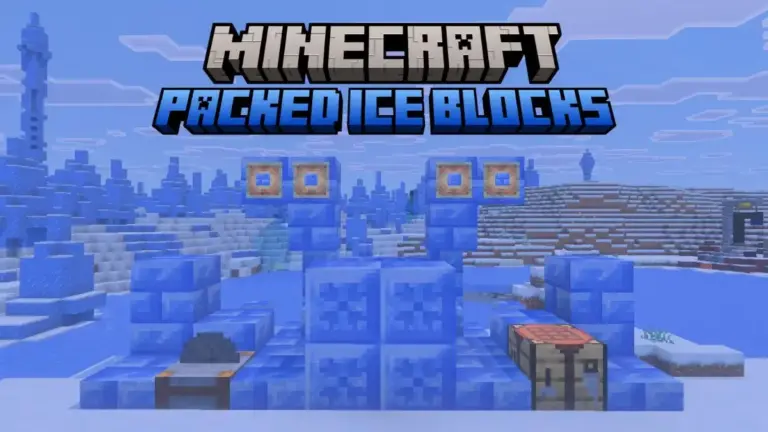
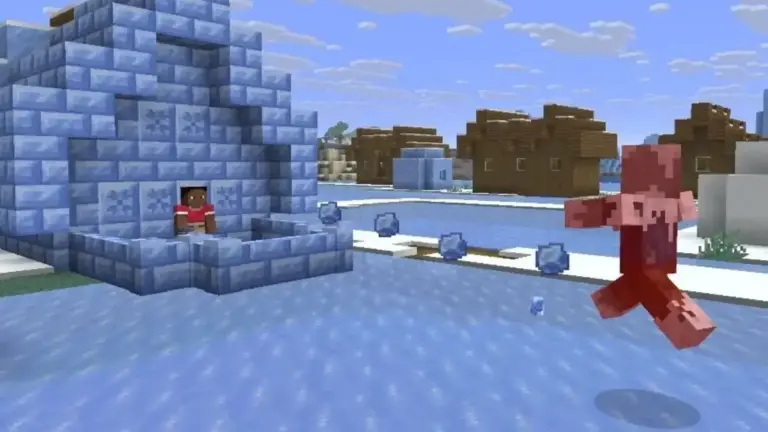
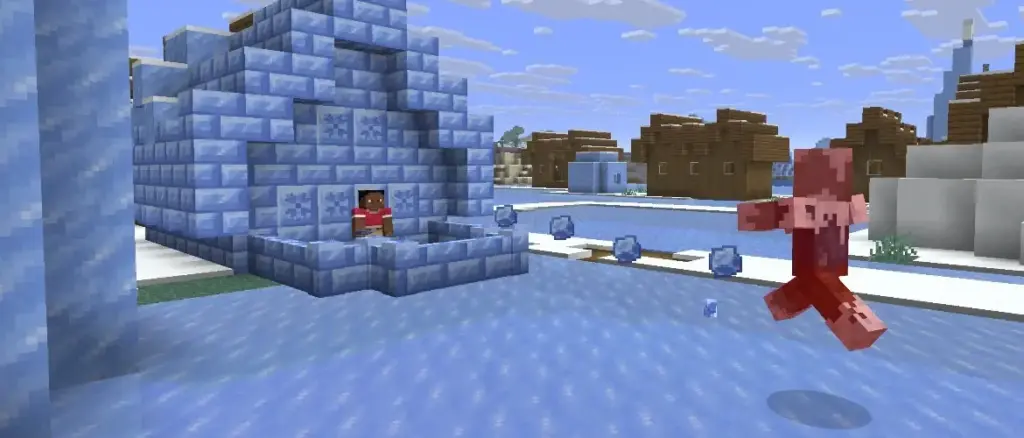
You can read more about what else this build adds, including Packed Ice Bricks, in the Minecraft snapshot roundup.
Tip: Keep your regular release installation separate so you can switch back without touching snapshot files.
Step 5: Launch the snapshot
Select the 26.4-snapshot-5 installation from the launcher’s Play button and let the game load to the title screen.
Step 6: Open Video Settings
From the title screen or in-game, go to Options > Video Settings.
Step 7: Find Prefer DXGI Present
Scroll through the video options list until you see Prefer DXGI Present. This option only shows up on Windows, and it’s off by default.
Step 8: Toggle it on
Switch Prefer DXGI Present to on. Mojang labels this option experimental, meaning it may not do anything noticeable depending on your graphics hardware.
Tip: If prompted, restart the game window so the new presentation path takes effect.
Pro tips
- Update your GPU drivers before testing DXGI, since support depends heavily on hardware.
- Watch for smoother alt-tabbing and better variable refresh rate behavior as rough signs it's working.
- Keep an eye on official snapshot articles for follow-up fixes to this experimental feature.
- Avoid switching to Vulkan graphics in this same build if you plan to resize the window.
- Revert the toggle if you notice stutter instead of improvement, since results vary by setup.
Troubleshooting
| Problem | What to do |
|---|---|
| Prefer DXGI Present has no visible effect | This is expected on unsupported hardware. Update your GPU drivers and try again, or leave the setting off. |
| Game crashes when resizing the window | This is a separate Vulkan backend bug in this snapshot, not a DXGI issue. Switch the Graphics API away from Vulkan or avoid resizing. |
| Windowed mode looks visually distorted | Known issue in the Vulkan backend for this build. Play in fullscreen until a fix ships, or switch away from Vulkan. |
| Snapshot version doesn't show up in the launcher | Confirm you enabled snapshot visibility in the Installations tab before creating a new installation. |
Frequently asked questions
What does DXGI support actually do in Minecraft?
It’s an experimental option that attempts to present frames through DirectX instead of the default path, which can improve frame pacing, IME support, variable refresh rate behavior, and alt-tab speed on supported Windows hardware.
Is this the same as the Perfect Presentation mod?
It’s unconfirmed whether Mojang’s built-in DXGI option uses the same mechanism as the third-party Perfect Presentation mod. That mod is a separate, unofficial community project and not part of this official feature.
Does DXGI support work on Mac or Linux?
No. Prefer DXGI Present only exists on Windows and does not appear in the settings menu on other platforms.
Will enabling DXGI break my existing worlds?
The toggle itself is just a rendering setting and reversible in-game, but running any snapshot carries some risk, so back up your worlds beforehand.
Once Snapshot 5 is installed and Prefer DXGI Present is switched on, play a world for a few minutes and watch how the window handles alt-tabbing and refresh rate before deciding whether to keep it enabled.
Sources and further reading
- Minecraft.net — Minecraft 26.4 Snapshot 5
- Modrinth — Perfect Presentation – Minecraft Mod
- MineBBS 我的世界中文论坛 — 更新报告 – Minecraft Java版 26.4 Snapshot 5 发布
- Beebom — Minecraft 26.4 Snapshot 5 Adds Packed Ice Bricks and a New Advancement