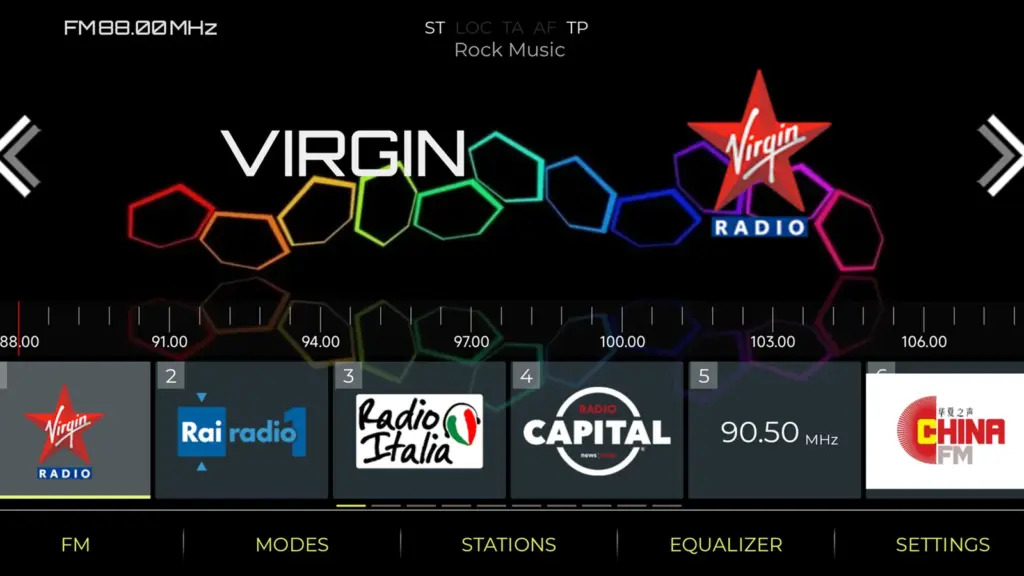
NavRadio+ is a replacement FM/AM radio app for Android car stereos, made by Italian developer Marco Salvetti, known as KoTiX2 on XDA. It runs on FYT head units with UIS7862, UIS7870, UIS8581, SC9853i and SC9863A chips, on DUDU head units with DuduOS, and on TopWay, MTC and several other platforms. It uses the head unit’s own radio tuner, so it doesn’t need the internet. What it changes is everything around the tuner: station logos, three layouts, themes, better RDS and alternative frequency handling, widgets and steering wheel controls.
This guide covers the latest version, NavRadio+ 4.20 from October 18, 2026: which head units it supports, what the free version does and what Premium adds, the official downloads (Google Play, the free APK for head units without the Play Store and the RadioProxy helper for FYT units) and how to install and set it up. We checked every link on October 26, 2026.
What’s new (October 2026)
- NavRadio+ 4.20 came out on Google Play on October 18, 2026. It shows progress while it downloads, extracts and syncs logo packs, checks for newer logo packs and fixes audio focus on MT8163 units.
- NavRadio+ has been free since June 7, 2026. Premium is a one-time in-app purchase ($5.99 in the US, €5.99 in Europe). If you bought the old paid app, Premium is already unlocked.
- RadioProxy 1.5 (October 24, 2026) fixes a bug where version 1.4 kept jumping to Bluetooth.
- Online radio is coming. The developer started work on internet radio stations in late October 2026 and hopes to release it by Christmas.
| App | NavRadio+, an FM/AM radio tuner app for Android car radios |
| Developer | Marco Salvetti (KoTiX2 on XDA), published as Navimods, Italy |
| Latest version | 4.20 on Google Play (October 18, 2026) |
| Price | Free; Premium is $5.99, paid once (no subscription) |
| Works on | FYT and DuduOS (UIS7862, UIS7870, UIS8581, SC9853i), TopWay, MTC (PX3, PX5, PX6, PX30) and more; see the full list |
| Needs | Android 7.1 or newer, on a supported head unit |
| Internet | Not needed for the radio; only for logo downloads and the Premium license check |
| Google Play | 10,000+ downloads, rated 4.3 from 958 reviews |
Which download do you need?
| Your head unit | What to get |
|---|---|
| Has the Google Play Store | NavRadio+ from Google Play. It’s free, and you can buy Premium later. |
| Has no Google Play Store | The free NavRadio APK (version 3.60) from the developer’s XDA thread |
| FYT unit, and you want the Radio icon to open NavRadio+ | RadioProxy 1.5 as well |
What Is NavRadio+?
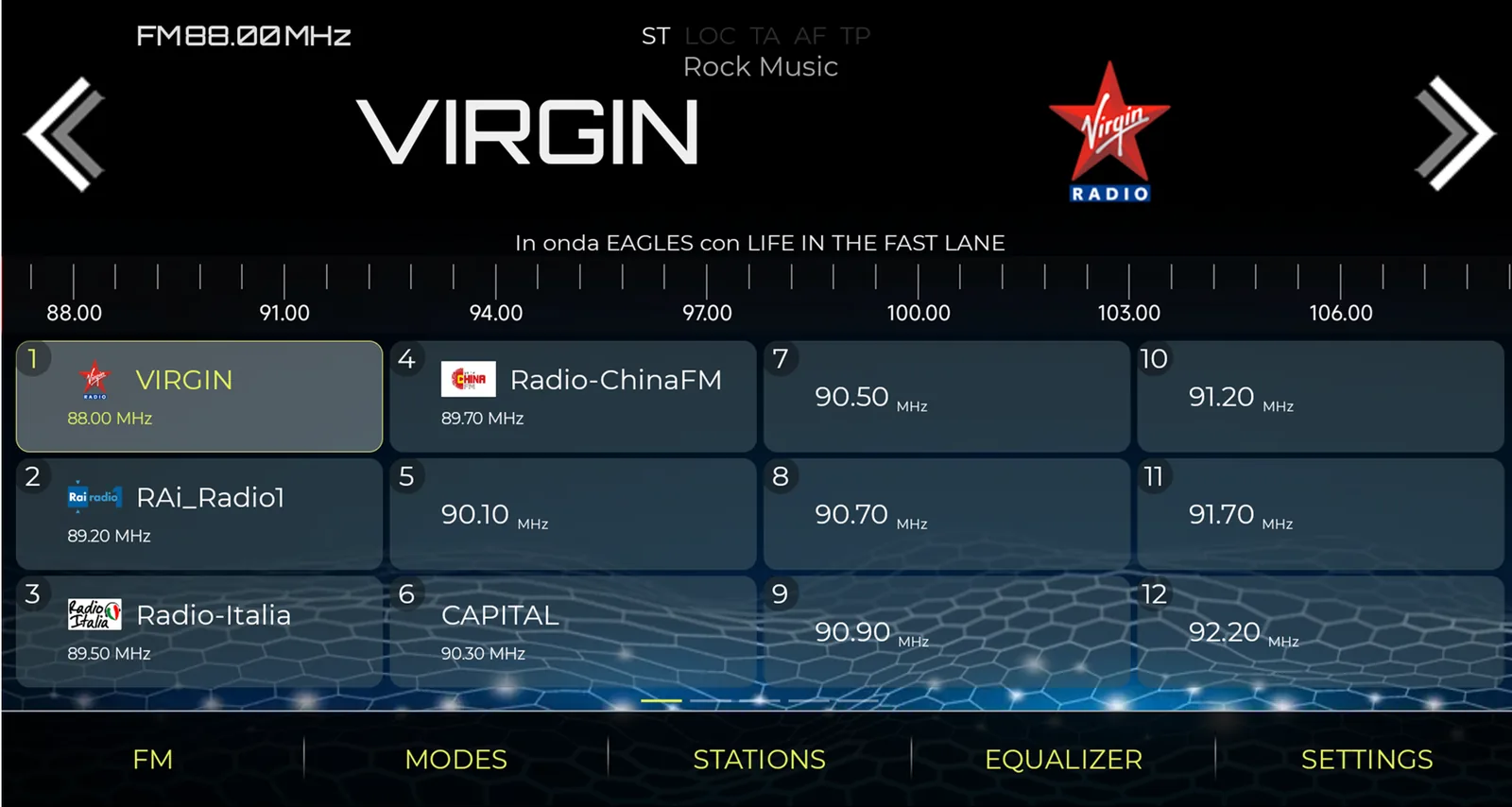
Chinese Android head units come with a basic radio app from the firmware maker. NavRadio+ is a different screen for the same radio: it talks to the head unit’s built-in tuner, so it picks up the same stations as the stock app, and adds what the stock app lacks: station logos for more than 100 countries, a grid, list or carousel layout, themes and fonts, a full-screen mode with a clock and speedometer, automatic alternative frequencies, home screen widgets and station lists you can back up and restore. Some of these need Premium.
Marco first released NavRadio+ on Google Play in January 2020, for head units with Rockchip PX3 to PX6, Allwinner T3/T8 and Intel TS9 boards. In January 2022 he ported it to FYT head units, starting with his own Isudar V72 with a UIS7862 chip, and announced it in his XDA thread, “[Dev] New NavRadio+ ported to UIS7862, UIS7870 and other FYT devices”. The thread now runs to more than 160 pages, and it’s where he posts new versions and fixes. Since then, NavRadio+ has added more TopWay models, DuduOS, NWD, ROCO and MediaTek head units.
There are three apps, all from the same developer:
- NavRadio+ (package
com.navimods.radio): the main app. Free since June 2026, with Premium as an in-app purchase. It’s only on Google Play. - NavRadio BASIC, also called NavRadio FREE (package
com.navimods.radio_free): the older free app, with fewer layout options and no station logos. It’s at version 3.65 on Google Play, and the developer shares version 3.60 as an APK in his XDA thread. - RadioProxy: a small helper for FYT units. It takes the place of the stock Radio app, so the Radio icon opens NavRadio+.
Supported Head Units: FYT, DuduOS, TopWay, MTC and More
NavRadio+ works only on the head units it was written for, because it talks to each firmware’s radio service. This is the list on Google Play (October 2026):
- FYT and DuduOS firmware with UIS7870, UIS7862, UIS8581 or SC9853i chips
- TopWay firmware with Allwinner, SC9853 (TS9), UIS7862 (TS10), UIS8581A (TS18) or UIS7870 (TS20) chips
- MTC firmware with PX3, PX5, PX6 or PX30 chips
- S32F0 chips (a rooted ROM is recommended)
- ROCO K706/QF01-3-5 firmware
- Models K2001, K2401, K2501, K4811 and QS G5
- ZA001 and ZE001 firmware
- MediaTek MT8163, MTK8259 and MTK8667 units, and SPD G298 models
On FYT units, the developer’s XDA thread also lists the SC9863A chip, and the app works on several FYT MCU types (FYT 1, 31, 51 and others). It does not work on older FYT units with Intel Sofia chips. Version 4.15 (September 2026) fixed the detection of FYT units with the UIS7865 chip, the one in the DUDU5S.
The chip alone doesn’t decide it: the firmware has to be on the list too. For example, the developer’s RadioProxy helper is for FYT firmware only, even on other units with the same Unisoc chip.
DUDU head units with DuduOS
DuduOS runs on DuduAuto’s DUDU7, DUDU6, DUDU5, DUDU4 and DUDU3 head units (see our DuduOS 3.7 download and install guide). NavRadio+ added the DUDU7 and other UIS7870 units in version 3.40 (“Thx DUDU Team!!”, the changelog says), and later versions added DuduOS-specific fixes:
- 3.42: NavRadio+ reads the RDS PI codes on DuduOS, which makes logo assignment faster and lets it merge alternative frequencies automatically.
- 3.43: fixed the DuduOS equalizer button and, partly, the buttons on the DUDU Launcher widget.
- 3.46: better detection of UIS7870 units, and no RadioProxy message on them.
- 3.58: settings backup and restore work on the DUDU7 when you use the Download folder.
How to check if your head unit is supported
Install the free version first. NavRadio+ tells you at first launch if your car radio isn’t supported, so you can test it before you pay for anything. If your unit isn’t on the list, the developer asks for a photo of the system information screen that shows the MCU number; his email address is on the app’s Google Play page.
NavRadio+ Free vs Premium
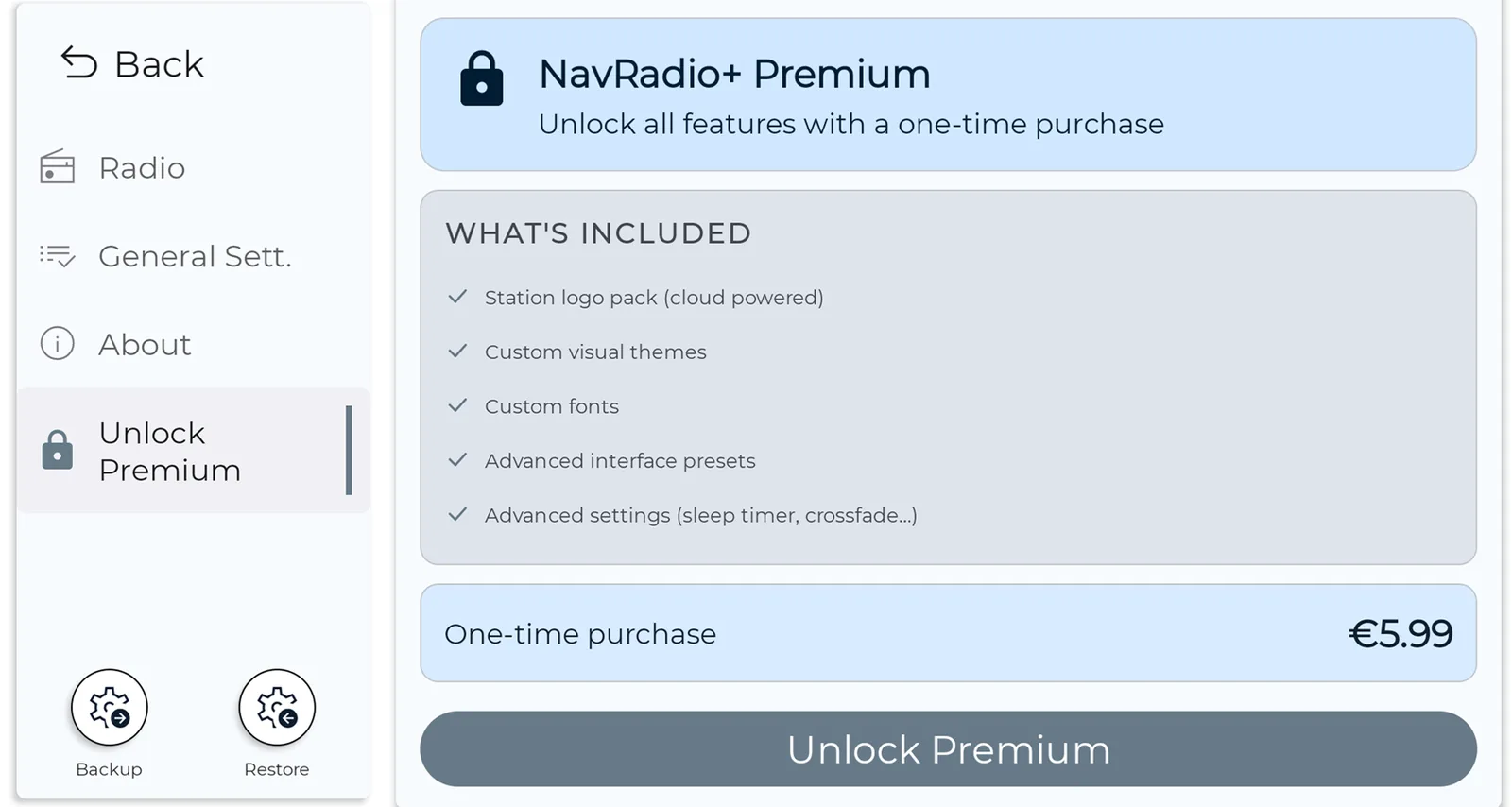
NavRadio+ has been free to install since June 7, 2026. The free version is a complete radio. Premium is a one-time in-app purchase, $5.99 in the US and €5.99 in Europe, that unlocks the customization and logo features. It isn’t a subscription.
| Feature | Free | Premium |
|---|---|---|
| Bands | FM, AM and favourites | FM1, FM2, FM3, AM and favourites |
| Layout | 2×3 grid | Vertical list, grid (up to 6×6) or carousel |
| RDS and alternative frequencies | Essential RDS, manual alternative frequencies | Plus automatic merging of alternative frequencies |
| Station logos | No logo packs | Logo packs for 100+ countries, your own logo files, automatic assignment |
| Look | Default look | Color themes, about 30 backgrounds, fonts, day/night mode |
| Widgets | 2 home screen widgets | Plus speedometer, clock and floating widgets |
| Full screen, backups, station lists | Yes | Yes |
| Extras | No | App language, custom Next/Previous buttons, equalizer app, media notification options |
- Already paid? If you bought NavRadio+ before it went free, Premium is recognized at first launch. If it isn’t, use Restore Purchase in the app settings.
- Bought it on Huawei AppGallery? NavRadio+ is no longer on AppGallery; it’s only on Google Play. The developer gives AppGallery buyers a redeem code for Premium when they email him proof of purchase.
- Keep it online now and then. According to the developer, version 4 checks the Premium license every 20 days, so connect the head unit to the internet from time to time, for example through your phone’s hotspot.
NavRadio+ Download (Google Play, APK and RadioProxy)
If your head unit has the Play Store, install NavRadio+ from Google Play: it’s the newest version, and it updates itself. These are the official downloads:
NavRadio+
NavRadio FREE APK (NavRadio BASIC)

RadioProxy for FYT
The APK links are the developer’s own Dropbox and Google Drive files from his XDA thread. Google Drive shows a virus scan warning for APK files before the download starts. If you install the APK and later get the Play Store, switch to NavRadio+ from Google Play, which has the newer features.
Check the APK files (SHA-256)
NavRadio_FREE_v3.60.apk  8,538,423 bytes
56699021af5c2fb65af6ae87da875534b8dd082db43000857b88cd9a8cfd1fb4
Package com.navimods.radio_free, version 3.60, Android 7.1+

RadioProxyFYT_1.5.apk  851,409 bytes
c4994bd6fbdf9264297668b4f3182dad71c883b7fb4ff4da585f99fa32a0d3e3
Package com.syu.radio, version 1.5
NavRadio FREE is signed by Marco Salvetti (Navimods, Varese, Italy). RadioProxy is signed with the Android test key, the same key as FYT’s stock Radio app, which is why it can install as an update to it.
How to Install NavRadio+ on an FYT Head Unit
Install from Google Play
- On the head unit, open the Play Store and search for NavRadio+ by Navimods, or open the Google Play link.
- Tap Install, then Open.
- If your unit isn’t supported, NavRadio+ says so at first launch. Uninstall it and check the list of supported head units.
- Allow the permissions it asks for; for example, location is for the GPS speedometer and “display over other apps” is for the floating widget.
- Set up the radio as described in First setup.
Install the APK (head units without the Play Store)
- On a computer or phone, download
NavRadio_FREE_v3.60.apkfrom the downloads above. - Copy it to a USB stick or SD card and plug it into the head unit.
- Open the file manager on the head unit, find the APK and tap it.
- If Android asks, allow installs from this source (“Install unknown apps”), then tap Install.
- Open NavRadio_FREE from the app list. To update later, install the newer APK over the old one.
First setup: region, bands and stations
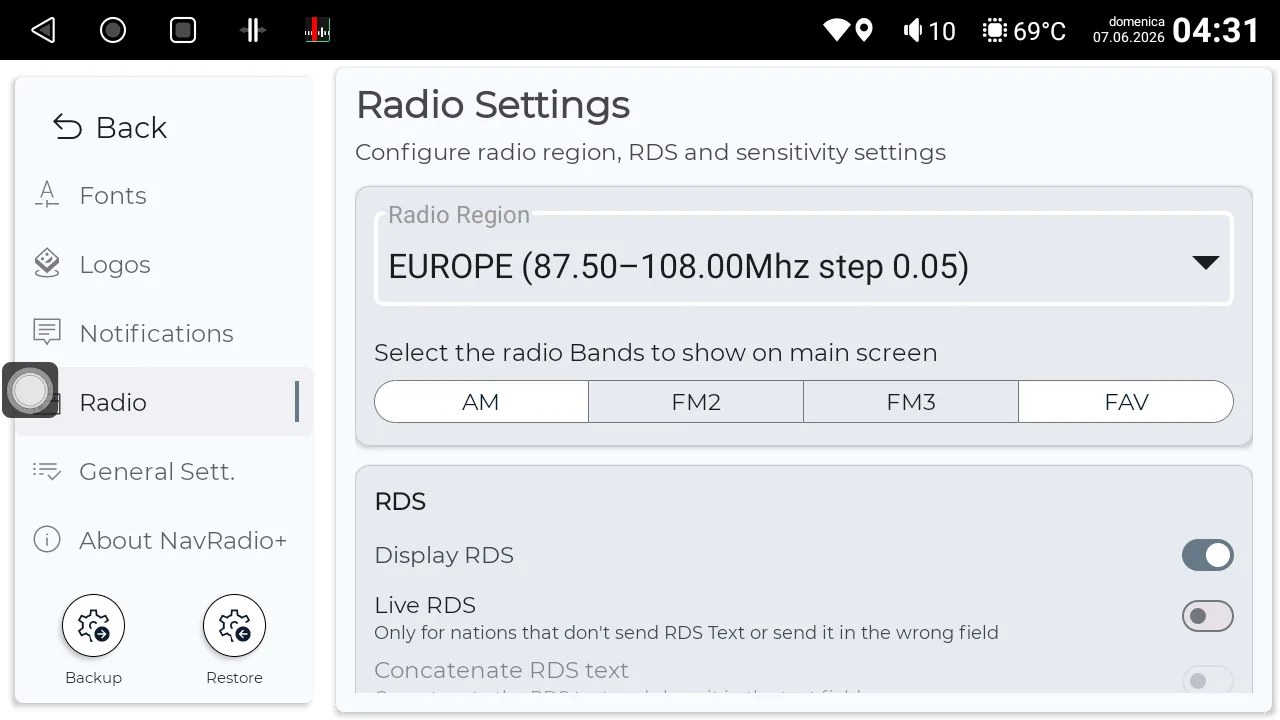
- Open Settings → Radio and pick your radio region, for example Europe (87.50–108.00 MHz, step 0.05).
- Choose which bands appear on the main screen (AM, FM2, FM3 and FAV) and turn on Display RDS.
- Find stations: a long press on the on-screen arrows seeks to the next station. To save one, long-press the station information in the middle of the screen; to change a saved station, long-press its button.
- Back up your settings and stations with the Backup button at the bottom of the settings menu, especially before a firmware update. On Android 12 and newer, NavRadio+ needs a file manager app for backups and station lists; on the DUDU7, save them in the Download folder.
Make the Radio Icon Open NavRadio+ (RadioProxy for FYT)
On FYT units the stock Radio app stays installed, and the Radio icon still opens it. RadioProxy, the developer’s companion app, takes its place: wherever your unit opened the old Radio app, it now opens NavRadio+. Since version 1.2, RadioProxy also reads the RDS ID (PI code) of the station you’re listening to and passes it to NavRadio+, for automatic logos and automatic switching and seeking of alternative frequencies. The developer built it from the source code of Koenig’s MusicProxy.
RadioProxy uses the same package name as FYT’s built-in Radio app (com.syu.radio) and installs as an update to it. That’s why it only works on FYT firmware, and why you remove it with “Delete updates” instead of a normal uninstall.
- If you used the developer’s old FYT Radio Remover/Restorer tool to remove the stock radio app, run the tool again to restore the app first. RadioProxy replaces that tool.
- Download
RadioProxyFYT_1.5.apkfrom the downloads above and install it like any APK. - Tap the Radio icon: NavRadio+ opens. If you have both NavRadio+ and NavRadio FREE installed, RadioProxy opens NavRadio+.
To make RadioProxy open the free version (or another app) instead, create a text file named RadioProxy.cfg in a folder named RadioProxy on the internal storage (/sdcard/RadioProxy/RadioProxy.cfg) with this line:
PackageName=com.navimods.radio_freeTo remove RadioProxy: go to Settings → Device → Applications → RadioProxy, tap the three dots in the top right corner and choose Delete updates. The stock Radio app comes back.
On head units that don’t run FYT firmware, RadioProxy won’t work. There, the physical radio buttons stay tied to the stock app, and the developer says there’s no way around that without a modified firmware.
Station Logos: Download and Automatic Assignment
Station logos are a Premium feature. NavRadio+ has logo packs for more than 100 countries and regions, across Europe, every US state and Canada, Latin America, Asia, Africa, the Middle East, Australia and New Zealand. To set them up:
- In the settings, open Logos and choose your country or region.
- Download the logo pack inside the app. NavRadio+ downloads, extracts and syncs it, and version 4.20 shows the progress.
- NavRadio+ assigns logos to your saved stations automatically.
- To change a logo, long-press the station button to edit it, then pick a logo in the Choose Logo screen, which has a search box.
Automatic assignment works in two ways. The faster, more precise one uses the station’s RDS PI code, which needs logo files named with PI codes; the developer has renamed them for some countries. Otherwise NavRadio+ compares the RDS station name with the logo names: when there’s one exact match it assigns it, and when there are several it asks you to choose. In the US and Canada, it matches the frequency in the logo file name.
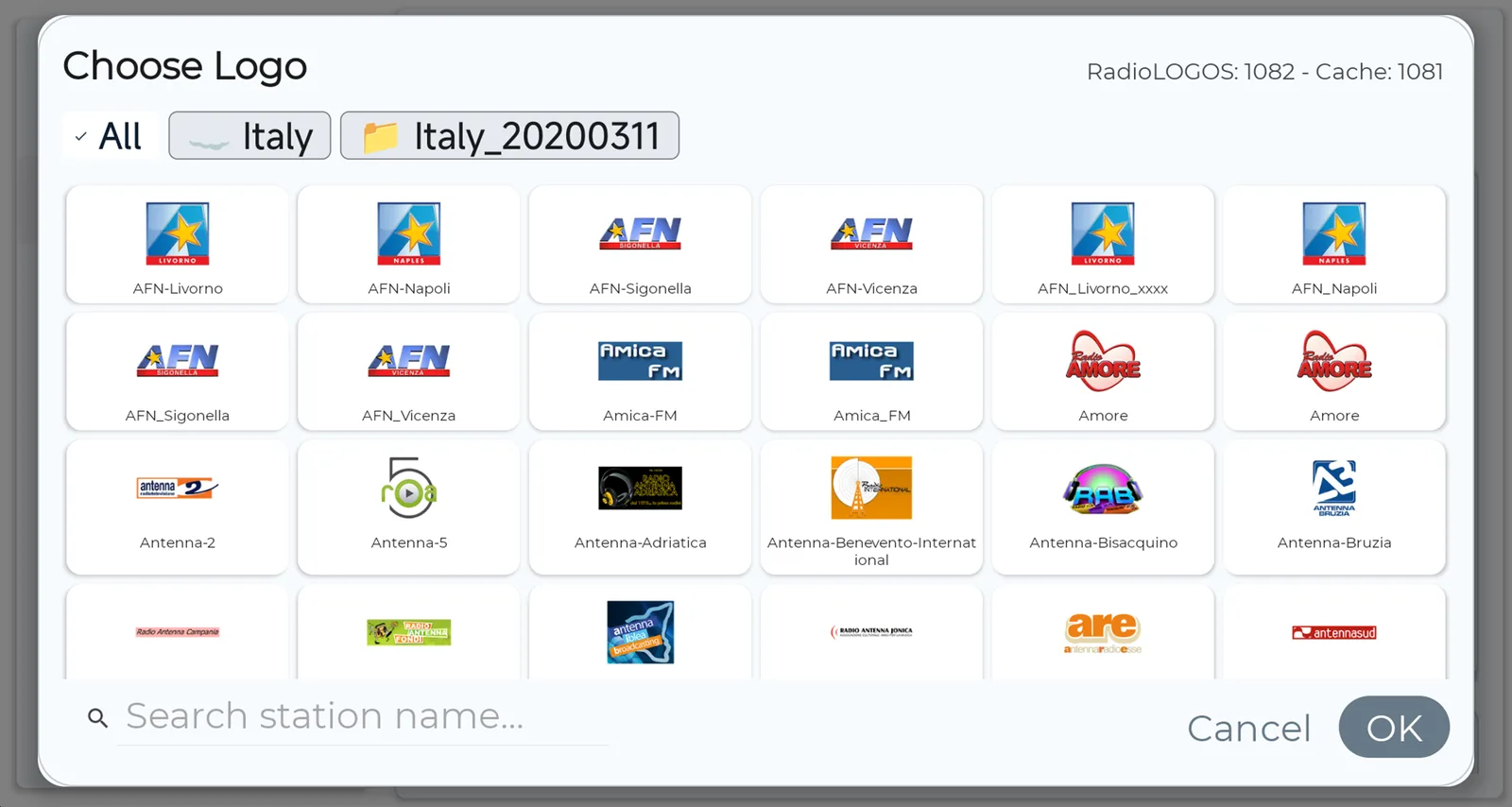
Your own logos: put image files in the RadioLOGOS folder on the internal storage and choose them in the station editor. Since version 4.0, the logos you download in the app are stored separately, hidden and encrypted, and only your own logos go in RadioLOGOS. A station list saved with an older version may point to the old logo files, so you may need to assign those logos again.
Layouts, Themes and Widgets
The free version shows your stations as a 2×3 grid. Premium adds more ways to show them:
- Grid: any number of rows and columns up to 6×6, plus an experimental automatic mode.
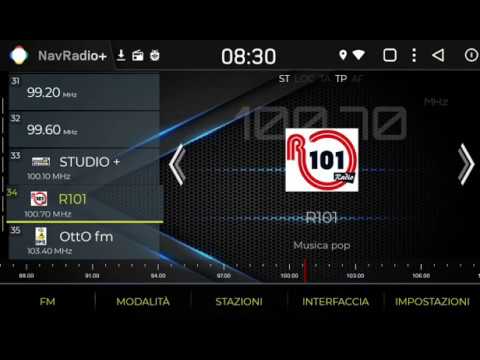
- Vertical list: the station list on the left or the right of the screen.
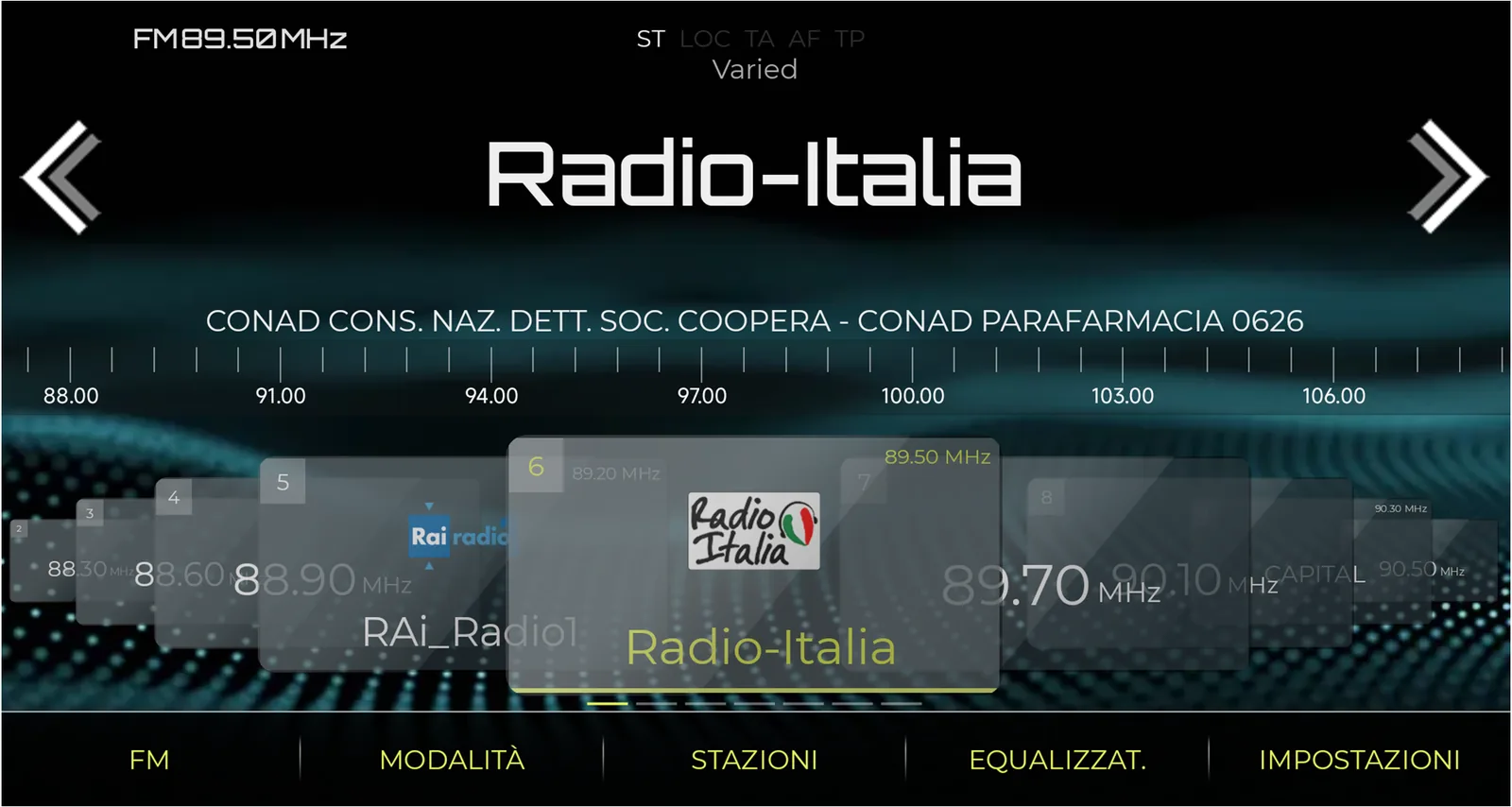
- Carousel: station logos that scroll automatically or by hand.
- Full screen (free and Premium): double-tap the station information, or let it switch on after a set time. Premium adds a clock, a GPS speedometer and the option to hide the status bar.
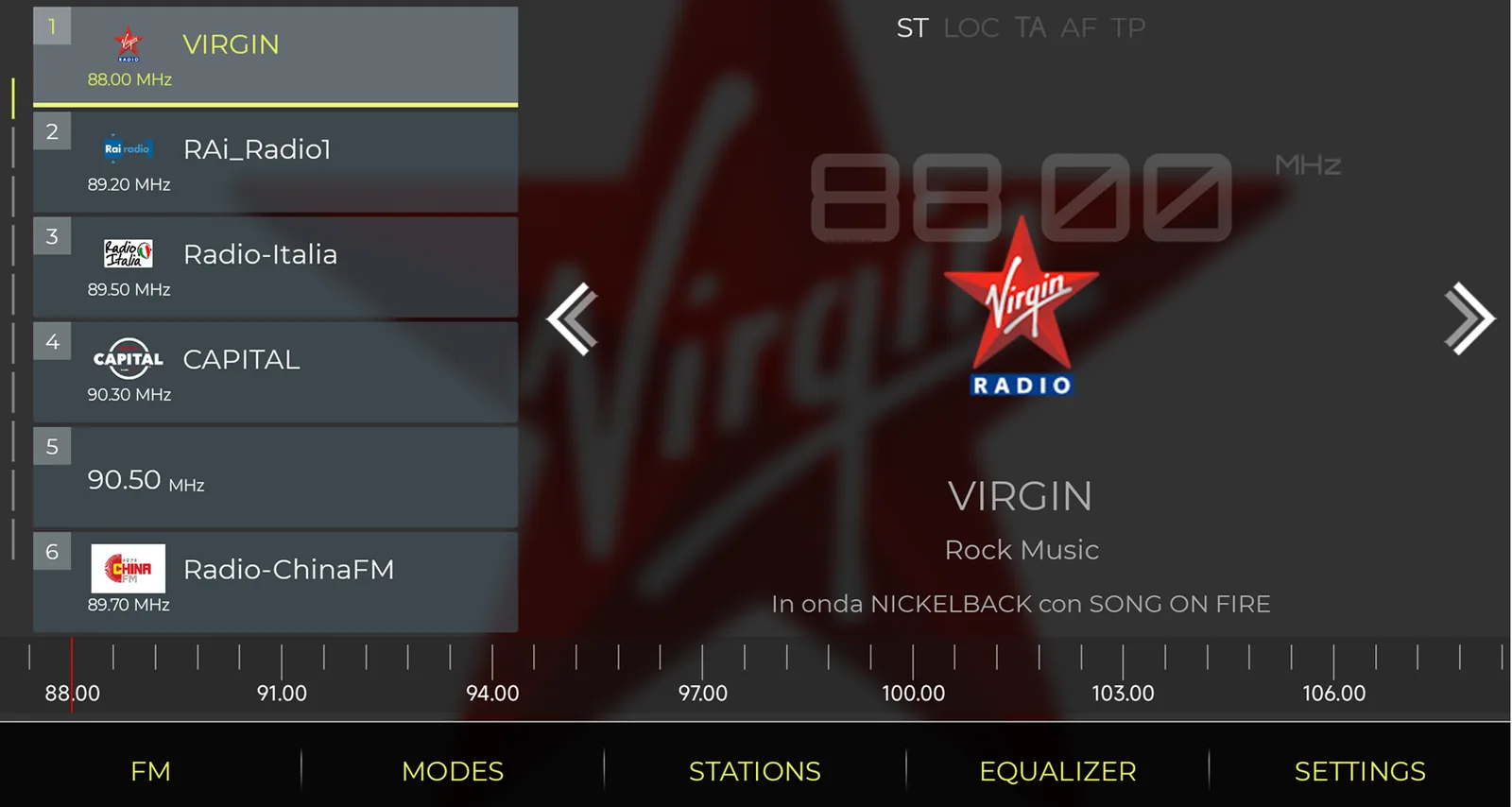
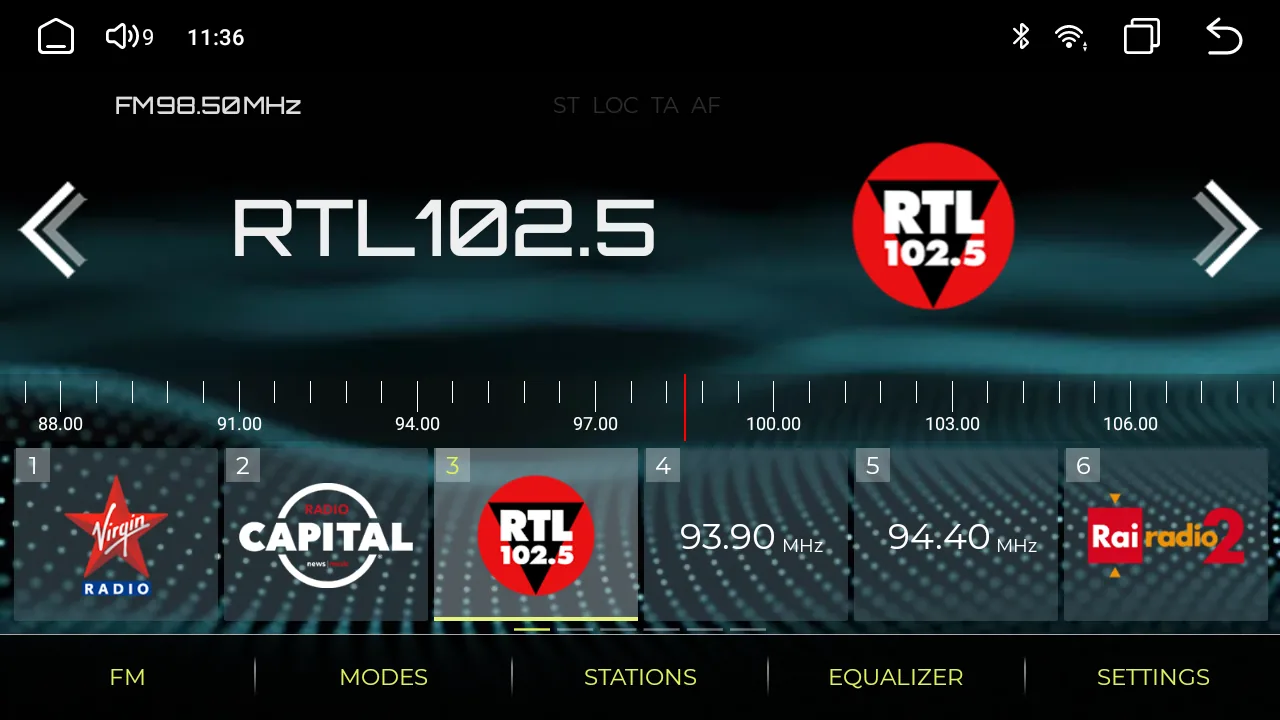
For the look, Premium has color themes and a color tool, about 30 preset backgrounds (or the system wallpaper, a solid color, your own image or the station’s logo), a choice of fonts and text sizes, and day/night mode: manual, timed or automatic. On MTC units, automatic mode follows the car’s lights.
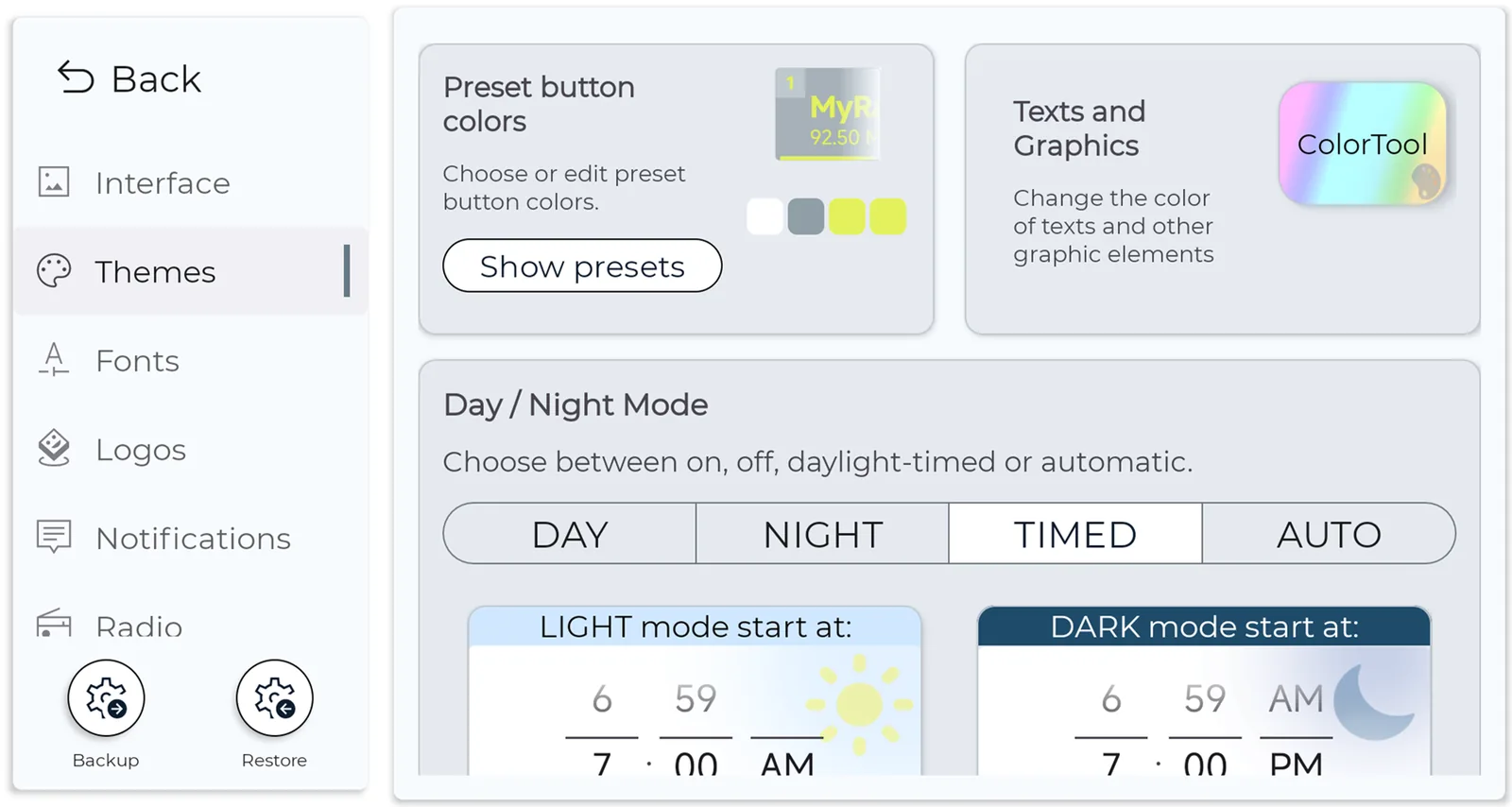
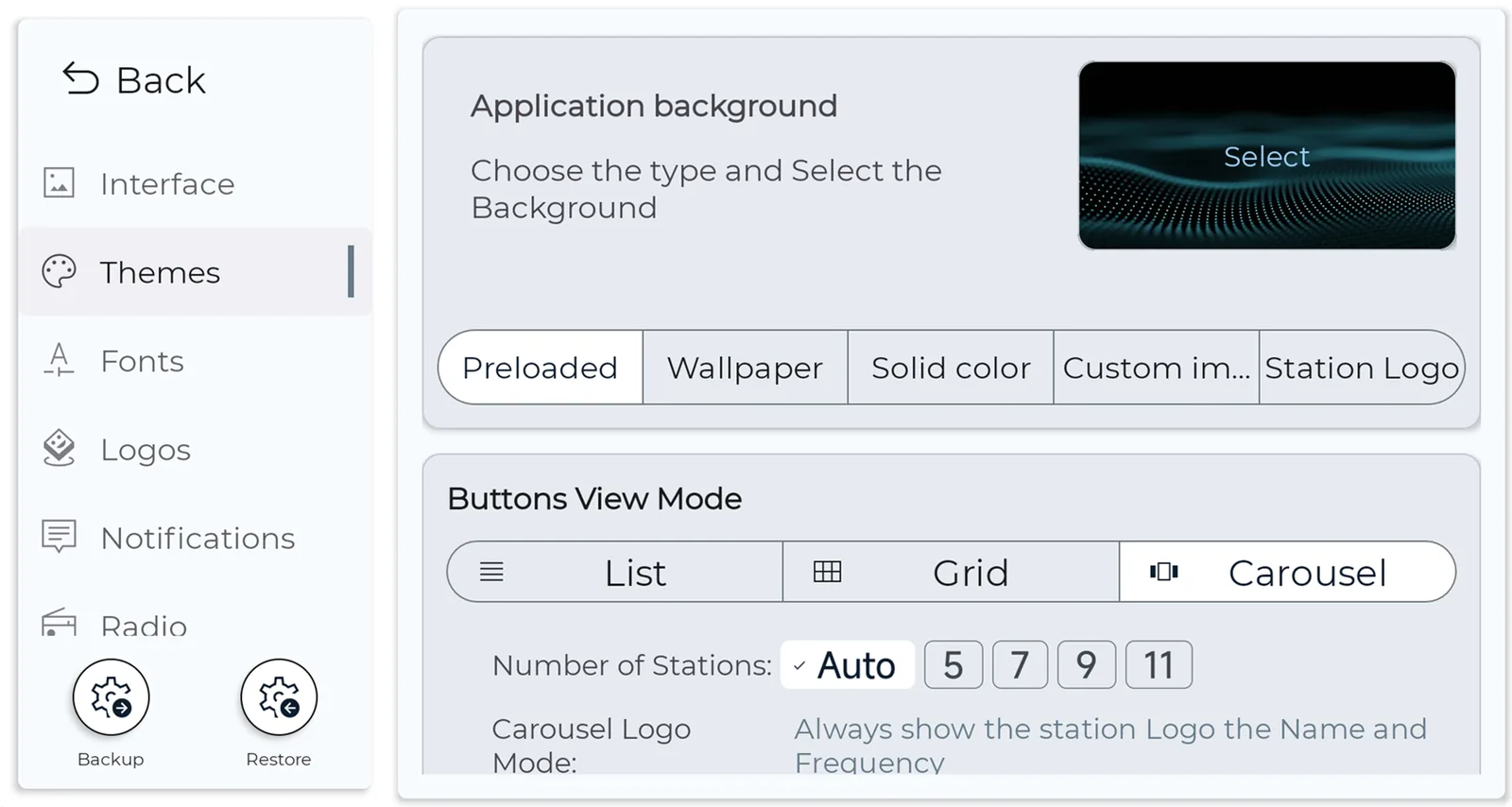
NavRadio+ also works as a media player on the head unit: launchers such as Agama, FCC and CarLauncher show the station and RDS details, and the free version has two home screen widgets. It supports 800×480, 1024×600, 1280×720 and 1920×1080 screens, as well as split screen and vertical screens, and it can start automatically when the head unit boots.
Gestures, Steering Wheel Buttons and Reception Tips
Touch gestures
- Double-tap the station information: full screen on or off.
- Long-press the station information: add the station, or jump to its button if it’s already saved.
- Long-press a station button: edit its name, frequency, logo, position or favourite setting.
- Tap the on-screen arrows: a small frequency step. Long-press them: seek to the next station. In full screen, the arrows switch to the next or previous saved station.
- Double-tap a station button: switch between the alternative frequencies stored for it.
- Favourites (FAV): one list with your FM and AM favourites. Add stations from the FM or AM list; deleting the FAV list only removes the favourite marks.
Steering wheel buttons
The Next and Previous buttons on the steering wheel work like the full-screen arrows: they switch to the next or previous saved station. Set the buttons up in the head unit’s car settings app. With Premium, you can change what Next and Previous do.
Reception and alternative frequencies
NavRadio+ receives stations exactly like the stock radio app, because it uses the same tuner. To get more stations or fewer jumps:
- Use the LOC/DX switch if your unit has one.
- On FYT units, adjust the sensitivity of the station search. The developer found that about 30 dB for “Auto Search Stop” in the factory settings works best for alternative frequencies.
- NavRadio+ remembers every alternative frequency it receives for a station, and it can merge stations found on several frequencies into one button (Settings → Radio). If it keeps jumping between frequencies when the signal is weak, turn AF off.
What’s New in NavRadio+ 4.20 (Version History)
- 4.20 (October 18, 2026): progress counts while logos download, extract and sync; a version check for logo packs, with a message when a new one is out; fixed audio focus on MT8163 units.
- 4.15 (September 6, 2026): first support for MediaTek MTK8259 and MTK8667 units (such as Junsun), ZE001 models and QS/G5 NWD models; fixed detection of FYT 7865 units; on-screen arrows for small steps; fixed AM on MT8163; a redesigned settings and about screen; a first user guide in the app; faster startup.
- 4.05 (July 6, 2026): fixed logo downloads for several regions and some ColorTools settings, added transparency to the arrows and a NavRadio Service switch in General Settings.
- 4.0 (June 2026): NavRadio+ became free, with Premium as an in-app purchase, and Google Play only. Downloaded logos are now stored separately. Version 4.02 followed with fixes for the license check.
- 3.83.5 (May 28, 2026): fixed DNS problems in the license check, free choice of grid rows and columns up to 6×6, fixes for vertical screens and for night mode after a reboot.
- 3.60 (the free XDA version): support for ZA001 models, fixed steering wheel buttons on ROCO K706 models, and the main service is now a media session service.
- 3.40 to 3.58: DUDU7 and UIS7870 support (3.40), Android 14 and better DuduOS detection (3.41), RDS PI codes on DuduOS (3.42), DuduOS equalizer and DUDU Launcher widget fixes (3.43), and backups on the DUDU7 (3.58).
Coming next: online radio. On October 24, 2026, the developer said he had just started working on internet radio stations and hopes to release them as a Christmas gift. For now, NavRadio+ is an FM/AM radio only.
Troubleshooting and FAQs
NavRadio+ says my car radio isn’t supported. What can I do?
Check the list of supported head units: the firmware has to match, not only the chip, and older FYT units with Intel Sofia chips aren’t supported. If you think your unit should work, send the developer a photo of the system information screen with the MCU number.
Premium says the app isn’t licensed
Connect the head unit to the internet, update NavRadio+ from Google Play and tap Restore Purchase in the settings. Version 4 checks the license every 20 days, so it needs the internet now and then. If it still fails, send the developer an email from the app settings.
RadioProxy keeps switching to Bluetooth
That was a problem with RadioProxy 1.4. Install RadioProxy 1.5 (October 24, 2026), which fixed it for the user who reported it.
The radio button still opens the old radio app
On FYT units, install RadioProxy. On other brands, the physical buttons stay tied to the stock radio app, and only a modified firmware could change that.
My settings or station lists don’t save
On Android 12 and newer, NavRadio+ needs a file manager app to save backups and station lists. On the DUDU7, save them in the Download folder. Keep a backup before every firmware update.
Does NavRadio+ work on DuduOS?
Yes. It supports DuduOS on UIS7870, UIS7862 and UIS8581 units, including the DUDU7 (since version 3.40), and version 4.15 fixed the detection of UIS7865 units such as the DUDU5S. See our DuduOS 3.7 guide for the firmware itself.
Does NavRadio+ need the internet?
Not for the radio. It needs the internet only to download logo packs and, with Premium, for the license check every 20 days. Online radio stations are planned for late 2026.
Does NavRadio+ support DAB+?
No. NavRadio+ is an FM and AM radio app.
Will I get better reception than with the stock app?
No, because it uses the same tuner. You can still improve things with the LOC/DX switch, the search sensitivity and the AF setting, as described in the reception tips.
Is NavRadio+ still on Huawei AppGallery?
No. Since June 2026, NavRadio+ is only on Google Play. If you bought it on AppGallery, email the developer your proof of purchase to get a redeem code for Premium.
Where can I report a bug or ask for my head unit?
In the developer’s XDA thread, or by email from the NavRadio+ settings.
Have a DUDU head unit? Our DuduOS 3.7 download and install guide covers the firmware for the DUDU7, DUDU5/6 and DUDU3/4, and DUDU Launcher for other Android head units.