Quick answer
You can run Docker on Android without root by installing the Podroid app, starting its built-in Alpine Linux VM, then pulling lightweight containers such as FreshRSS or Calibre-web that fit a phone's limited storage and battery.
Android’s kernel was never built with Docker in mind. It lacks the namespaces and cgroups that the container runtime needs, so Docker cannot run on a stock phone the way it runs on a laptop or a home server.
The workaround is to boot a real Linux virtual machine on the phone first, then run Docker inside it. You will set up that VM with the Podroid app, then try a handful of containers that are small enough to make sense on a phone instead of a rack server.
Before you start
- Difficulty Moderate
- Time needed 45 minutes
- Works on ARM64 Android 8+ (Podroid); rooted ARM64 devices for the native Termux path
What you'll need
- An ARM64 Android phone running Android 8 or later
- About 200 MB free for the app plus 2–64 GB for the VM disk
- The Podroid APK from its GitHub releases page
- A file manager or browser allowed to install unknown apps
Important
- Rooting your phone for the native Termux path voids your warranty and raises the risk of malware running with elevated privileges.
- Back up anything important before unlocking a bootloader or flashing a custom kernel.
- Running a VM continuously will drain your battery faster than normal phone use.
Install Podroid to Get a Root-Free Linux VM
Podroid boots a real Alpine Linux virtual machine on stock Android, which is what makes every other tip in this list possible without rooting your phone.
Step 1: Allow installs from your browser or file manager
Go to Settings > Apps > Special access > Install unknown apps and turn on the toggle for whichever app you use to download files.
Step 2: Download and install the Podroid APK
Grab the latest release from the Podroid GitHub page and install it like any sideloaded app.
Tip: Podroid only works on arm64 devices, so skip this on an x86 emulator or an older 32-bit phone.
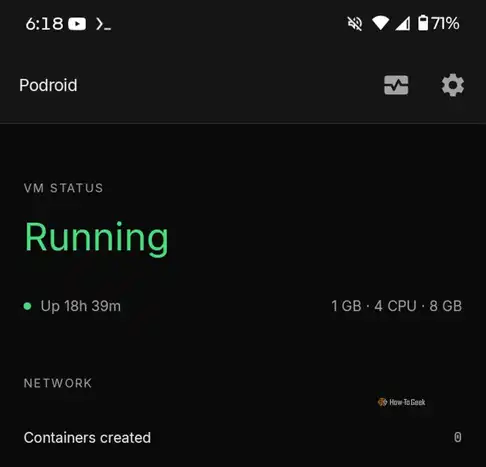
Step 3: Start the VM and open the terminal
Launch Podroid and tap Start VM. Wait until the screen shows Ready! in large green letters, then open the in-app terminal.
Run FreshRSS to Keep Up with News Feeds
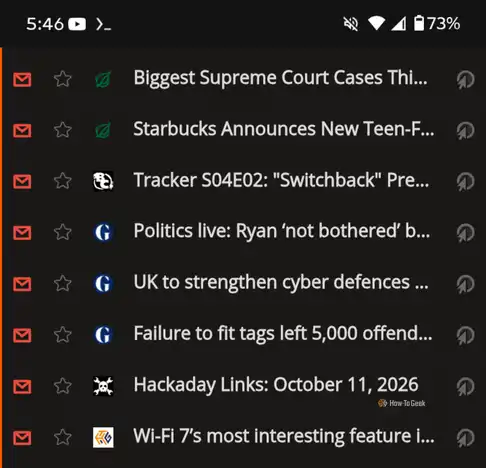
FreshRSS is light enough to sit comfortably on a phone and gives you a private RSS reader you control.
Step 1: Pull and start the FreshRSS container
In the Podroid terminal, run docker run -d -p 8080:80 freshrss/freshrss to download and start the container.
Step 2: Forward the port and open it in your browser
Run podroid-forward add 8080 8080 tcp, then open http://<phone-ip>:8080 in your phone’s browser to finish the FreshRSS setup wizard.
Host Your Ebook Library with Calibre-web
Calibre-web turns a folder of ebooks into a browsable, searchable library you can reach from any device on your network.
Step 1: Pull and run Calibre-web
Run docker run -d -p 8083:8083 -v calibre-config:/config -v calibre-books:/books linuxserver/calibre-web to start the container with persistent storage.
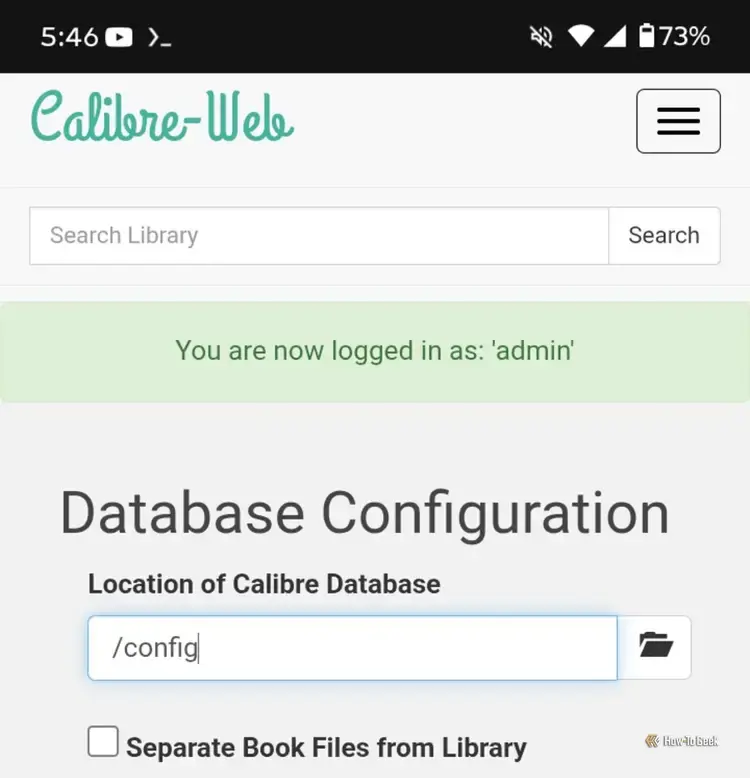
Step 2: Point it at your book database
Open the Calibre-web setup page in your browser, then enter /config as the location of your Calibre database when prompted.
Edit Images and Video with Omni-Tools
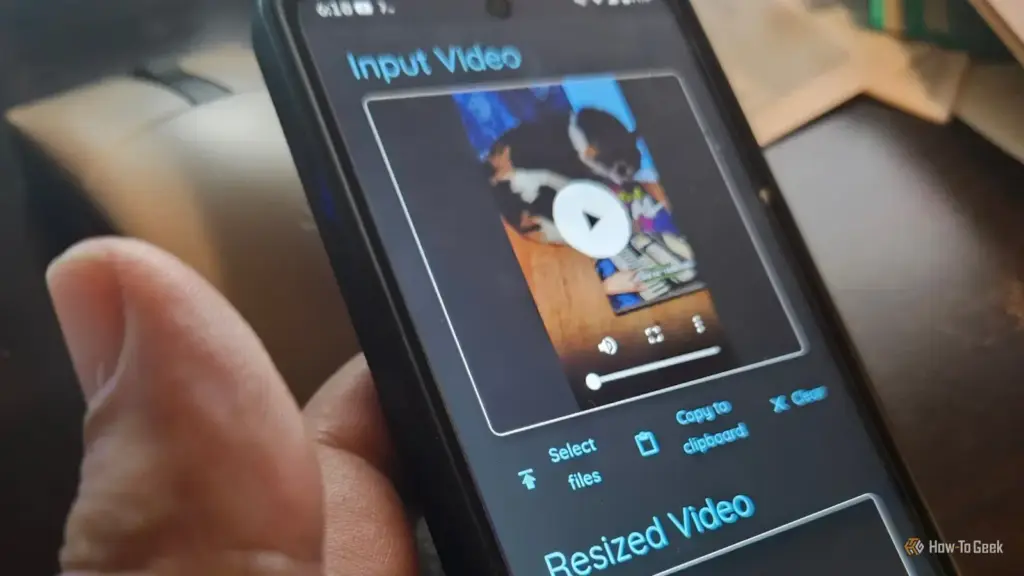
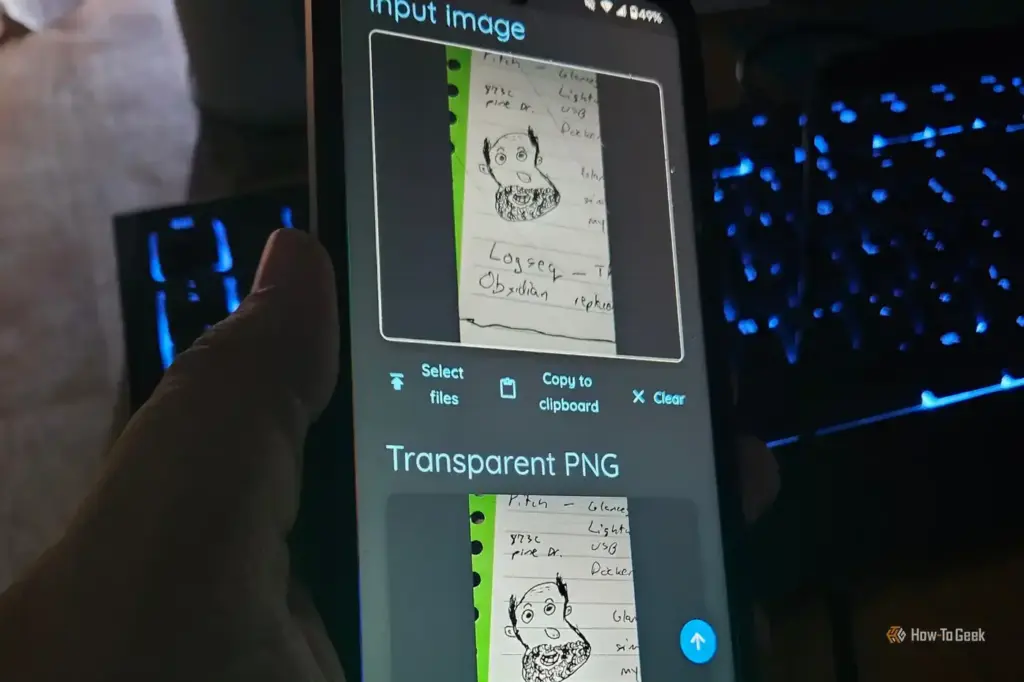
Omni-Tools bundles a set of quick conversion and editing utilities that work well for small, on-the-go jobs.
Step 1: Pull and run Omni-Tools
Run docker run -d -p 8081:8080 iib0011/omni-tools, then forward port 8081 with podroid-forward add 8081 8081 tcp.
Step 2: Open it in your phone's browser
Visit http://<phone-ip>:8081 to crop images, trim clips or convert files straight from your phone.
Convert Files on the Go with BentoPDF or ConvertX
Both containers handle common document and file conversions without needing a desktop computer nearby.
Step 1: Run either conversion container
Use docker run -d -p 8082:80 bentopdf/bentopdf for PDF tools, or swap in a ConvertX image the same way if you need broader file-format support.
Step 2: Forward the port and test it
Add a forwarding rule for the port you chose, then open the container’s address in your browser to confirm the conversion tool loads.
Expose Any Container to Your Phone and LAN
Port forwarding is what makes a container inside the VM reachable from your phone’s browser or another device on the same network.
Step 1: Add a forwarding rule
Run podroid-forward add <host-port> <container-port> tcp for each container you want reachable outside the VM.
Step 2: Confirm it from outside the VM
Run curl http://<phone-ip>:<host-port> from a laptop on the same Wi-Fi network to check the container responds.
Tip: Run podroid-forward clean if you need to remove every forwarding rule at once.
Enable SSH to Manage Containers from a Laptop
SSH access lets you type commands on a real keyboard instead of Podroid’s on-screen terminal.
Step 1: Turn on SSH during setup
Enable SSH in the Podroid setup wizard, or later under Settings if you skipped it the first time.
Step 2: Connect from your computer
Run ssh root@<phone-ip> -p 9922 from a laptop on the same network, using podroid as the password unless you changed it.
Stop Android From Killing the VM in the Background
Android’s battery optimization will shut down the VM’s background process after the screen stays off for a while unless you tell it not to.
Step 1: Exempt Podroid from battery optimization
Go to Settings > Apps > Podroid > Battery and choose Unrestricted or the equivalent option for your phone’s skin.
Tip: Running a VM continuously drains battery noticeably faster, so this suits a phone that stays on charge rather than your daily driver.
Pro tips
- Keep the VM disk small at first and only expand it if a container actually needs more storage.
- Stick to arm64 container images; x86-only images will not run on a phone's processor.
- Dedicated tasks like Pi-hole work poorly without root, so leave core network jobs to a real home server.
Troubleshooting
| Problem | What to do |
|---|---|
| Docker containers won't pull or start inside Termux without Podroid. | Plain Android lacks the cgroups, namespaces and overlay filesystem Docker needs; run a full VM such as Podroid's Alpine environment instead of bare Termux. |
| The VM stops responding after the phone's screen has been off for a while. | Exempt Podroid from battery optimization in your phone's app settings so Android stops killing its background process. |
| A container that depends on swap fails to start. | Many Android kernels do not support swapon for regular files, so avoid containers or configs that assume swap is available. |
| runc fails on an aarch64 device even though the VM is running. | Install a prebuilt runc package from a third-party repository instead of compiling it yourself. |
Frequently asked questions
Do I need to root my phone to run Docker on Android?
No. Podroid boots a full Linux VM without root, which is enough to run Docker, Podman or LXC containers. Rooting is only needed for the native Termux path, which is faster but riskier.
Which containers actually make sense on a phone?
Lightweight ones such as FreshRSS, Calibre-web, Omni-Tools, BentoPDF and ConvertX fit a phone’s limited storage and battery far better than heavier self-hosted apps like Nextcloud or Jellyfin.
Can I run Docker on an iPhone the same way?
No. iOS does not allow the kind of virtualization Podroid relies on, so there is no comparable path for running Linux containers on an iPhone.
How do I reach a container from my browser once it's running?
Add a forwarding rule with podroid-forward add, then open http://<phone-ip>:<port> in your phone’s browser or from another device on the same Wi-Fi network.
Start with Podroid and one small container like FreshRSS before adding more, since each extra service adds to the VM’s storage and battery use. Once that one works, pulling in Calibre-web or Omni-Tools is mostly a matter of repeating the same forwarding steps.
Sources and further reading
- How-To Geek — 3 Docker containers worth running on your Android phone
- Smart Converter — Stop Rooting Your Phone! Podroid Runs Linux Containers Natively
- GitHub — GitHub – ExTV/Podroid: A rootless Android app that boots Alpine Linux: run containers (Pod
- Karim Jedda — Run Docker and Nomad on Android – truly serverless mobile compute