Quick answer
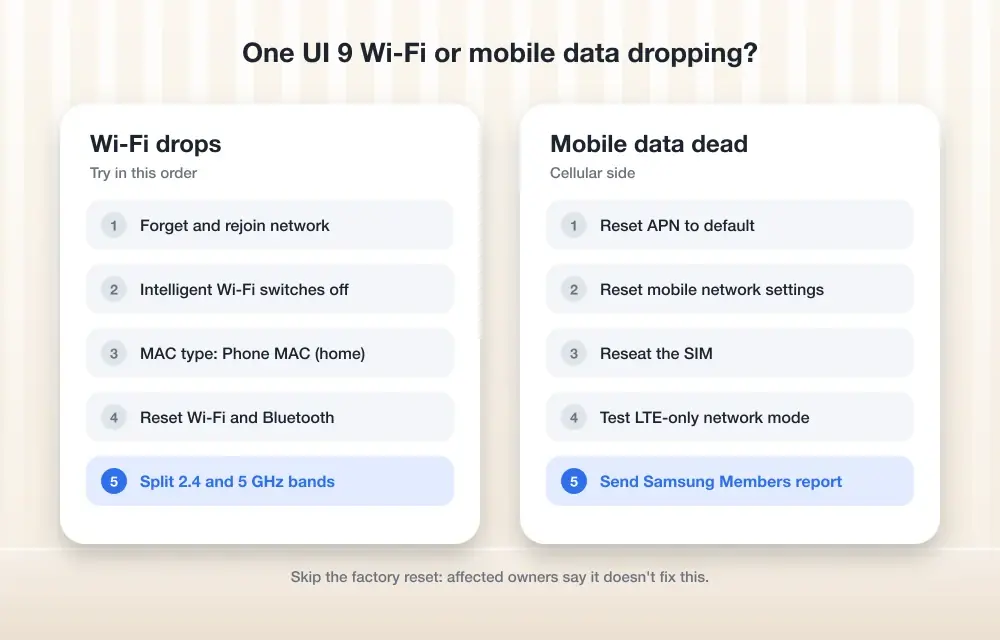
Start with Settings > Connections > Wi-Fi to forget and rejoin your network, then work through Reset Wi-Fi and Bluetooth settings under Settings > General management > Reset if the One UI 9 Wi-Fi or SIM drops keep coming back.
Since the stable One UI 9 rollout picked up pace, Galaxy owners across the S-series, Z Fold lineup, and some A-series phones have reported Wi-Fi that connects fine for an hour or two before failing with a connection error. Others see mobile data stop working, Wi-Fi Calling disappear, or the SIM card go undetected entirely.
Samsung hasn’t confirmed a cause or shipped a patch yet, so this walks through the fixes people have had some luck with, starting with the safest and quickest and ending with the ones you should only try as a last resort.
Before you start
- Difficulty Moderate
- Time needed 25 minutes
- Works on Galaxy phones on One UI 9 (Android 17), including S24+, Z Fold 7, A56, A36
What you'll need
- Your Wi-Fi password, since a network reset will erase saved networks
- A few minutes of downtime on the affected phone
- Samsung Members app installed, for diagnostics and reporting the bug
Important
- Resetting Wi-Fi and Bluetooth settings erases every saved network and paired device, so keep your Wi-Fi password handy first.
- A factory reset wipes all data on the phone and isn't confirmed to fix this bug, so back up everything beforehand.
- Downgrading from One UI 9 isn't officially supported by Samsung and can cause other problems.
Quick restore attempts
These won’t fix the underlying bug, but they bring the connection back fast while you decide what to try next.
Step 1: Restart your phone
Power the phone off completely and turn it back on. Most people see Wi-Fi and data come back right away, though the drop tends to return after a couple of hours.
Tip: Keep this as your go-to while you're out and need a connection back immediately.
Step 2: Toggle Airplane Mode
Swipe down to open Quick Settings and tap Airplane mode on, wait a few seconds, then tap it off again. This forces the phone to re-establish both Wi-Fi and cellular radios without a full restart.
Forget and rejoin the Wi-Fi network
If restarts stop helping after a while, a stale network profile could be the trigger, so clearing it and reconnecting is worth trying next.
Step 1: Open Wi-Fi settings
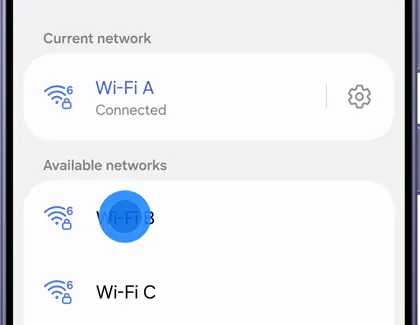
Go to Settings > Connections > Wi-Fi and find the network that’s been dropping.
Step 2: Forget the network
Tap the network, then tap Forget. This removes the saved password and configuration for that network only.
Step 3: Rejoin and test another network
Reconnect to the same network with your password, then also try joining a different Wi-Fi network if one is available. If the second network works fine, the problem is likely tied to that specific router or band rather than the phone overall.
Reset Wi-Fi, Bluetooth, and mobile network settings
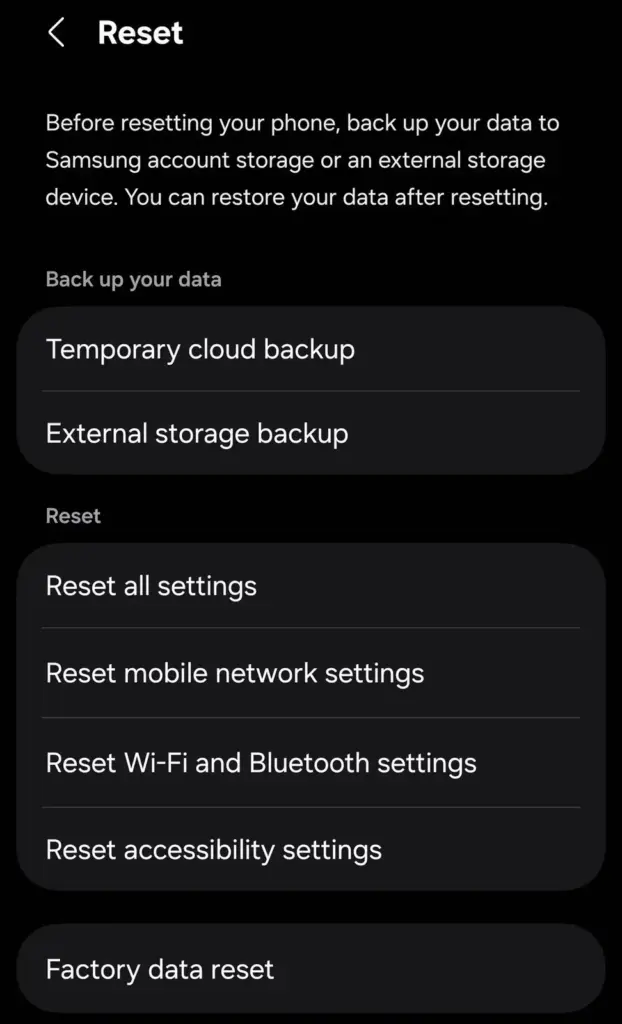
A broader reset clears out more stored configuration than forgetting one network, and several Galaxy owners say it’s resolved their drops, at least for a while.
Step 2: Reset Wi-Fi and Bluetooth settings
Tap Reset Wi-Fi and Bluetooth settings (on some models this is combined with mobile network settings into a single Reset network settings option). Confirm the reset when prompted.
Tip: Have your Wi-Fi password ready, since this erases every saved network and paired Bluetooth device.
Step 3: Reconnect and retest
Rejoin your Wi-Fi network and re-pair any Bluetooth accessories, then use the phone normally for a few hours to see if the drops return.
Troubleshoot mobile data and SIM detection
If it’s cellular data or the SIM itself acting up rather than Wi-Fi, these steps isolate whether it’s a setting, the SIM, or the modem.
Step 1: Turn off Wi-Fi and test cellular alone
Disable Wi-Fi from Quick Settings and check whether mobile data loads pages on its own. If data only works while Wi-Fi is also on, that points to a modem-switching bug rather than a SIM problem.
Step 2: Check mobile network settings and SIM status
Go to Settings > Connections > Mobile networks and confirm your SIM shows as active with the correct carrier name. Remove and reinsert the physical SIM if your phone uses one, though some users report this step alone doesn’t restore detection.
Step 3: Reset the APN and try LTE-only mode
Under Mobile networks > Access Point Names, tap the menu and choose Reset to default. Then under Network mode, switch to LTE only instead of an automatic 5G/LTE setting. This is unconfirmed by Samsung but has helped some owners stabilize data.
Try the Developer Options Wi-Fi 7 workaround
This is specific to some flagship models and only applies if your phone has the option in the first place.
Step 1: Enable Developer Options
Go to Settings > About phone > Software information and tap Build number seven times until Developer mode is enabled.
Step 2: Turn off Wi-Fi 7 Mode
Open Settings > Developer options > Connectivity Labs and disable Wi-Fi 7 Mode. This option doesn’t appear on every device, including some Galaxy S24+ units, and midrange or older phones generally lack it entirely.
Run diagnostics and report the bug
If nothing above sticks, getting a diagnostic log to Samsung helps your case and might surface a fix the forums haven’t found yet.
Step 1: Open Samsung Members
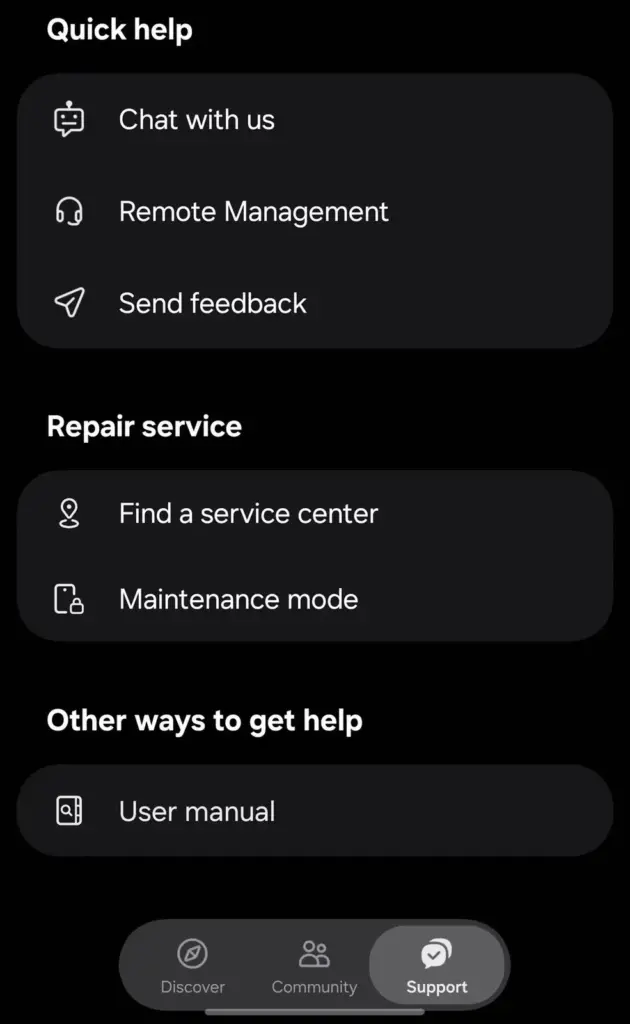
Launch the Samsung Members app, tap Support, then select Wi-Fi to run the built-in connectivity diagnostic.
Step 2: Send feedback with details
From the same Support tab, use Send feedback and describe the exact symptom (Wi-Fi drops, data failure, or SIM not detected), your model, and your One UI version. Specific reports are more useful to Samsung’s team than vague ones.
Safe Mode test and factory reset (last resort)
A Samsung Community moderator has suggested these steps, but factory resets haven’t reliably fixed the bug for everyone who’s tried one, so treat this as a final option.
Step 1: Boot into Safe Mode
Press and hold the power button, tap and hold Power off, then tap Safe mode to restart. Test your Wi-Fi and data connection while in Safe mode, since this disables third-party apps temporarily.
Tip: If the connection stays stable in Safe mode, a recently installed app may be the actual cause, not One UI 9 itself.
Step 2: Back up and factory reset if needed
If Safe Mode doesn’t change anything, back up your photos, messages, and app data fully before going to Settings > General management > Reset > Factory data reset. Be aware that at least one Galaxy owner reported the mobile data issue persisted even after a full reset.
Pro tips
- Test a second Wi-Fi network before assuming your router is the problem, since other devices usually stay connected fine.
- If only 5GHz drops while 2.4GHz stays stable, try moving the phone closer to the router or switching the router to a single combined band name.
- Keep a note of exactly when drops happen (time since restart, which app you were using) since that detail helps Samsung Support narrow things down.
Frequently asked questions
Has Samsung confirmed a fix for One UI 9 network drops?
No. As of mid-November 2026, Samsung hasn’t publicly confirmed the cause or released a patch, so the fixes here are community workarounds rather than an official solution.
Which Galaxy models are affected by the One UI 9 Wi-Fi and SIM bug?
Reports span the Galaxy S-series, Z Fold models, and some A-series phones, including the S24+, Z Fold 7, A56, and A36, so it isn’t limited to one device.
Will a factory reset fix the dropped connection?
It might, but it isn’t guaranteed. At least one Galaxy owner reported that mobile data problems continued even after a full factory reset.
Why does restarting only fix the Wi-Fi drop temporarily?
A restart or Airplane Mode toggle re-establishes the radio connection but doesn’t address whatever is causing the drop, which is why the issue tends to return after a couple of hours.
If none of these steps hold for more than a day, your best move is reporting the exact symptom through Samsung Members or your carrier along with your model and One UI version, since a wider pattern of reports is what tends to speed up an official patch; in the meantime, the Wi-Fi troubleshooting steps above are the most current workaround available.
Sources and further reading
- Australia News Beep — One UI 9 is breaking Wi-Fi and mobile data for some Galaxy users – Australia News Beep | N
- SammyGuru — One UI 9 Problems: What Galaxy Owners Report and What to Try
- Thetechhacker — Fix One UI 9 Wi-Fi and Mobile Data Dropping on Galaxy Phones
- Samsung US — Wi-Fi connection issues on a Samsung Galaxy device