Quick answer
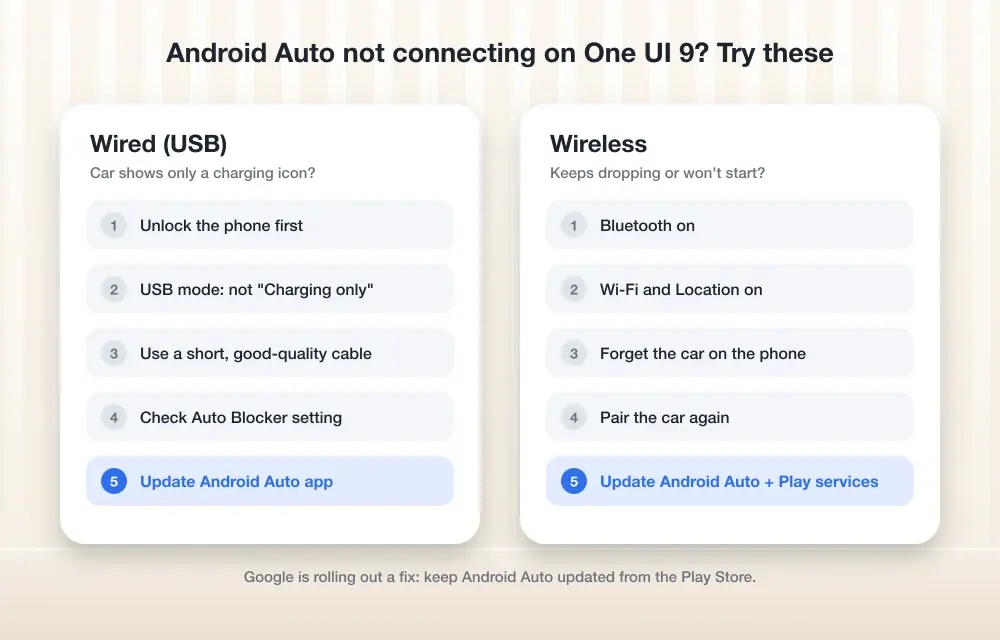
Google confirmed on November 3 that a fix for Android Auto disconnects on One UI 9 is rolling out; in the meantime, update Android Auto and Google Play services from the Play Store, then check Settings > Connections > Bluetooth for your USB mode.
If Android Auto started dropping out, stuttering, or refusing to connect right after your Galaxy phone installed One UI 9, you are not the only one. Samsung owners running the Android 17 base have reported the same pattern on models including the Galaxy S24 Ultra, Galaxy S26, and Galaxy A55 5G.
Google has already confirmed a fix is rolling out, but it has not said exactly how it reaches each phone. Below is the order of checks and fixes worth trying, starting with the quickest, so you can get back to a working connection in the car.
Before you start
- Difficulty Easy
- Time needed 15 minutes
- Works on Samsung Galaxy phones on One UI 9 (Android 17)
What you'll need
- A Samsung Galaxy phone updated to One UI 9
- An Android Auto-compatible car head unit
- A Google account signed in on the phone
- The Samsung Members app (only if you plan to report the bug)
Important
- Uninstalling Android Auto's updates removes any recent app fixes, so only use it as a temporary workaround.
- Back up anything important before trying system-level troubleshooting, even though these steps do not involve a factory reset.
Quick checks before you troubleshoot
Google has already pushed a fix for this bug, so updating your apps and system first solves it for many people without any extra steps.
Step 1: Update Android Auto from the Play Store
Open the Play Store, search for Android Auto, and tap Update if one is available.
Samsung and Google have both pointed to an outdated Android Auto app as a common cause of drops on One UI 9.
Tip: Do this before you leave the house, not while already parked at the car.
Step 2: Update Google Play services
In the same Play Store app, search for Google Play services and tap Update if it offers one.
Google has said the fix for this issue is being pushed partly through Play services and backend changes, so this step matters even if Android Auto itself shows no update.
Step 3: Install any pending Samsung system update
Go to Settings > Software update and install anything waiting there.
The One UI 9 rollout is still in progress, and later builds may include additional fixes for this bug.
Step 4: Test the connection again in the car
Start the car, connect your phone as you normally would, and watch for a few minutes to see if the disconnects or stuttering return.
Tip: If it still drops, move on to the USB mode check below.
Check the USB mode (wired connections)
Starting with One UI 8, Samsung changed the default USB mode to charging only, which can silently block wired Android Auto before it even starts.
Step 1: Open Bluetooth settings
Go to Settings > Connections > Bluetooth.
Step 2: Check the USB mode
Look for the USB mode option and make sure it is set to Transferring files / Android Auto rather than Charging only.
You can also pull down the Quick panel after plugging in the cable and tap the USB notification to switch the mode on the spot.
Tip: Some owners reported failures even after switching cables, so check this setting before you assume the cable is the problem.
Step 3: Reconnect and test
Unplug the cable, plug it back in, and see whether Android Auto launches normally.
Clear the Android Auto app cache
A corrupted cache left over from the update can cause stuttering or repeated disconnects even after Android Auto itself is up to date.
Step 1: Open Android Auto's app info
Go to Settings > Apps and select Android Auto.
Step 2: Clear the cache
Tap Storage, then tap Clear cache.
This does not remove your saved preferences, just temporary files. For the full walkthrough with screenshots, see Android Auto cache clearing on One UI 9.
Step 3: Reconnect to the car
Plug in or pair wirelessly again and confirm the connection holds for a normal drive.
Unlock your phone before connecting
Since One UI 7, Samsung requires the phone to be unlocked before Android Auto is allowed to start, so a lock-screen habit can look like a bug.
Step 1: Unlock the phone first
Before plugging in or starting the car’s Bluetooth pairing, unlock your Galaxy phone with your PIN, fingerprint, or face unlock.
If the phone is sitting on the lock screen when you connect, Android Auto will not launch at all.
Forget and re-pair the car
If the connection was established under a buggy version of Android Auto, a stale pairing record can keep causing drops even after updates.
Step 1: Remove the car from Android Auto
Open Android Auto on your phone, go to the list of connected cars, and remove your car from it.
Step 2: Forget the phone in the car
On the car’s head unit, open its Bluetooth or device list and forget your phone.
Step 3: Pair again from scratch
Reconnect the phone to the car as if it were the first time, then confirm Android Auto launches and stays connected.
Try the unofficial rollback workaround
This is not a confirmed fix from Samsung or Google, just a workaround some users reported success with, so treat it as a last resort before reporting the bug.
Step 1: Uninstall Android Auto's updates
Go to Settings > Apps > Android Auto, tap the overflow menu, and choose Uninstall updates if the option appears.
This rolls the app back to its factory version. Some users said this single step resolved their disconnects, but results vary.
Step 2: Test before updating again
Reconnect in the car on the rolled-back version first.
Once you confirm it works, you can decide whether to let the app update again later.
Report the issue if it persists
If none of the above helps, Google and Samsung are both collecting reports to track down who is still affected after the fix rollout.
Step 1: File a report with Google
Describe the disconnects or stuttering you’re seeing through the Android Auto Help page, where Google has already responded to similar reports.
Step 2: Send an error report through Samsung Members
Open the Samsung Members app, go to Get help > Send feedback, and submit an error report describing the problem.
Pro tips
- Check your default navigation app if Android Auto connects but opens Waze instead of Google Maps, since some owners found the update switched this setting.
- If stuttering happens only on long drives, test with the car off and back on to rule out a head unit glitch rather than a phone issue.
- Keep a note of your phone model and One UI build number before you report the bug, since Google and Samsung are tracking reports by device.
Frequently asked questions
Has Google actually fixed the One UI 9 Android Auto bug?
Google told 9to5Google on November 3 that a fix has been rolled out, though it has not shared a version number or confirmed whether it arrives through an app update or server-side change.
Does this affect every Galaxy phone on One UI 9?
No. Plenty of Galaxy owners report Android Auto working normally on One UI 9, while others, including some Galaxy S24 Ultra, Galaxy S26, and Galaxy A55 5G owners, saw drops right after the update.
Will switching to a USB cable fix wireless Android Auto drops?
Not necessarily. Some owners reported failures even after switching to a wired connection, so check the USB mode setting and app updates rather than assuming the cable is at fault.
Why does Android Auto open Waze instead of Google Maps after the update?
Check your phone’s default navigation app setting, since at least one user found the One UI 9 update changed this preference on its own.
Most Galaxy owners will clear this up by updating Android Auto and Google Play services and checking the USB mode setting, since Google’s fix is already rolling out behind the scenes. If drops continue after trying every step here, file a report so Samsung and Google can track your device specifically. For a deeper look at the original bug reports, see Fix Android Auto not connecting after the One UI 9 update.
Sources and further reading
- 9to5Google — Google has fixed Android Auto issues on Samsung Galaxy phones running One UI 9 [U]
- Thetechhacker — Android Auto Not Connecting on One UI 9? How to Fix It
- Gadget Hacks — Android Auto Not Connecting After One UI 9? Google Has a Fix, but Galaxy Owners Should Che
- AndroidPure — Android Auto Won’t Connect for Some Galaxy Owners After One UI 9 – AndroidPure