Quick answer
Go to Settings > Apps > Android Auto > Storage and tap Clear cache first; if the problem continues, switch your USB mode to Transferring files / Android Auto and update the Android Auto app from the Play Store.
If Android Auto stopped connecting or keeps stuttering since your Galaxy phone moved to One UI 9, a stuck cache or a quietly changed USB setting is often the culprit. These are quick, low-risk fixes you can try before considering anything more drastic.
This guide walks through clearing the Android Auto cache, checking your USB connection mode, and a few other steps that have fixed this for other Galaxy owners, in order from safest to most involved.
Before you start
- Difficulty Easy
- Time needed 10 minutes
- Works on Samsung Galaxy phones on One UI 9 (Android 17)
What you'll need
- Galaxy phone running One UI 9
- Updated Android Auto app and Google Play services
- Data-capable USB-C cable (not charge-only)
- Android Auto-compatible car head unit
Important
- Clear data, not just cache, only if the simpler fix fails, since it wipes your Android Auto preferences and may require re-pairing Bluetooth.
- A full wipe cache partition through recovery mode is unconfirmed on current One UI 9 builds and may not exist on your device, so don't rely on it as a guaranteed option.
Quick checks before you start
These take under a minute and rule out the simplest causes.
Step 1: Update Android Auto and Google Play services
Open the Play Store, search for Android Auto, and tap Update if it’s available. Do the same for Google Play services.
Google has confirmed a server-side fix is rolling out for connectivity problems tied to the One UI 9 update, so being on the latest app version gives you the best chance of getting it.
Tip: Install any pending Samsung system update too, since the fix may arrive bundled with it.
Step 2: Try a different USB cable
If Android Auto used to work over a wired connection and suddenly doesn’t, swap in a cable you know supports data transfer, not just charging.
A charge-only cable looks identical to a data cable but won’t carry the signal Android Auto needs.
Clear the Android Auto cache
Clearing cache removes temporary files that can get corrupted after a system update, without touching your saved settings.
Step 1: Open Android Auto's app settings
Go to Settings > Apps > Android Auto.
Step 2: Tap Storage
On the app info screen, tap Storage.
Step 3: Tap Clear cache
Tap Clear cache, not Clear data. Clearing cache only removes temporary files and won’t affect your Android Auto setup.
Reconnect to your car afterward and see if the problem is gone.
Tip: If you tap Clear data by mistake, you'll just need to set Android Auto up again and may have to re-pair Bluetooth.
Reset the USB connection mode
Since One UI 8, Galaxy phones default to “Charging phone only” over USB, which silently blocks wired Android Auto.
Step 1: Open the notification panel
Swipe down from the top of the screen to open the Quick panel while your phone is plugged in.
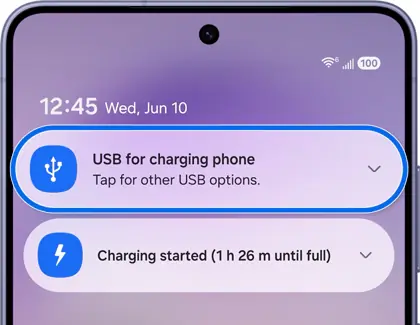
Step 2: Tap the USB notification
Tap the notification that reads USB for charging phone.
Step 3: Select Transferring files / Android Auto
In the menu that opens, choose Transferring files / Android Auto.
Android Auto should launch within a few seconds once your phone recognizes the car.
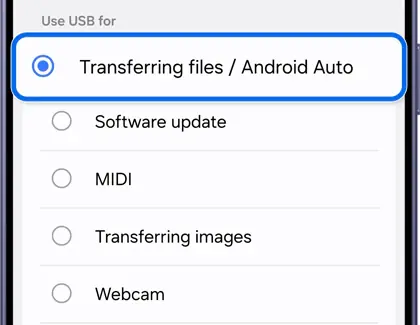
Tip: You can also reach this menu through Settings > Connections > USB if the notification doesn't appear.
Check Auto Blocker and battery restrictions
Samsung’s Auto Blocker security feature and aggressive battery limits can both interfere with the USB connection Android Auto relies on.
Step 1: Review Auto Blocker settings
Go to Settings > Security and privacy > Auto Blocker and check whether it’s set to a maximum protection level. A high setting can block the USB connection Android Auto needs.
Step 2: Set Android Auto to unrestricted battery usage
Go to Settings > Apps > Android Auto > Battery and set it to Unrestricted. Do the same for Google Play services.
Clear Android Auto's app data
If a simple cache clear didn’t fix it, wiping all app data is a stronger reset, but it removes your saved Android Auto preferences.
Step 1: Back up anything you'd miss
Clearing data resets Android Auto’s setup, including any customized shortcuts or paired car profiles. There’s no account data at risk, but you will need to go through setup again.
Step 2: Open Storage and tap Clear data
Go to Settings > Apps > Android Auto > Storage and tap Clear data this time.
Step 3: Reopen Android Auto and set it up again
Launch Android Auto from the app drawer, grant the permissions it asks for, and reconnect to your car. You may need to re-pair Bluetooth as part of this.
Soft reset your phone
A soft reset clears minor glitches without affecting any of your data.
Step 1: Hold volume down and power together
Press and hold the Volume down and Power buttons at the same time until the phone restarts.
This has resolved USB-port recognition issues for some Galaxy owners and costs nothing to try.
Report it to Samsung if nothing works
If every fix above fails, the bug may be on Samsung’s or Google’s end, and reporting it helps get a wider patch out faster.
Step 1: File a report through Samsung Members
Open the Samsung Members app, go to Get help, and describe the Android Auto problem along with your model and One UI version.
You can also read an existing Samsung Members thread on cache and wipe-related reports for One UI 9 to see if others share your issue.
Pro tips
- Check the Play Store for Android Auto and Google Play services updates every few days while Google's fix rolls out.
- Keep a dedicated data cable in your car so you're not stuck guessing which one is charge-only.
- If wireless Android Auto is flaky, try a wired connection once to confirm whether the issue is Bluetooth or Wi-Fi Direct related.
Frequently asked questions
Does clearing the Android Auto cache delete my settings?
No. Clearing cache only removes temporary files; your paired cars, shortcuts, and preferences stay intact. Clearing data is the option that resets everything.
Why does my phone keep defaulting to charging-only mode?
Starting with One UI 8, Galaxy phones default to Charging phone only over USB to optimize charging. You need to manually switch to Transferring files / Android Auto each time, or check if your phone remembers the setting for that cable.
Is there a wipe cache partition option for Android Auto issues on One UI 9?
Some older Android versions let you wipe the cache partition from recovery mode, but at least one Galaxy S24 FE beta user reports this option is gone on their build of One UI 9. Treat it as unavailable unless you confirm it exists on your specific model.
Will a system update fix this on its own?
Possibly. Google has confirmed a fix is rolling out for Android Auto connectivity issues tied to the One UI 9 update, though it hasn’t said whether it arrives through an app update or a server-side change.
Start with a cache clear and a USB mode check since those fix most cases without touching your settings; if Android Auto still won’t connect, work down to clearing app data or trying a soft reset before reporting the bug to Samsung. For background on what’s causing this since the update, see the companion guide on Android Auto not connecting after One UI 9, and if you’re setting up a car that lacks built-in support, check out wireless Android Auto for GM EVs.
Sources and further reading
- Samsung US — Change the USB connection mode on your Galaxy phone or tablet
- BestusefulTips — How to Change USB Preferences Android 13, 12, 11 – BestusefulTips
- Samsung Members Community — One UI 9 clear wipe cache partition …. | Samsung Members Community
- Thetechhacker — Android Auto Not Connecting on One UI 9? How to Fix It