Quick answer
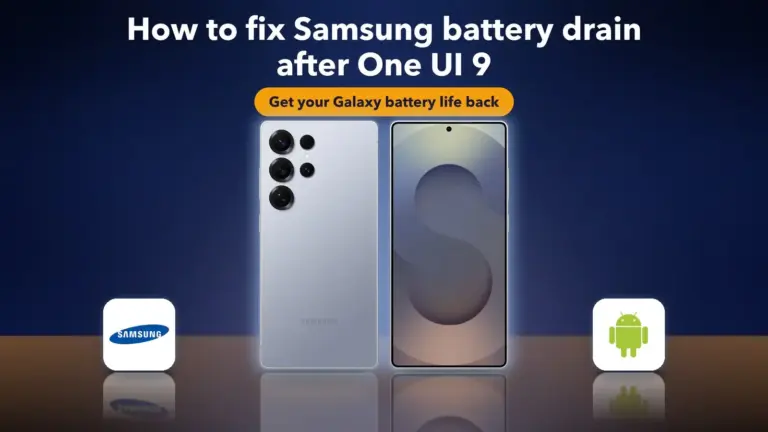
If your Galaxy phone is stuck on an XML "Access Denied" or frozen changelog screen after installing One UI 9, force restart the phone, boot into Safe Mode, turn on Airplane Mode, then restart normally.
Since Samsung began rolling out One UI 9.0 outside South Korea, a number of Galaxy owners have found their phone stuck right after the update finishes. Instead of the usual changelog screen, they see a raw XML
Before you start
- Difficulty Easy
- Time needed 10 minutes
- Works on Galaxy S26, S25, S24 series, select foldables, Galaxy A57 on One UI 9 (Android 17)
What you'll need
- A Samsung Galaxy phone stuck mid-update on One UI 9
- Patience for a couple of restarts
- A charged battery (above 30 percent is safest)
Important
- Do not factory reset the phone as a first response; it erases your data and is not confirmed to fix the error.
- This is a community-reported workaround, not an official Samsung fix, and the root cause has not been confirmed.
Quick check: restart once more
Some owners report the error clears on its own after a second restart, so try this before anything else.
Step 1: Hold Power and Volume Down
Press and hold the Side key and Volume Down together for a few seconds until the screen goes dark and the Samsung logo appears.
Tip: If the power menu appears instead of a restart, tap Restart from that menu.
Step 2: Wait for the phone to boot normally
Let the phone boot all the way to the home screen or setup screen without touching anything.
If the error screen comes back, move on to the next fix.
Force restart from the error screen
This is the first step reported to work when the phone is frozen on the XML error or a blank changelog screen.
Step 1: Hold Volume Down and Power
From the stuck error screen, press and hold Volume Down and the Side key together for about 7 seconds to force a restart.
Tip: Keep holding even if the screen flickers; a short force-restart hold sometimes is not enough.
Step 2: Watch for the Samsung logo
The phone should go dark and then show the Samsung logo as it restarts.
Boot into Safe Mode
Safe Mode disables third-party apps and lets you reach the quick settings panel even when the normal boot gets stuck.
Step 1: Hold Volume Down at the logo
As soon as the Samsung logo appears during the restart, press and hold Volume Down and keep holding it through the boot process.
Step 2: Confirm Safe Mode is active
You should see a Safe mode label in the bottom corner of the screen once the phone finishes booting.
Tip: Release the volume key once you see the Safe mode label; you do not need to keep holding it.
Turn on Airplane Mode and restart
Going offline in Safe Mode, then restarting normally, is the workaround most owners say gets them past the error without a factory reset.
Step 1: Open Quick settings
Swipe down from the top of the screen to open the notification shade and Quick settings panel.
Step 2: Enable Airplane Mode
Tap Airplane mode so it turns on, and check that Wi-Fi and mobile data both show as off.
Tip: If you cannot reach Quick settings at all, turning off your Wi-Fi router or stepping out of range works as a backup.
Step 3: Restart the phone normally
With Airplane Mode on, restart the phone through the power menu or by holding Volume Down and the Side key again.
The phone should now boot past the error screen and reach the home screen or setup screen.
Step 4: Turn Airplane Mode off at the home screen
Once you reach your home screen, open Quick settings again and turn Airplane mode off to restore Wi-Fi and mobile data.
Prevent the error on your next update
If you have not installed One UI 9 yet, or you plan to update a second device, staying offline during the first restart can avoid the error entirely.
Step 1: Turn on Airplane Mode before installing
Before you tap the install button for the One UI 9 update, swipe down and turn on Airplane mode.
Step 2: Let the update finish offline
Let the phone install the update and reboot while still offline, without connecting to Wi-Fi or mobile data.
Step 3: Reconnect once you reach the home screen
After you reach your home screen or finish setup, turn Airplane mode off to get your connection back.
Tip: If you would rather wait out the rollout, delaying the update a few days is a reasonable option too.
Contact Samsung support if the phone is still stuck
If the Safe Mode and Airplane Mode sequence does not clear the error, further troubleshooting is best left to Samsung or your carrier.
Step 1: Reach out to Samsung or your carrier
Contact Samsung Support, or Verizon if you have a carrier-branded phone such as the Galaxy A16 5G, and describe the error screen and the steps you already tried.
A similar stuck-on-update report on a Galaxy tablet shows this kind of freeze is not unique to phones.
Tip: Avoid a factory reset as your first move; it wipes your data and is not confirmed to be necessary.
Pro tips
- Back up important data with Smart Switch before installing any major Samsung update.
- Make sure the battery is well charged before you start the update, not just before you troubleshoot.
- Avoid using the phone or disconnecting any USB cable while an update is installing.
- If your phone is eSIM-only, use the Safe Mode plus Airplane Mode route since you cannot pull a physical SIM to go offline.
Frequently asked questions
Is my Galaxy phone bricked if it shows the XML error after updating?
No. Reports so far suggest the update itself installs correctly and the error happens during the setup step that runs afterward, so the phone is still recoverable without a factory reset.
Which Galaxy phones are affected by the One UI 9 stuck error?
Reports include the Galaxy S26, S25, and S24 series, some foldables, and the Galaxy A57. There is no way to know in advance whether a specific phone will hit the error.
Why does the error happen in the first place?
One tipster suggested it could be tied to a Samsung server-side change meant to curb firmware leaks, but Samsung has not confirmed this or any other cause.
Should I wait to install One UI 9?
If you have not updated yet, waiting a few days or updating with Airplane Mode turned on beforehand are both reasonable ways to reduce the risk of hitting the error.
Most Galaxy owners who hit this error get past it with the force restart, Safe Mode, and Airplane Mode sequence, so try that before anything drastic. If the phone still will not move past the error screen, contact Samsung or your carrier rather than reaching for a factory reset. Once your phone is back up and running on One UI 9, you might also want to check out the Good Lock app’s hidden One UI features or learn how to clear the Android Auto cache on Galaxy Phones if Android Auto starts acting up after the update.
Sources and further reading
- SamMobile — Samsung breaks One UI 9 updates, here's the quick fix
- Insider Paper — Samsung One UI 9 Update Triggers XML ‘Access Denied’ Error for Users
- Chasms — One UI 9 Access Denied XML error? How to fix – Chasms Blog
- Samsung Community — Galaxy Tab S9 Ultra Stuck after Update Welcome One UI 6.1.1. | Samsung Community