Quick answer
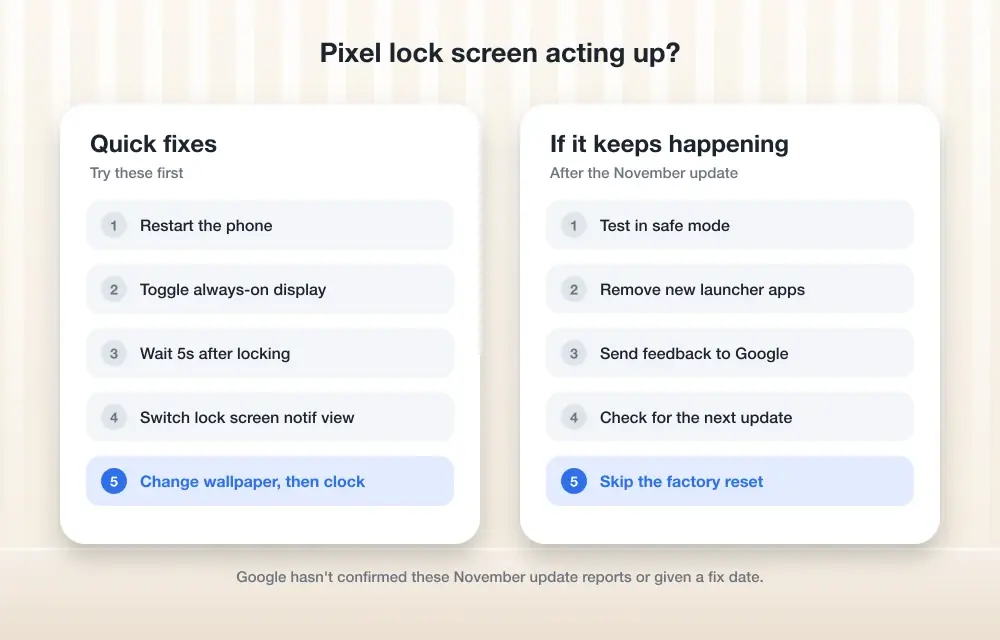
Restart your Pixel, then toggle Always-on display off and back on under Settings > Display & touch to clear the lock screen and AOD glitches reported since the November 2026 Pixel Drop.
Since Google started rolling out the November 2026 Pixel Feature Drop and Android 17 QPR2 on November 10, some Pixel owners have seen their lock screen misbehave. Reports include a notification shade that sticks in place instead of the always-on display, a lock screen clock style that won’t change, a drawer that needs an extra swipe to close, and a screen that keeps responding to touch for a few seconds after it locks.
Google hasn’t confirmed any of this as a known issue or given a fix date. The checklist below moves from the fastest fixes to the more drastic ones, so you can try a restart first and work your way down only if you need to.
Before you start
- Difficulty Easy
- Time needed 15 minutes
- Works on Pixel 6a and newer running the November 2026 Pixel Drop (Android 17 QPR2)
What you'll need
- A Pixel phone (Pixel 6a or newer) with the November 2026 update installed
- A few minutes to restart and check settings
- No special app or account needed
Important
- Removing apps in Safe Mode is reversible, but confirm you have your sign-in details for any app you plan to reinstall.
- Safe Mode is not guaranteed to fix bugs that live in the update itself, so don't expect it to work every time.
Quick check: confirm you have the update
A few Pixel owners, especially on T-Mobile, haven’t received the November update yet, so confirm it’s installed before you chase a bug it might not have caused.
Step 1: Open Settings and check your software version
Open your phone’s Settings app, then go to System > System update to see whether the November 2026 Pixel Drop and Android 17 QPR2 are installed.
If you’re still on an older build, these symptoms likely don’t apply to you yet.
Restart the phone
A restart clears a lot of display glitches right after a big update, and it’s the fastest way to get the always-on display back if the shade gets stuck again.
Step 1: Restart your Pixel
Press and hold the Power and Volume up buttons for a few seconds, then tap and hold Restart.
If the notification shade sticks over the always-on display again later, repeat this step. It’s not a permanent fix, but it’s the quickest one.
Tip: Give the phone a minute after it restarts before you lock it again, so any pending display processes finish loading.
Toggle Always-on display off and back on
The always-on display setting itself sometimes gets stuck after an update, and turning it off and back on resets it.
Step 1: Open Display settings
Open your phone’s Settings app and tap Display and touch.
Step 2: Turn off Always-on display
Find Always-on display and turn the toggle off. On Pixel 9 and earlier, and on Pixel 10a, this toggle sits directly under Display and touch.
On other Pixel 10 phones, the toggle stays in the same place even though Google groups some related options, like Comfort filters, elsewhere in the same menu.
Step 3: Wait a few seconds, then turn it back on
Leave the toggle off for a few seconds, then switch Always-on display back on. This re-applies the setting and has resolved the AOD glitch for some owners reporting the bug this month.
Review your lock screen notification settings
Resetting how the lock screen handles notifications has helped some owners with the stuck-shade and extra-swipe symptoms, though this isn’t an official fix.
Step 1: Check lock screen notification options
From Settings, go to Display and touch > Lock screen and review how notifications are set to show. Try switching the setting to a different option and back, for example from showing conversations and alerting notifications to showing all notifications, then switch it back.
If you’re also fighting a clock that won’t change style, Google’s <a href=
Tip: If only the clock style is stuck, as reported on the Pixel 10 Pro XL, a settings reset like this is worth trying before you move to Safe Mode.
Reduce accidental touches after locking
If your screen keeps responding to touch for a few seconds after it locks, two settings can mitigate the ghost touches while Google works on a fix.
Step 1: Turn on tap to wake, or turn off face unlock
Go to Settings > Display and touch and turn on Tap to wake so the screen needs an intentional tap rather than reacting to any touch. If you use face unlock, consider turning it off temporarily in Settings > Security and privacy to see if the post-lock touches stop.
Also try waiting about five seconds after you press the power button to lock the phone before you put it in your pocket or bag.
Boot into Safe Mode to test for a rogue app
Safe Mode disables most downloaded apps, which helps you check whether a third-party app, rather than the update itself, is behind the problem.
Step 1: Turn your phone off
On Pixel 6 and later, including Fold: press and hold Power and Volume up, then tap and hold Power off. On Pixel 5a and earlier: press and hold Power, then tap Power off.
Step 2: Restart into Safe Mode
Press the power button to turn your phone back on. As soon as the animation starts, press and hold the volume down button and keep holding until the animation ends. You’ll see Safe mode at the bottom of the screen.
Airplane mode turns on automatically in Safe Mode, so turn it off if you need Wi-Fi, GPS or calls while you test.
Step 3: Watch the lock screen and AOD in Safe Mode
Lock the phone and see whether the shade, clock style or touch issue still happens. If everything behaves normally, a downloaded app is likely interfering, and you should remove recently installed apps one at a time after you exit Safe Mode.
Keep in mind Safe Mode still asks for your PIN, pattern or password, and since this bug is embedded in the update itself, Safe Mode may not fully resolve it even if no app is at fault.
Step 4: Exit Safe Mode
On Pixel 6 and later, including Fold: press and hold Power and Volume up for a few seconds, then tap Restart. On Pixel 5a and earlier: press and hold Power for about 30 seconds until the phone restarts.
Wait for Google's patch
If restarting, resetting Always-on display, and Safe Mode all fail, the issue sits in the update itself and there’s nothing left to do but wait.
Step 1: Keep your phone updated and watch for a fix
Check Settings > System > System update periodically for a new build. Google hasn’t announced a fix for the lock screen and always-on display reports as of mid-November 2026, and the scope of the bug across models still isn’t confirmed.
If you’re also seeing camera or battery problems since the update, the <a href=
Pro tips
- Note your phone model and build number before you report a problem, since symptoms differ between Pixel 10 Pro XL, Pixel 9 Pro Fold and other models.
- If you own a Pixel 9 Pro Fold, check whether the inner screen wakes normally on unfold, since that symptom seems limited to Fold devices.
- A full power-off for about five minutes, rather than a quick restart, has helped with other November update bugs like the camera issue.
Frequently asked questions
Is this always-on display bug official from Google?
No. Google hasn’t confirmed the always-on display, lock screen or notification shade problems as a known issue or given a fix timeline as of mid-November 2026.
Why hasn't my phone gotten the update yet?
Carrier rollout is staggered. Some Pixel owners, particularly on T-Mobile, hadn’t received the November 2026 Pixel Drop as of this guide’s publication.
Does a factory reset fix the always-on display bug?
There’s no confirmed universal fix, including factory reset, for the AOD or lock screen reports. Try the restart, settings toggle and Safe Mode steps first before considering a reset.
Does this bug affect Samsung phones or iPhones too?
No. Reports so far are specific to Pixel devices running the November 2026 Pixel Feature Drop and Android 17 QPR2.
Start with a restart and the Always-on display toggle, since those fix most cases without any risk, and only move to Safe Mode if the shade, clock or touch problems keep coming back. While you wait on a patch, it’s also worth checking whether your Fix Pixel battery settings need a look, since the same update has stirred up more than one display-related complaint.
Sources and further reading
- Thetechhacker — How to Fix Pixel Always-On Display and Lock Screen Problems
- Support Google
- Techgenyz — Google Pixel November Update: Camera Bugs and Desktop Mode Issues Reported – Techgenyz
- ARY News — Google Pixel Camera Issues Reported After November 2026 Update