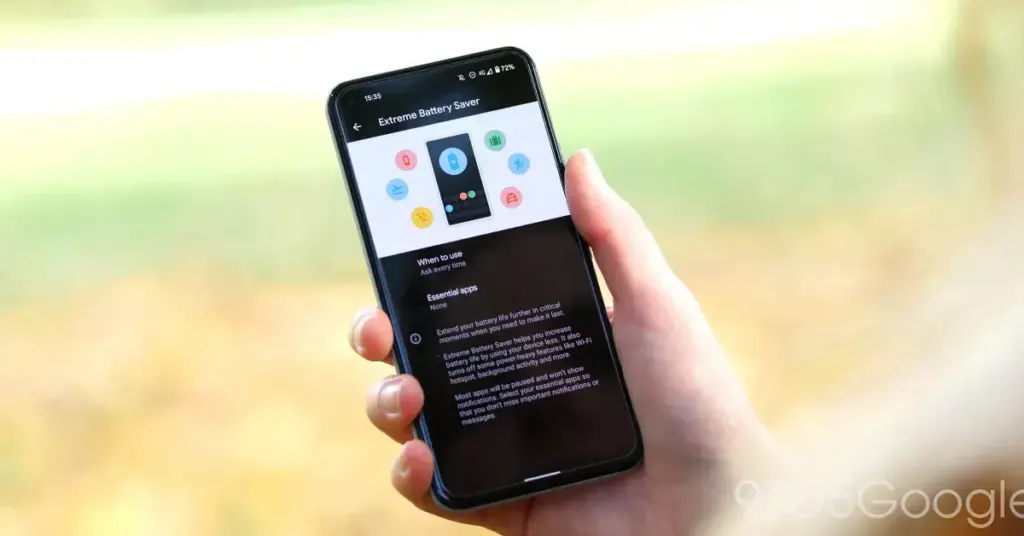
Quick answer
On a Pixel, go to Settings > Battery > Battery Saver > Extreme Battery Saver > Essential apps and toggle on the apps you need running, such as work email or a messaging app.
Extreme Battery Saver squeezes extra hours out of a dying Pixel, but it does that by pausing almost every app you own. If you don’t whitelist the right ones first, you can miss a shift reminder, a client email, or a message from someone trying to reach you.
This guide walks through picking those essential apps on a Pixel phone and on a Pixel Tablet, so the apps you actually rely on keep running while everything else sits idle.
Before you start
- Difficulty Easy
- Time needed 5 minutes
- Works on Pixel 3 and later, including Fold; Pixel Tablet
What you'll need
- A Pixel 3 or later phone, a Fold, or a Pixel Tablet
- Regular Battery Saver already turned on or scheduled
Important
- Any app left off the essential list stops sending notifications while Extreme Battery Saver runs, so you can miss alerts.
- Extreme Battery Saver also slows your phone's processing speed, so expect a noticeably sluggish experience while it's active.
Add Essential Apps from Settings
This is the most direct path on a Pixel phone and works the same way whether or not Extreme Battery Saver is already running.
Step 1: Open Settings
Open your phone’s Settings app.
Step 2: Tap Battery
Tap Battery, then tap Battery Saver.
Step 3: Select Extreme Battery Saver
Tap Extreme Battery Saver. If you don’t see this option, turn on regular Battery Saver first, since Extreme Battery Saver sits inside it.
Step 4: Open Essential apps
Tap Essential apps. You’ll see a list of your installed apps, with a toggle beside each one.
Step 5: Toggle on the apps you need
Switch on the apps that matter most, such as your work email client or a messaging app. Leave everything else off.
You don’t need to add Phone, Messages, Clock, or Settings — these keep running automatically.
Tip: Add only the apps you'd actually miss; the shorter the list, the more battery you save.
Edit Essential Apps from Quick Settings
If you’d rather skip the Settings app entirely, you can get to the same list from your Quick Settings panel.
Step 1: Open Quick Settings
Swipe down twice from the top of your screen to open the full Quick Settings panel.
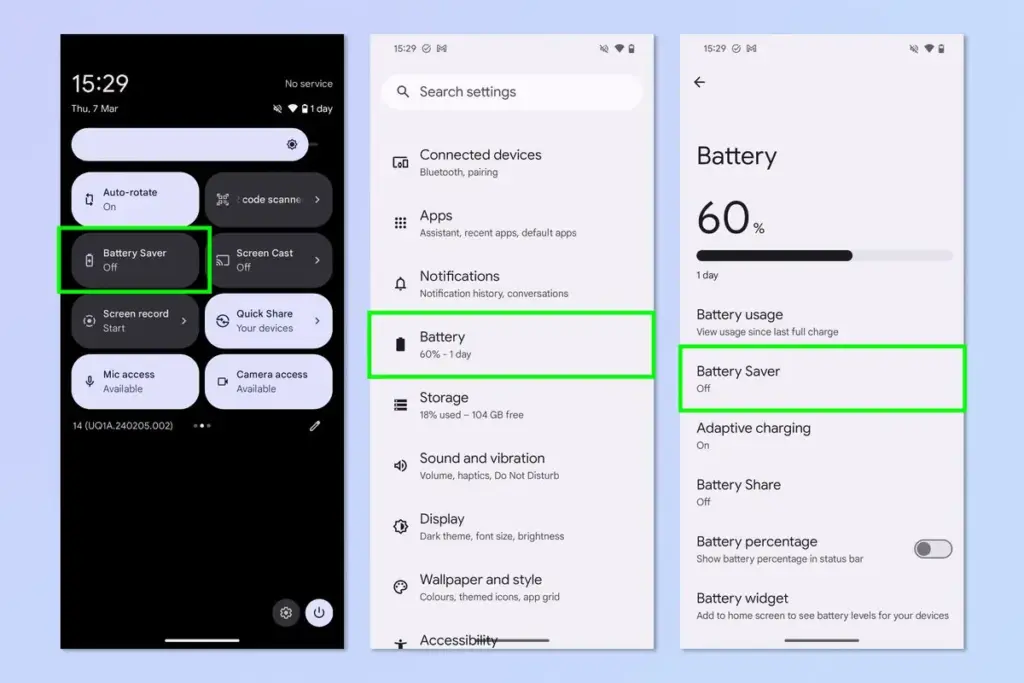
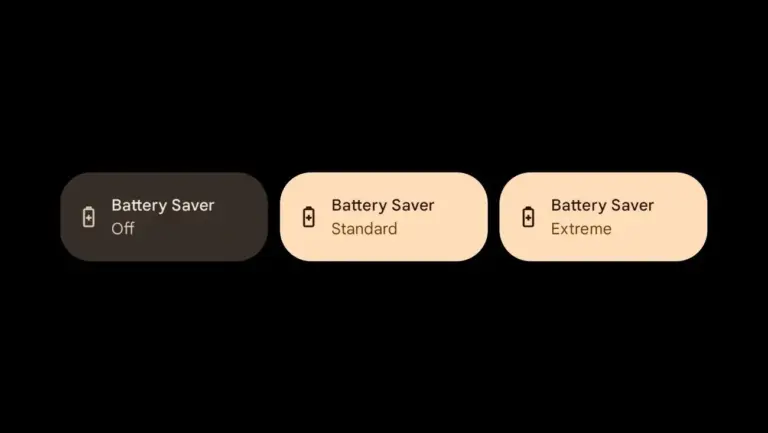
Step 2: Long-press Battery Saver
Long-press the Battery Saver tile. If it isn’t in your panel, open Settings, tap Battery, then tap Battery Saver instead.
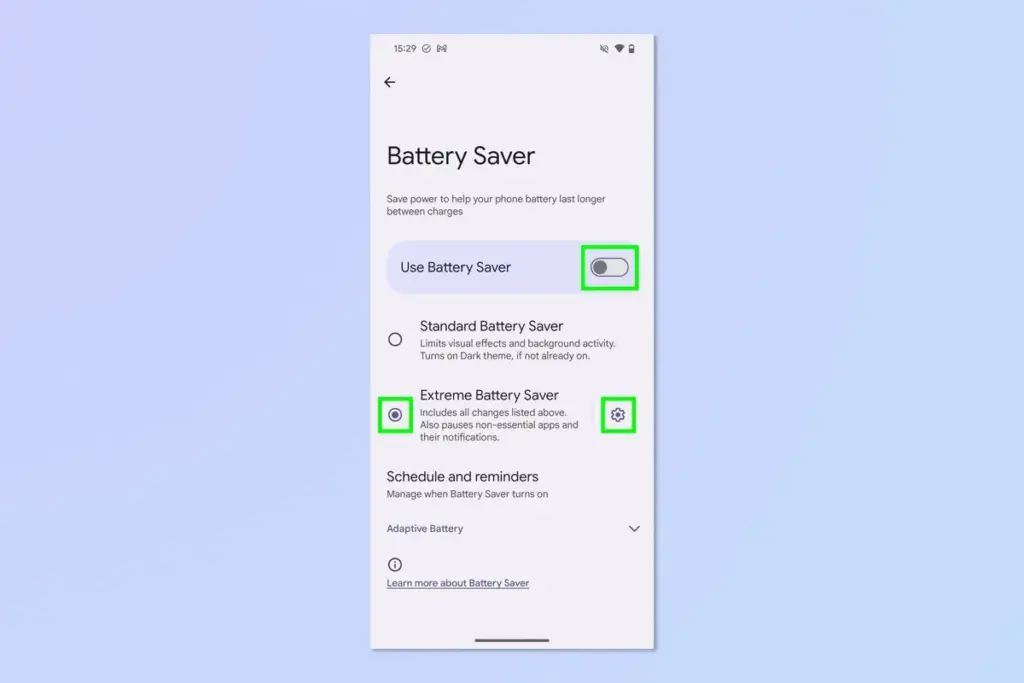
Step 3: Select Extreme Battery Saver
Tap Extreme Battery Saver and toggle it on at the top if it isn’t already. Tap the cog icon next to it to open its settings.
Step 4: Add apps to the essential list
Under Non-essential, find an app and tap the plus icon next to it to allow it to run. It moves up into the Essential apps section.
To remove an app later, tap the X next to its name to send it back to non-essential.
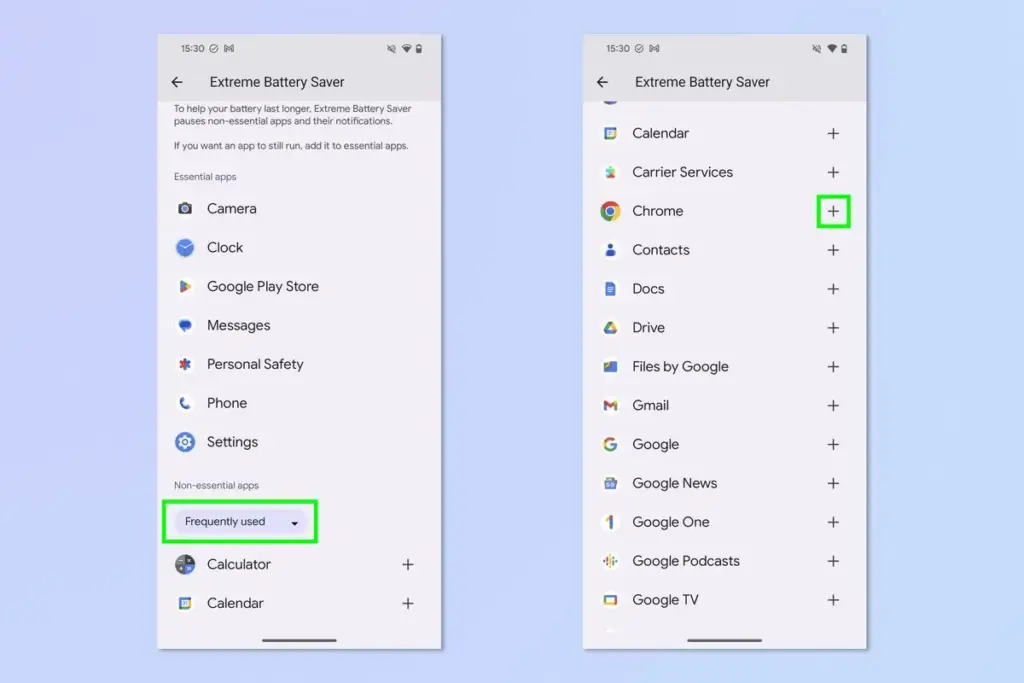
Tip: A few core apps, like Phone and Personal Safety, are allowed by default and don't need adding.
Pro tips
- Add your authenticator or banking app if you rely on it for one-time codes during a long outage.
- Review the essential list every few months, since the apps you depend on tend to change.
- Check the full Pixel Extreme Battery Saver setup if the feature itself isn't appearing yet.
Troubleshooting
| Problem | What to do |
|---|---|
| Extreme Battery Saver option is missing from the menu | Confirm your phone is a Pixel 3 or later and that regular Battery Saver is already turned on or scheduled, since Extreme Battery Saver only appears once Battery Saver is active. |
| An app you whitelisted still won't stay active | Go back to Settings, then Battery, then Battery Saver, then Extreme Battery Saver, then Essential apps, and confirm the toggle for that app is switched on. |
| You're missing notifications from an app you forgot to add | Open the paused app directly and tap Unpause temporarily, or add it to the essential list so it stays active for future sessions. |
Frequently asked questions
How many apps should I mark as essential?
Keep the list as short as possible. Google’s own guidance is to choose only critical apps, since every app you add reduces the battery savings.
Will Phone and Messages still work if I don't add them?
Yes. Core system apps like Phone, Messages, Clock, and Settings stay active automatically and don’t need to be added to the essential list.
Can I change my essential apps while Extreme Battery Saver is already running?
Yes, you can open the Essential apps list and adjust toggles at any time, even while the mode is active.
Does this work on a Pixel Tablet the same way?
The idea is the same, but the label differs slightly. On a Pixel Tablet, tap Battery, then Battery Saver, then press Settings next to Extreme Battery Saver, then tap Add next to an app to make it essential.
With the right apps whitelisted, Extreme Battery Saver stops being a blackout and becomes a controlled slowdown that still lets your most important messages through. For the full setup, including schedules and when to trigger it automatically, see our guide to Pixel Extreme Battery Saver, or check Google’s own instructions at blog.google.
Sources and further reading
- Support Google
- Tom — Your Android phone has an Extreme Battery Saver mode you might have missed — how to find i
- Trusted Reviews — How to enable Extreme Battery Saver Mode on Pixel 7
- 9to5Google — 'Extreme Battery Saver' on the Pixel: How to turn it on when you really need it