Quick answer
Open Google Wallet, tap the card, tap the three-dot menu, then tap Remove payment method to delete an expired or unused card from your device or your whole Google Account.
An old wallet fills up with cards you no longer use: an expired debit card, a canceled credit card, or a duplicate you added by mistake. Leaving them in Google Wallet does not cost you anything, but it clutters the card stack and can cause a payment to fail if you grab the wrong one at checkout.
Below are the two ways to delete a card: from the Google Wallet app on your phone, and from the Google Wallet website if you would rather manage things on a bigger screen. Both take under a minute once you find the right card.
Before you start
- Difficulty Easy
- Time needed 3 minutes
- Works on Android 9.0+ with Google Wallet, or any browser at wallet.google.com
What you'll need
- An active Google Account
- Google Wallet app installed on Android, or a web browser
- An internet connection to sync the change
Important
- Before deleting a card tied to a subscription, assign a new payment method in Play Store > Profile icon > Payments & subscriptions, or the subscription may be suspended.
- Removing a card from your Google Account deletes it everywhere that account uses Google Wallet, not just on this phone.
Remove a Card From the Google Wallet App
This is the fastest way on your phone and works the same across Pixel, Samsung, Motorola, Xiaomi, and OnePlus devices.
Step 1: Open the Google Wallet app
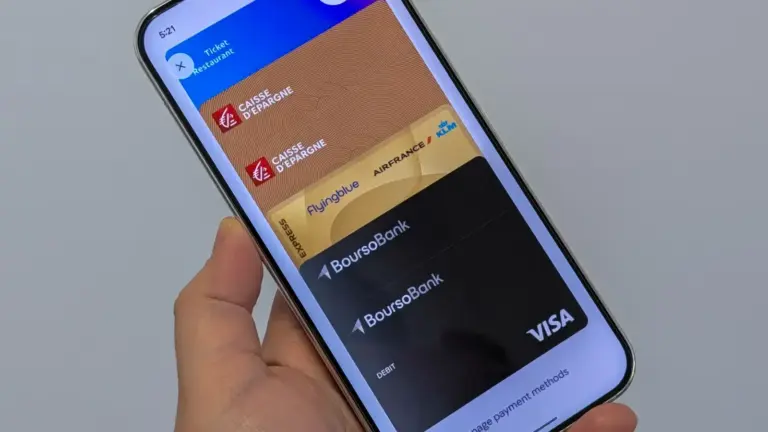
Launch Google Wallet on your Android phone. Your saved cards appear as a horizontal stack near the top of the screen.
Step 2: Find the card you want to delete
Swipe left across the card stack until the expired or unused card is in view.
Tip: If your cards are hard to tell apart, giving each one a nickname first makes this step much faster — see Google Wallet's nickname settings.
Step 3: Tap the card to open its details
Tapping the card opens its individual details screen, separate from the main stack view.
Step 4: Tap the three-dot menu
In the upper-right corner, tap the three-dot More icon.
Step 5: Tap Remove payment method
Select Remove payment method from the menu that appears.
Step 6: Choose where to remove it from
- From Wallet only – removes tap-to-pay on this device only.
- From Wallet and your Google Account – deletes it everywhere, including Google Pay, autofill, and Play.
Step 7: Confirm the removal
Tap Remove to finish. The card disappears from your Google Wallet stack immediately.
Remove a Card From the Google Wallet Website
Use this method if you prefer a browser, or if you’re on an iPhone where Google Wallet’s tap-to-pay feature is not supported.
Step 1: Go to wallet.google.com
Open a browser on your computer, phone, or iPhone and navigate to wallet.google.com.
Step 2: Sign in to your Google Account
Use the same account where the card is saved.
Step 3: Click Payment methods
In the left-hand navigation menu, click Payment methods to see every saved card.
Step 4: Select the card to remove
Click on the expired or unused card to open it.
Step 5: Click Remove, then confirm
Click Remove, then click Remove again on the confirmation prompt to delete the card from your account.
Pro tips
- Removing a card from Wallet only clears its on-device tap-to-pay token; it stays saved in Google Payments Center for Chrome autofill, Play, and YouTube until you remove it from your account.
- Check your default payment card after deleting one, since a removed card may have been set as default — you can reset it from Google Wallet's payment settings.
- If your card stack feels disorganized even after cleanup, reordering it can help; see the guide on fixing the Google Wallet card stack layout.
Troubleshooting
| Problem | What to do |
|---|---|
| The Remove button does nothing or the card won't delete | The card is likely the sole payment method on an active subscription. Open Play Store, tap your profile icon, go to Payments & subscriptions > Subscriptions, assign a new card or cancel the subscription, then try removing the old card again. |
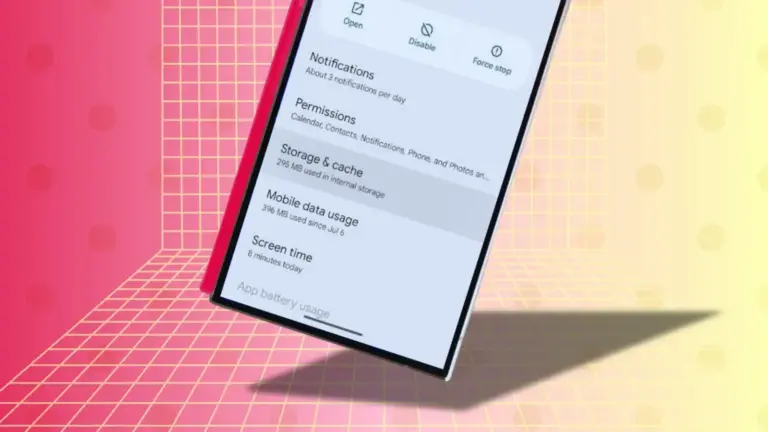
| The card still shows up after you removed it | This is usually a caching glitch. Go to device Settings > Apps > Google Wallet > Storage, tap Clear cache, then reopen the app or check wallet.google.com to confirm the removal. |
Frequently asked questions
Does removing a card from Google Wallet cancel the physical card?
No. Removing a card from Google Wallet only deletes it from the app or your Google Account; it has no effect on the physical card or the account with your bank.
Will deleting a card in the app also remove it from my Wear OS watch?
Not always. A watch paired with Google Wallet can hold its own separate device token, so you may need to remove the card on the watch itself as well.
Can I remove a card from Google Wallet on an iPhone?
Google Wallet’s tap-to-pay feature isn’t available on iPhone, but you can still manage cards used for web and in-app Google purchases at wallet.google.com.
What's the difference between removing from Wallet only and from my Google Account?
Wallet only deletes the tap-to-pay token on that one device, while removing from your Google Account deletes the card everywhere, including Chrome autofill, Google Play, and YouTube.
With the expired cards gone, it’s worth checking your default payment method and card order so the one you use most sits at the front of the stack — see the guides on Google Wallet defaults and the Google Wallet card stack layout.
Sources and further reading
- Support Google
- Verizon
- Google Wallet — Google Wallet FAQs and Additional Information – Google Wallet
- Mobiletopup