Quick answer
Open the card in Google Wallet, tap the three-dot menu, choose "Add a nickname," type a label of up to 25 characters, then tap "Save."
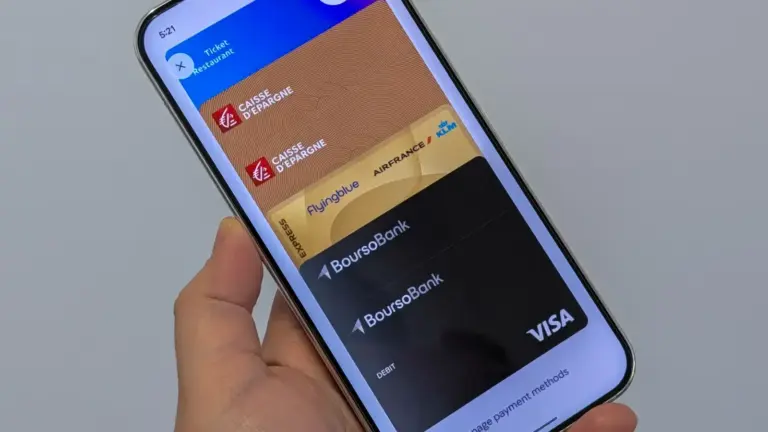
Google’s stacked card layout in Google Wallet makes it easy to lose track of which card is which, especially if you carry two cards from the same bank. A custom nickname fixes that at a glance, as long as you know where Google tucked the setting.
Below is the exact path to add a nickname on your phone, plus the separate steps for Chrome if you only use Wallet for autofill on the web.
Before you start
- Difficulty Easy
- Time needed 2 minutes
- Works on Android 9.0+ with Google Wallet app; Chrome on Android, iOS, Windows, Mac
What you'll need
- Android phone running Android 9.0 or higher
- Google Wallet app updated from the Play Store
- A Google Account signed in to Google Wallet
Important
- Don't include account numbers, PINs, or passwords in a nickname since it can be visible on screen at checkout.
Add a Nickname in the Google Wallet App (Android)
This is the only place that sets the nickname you see on your phone’s tap-to-pay cards.
Step 1: Open Google Wallet
Launch the Google Wallet app on your Android phone.
Step 2: Tap the card you want to rename
Swipe through the card stack or carousel until you find the card, then tap it to open it.
Step 3: Open the card's menu
Tap the three-dot menu icon in the top-right corner of the card screen. If you don’t see it, scroll down and tap Details instead.
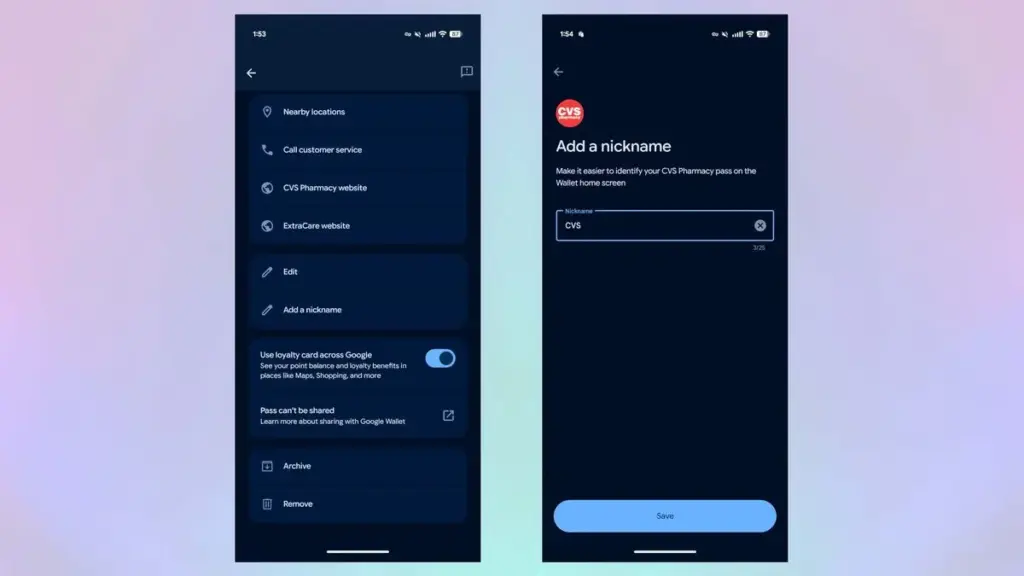
Step 4: Select Add a nickname
Tap Add a nickname from the menu that appears.
Step 5: Type your custom label
Enter a short name you’ll recognize, such as “Work Visa” or “Chase Debit.” Nicknames max out at 25 characters.
Tip: Avoid putting full account numbers or PINs in the nickname since it can show on screen during checkout.
Step 6: Tap Save
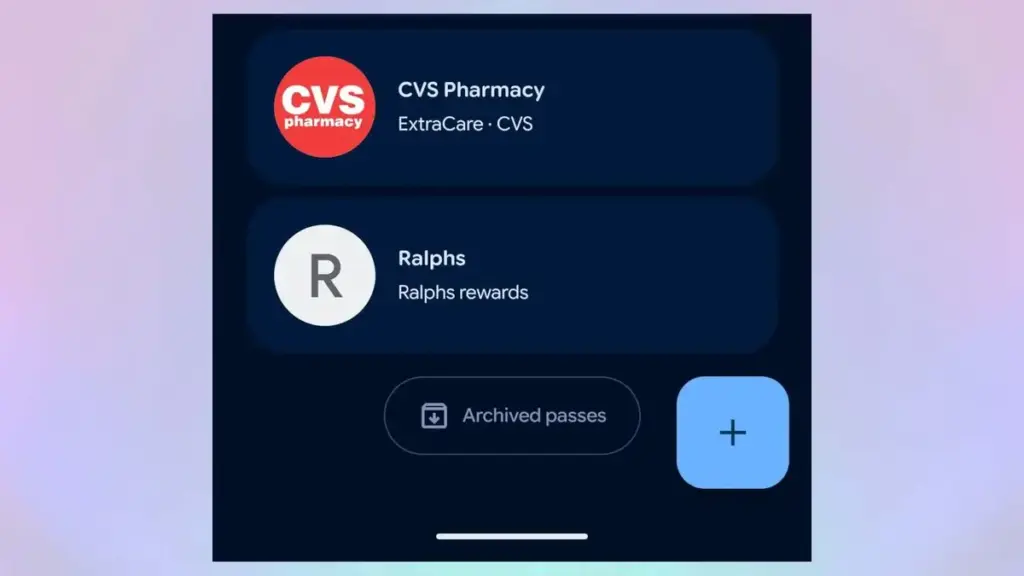
Your nickname now appears as the smaller text under the card. In the stacked layout it won’t show on the front face, so slide the stack slightly to the left or tap the card to see it.
Add a Nickname in Chrome (for Autofill Cards)
Use this method only for cards you save through Chrome autofill, not for the tap-to-pay cards in the Wallet app; the two nicknames don’t sync.
Step 1: Open Chrome settings
On desktop, open Chrome and go to Settings > Autofill and passwords > Payment methods. On an iPhone or iPad, open the Chrome app, tap More (the three dots), then Settings > Autofill and passwords > Payments.
Step 2: Find your card and choose Edit
Locate the card in the list and select Edit in Google Wallet (desktop) or Edit (mobile).
Step 3: Add the nickname
Select Add a nickname near the bottom of the card details, then type your label.
Step 4: Save your changes
Select Save on desktop or Done on mobile. This nickname only appears in Chrome autofill, not in the Google Wallet app.
Pro tips
- Keep nicknames short and recognizable, like the last four digits plus a word, since you're limited to 25 characters.
- If you manage a lot of passes, pairing nicknames with a cleaner stack order from the Wallet layout guide makes scanning your cards faster.
- Rename cards right after adding them so you never have to guess which one is which later.
Troubleshooting
| Problem | What to do |
|---|---|
| The "Add a nickname" option doesn't appear | Update the Google Wallet app from the Play Store. If scrolling to the bottom doesn't show a "Details" option, look for the three-dot menu in the top-right corner instead; some bank-issued cards may restrict custom labeling. |
| The nickname isn't visible on the main card screen | Google's stacked layout hides nicknames on the front face. Slide the card stack slightly to the left, or tap the card directly to see the label. |
| A nickname set in Chrome doesn't show up on the phone app | Chrome autofill nicknames and Google Wallet contactless card nicknames are stored separately. Set the nickname directly inside the Android Wallet app if you want it to appear there. |
Frequently asked questions
Is there a character limit for Google Wallet nicknames?
Yes, nicknames are capped at 25 characters.
Will a nickname I add in Chrome show up in the Google Wallet app?
No. Chrome autofill nicknames and the ones you set in the Google Wallet app operate independently and do not sync.
Does adding a nickname change my card's account number or expiration date?
No. A nickname is just a label; it doesn’t touch your card number, expiration date, or bank verification tokens.
Why can't I see my nickname right away in the stacked card layout?
Google’s vertical stack hides nicknames on the front of the card. Slide the stack left or open the card to see the label.
With nicknames set, you’ll stop second-guessing which card you’re about to tap at checkout. If your stack still feels cluttered, pairing this with a reorder of your default payment card in Google Wallet tidies things up even more.
Sources and further reading
- Samsung Magazine — Google Wallet has a new way to organize cards. Are you confused? Here are 4 ways to fix it
- Tom — Google Wallet now lets you add nicknames and more — here’s what you need to know