Quick answer
Open the Galaxy Store, search for Good Lock, install it, then open the app and tap any module to install it from its own page: you don't download modules separately.
Samsung buries some of its best customization options outside the regular Settings app, inside a free tool called Good Lock. It rebuilds parts of One UI piece by piece, from the lock screen to the quick panel to how your camera’s manual controls behave, without rooting your phone.
This walks through installing Good Lock itself, adding your first modules, and what to do if the Galaxy Store won’t let you grab a module in your region.
Before you start
- Difficulty Easy
- Time needed 10 minutes
- Works on Samsung Galaxy phones running One UI 5.1 or later
What you'll need
- A Samsung Galaxy phone running One UI
- A Samsung account signed into the Galaxy Store
- A stable internet connection
Important
- Back up your settings before applying a module like LockStar or Home Up, since replacing core system screens can be hard to undo cleanly if you later uninstall the module.
- Avoid sideloaded APKs or third-party clones such as Nice Lock unless you understand the security tradeoffs, since they aren't distributed or supported by Samsung.
Install Good Lock From the Galaxy Store
This is the standard path on nearly every current Galaxy phone.
Step 1: Open the Galaxy Store app
Find it in your app drawer. You need to be signed into it with a Samsung account before you can install anything.
Step 2: Search for Good Lock
Tap the search bar and type Good Lock. Samsung’s own listing should appear at the top of the results.
Step 3: Tap Install
Wait for the download to finish. Good Lock installs like any other app from the Galaxy Store.
Step 4: Open Good Lock
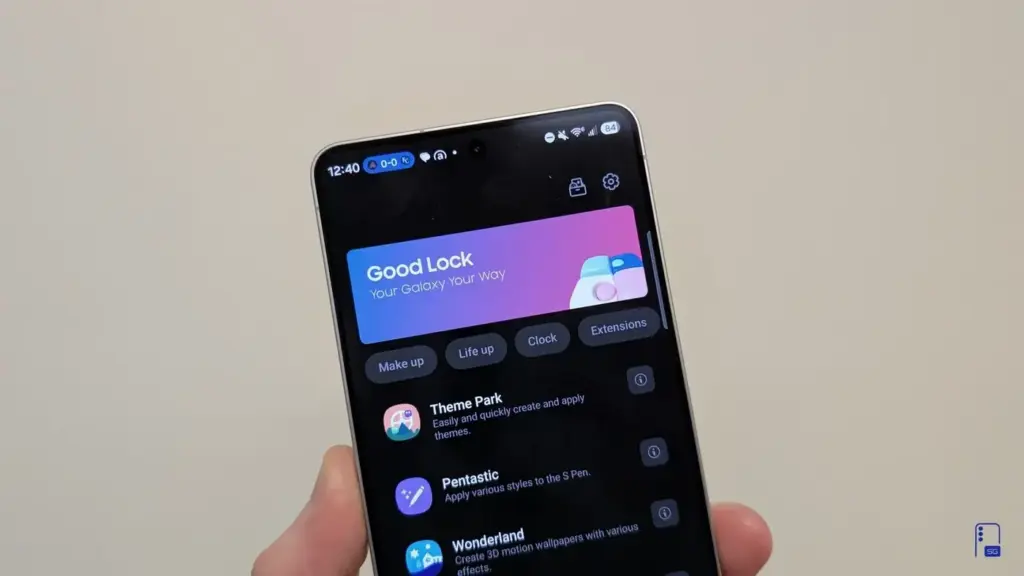
Launch it from the Galaxy Store or your app drawer. You’ll land on the home screen, with modules split across tabs such as Make up, Life up, Clock and Extensions.
Step 5: Tap a module to install it
You don’t download modules separately beforehand. Tapping a module inside Good Lock takes you to its own install page in the Galaxy Store.
Tap Install there, then return to Good Lock. The module now appears on the Good Lock home screen, and that’s where you open and configure it from now on.
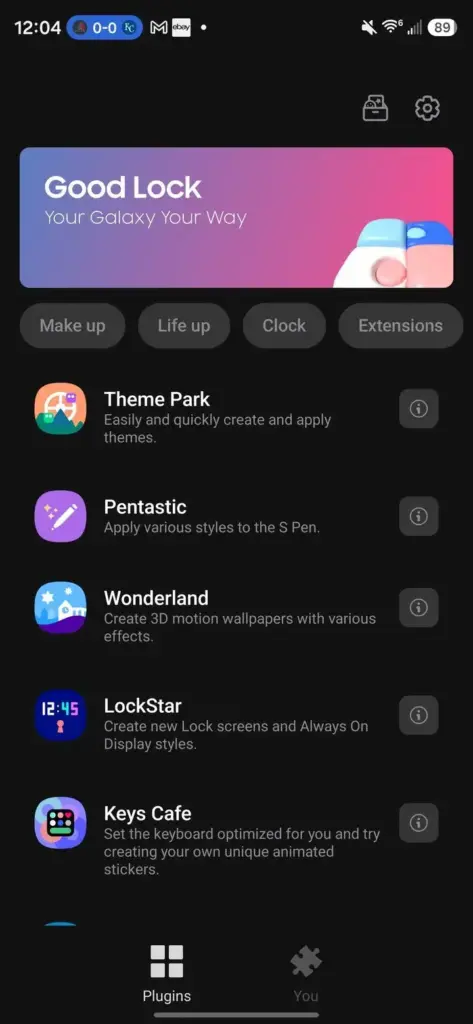
Tip: Install Home Up or LockStar first if you want the biggest visible change to your phone.
Find Good Lock on the Play Store (One UI 7 and Later)
Samsung began listing Good Lock on the Play Store worldwide alongside One UI 7, which helps if the Galaxy Store doesn’t show it for your region.
Step 1: Open the Play Store
Search for Good Lock the same way you would any other app.
Step 2: Install the official Samsung listing
Confirm the developer is Samsung Electronics before installing, since availability still varies by device and region.
Step 3: Open Good Lock and install modules as usual
Once it’s installed, the module tabs and install flow work exactly the same as the Galaxy Store version.
Tip: If a specific module still won't install, check the Galaxy Store listing for that module too, since the two stores don't always carry the same set.
Pro tips
- Update modules through the Galaxy Store, not from inside Good Lock itself: open Galaxy Store, tap the menu, then Updates.
- Install Home Up first if you want the single most noticeable change to your home screen and app switcher.
- Some modules, like Camera Assistant and RegiStar, need the latest One UI version to show up at all.
Troubleshooting
| Problem | What to do |
|---|---|
| A module shows "Something went wrong. Try again later" when you try to install it | This usually means the module is still region-restricted even though Good Lock itself installed fine. Check again after a software update, or look for the module on the Play Store instead of the Galaxy Store. |
| Good Lock isn't listed in the Galaxy Store at all | Try the Play Store, since Samsung expanded availability there starting with One UI 7. If neither store shows it, your region may not be supported yet. |
| A module won't launch after updating to a new One UI version | Some modules, including Home Up and LockStar in early One UI 7 builds, needed a follow-up update before they worked again. Check the Galaxy Store for pending updates to that specific module. |
Frequently asked questions
Does Good Lock require root access?
No. Good Lock and its modules are designed by Samsung to work without rooting your phone.
Is Good Lock available on every Galaxy phone?
It needs One UI 5.1 or newer on most modules, and some, like Camera Assistant and RegiStar, require the latest One UI version. A handful of modules also need specific devices to work fully.
Can I uninstall a Good Lock module if I don't like it?
Yes. Uninstalling a module removes its changes and returns that part of your phone to the default One UI behavior.
Why can't I find Good Lock in my country's Galaxy Store?
Good Lock has historically been limited to specific markets. Samsung expanded it globally through the Play Store with One UI 7, but rollout of individual modules in some regions is still uneven.
Once Good Lock is installed, browse its tabs and add modules one at a time so you can see exactly what each one changes. For a rundown of what every module actually does, see Samsung Good Lock: Every Module Explained.
Sources and further reading
- SammyGuru — Samsung Good Lock: Every Module Explained (One UI 9)
- YTECHB — How to Install Good Lock Modules on Samsung [3 Methods]
- Android Police — One UI 7 will bring Samsung’s ultimate customization app to the world
- AndroidAyuda — How to fully customize your Samsung Galaxy with Good Lock