Quick answer
Before you factory reset, work through Settings > Battery, clear cache for key system apps, update everything in the Galaxy Store, and try Adaptive Battery — most One UI 9 drain clears up without wiping the phone.
Since Samsung pushed One UI 9 to the Galaxy S24 and S25 families, plenty of owners have watched their battery percentage drop faster than it used to. A factory reset feels like the obvious fix, but it erases everything on the phone and won’t repair a worn battery if that turns out to be the real cause.
This checklist walks through the safer fixes first — waiting out post-update maintenance, checking which app is responsible, clearing cache, and adjusting battery settings — before it gets to recovery mode. If your phone is also freezing on top of draining fast, the companion guide on Battery Drain and random freezing covers that combination in more detail.
Before you start
- Difficulty Moderate
- Time needed 40 minutes
- Works on Galaxy S24 and S25 series running One UI 9
What you'll need
- Galaxy S24 or S25 updated to One UI 9
- Samsung account for Samsung Members diagnostics
- Galaxy Store and Google Play Store access
- A recent backup of your data before any last-resort steps
Important
- A factory reset erases everything on the phone, so back up your data first and treat it as a last resort.
- Adaptive Battery and Power saving reduce performance and can delay notifications while they're turned on.
- Samsung has not publicly confirmed a widespread One UI 9 battery defect, so results from these fixes vary by phone.
Give It a Few Days and Restart First
Right after a major update, One UI 9 is still reindexing files and relearning your habits in the background, which can look like a battery problem on its own.
Step 1: Let the update finish settling in
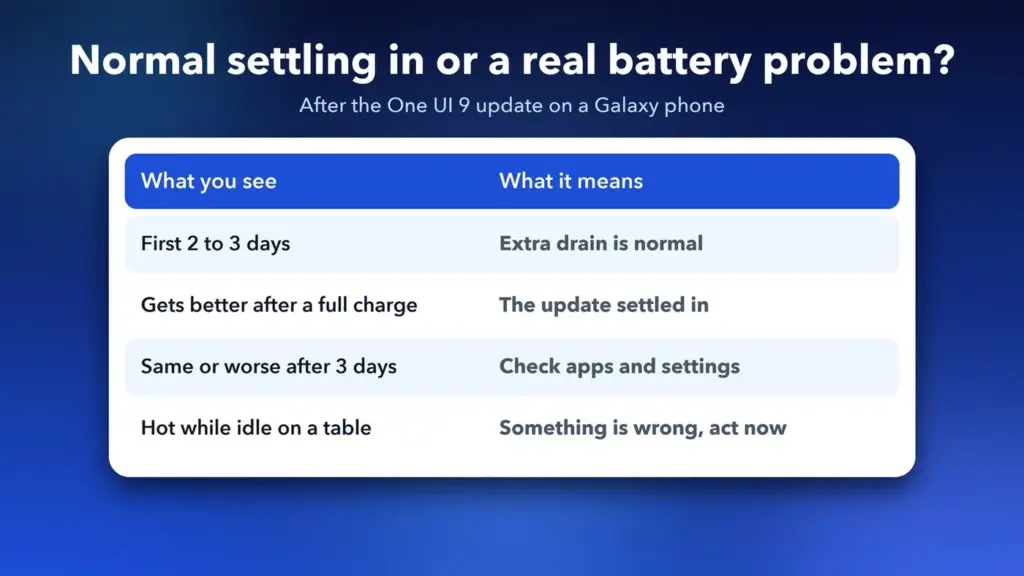
Charge normally and use the phone as usual for two to three days before you touch any settings. One UI 9 spends extra power reindexing files, rebuilding search databases and optimizing apps right after it installs.
If the drain is still bad after about a week of normal use, treat it as a real problem rather than the update settling in.
Tip: Note your screen-on time each day so you can tell whether battery life is actually improving.
Step 2: Restart your Galaxy
A simple restart clears out stuck background processes and is the fastest thing to try if your S24 or S25 has been draining faster since the update.
Hold the power and volume down buttons, or use the power menu, and choose Restart.
Check Which App Is Actually Draining the Battery
Before changing any settings, find out whether one specific app is the cause, since the culprit varies from phone to phone.
Step 1: Open your battery usage details
Go to Settings > Battery and tap View details. On some models and regions this sits under Device care > Battery or Battery and device care > Battery instead.
Compare your screen-on time against what the battery percentage suggests you should be getting.
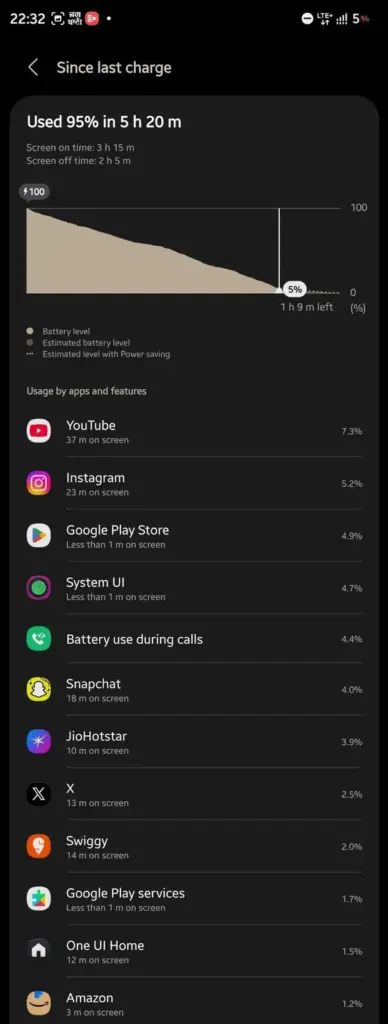
Tip: Don't assume it's the same app everyone else is blaming — check your own list, since the culprit has varied between reports.
Step 2: Act on the app that stands out
- If one app is using far more power than the rest, update it first.
- If updating doesn’t help, force-stop the app and watch whether the drain improves.
- If Android System sits at the top instead of a named app, the phone may still be running post-update maintenance.
Update Your Apps and the System Software
Apps built before One UI 9 can behave badly on the new system until they get an update, and Samsung’s own apps often update separately from your other apps.
Step 1: Update apps in the Galaxy Store
Open the Galaxy Store, tap the menu icon, then Updates, and update everything listed. Many Samsung apps, including System UI components, update through here rather than the Play Store.
Step 2: Check for a software update
Go to Settings > Software update and install anything available. Samsung occasionally ships smaller fixes between major releases.
Tip: Also open the Play Store and update your other apps, since a few battery complaints have traced back to apps that hadn't caught up with the new OS.
Clear the Cache of Key System Apps
A corrupted cache in a core system app is a common cause of battery drain after a major Android update, and clearing it doesn’t touch your data.
Step 1: Show system apps in the app list
Go to Settings > Apps, tap the filter and sort icon next to Your apps, turn on Show system apps, then tap OK.
Step 2: Clear cache for each system app
Find Google Play services, tap Storage, then tap Clear cache. Repeat the same steps for Android System WebView, System UI and One UI Home.
Tip: Tap Clear cache only, not Clear data — clearing data signs you out or resets app preferences.
Step 3: Restart the phone
Once you’ve cleared the cache for all four apps, restart the phone so the changes take effect.
Turn On Adaptive Battery and Limit Background Apps
These settings cut down on what runs while you’re not using the phone, which helps with idle drain specifically.
Step 1: Turn on Adaptive Battery
Go to Settings > Battery > Background usage limits, tap the three-dot menu, and turn on Adaptive battery.
Step 2: Put unused apps to sleep
In the same Background usage limits screen, turn on Put unused apps to sleep, then add the apps you suspect are draining the battery to the Sleeping apps list.
Try Power Saving or a Light Performance Profile
These are stopgaps that stretch your battery while you work through the fixes above, rather than a repair for the underlying drain.
Step 1: Turn on Power saving mode
Go to Settings > Battery and turn on Power saving. It reduces performance and can delay some notifications, so use it as a temporary measure.
Step 2: Shorten your screen timeout
Go to Settings > Display > Screen timeout and pick a shorter interval, since the display is usually the single biggest power draw.
Step 3: Switch to Light performance mode
In Device care, set the Performance profile to Light, which trims background activity further.
Run a Diagnostics Check in Samsung Members
If the steps above haven’t helped, a diagnostics scan can catch a hardware issue before you consider wiping the phone.
Step 1: Open Phone diagnostics
Open the Samsung Members app, go to Diagnostics, and tap Phone diagnostics to check the battery and other hardware for problems.
Step 2: Send an error report if something's wrong
If diagnostics flags an issue, use the option to send an error report so Samsung can review your case. This is also the path some owners have used to get a service appointment booked.
Last Resort: Wipe the Cache Partition or Book a Service Check
Try this only after everything above has failed, since it’s the step right before a full factory reset.
Step 1: Back up your data
Back up photos, messages and app data before going any further. Neither a cache partition wipe nor a factory reset can be undone once it starts.
Step 2: Wipe the cache partition in recovery mode
Power off the phone, then boot into recovery mode and select Wipe cache partition, using Volume Up + Power on current models (the Bixby button has been removed). This clears temporary system files without touching your personal data.
- On some Galaxy S25 units running the February 2026 update, Samsung removed this option from recovery mode entirely, leaving a full reset as the only way to clear cache at this level.
Step 3: Book a service check instead of resetting blindly
If the cache wipe option isn’t available or doesn’t help, contact Samsung support or visit a service center before you factory reset. A reset can’t restore battery capacity that’s genuinely worn down, and reinstalling a problem app afterward can bring the drain right back.
Pro tips
- Check your own per-app battery stats rather than assuming the same app everyone else blames is the cause on your phone.
- Note your screen-on time for a few days before and after each fix so you can tell whether it actually worked.
- Treat Power saving and Adaptive Battery as temporary relief, not a repair for the underlying drain.
- If you reinstall an app you force-stopped earlier, watch battery usage again, since the drain can come back.
Frequently asked questions
Is One UI 9 really causing a battery drain bug on the Galaxy S24 and S25?
Samsung hasn’t confirmed a widespread software defect. Multiple owners on X, Reddit and Samsung’s community forum have reported faster drain after installing One UI 9, but most users haven’t seen the issue, which points to a specific app or setting on affected phones rather than a universal bug.
How long should I wait before trying any fixes?
Give the phone two to three days of normal use first, since One UI 9 does extra background work right after installing. If drain hasn’t improved after about a week, move on to checking battery usage and clearing cache.
Will a factory reset fix One UI 9 battery drain?
It can help if a corrupted app or setting is the cause, but it won’t restore a battery that’s genuinely worn down, and reinstalling the same problem app afterward can bring the drain back. Try the settings-based fixes first and back up your data before resetting.
What if the cache partition wipe option is missing from recovery mode?
Samsung removed the separate Wipe cache partition option from some Galaxy S25 units on the February 2026 update. If it’s missing on your phone, a full factory reset is the only way left to clear cache at that level, so try Samsung Members diagnostics or a service appointment first.
Work through these fixes in order and most One UI 9 battery drain clears up in settings, without ever reaching a factory reset. If you’ve tried everything here and the phone still drains fast, Samsung’s support community has an active Galaxy S24 thread covering the same issue, and the companion piece on Battery Drain and freezing is worth checking if your phone is also acting up in other ways.
Sources and further reading
- Samsung Magazine — One UI 9 Battery is draining: Causes and fix
- Idevice — One UI 9 is draining some Galaxy S24 and S25 batteries
- Tech Cheat Codes — One UI 9 Battery Drain on Your Galaxy S24 or S25? Try This
- Daily Techocracy — How to fix Samsung battery drain after One UI 9