Quick answer
To fix Pixel battery drain, open Settings > Battery > Battery usage to find the worst offenders, then open each app's App battery usage screen and turn off Allow background usage.
A Pixel that used to last all day but now needs a midday charge usually has one or two apps running unchecked in the background. Location checks, sync jobs and notification listeners all keep the processor from sleeping, and that adds up fast.
This guide walks through the fixes in order, starting with quick checks and ending with the drastic step of a factory reset. Most people solve the problem by the time they reach the app restriction method.
Before you start
- Difficulty Easy
- Time needed 15 minutes
- Works on Google Pixel phones, Android 12 through Android 16
What you'll need
- A Google Pixel phone
- A few minutes to check settings
- Your most-used apps installed and updated
Important
- A factory reset erases everything on the phone, so back up first.
- Restricting a messaging or wearable app too aggressively can cause missed notifications or broken sync.
Run quick checks before changing any settings
These basics rule out a temporary glitch before you start restricting apps.
Step 1: Update your phone and apps
Open the Play Store and check for pending app updates, then go to Settings > System > System update to confirm your Pixel is current.
A buggy app version is a common and easily fixed cause of sudden drain.
Tip: Battery bugs often get patched within days, so an update can solve this without any settings changes.
Step 2: Restart your phone
A simple restart clears stuck background processes and wakelocks that can quietly keep the screen or radios active.
Step 3: Check whether drain happens on screen or in the background
Open Settings, tap Battery, then Battery usage. Compare each app’s screen time against its background time.
If an app shows heavy background use while you’re not even opening it, that’s the one to target in the next fixes.
Trim everyday screen drain
The display is usually the single biggest power draw, so a few display tweaks buy you extra hours before you touch background settings.
Step 1: Lower brightness and enable Dark theme
- Swipe down with two fingers and drag the brightness slider left.
- Open Settings, tap Display, then turn on Dark theme.
- Turn on Adaptive brightness so the screen adjusts itself.
Step 2: Shorten screen timeout and turn off Always-on Display
Go to Settings > Display > Screen timeout and pick a short interval such as 30 seconds.
While you’re there, turn off Always-on Display and, on Pixel 4 and later, turn off Smooth Display if you want to trade a smoother scroll for extra battery life.
Tip: Live wallpapers also cost battery, so switch to a static one if you're trying to squeeze out every hour.
Find which apps are actually draining the battery
Before restricting anything, confirm which apps are the real culprits.
Step 1: Open Battery usage by app
Open Settings, tap Battery, then Battery usage. Tap View by apps to see each app’s share of the drain.
Sort mentally by background percentage rather than total percentage, since an app you barely open but that still shows high usage is the one worth restricting.
Restrict background usage for the worst offenders
This is the fix most people need: it stops an app from running, syncing or checking location while you’re not using it.
Step 1: Open the app's info page
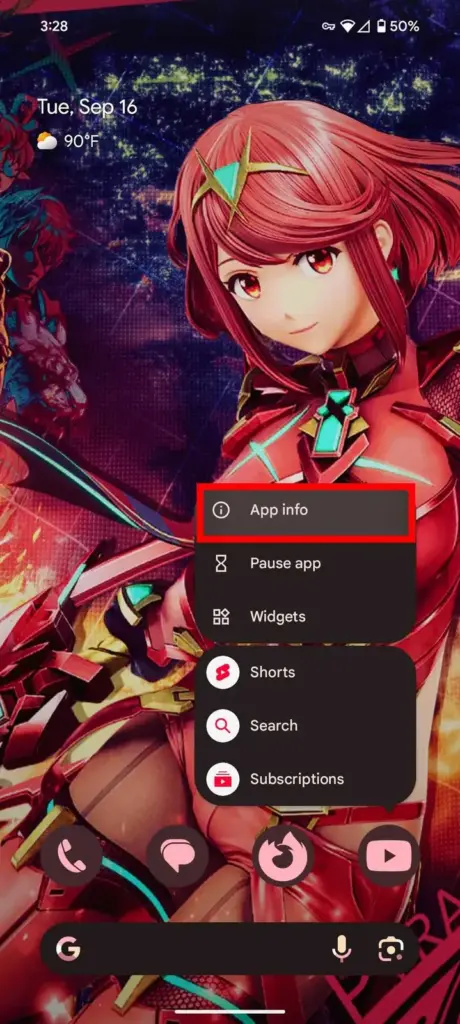
Long-press the app’s icon on your home screen or app drawer and tap App info.
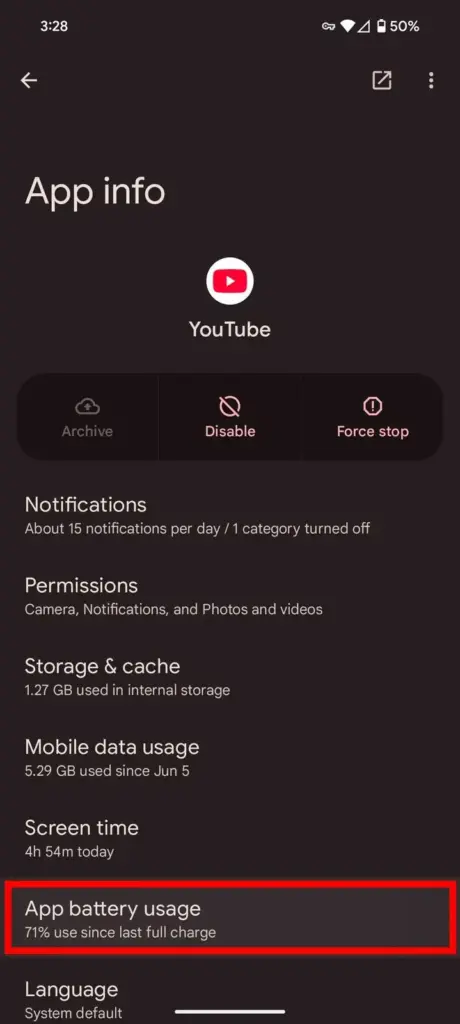
Step 2: Tap App battery usage
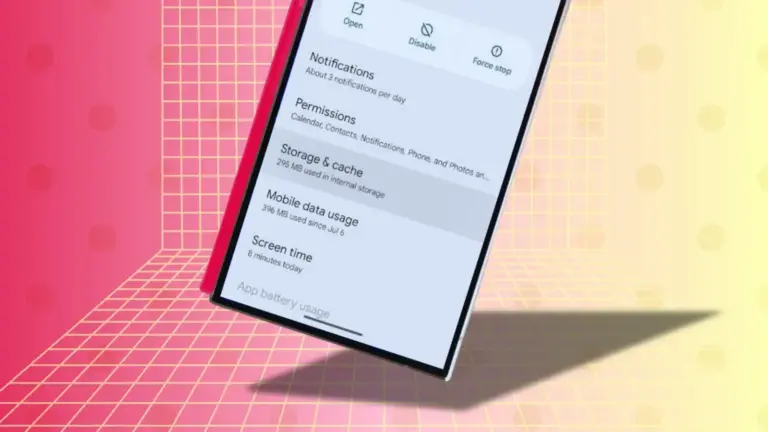
On the app’s info page, tap App battery usage. This is the Pixel’s name for the setting; some other brands call it something different.
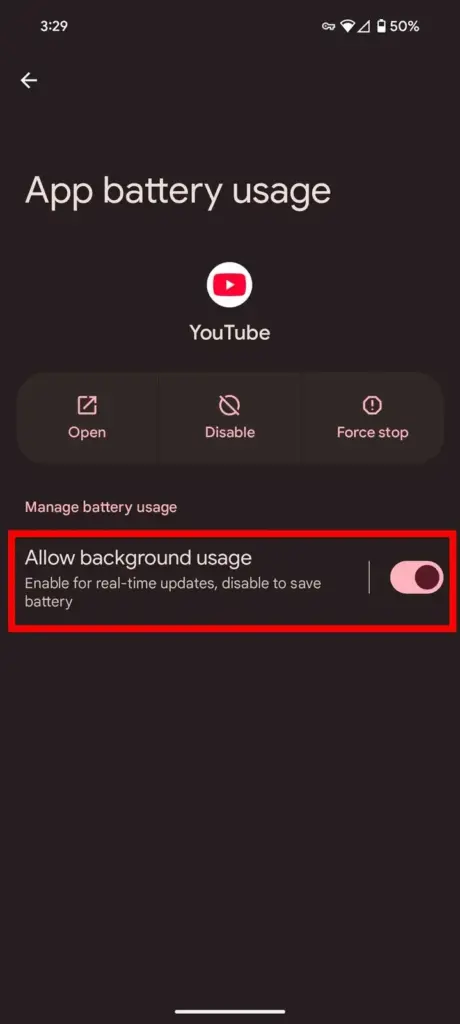
Step 3: Turn off Allow background usage
Turn off Allow background usage to stop the app running when you’re not in it. On Pixels running Android 12 through Android 14 QPR1, you’ll instead see three radio buttons, Unrestricted, Optimized and Restricted; pick Restricted for the same effect.
Tip: Repeat this for every app that showed heavy background use in the previous step.
Step 4: Repeat for other heavy-drain apps
Go back to Battery usage and apply the same restriction to any other app with disproportionate background use.
For a deeper walkthrough of each toggle and when to use Optimized versus Restricted, see our guide on how to fix pixel battery drain with Adaptive Battery settings.
Rein in Android System Intelligence and the Google app
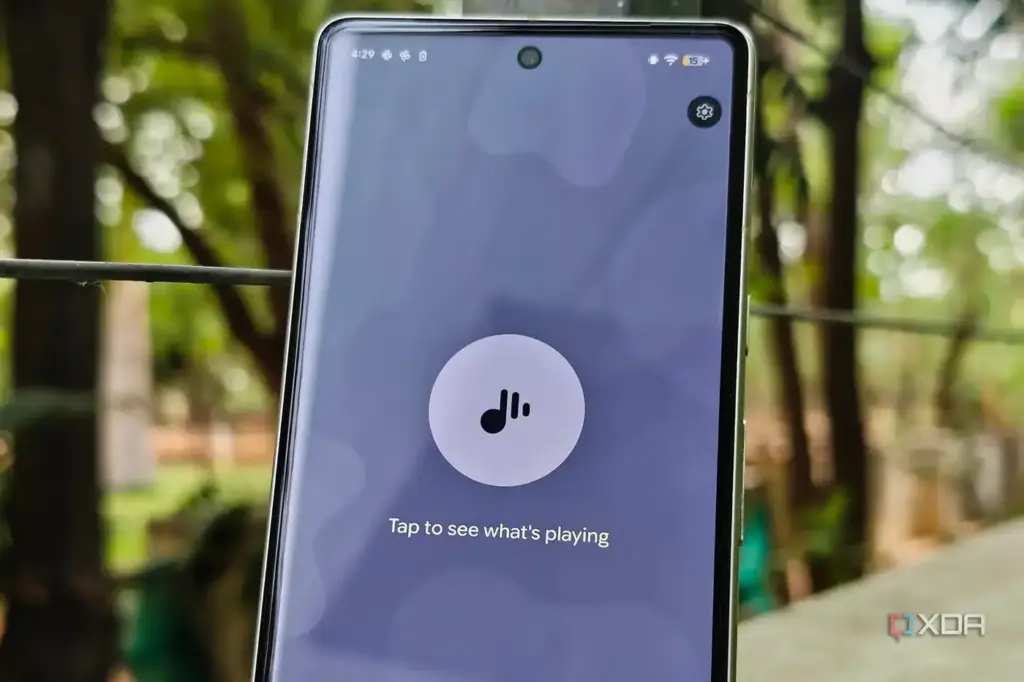
Pixel-specific features like Now Playing, live caption and smart notifications run constant background processes that can add real overnight drain.
Step 1: Open Android System Intelligence settings
Open Settings, tap Apps, then find and tap Android System Intelligence.
Step 2: Restrict its background usage
Tap into its battery settings and set usage to Restricted. You can also disable background data and clear its storage if drain continues.
Tip: Check the Google app's own App battery usage setting too, since it runs several of the same background features.
Turn on Adaptive Battery and Adaptive connectivity
These system-wide helpers quietly reduce power use for apps you don’t touch often, without you having to manage each one by hand.
Step 1: Confirm Adaptive Battery is on
Open Settings, tap Battery, then Battery Saver, then Adaptive Battery, and make sure it’s turned on.
Step 2: Turn on Adaptive connectivity
Open Settings, tap Network & internet, then Adaptive connectivity, and turn it on. Some US carriers limit this feature, so check with yours if the toggle isn’t available.
Boot into Safe Mode to catch a rogue third-party app
If drain started after installing a new app, Safe Mode temporarily disables all downloaded apps so you can confirm the cause.
Step 1: Reboot into Safe Mode
Press and hold the power button, then long-press Power off until you’re prompted to reboot into Safe Mode, and confirm.
Step 2: Watch battery usage for a few hours
Leave the phone idle in Safe Mode and check Battery usage afterward. If drain stops, a third-party app is the cause.
Tip: Restart normally afterward; Safe Mode re-enables your apps once you reboot again.
Step 3: Uninstall the suspect app
Once you’ve identified the app, uninstall it or wait for an update that fixes the issue before reinstalling.
Back up and factory reset as a last resort
If nothing above helps, a reset clears any deep software fault, but it erases everything on the phone first.
Step 1: Back up your photos, messages and app data
Make sure everything you care about is saved to your Google Account or another backup before continuing, since a reset cannot be undone.
Step 2: Erase all data
Open Settings, tap System, then Reset options, then Erase all data (factory reset), and confirm.
Pro tips
- Leave messaging, alarm and wearable-sync apps on Optimized or Unrestricted so you don't miss notifications or lose a sync connection.
- Check Battery usage again a day or two after restricting apps to confirm the drain actually improved.
- Keep your most-used apps updated, since developers regularly patch their own battery bugs.
Still not working?
| Problem | What to do |
|---|---|
| Notifications now arrive late after restricting an app | Open that app's App battery usage screen, turn Allow background usage back on, and choose Optimized instead of fully restricting it. |
| A smartwatch or wearable stops syncing with the phone | Set that specific app to Unrestricted under App battery usage so it can keep its background connection alive. |
| Drain continues even after restricting the suspected app | Reopen Battery usage and check whether the drain happens during screen time rather than background time; if it keeps happening, force stop or uninstall the app. |
Frequently asked questions
What's the difference between Optimized and Restricted on a Pixel?
Optimized lets the app run in the background when the system decides it’s useful, while Restricted blocks background activity almost entirely, which saves more battery but can delay notifications.
Will restricting background apps delete my data?
No, these toggles only control when an app can run in the background and don’t remove any app data or files.
Why does Android System Intelligence use so much battery?
It powers Pixel features like Now Playing, live caption and smart notification actions, all of which keep small background processes and sensors active even when you’re not using your phone.
Should I restrict the Google app too?
Only if you don’t rely on its background features, since restricting it can delay Assistant routines and some smart notification actions.
Start with the app battery usage toggle, since it solves most Pixel drain cases without affecting anything you actually use. If drain keeps coming back, pair it with Adaptive Battery and, if needed, a check in Safe Mode to rule out a problem app.
Sources and further reading
- Support Google
- Yahoo Tech — How to stop apps from sleeping on Android devices
- XDA — Google's background AI is quietly draining your Pixel's battery, and the fix takes five mi
- Asurion — Why your Android battery is draining fast and how to fix it | Asurion