Quick answer
Wait a few days for the post-update settling period, then open Settings > Battery > Battery diagnostics > Battery draining too quickly to run a built-in check, and work through app battery usage, battery health, and Extreme Battery Saver if the drain continues.
Install a Pixel update, plug in overnight, and wake up to a battery that dropped far more than it should have. It has happened to a lot of Pixel 9 and Pixel 10 owners through 2026, usually right after a monthly patch.
Most of this clears up on its own within a few days. When it does not, there is a clear order of checks that separates normal settling-in from an actual bug, and this guide walks through it from the quickest step to the most drastic.
Before you start
- Difficulty Moderate
- Time needed 20 minutes
- Works on Pixel 9, 9 Pro, 9 Pro XL, 10, 10 Pro, 10 Pro XL, 10a (Android 17)
What you'll need
- A Pixel 9 or Pixel 10 series device
- Latest software update installed
- A Google account for support or Issue Tracker
Important
- Force stopping essential system apps or Google Play services can break basic phone functions, so only stop apps you recognize as optional.
- Extreme Battery Saver pauses most non-essential apps and notifications, so treat it as temporary rather than a permanent setting.
- If the battery icon shows a question mark, stop troubleshooting software and take the phone to an authorized repair center instead.
Quick checks before you change anything
Rule out the obvious causes first, since most post-update drain fixes itself within a few days.
Step 1: Confirm you're on the latest update
Go to Settings > System > Software update > System update and install anything pending.
Google’s July 2026 fix for severe idle drain only landed on Pixel 9 and 10 series devices running the current build, so staying updated matters here.
Tip: Pixel 8a and 9a needed the separate September QPR update for the same fix.
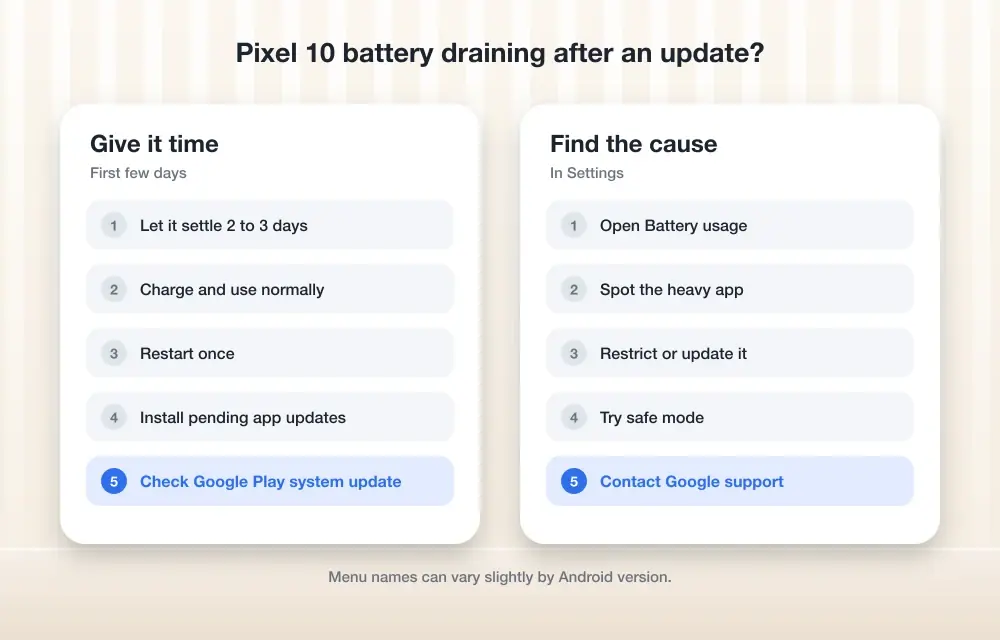
Step 2: Give it a few days to settle
After a major update, your Pixel reindexes apps and optimizes the new software in the background, which temporarily increases battery use.
Google says a little extra drain is normal while the phone readjusts, and most of it on the Pixel 9 and 10 settles within a few days.
Tip: Turn on the battery percentage display under Battery so you can track the trend day by day.
Run the built-in battery diagnostics
Pixel has a dedicated diagnostic tool built for exactly this situation.
Step 1: Open Battery diagnostics
Go to Settings > Battery > Battery diagnostics > Battery draining too quickly and let it scan.
On newer Pixel 10 software, the menu may be labeled Battery and charging instead of Battery, so check both if one is missing.
Tip: Keep Adaptive Battery turned on while you run this, since Google recommends leaving it enabled.
Identify which app or service is draining power
If diagnostics does not point to a clear cause, check app-by-app usage yourself.
Step 1: Check battery usage by app
Go to Settings > Battery > Battery usage, then tap View by apps. You can also reach the same data from Settings > Apps > App battery usage.
Watch for any app or Google service using more than 10% of total battery over a day.
Tip: For most apps, Google recommends keeping battery usage set to "Optimized" rather than unrestricted.
Step 2: Restrict or force stop the worst offender
Tap the app in the usage list, then adjust its background usage setting, or go to Settings > Apps > See all apps, select the app, and tap Force stop.
Avoid force stopping core system apps or Google Play services, since this can break basic phone functions.
Check battery health
If no single app stands out, the battery itself may be aging rather than the update causing the problem.
Step 1: Review battery capacity
Go to Settings > Battery > Battery health > Battery capacity to see how much of its original capacity remains.
A notably reduced capacity points to normal battery wear rather than a software bug, and no setting will fix that.
Calibrate if the percentage behaves erratically
Skip this unless the battery reading itself seems inaccurate, like jumping or freezing.
Step 1: Restart, fully charge, then fully drain
Restart your phone, charge it to 100%, then use it normally until it powers off on its own.
This resets the percentage calculation and often fixes readings that jump or stall.
Tip: Do this once rather than repeatedly, since it is a calibration step, not a battery health fix.
Try Extreme Battery Saver as a temporary workaround
If the drain is severe and tied to the known idle-drain bug, this mode throttles the interrupts enough to slow it down.
Step 1: Turn on Extreme Battery Saver
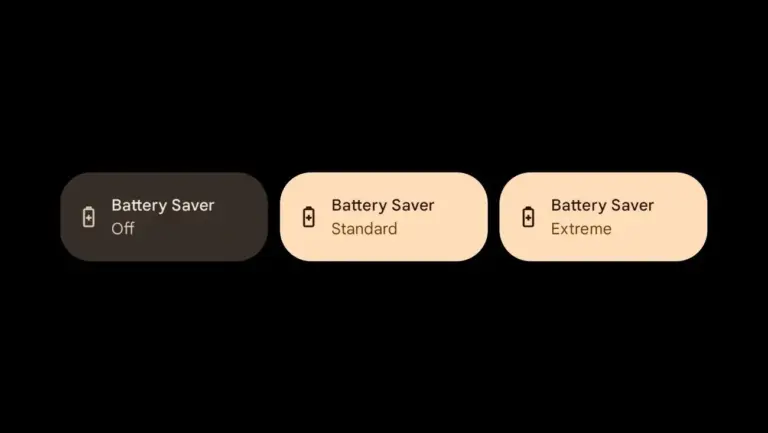
Go to Settings > Battery > Battery Saver > Extreme Battery Saver and turn it on.
This pauses most non-essential apps, so treat it as a stopgap rather than a permanent setting.
Step 2: Try airplane mode as a diagnostic, not a fix
Turn on airplane mode overnight and compare the drain the next morning.
If the phone still drains in airplane mode, the cause sits closer to the system level than to any single radio or app, according to Gadget Hacks’ reporting on the issue.
Test in Safe Mode and contact Google support
If drain continues after a few days and nothing above helps, rule out third-party apps, then bring in Google.
Step 1: Restart into Safe Mode
Press and hold the power button, then press and hold Power off until you see the option to restart in Safe Mode. Third-party apps are disabled in this mode.
If the drain disappears in Safe Mode, a downloaded app is the likely cause and you can re-enable apps one by one to find it.
Step 2: Report the issue to Google
If drain persists after Safe Mode testing, contact Google support directly and consider filing or upvoting a report on Google’s Issue Tracker.
Google closed a related idle-drain bug as fixed in its July 2026 update, but dozens of users reported the issue continuing afterward, so a fresh report with your device and build number helps.
Tip: If the battery icon shows a question mark instead of a percentage, Google recommends taking the phone to an authorized repair center instead.
Pro tips
- Restarting your phone once a day has helped some owners reduce drain alongside overheating complaints.
- Hidden Wi-Fi networks have been linked to extra battery use by Google product experts, so consider unhiding or forgetting one if you use it.
- Beta Program users saw a separate fix in Beta 7 for drain caused by Flip to Shh blocking deep sleep.
- For a wider look at background-app drain specifically, see Fix Pixel Battery Drain from background apps.
- Adaptive Battery settings are worth a second look if usage patterns changed after the update, covered in Fix Pixel Battery Drain with Adaptive Battery.
Frequently asked questions
Is it normal for a Pixel to drain faster right after an update?
Yes. Google says a bit of extra drain is expected for a few days while the phone reindexes apps and relearns your usage patterns after an update.
Did Google actually fix the Pixel idle battery drain bug?
Google says a fix for severe idle drain merged into the July 2026 update for Pixel 9 and 10 series devices, and into the September update for Pixel 8a and 9a, but many users reported the drain continuing afterward.
Which Pixel models are affected by this drain issue?
Pixel 9, 9 Pro, 9 Pro XL, 10, 10 Pro, 10 Pro XL and 10a are covered by Google’s confirmed fix; Pixel 7 and 8 series owners have also reported the issue, but Google has not confirmed a fix for those devices.
Should I use Extreme Battery Saver permanently to deal with this?
No. Extreme Battery Saver pauses most non-essential apps, so it is meant as a short-term workaround while you wait for a proper fix, not a daily setting.
What if the drain still happens in airplane mode?
That points to a system-level cause rather than an app or network issue, and it is worth reporting to Google support along with your device and build number.
Work through these fixes in order and most Pixel 9 and 10 owners will see drain settle within a few days to a week. If it does not, see Pixel Battery Drain after the March update for more background on this recurring issue, and file a report with Google if the problem persists.
Sources and further reading
- Thetechhacker — How to Fix Pixel 10 Battery Drain After an Update
- Support Google
- Stop to Fix — Google Pixel Battery Drain 2026 – Stop to Fix
- 9to5Google — Google says Pixel battery drain should be fixed in July and September updates