Quick answer
Most pixel keyboard search bar crashes clear up after you clear Gboard's cache and data from Settings > Apps > Gboard > Storage & cache, or by force-stopping Pixel Launcher.
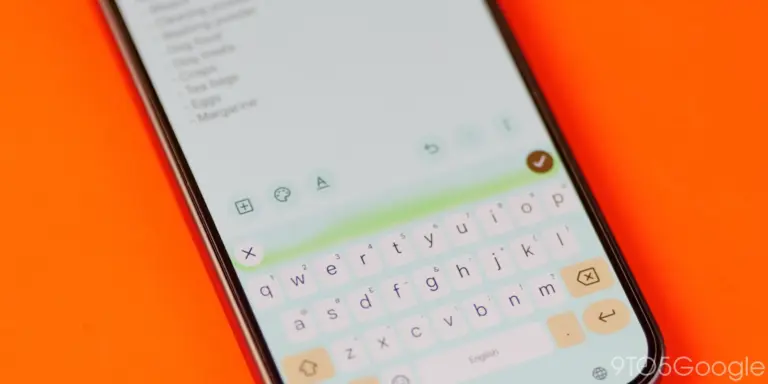
A crashing search bar is one of the more annoying bugs to hit Google Pixel phones, especially when it locks up the home screen search field or freezes Gboard the moment you tap into it. It has shown up across several Pixel generations and feature drops, and it is usually tied to a glitchy cache, a bad app update, or a temporary bug in Pixel Launcher rather than a hardware fault.
This guide walks through the fixes in order, starting with the safest and quickest. Work through them one at a time and test the search bar after each one before moving to the next.
Before you start
- Difficulty Easy
- Time needed 15 minutes
- Works on Pixel 5a and earlier, Pixel 6 and later, Android 14-17
What you'll need
- Gboard installed from Google Play
- Access to your phone's Settings app
- A few minutes of uninterrupted time to test after each fix
Important
- Clearing Gboard's data erases your personal dictionary, typing history and custom settings.
- Uninstalling updates and resetting app preferences can remove recent bug fixes along with the bug itself.
- The ADB flag override requires USB debugging enabled on your phone, which carries its own security risk if left on afterward.
Start With the Quick Checks
Before touching any settings, rule out the easy causes.
Step 1: Restart your phone
Rebooting clears out background processes that can interfere with Gboard and the search bar, and it resolves a surprising number of minor glitches on its own.
On Pixel 5a and earlier, hold the Power button for about 30 seconds until the phone restarts. On Pixel 6 and later, hold Power + Volume up for a few seconds and tap Restart.
Tip: Test the search bar immediately after the reboot before doing anything else.
Step 2: Update Gboard from the Play Store
Google regularly ships bug fixes through Gboard updates, so an outdated version can be the whole problem.
Open the Play Store, search for Gboard, and tap Update if it is available.
Tip: Check for a pending system update too, since Pixel feature drops sometimes fix launcher bugs server-side.
Clear Gboard's Cache and Data
This resets Gboard to its default state without removing the app, and it is the official fix Google recommends for crashing or unresponsive keyboards.
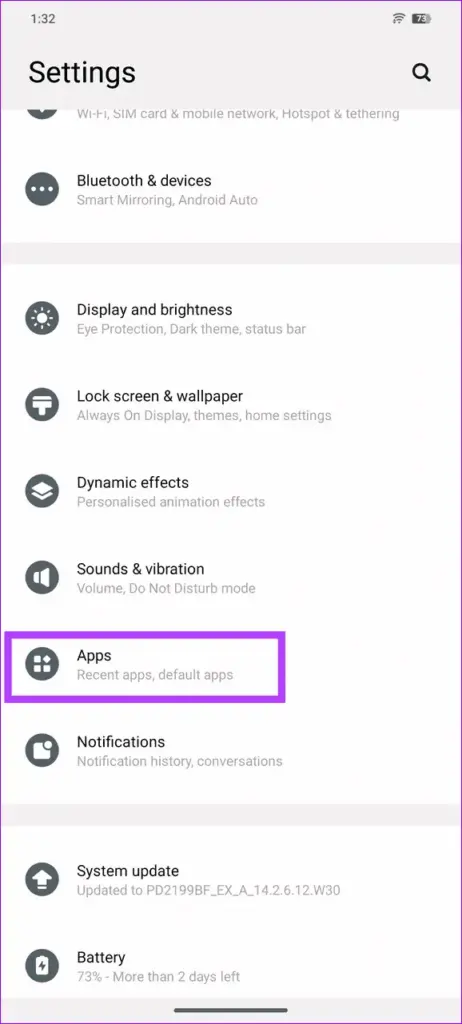
Step 1: Open Gboard's app info
Go to Settings > Apps & notifications (or Apps > See all apps) and tap Gboard.
Step 2: Clear the cache first
Tap Storage & cache, then tap Clear cache. This removes temporary files without touching your saved settings.
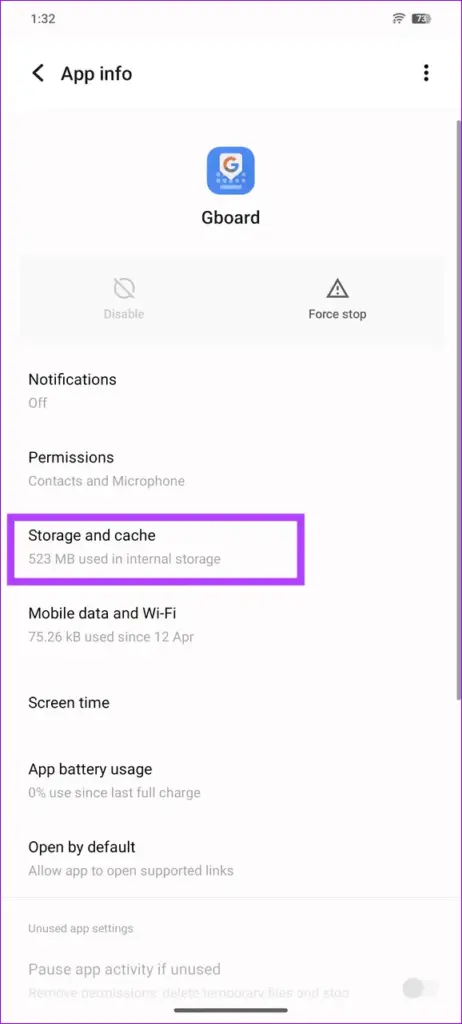
Step 3: Clear storage if the crash continues
If the search bar still crashes, go back into Storage & cache and tap Clear data or Clear storage. This wipes Gboard’s custom settings, dictionary and preferences back to factory defaults.
Tip: If Gboard is your only keyboard, keep a second keyboard app installed as a backup while you troubleshoot.
Force Stop Gboard
Force stopping kills a stuck process that a simple restart might not catch.
Step 1: Open Gboard's app info again
Go to Settings > Apps > Gboard.
Step 2: Tap Force stop
Tap Force stop and confirm. Then reopen your keyboard by tapping into any text field.
Uninstall Gboard's Updates
If the crash started right after a Gboard update, rolling back reverts the app to the last stable version bundled with your phone.
Step 1: Open Gboard's app info
Go to Settings > Apps > Gboard.
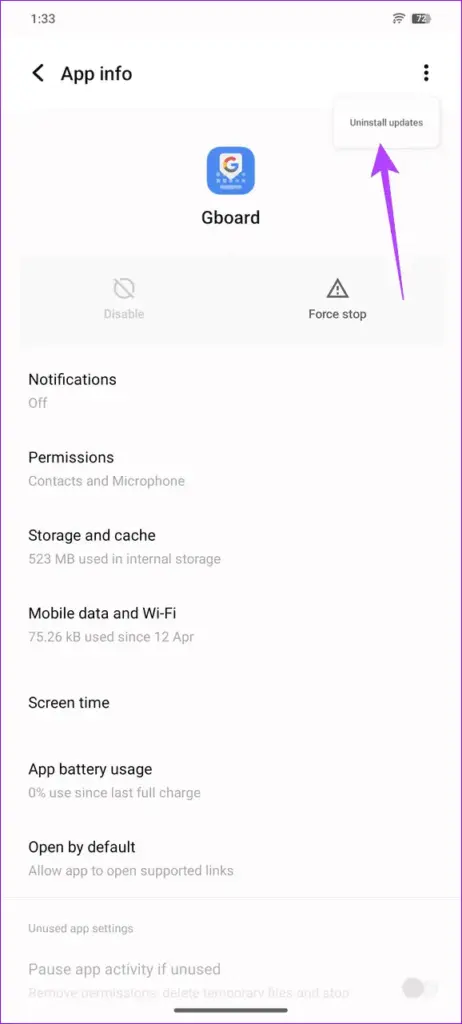
Step 2: Uninstall the updates
Tap More in the top right, then tap Uninstall updates and confirm. Gboard reverts to the version that shipped with your current Android build.
Tip: Your phone may re-download the latest Gboard update automatically later, so this fix can be temporary.
Uninstall and Reinstall Gboard
A full reinstall clears out any corrupted files a cache clear missed.
Step 1: Uninstall Gboard
Go to Settings > Apps & notifications > Gboard and tap Uninstall.
- If Gboard can’t be uninstalled because it’s set as a system keyboard, switch to a different keyboard first under Settings > System > Languages & input.
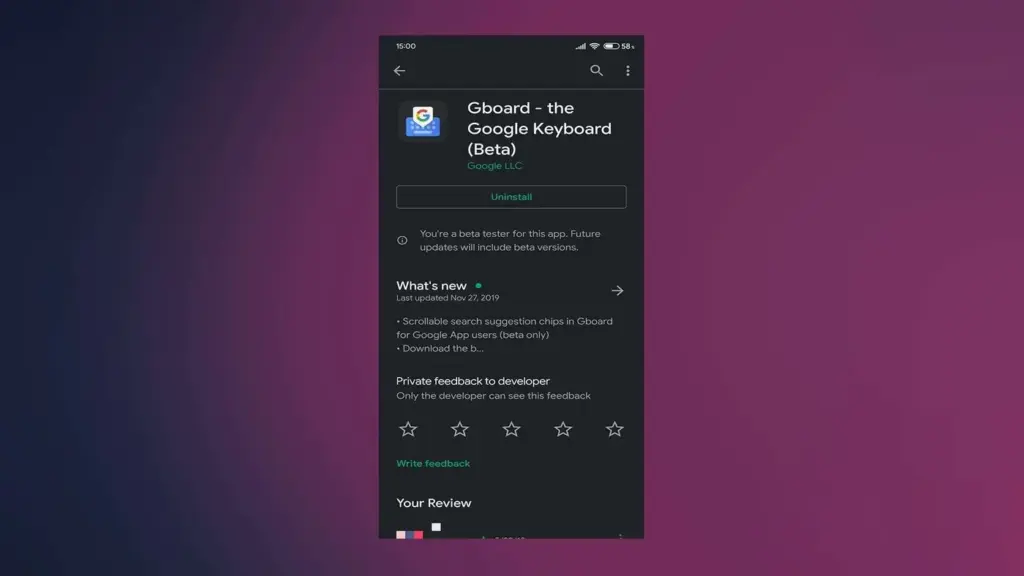
Step 2: Reinstall from the Play Store
Open the Play Store, search for Gboard, and tap Install.
Reset App Preferences System-Wide
If the search bar crash is tied to Pixel Launcher rather than Gboard itself, resetting app preferences can clear whatever flag got stuck.
Step 1: Force stop Pixel Launcher
Go to Settings > Apps > See all apps, select Pixel Launcher, tap Force stop, then return to the home screen.
Tip: Many users report the search bar bug fixes itself after just force-stopping the launcher.
Step 2: Reset app preferences
If that does not help, go to Settings > System > Reset options > Reset app preferences and tap Reset.
This does not delete any app data. It only resets disabled apps, default apps, and background data restrictions back to their original state.
Try the ADB Flag Override (Advanced)
This is an unofficial workaround reported in some Pixel communities, and it is not confirmed to work on every current build, so treat it as a last resort.
Step 1: Connect your phone to a PC
Enable USB debugging under Settings > System > Developer options, then connect your Pixel to a computer with ADB installed.
Step 2: Override the launcher search flag
From a terminal on your PC, run adb shell device_config override launcher enable_one_search false, then force-stop the Pixel Launcher package so the change takes effect.
Tip: If this command has no effect on your build, Google may have already changed or removed this flag.
Pro tips
- Test the search bar after each fix instead of running through all of them at once, so you know which one worked.
- Keep a second keyboard app installed while troubleshooting in case Gboard becomes temporarily unusable.
- Check for a pending Android system update before trying the more advanced fixes, since Google sometimes patches launcher bugs server-side.
Frequently asked questions
Why does my Pixel's search bar keep crashing after an update?
A recent Gboard or system update is the most common cause, since a new build can introduce a bug in how the search field handles input. Uninstalling the Gboard update or waiting for the next monthly patch usually resolves it.
Will clearing Gboard's cache delete my typed history?
Clearing the cache alone does not delete your dictionary or settings, only temporary files. Clearing data or storage does reset those, including your custom dictionary.
Is this bug specific to one Pixel model?
No. The search bar crash has been reported on multiple Pixel phones, including recent and older models, and it tends to follow software updates rather than specific hardware.
What if Gboard crashes so badly I can't unlock my phone?
Switch your lock screen to a pattern instead of a PIN, since a pattern does not require the keyboard. Once unlocked, clear Gboard’s cache and data from Settings, or install a backup keyboard like SwiftKey from the Play Store.
Work through these fixes in order and most pixel keyboard search bar crashes clear up well before you reach the ADB workaround. If the problem returns after every monthly update, it is worth checking Google’s support pages or the Pixel community forums for a server-side fix in progress.
Sources and further reading
- Support Google
- Guiding Tech — 5 Ways to Fix Gboard Not Working on Android
- Mobile Internist — Gboard Keeps Freezing on Android? Try These 4 Fixes
- Make Tech Easier — 11 Best Fixes for Gboard Not Working on Android and iPhone – Make Tech Easier