
Quick answer
On Samsung phones, go to Settings > General management > Keyboard list and default and turn on Keyboard button on navigation bar; on stock Android, it usually appears automatically once you have two keyboards installed and 3-button navigation turned on.
If you type with more than one keyboard app, hunting through a menu every time you want to switch gets old fast. Android has a dedicated button for this built into the navigation bar, but it is not always visible by default.
This guide shows you where to turn the keyboard switcher icon on, both on Samsung’s One UI and on stock Android phones like Pixel, plus what to do if the icon won’t show up even after you flip the setting.
Before you start
- Difficulty Easy
- Time needed 3 minutes
- Works on Samsung One UI 6-8, stock Android 12-16 (Pixel and similar)
What you'll need
- At least two keyboard apps installed and enabled
- A Samsung or stock Android phone running a recent Android version
- A few minutes in Settings
Important
- Don't disable your only keyboard app while testing this, or you could lock yourself out of typing until you re-enable one from Settings.
Show the Keyboard Button on Samsung One UI
Samsung hides this behind a specific toggle in General management.
Step 1: Open Settings
Open the Settings app from your app drawer or by swiping down and tapping the gear icon.
Step 2: Tap General Management
Scroll down and tap General management.
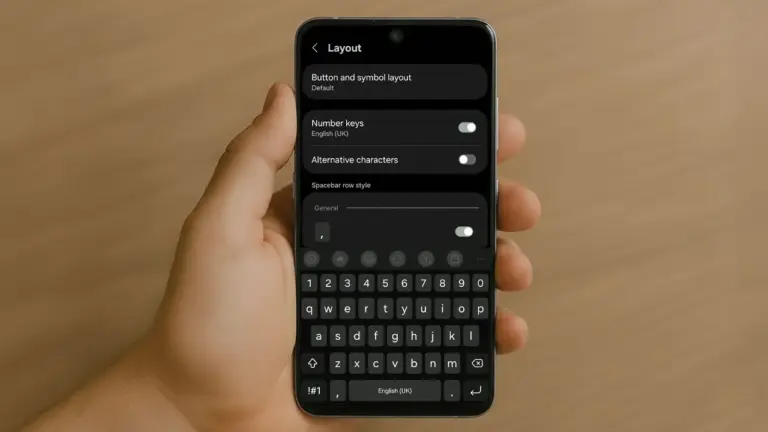
Step 3: Tap Keyboard List and Default
Tap Keyboard list and default to open the keyboard settings screen.
Step 4: Turn On the Keyboard Button Toggle
Switch on Keyboard button on navigation bar (older One UI versions label this Show Keyboard button). A small keyboard icon should now appear in your nav bar.
On One UI 6.1 and later, the icon sits on the left side of the bar instead of the right, so look there first if you don’t see it.
Tip: You can also open Settings, search for "Keyboard button", and tap the result instead of navigating through menus.
Show the Keyboard Button on Stock Android (Pixel and Similar)
Stock Android usually shows the icon automatically, but gesture navigation can hide it.
Step 1: Install a Second Keyboard App
The switcher icon only appears when at least two keyboards are enabled. If you only have Gboard, install another keyboard app and enable it under Settings > System > Languages & input > On-screen keyboard.
Step 2: Switch to 3-Button Navigation (If Needed)
With 3-button navigation active, the keyboard icon appears next to the Recents button by default once a second keyboard is installed. If you prefer gesture navigation, move to the next step instead.
Step 3: Enable the Nav-Bar Button Manually on Gesture Navigation
If you use gesture navigation and don’t see the icon, open Settings, type Keyboard into the search bar, and turn on the option that shows a keyboard button in the navigation bar.
Step 4: Check for the Redesigned Button on Android 15 QPR1+
On Android 15 QPR1 and newer, the icon changes to a globe symbol. Tapping it once switches to the next keyboard, tapping repeatedly cycles through all enabled input methods, and a long press opens the full switcher dialog.
Pro tips
- Long-press the spacebar at any time to open the same input method picker, even without the nav-bar icon.
- See our companion guide on Keyboard switching for faster ways to swap input methods once the button is visible.
- If the icon still won't show on a custom ROM, check whether your phone even offers a 2 or 3-button nav bar layout, since some gesture-only skins omit it entirely.
Troubleshooting
| Problem | What to do |
|---|---|
| The toggle is on but no icon appears on Samsung. | Samsung Voice Input often takes over that nav-bar slot. Go to Settings > General management > Keyboard list and default, select the Samsung keyboard as default, and set voice input to None. |
| Switching to Google Voice Typing removes the mic icon. | This is a known Samsung limitation with no official fix yet; switching back to Samsung's own voice input restores the mic icon alongside the keyboard switch key. |
| No keyboard icon shows with gesture navigation. | Open Settings, search for Keyboard, and turn on the nav-bar button option manually, or long-press the spacebar as a workaround. |
Frequently asked questions
Why don't I see the keyboard switcher button at all?
You likely only have one keyboard app installed. Install and enable a second keyboard, then check the toggle again.
Does this work the same on every Android phone?
The general idea is the same, but menu paths differ. Samsung needs an explicit toggle under General management, while stock Android often shows the icon automatically with 3-button navigation.
What happened to the notification panel shortcut on Samsung?
Samsung removed that shortcut starting with One UI 6.0, so the navigation bar button or spacebar long-press are now the main ways to switch keyboards quickly.
Can I still switch keyboards without the nav-bar button?
Yes, press and hold the spacebar while typing to open the same Choose input method popup on any Android keyboard.
Once the icon shows up, switching keyboards takes one tap instead of a trip through Settings, and if you run into the Samsung voice-input quirk, the Samsung Community thread walks through the same fix described above.
Sources and further reading
- Nerd's Chalk — How to get keyboard switch button back on navigation bar
- Samsung Members Community — S24 doesn't show keyboard button on Navigation Bar | Samsung Members Community
- XDA Forums — How to enable change default keyboard switch key in the nav. Bar
- AndroidAyuda — How to enable navigation gestures in Samsung One UI