Quick answer
Tap the keyboard icon in your navigation bar (or long-press the spacebar) and pick a keyboard from the Choose input method list. On Samsung phones, turn on Keyboard button on navigation bar first, under Settings > General management > Keyboard list and default.
Typing in two languages or switching between Gboard and a grammar-focused keyboard shouldn’t mean digging through settings every time. Android has had a one-tap keyboard switcher built into the navigation bar since Lollipop, but the icon is easy to miss if you’ve never gone looking for it.
Below are the exact taps for stock Android and Pixel phones, plus the slightly different path on Samsung’s One UI, so you can jump between installed keyboards mid-sentence.
Before you start
- Difficulty Easy
- Time needed 3 minutes
- Works on Android 12-16 (stock/Pixel) and One UI 6-8 (Samsung Galaxy)
What you'll need
- At least two keyboard apps installed and enabled
- Android 5.0 (Lollipop) or later
- 3-button navigation bar enabled, or the switcher icon turned on manually for gesture nav
Important
- Enable the new keyboard before disabling your current one, or you could end up with no keyboard until you pick a replacement.
Switch Keyboards on Stock Android and Pixel
This applies to Pixel phones and most near-stock Android devices on current Android builds.
Step 1: Turn on extra keyboards
Open Settings and go to System > Languages & input > On-screen keyboard > Manage keyboards.
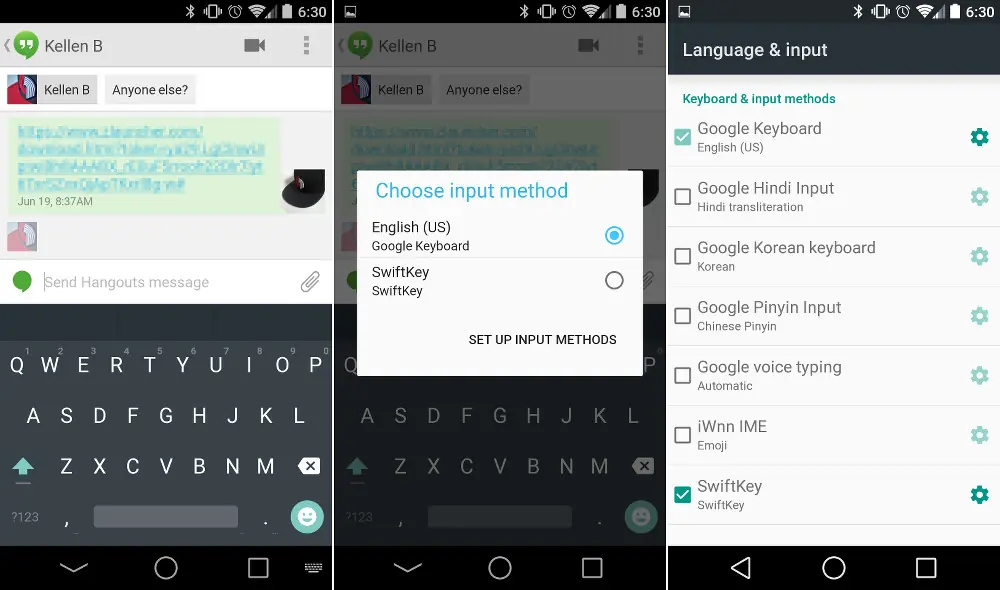
Toggle on each keyboard you want to use, such as Gboard and Microsoft SwiftKey. You need at least two enabled keyboards before a switcher shows up.
Tip: If a keyboard isn't listed here, install it from Google Play first.
Step 2: Open the keyboard
Tap into any text field – a message, a search box, a note – so the on-screen keyboard appears.
Step 3: Tap the keyboard icon in the navigation bar
Look for a small keyboard icon in the bottom-right corner of the navigation bar, next to the recents button. On some Pixels running Android 15 QPR1 or later, this shows up as a globe icon instead.
Tip: On the globe-icon version, tapping once cycles to the next keyboard; press and hold for the full list.
Step 4: Pick your keyboard
A Choose input method popup lists every keyboard you’ve enabled. Tap the one you want, and it takes over right away.
Tip: No icon in the nav bar? Press and hold the spacebar instead – the same popup appears.
Switch Keyboards on Samsung Galaxy (One UI)
Samsung keeps the nav-bar switcher turned off by default, so you need to enable it once first.
Step 1: Turn on the keyboard button in the navigation bar
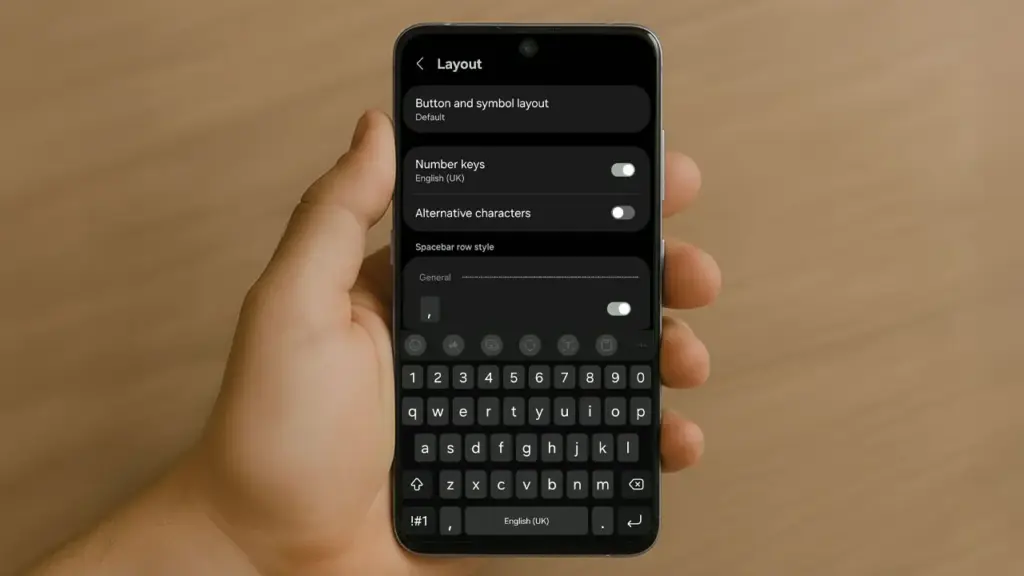
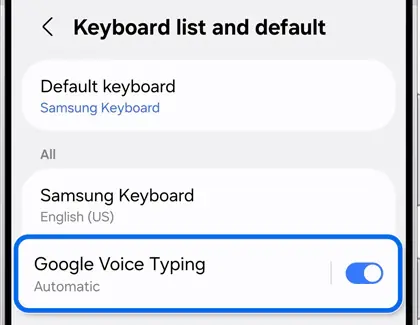
Open Settings > General management > Keyboard list and default, then switch on Keyboard button on navigation bar. See Samsung’s own keyboard settings guide for more on this screen.
Tip: If the icon turns into a microphone instead, turn off voice assistance in the keyboard's own settings to get the switcher back.
Step 2: Open a text field
Tap into any app where you can type. The active keyboard opens, and a small keyboard icon appears in the navigation bar – on One UI 6.1 and later, it sits on the left side instead of the right.
Step 3: Choose your keyboard
Tap the nav-bar keyboard icon to open the Choose input method panel, then pick the keyboard you want, such as Samsung Keyboard, Gboard, or SwiftKey.
Tip: Switches made this way usually stick until you reboot or update the phone.
Pro tips
- Keep only the keyboards you actually use enabled so the switcher popup stays short.
- On Pixel, long-press the spacebar as a backup whenever the nav-bar icon is hidden by gesture navigation.
- Check your keyboard app's own settings menu if quick switching stops working after an update.
Troubleshooting
| Problem | What to do |
|---|---|
| No keyboard icon shows in the navigation bar | Open Settings, search for "Keyboard," and turn on the nav-bar button option manually, or use the Samsung toggle under Keyboard list and default. |
| The icon turned into a microphone on a Samsung phone | Open the keyboard's settings and turn off voice assistance; the keyboard switcher icon returns in its place. |
| The switch doesn't stick after a reboot or update | Tap the nav-bar icon again and reselect your preferred keyboard; Android usually remembers it going forward. |
| Nothing happens when you look for an icon on your phone's skin | Press and hold the spacebar instead – most keyboards bring up the same switcher popup this way. |
Frequently asked questions
Can I switch keyboards without a navigation bar icon?
Yes. Press and hold the spacebar while typing, and the same Choose input method popup appears.
Why did my Samsung phone lose its quick-switch notification?
Samsung removed the notification-panel shortcut starting with One UI 6.0. Use the navigation bar button under Keyboard list and default instead.
Do I need an internet connection or account to switch keyboards?
No. Switching between installed keyboards works offline and doesn’t require signing into anything.
How many keyboards can I keep installed?
There’s no fixed limit, but only the keyboards you’ve toggled on in Manage keyboards show up in the switcher list, so it’s worth trimming it to the ones you actually use.
Once the nav-bar icon or spacebar shortcut is set up, jumping between keyboards becomes second nature. If you’d rather make a different keyboard your permanent default instead of switching back and forth, see our companion guide on changing your default Android keyboard away from Gboard.
Sources and further reading
- Appster — How to Switch Keyboards on Android: Quick Guide
- Samsung US — Adjust keyboard settings on your Galaxy phone or tablet
- Droid Life — Android L Features: Keyboard Switching Now Happens in the Navigation Bar