Quick answer
To change the default Android keyboard, install a replacement keyboard app, then go to Settings > System > Languages & input > On-screen keyboard (or Settings > General management > Keyboard list and default on Samsung) and set it as the default.
When Gboard keeps crashing or freezing every time you tap a text field, switching to a different keyboard app is the fastest fix while you wait for Google to patch the bug. Android does not force you to use any single keyboard, so you can install an alternative and set it as the system default in a couple of minutes.
This walks through installing a new keyboard and making it the default on stock Android (Pixel) and on Samsung’s One UI, since the menu names differ between the two.
Before you start
- Difficulty Easy
- Time needed 5 minutes
- Works on Pixel running Android 14/15, Samsung phones on One UI 6/6.1/7
What you'll need
- A replacement keyboard app from the Google Play Store (or Galaxy Store on Samsung)
- A few minutes of free storage for the new app
- Your device unlocked and signed into a Google or Samsung account
Important
- Third-party keyboards can read everything you type, including passwords, so avoid apps from unknown developers.
- You cannot fully remove or disable the Samsung keyboard app on a Galaxy phone, only replace it as the default.
Change the Keyboard on Stock Android (Pixel)
This path applies to Pixel phones and most devices running close-to-stock Android 14 or 15.
Step 1: Install a keyboard app from the Play Store
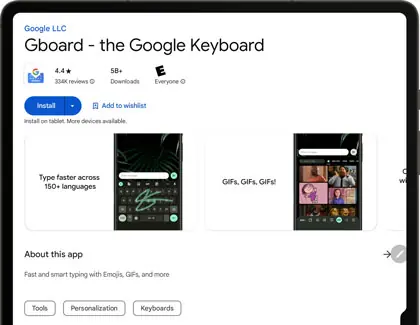
Open the Google Play Store, search for a keyboard app such as Microsoft SwiftKey or AnySoftKeyboard, and tap Install.
You can install more than one; only one will act as your active default at a time.
Tip: Pick an app with recent updates and a large install base to avoid buggy or abandoned keyboards.
Step 2: Open On-screen keyboard settings
Go to Settings > System > Languages & input > On-screen keyboard.
On some older Pixel software this same screen is labeled Settings > System > Keyboard > On-screen keyboard.
Step 3: Enable the new keyboard
Tap Manage keyboards, then toggle your newly installed keyboard on.
You will see a warning about the data the keyboard can collect while it is active; this is standard for any third-party keyboard app.
Step 4: Set it as the default keyboard
Back on the On-screen keyboard screen, tap Default keyboard and select your new app.
Open any app with a text field to confirm the new keyboard appears instead of Gboard.
Tip: If the new keyboard does not show up yet, restart the phone and check the toggle again.
Change the Keyboard on Samsung One UI
Samsung uses different menu names, and it will not let you remove its own keyboard app, only replace it as the default.
Step 1: Install a keyboard app
Open the Google Play Store or Galaxy Store, search for the keyboard app you want, and install it.
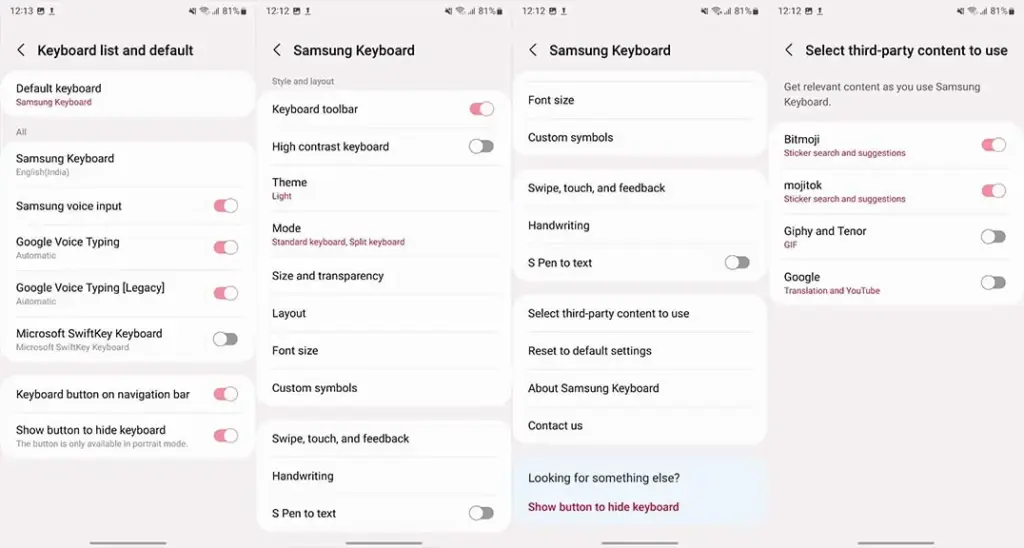
Step 2: Open Keyboard list and default
Go to Settings > General management > Keyboard list and default.
On some newer One UI builds you can skip the drilling and just search Settings for “Keyboard list and default” directly.
Step 3: Toggle the new keyboard on
In the keyboard list, find your newly installed app and switch its toggle on.
Confirm any data-collection warning that appears for the new keyboard.
Step 4: Tap Default keyboard and pick your new app
Tap Default keyboard at the top of the same screen and select the keyboard you just enabled.
The Samsung keyboard will still stay installed in the background, but it will no longer open automatically.
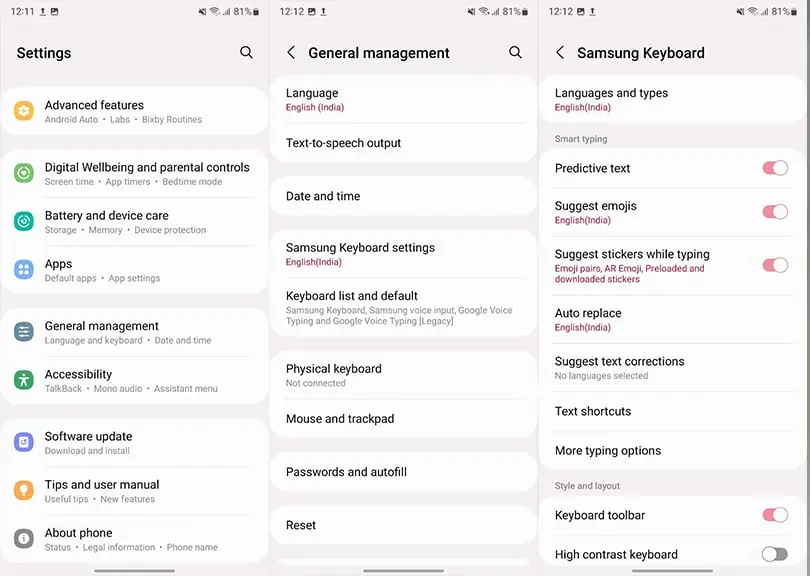
Tip: You can read Samsung's own keyboard settings walkthrough at samsung.com for more customization options.
Pro tips
- Tap the keyboard or globe icon on the on-screen keyboard while typing to switch between enabled keyboards without opening Settings.
- Keep Gboard installed but disabled rather than uninstalling it, in case you want to switch back once it's fixed.
- Only install keyboard apps from well-known developers, since a keyboard sees everything you type.
Troubleshooting
| Problem | What to do |
|---|---|
| The new keyboard does not appear in the keyboard list | Confirm the app installed correctly, reopen Manage keyboards or Keyboard list and default, and make sure its toggle is on; restart the phone if it still does not show. |
| The phone keeps reverting to the old keyboard after you switch | Go back into Manage keyboards or Keyboard list and default and turn off every keyboard except the one you want, then set it as default again. |
| Gboard still pops up occasionally even after switching | Open the Gboard app directly from the app drawer to see if it crashes on launch; if it does, the OS is likely falling back to it only when the default keyboard fails to load. |
Frequently asked questions
Can I switch back to Gboard later?
Yes. Repeat the same steps and choose Gboard under Default keyboard once the crashing issue is resolved.
Will I lose my typing data by switching keyboards?
No. Switching keyboards only changes which app handles typing; it does not erase messages, contacts, or app data.
Can I keep multiple keyboards installed at once?
Yes, you can enable several keyboards and switch between them with the keyboard icon, but only one can be the system default at a time.
Is it safe to use a third-party keyboard instead of Gboard?
Well-known apps with a large user base and regular updates are generally safe, but any keyboard can technically see what you type, so stick to reputable developers.
Once the replacement keyboard is set as default and typing feels stable again, keep an eye on Gboard updates in the Play Store so you can switch back whenever Google fixes the crash.
Sources and further reading
- Yahoo Life — Gboard: The Android and iOS Keyboard That Redefines Typing
- Samsung US — Use the Keyboard on your Galaxy Tablet
- Sammy Fans — How to customize keyboard on your Samsung phone running One UI 4.1?
- Android Police — How to change the keyboard on your Android phone or tablet