Quick answer
On most phones, go to Settings > About phone > Android version (or Software information on Samsung) to see your Android security patch date; if it's older than November 2026, update right away.
A stray text message should never be able to crash or take over your phone, but the SMS of Death flaw showed how outdated firmware can leave that door open. Whether your phone is protected comes down to one small piece of information buried in Settings: your security patch level.
This guide walks you through finding that date on a Pixel, a Samsung Galaxy, and most other Android phones, and what to do if the number you see is behind.
Before you start
- Difficulty Easy
- Time needed 5 minutes
- Works on Any Android phone or tablet, including Pixel, Samsung, OnePlus
What you'll need
- An Android phone or tablet running any current Android version
- A Wi-Fi connection and at least 75% battery if you need to install an update
Important
- Back up your phone before installing any OTA update, since an interrupted install carries the normal small risk of any firmware update.
- Android 14 through 17 get the SMS of Death fix at the 2026-11-01 patch level, but Android 12 and 13 do not, regardless of how recent the phone otherwise looks.
Check the patch level on Pixel and stock Android
This method works on Google Pixel phones and most devices running close-to-stock Android.
Step 1: Open Settings
Open the Settings app from your home screen or app drawer.
Step 2: Tap About phone
Scroll to the bottom and tap About phone (or About tablet).
Step 3: Tap Android version
Tap Android version. You will see your Android version, Android security update, and Google Play system update, each with a date.
Tip: Compare the Android security update date against the November 2026 fixes for SMS of Death.
Step 4: Update if the date is old
If you cleared the update notification or your phone was offline, go back to Settings, then tap System and Software updates (labeled System update on some Pixels) to check manually.
Tip: Connect to Wi-Fi and charge to at least 75% before installing a large update.
Check the patch level on a Samsung Galaxy
Samsung uses a slightly different label and path, and it can shift between One UI versions.
Step 1: Open Settings
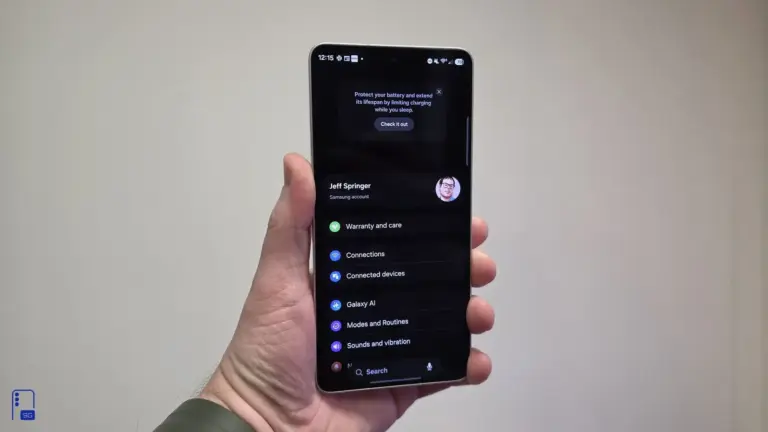
Open the Settings app on your Galaxy phone or tablet.
Step 3: Tap Software information
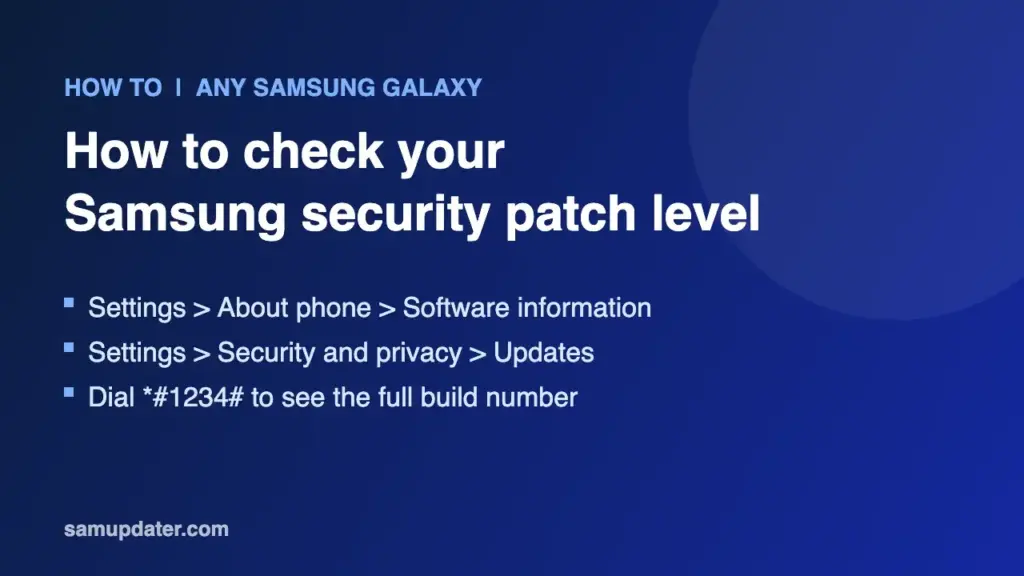
Tap Software information, then look for Android security patch level. The date shown is your current patch.
Tip: On some One UI builds this field sits lower on the same screen, so scroll if you don't see it right away.
Step 4: Try the Security and privacy screen instead
On One UI 6 and newer, you can also open Settings, tap Security and privacy, then Updates. You’ll see Security update with your patch date and Google Play system update with its own date.
Step 5: Install a pending update
If the date is behind, go to Settings, then Software update, then Download and install.
Tip: Not every Galaxy model still receives monthly updates, so check Samsung's own support site if nothing appears.
Check it on OnePlus and other brands
Most other Android skins follow a path close to stock Android, with small wording differences.
Step 1: Open Settings and scroll to About Phone
Open Settings, scroll almost to the bottom, and tap About Phone.
Step 2: Tap Android Version
Tap Android Version. The security update status appears near the top of the screen.
Step 3: Search Settings if you can't find it
If the field isn’t where you expect, use the search bar at the top of Settings and type security patch or update level.
Tip: Samsung Members users can also check Samsung Members > Support > Diagnostics for a full software summary.
Pro tips
- Write down the build number alongside the patch date, since it's the most exact way to compare firmware with what Samsung or Google lists as current.
- A patch level of 2026-11-05 or later covers more of November's fixes than 2026-11-01, which only addresses framework-level issues like SMS of Death.
- Android 12 and 13 devices have no fix scheduled for SMS of Death, so check whether your model still appears on your manufacturer's update list.
Troubleshooting
| Problem | What to do |
|---|---|
| The patch date didn't change after installing an update | Restart the phone, then open the patch-level screen again to confirm the new date actually took. |
| I got an update notification but the patch level still looks old | Finishing the download or seeing a notification isn't the same as installing it; restart and check the patch-level screen directly. |
| No update is available for my phone | Check your manufacturer's official support site to see if your model is still supported, then restart and check Settings again. |
| I cleared the update notification or was offline when it arrived | Wait at least 24 hours after the missed download, then check for updates manually in Settings. |
| I can't find the security patch field in Settings | Use the search bar inside Settings and type "security patch" or "update level" to jump straight to it. |
Frequently asked questions
Where do I find the Android security patch level?
On most phones it’s under Settings > About phone > Android version; on Samsung Galaxy devices it’s under Settings > About phone > Software information.
What patch level fixes SMS of Death?
Google’s November 2026 bulletin lists the fix at security patch level 2026-11-01 for Android 14, 15, 16, 16 QPR2 and 17.
Is my phone still vulnerable on Android 12 or 13?
Yes. Android 12 and 13 have no fix on the roadmap for SMS of Death, so the patch level alone won’t protect those versions.
Does checking the patch level require an app or account?
No. It’s a built-in Settings feature and doesn’t need any app install; you may need a Google or Samsung account only to download certain OTA updates.
Once you know your patch date, compare it against the fixes in the SMS of Death bulletin and update right away if you’re behind; for Samsung owners, samupdater.com’s walkthrough covers a couple of extra screens worth bookmarking.
Sources and further reading
- Support Google
- TechCity — Samsung security update: which Galaxy phones still get it – TechCity
- Sam Updater — How to Check Security Patch Level on Samsung Galaxy
- SIIT — How To Examine The Security Patch Level Of Your Android Device To Determine Whether Or Not