Quick answer
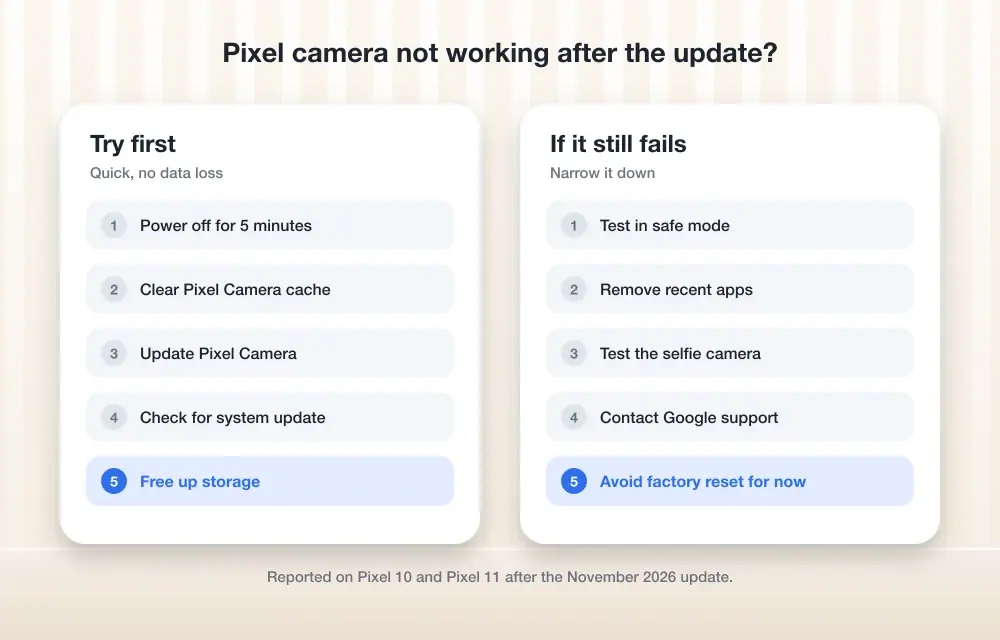
Power your Pixel off completely (not a restart), leave it off for about five minutes, then turn it back on — this has restored the camera for many Pixel 10 and Pixel 11 owners hit by the November 2026 update bug.
If your Pixel’s camera suddenly opens to a black screen or an error after installing the November 2026 Pixel Feature Drop, you’re not alone. Pixel 10 and Pixel 11 owners started reporting the problem within days of the update, and it hits the Camera app as well as third-party apps, which points to a system-level issue rather than a single buggy app.
Below is the fix order worth trying, starting with the workaround that has helped the most people and ending with steps to take if nothing else works. Try them in order, since the quickest ones carry no risk and often solve it.
Before you start
- Difficulty Easy
- Time needed 15 minutes
- Works on Pixel 10 and Pixel 11 series on Android 17 QPR2 (November 2026 update)
What you'll need
- A Pixel 10 or Pixel 11 series phone
- The November 2026 Pixel Feature Drop (Android 17 QPR2) installed
- A few minutes to let the phone sit powered off
Important
- Don't factory reset your Pixel to fix this bug — at least one affected owner went through a full factory reset and it did not resolve the camera failure.
- Back up your photos and data before trying any deeper troubleshooting step, since a factory reset remains an option of last resort if Google support recommends it.
- Google had not issued an official statement or patch for this bug as of mid-November 2026, so no fix here is guaranteed.
Quick check: confirm it's not just your camera app
Before you troubleshoot, rule out a single-app problem so you don’t waste time on the wrong fix.
Step 1: Open the Camera app and check the symptom
Launch the stock Camera app. Note whether you see a “Something went wrong” error or just a black preview with no error at all — both are reported symptoms of this bug.
Tip: Write down which symptom you see; it helps if you end up contacting Google support.
Step 2: Test a third-party camera app
Open any other camera app you have installed, such as a third-party photo or video app, and try to take a photo. If it also shows a black screen or crashes, the problem sits in a shared system component, not in one app.
Tip: If only one app fails, reinstalling or clearing that app's data may be enough, so skip straight to Fix 2.
Fix 1: Fully power off your Pixel for five minutes
This is the workaround most affected owners and Google’s own forum experts report success with, and it’s different from a normal restart.
Step 1: Power off completely, not just restart
Press and hold Power and Volume up together, then tap Power off. A regular restart has not fixed this bug for people who tried it — the phone needs to stay fully off.
Step 2: Wait about five minutes
Leave the phone completely powered down for roughly five minutes. This waiting period appears to matter, based on the reports from owners who tried shorter waits without success.
Step 3: Turn it back on and test the camera
Press and hold Power to turn the phone back on. Once it finishes booting, open the Camera app and then any third-party camera app you use to confirm both work.
Tip: If the camera stops working again later, repeat the full power-off and wait while you watch for a proper fix from Google.
Fix 2: Clear the Camera app's cache
Google’s own Pixel camera troubleshooting steps list this early, and it carries no risk to your photos or settings.
Step 1: Open Camera app info
Press and hold the Camera app icon on your home screen or app drawer, then tap App info.
Step 2: Open storage and clear the cache
Tap Storage & cache, then tap Clear cache. This does not delete your photos, videos or camera settings.
Step 3: Reopen the Camera app to test
Launch the Camera app again and check whether the preview loads normally.
Fix 3: Check for a newer system or Camera app update
Google has not confirmed a fix timeline, but a patch could arrive without a public announcement, so it’s worth checking.
Step 1: Check for a system update
Go to Settings > System > System update and tap Check for update. Install anything available.
Step 2: Update the Camera app from the Play Store
Open the Google Play Store, search for Camera, and tap Update if one is offered. The Camera app sometimes gets fixes separately from the main system update.
Fix 4: Test in Safe Mode
Safe Mode disables third-party apps temporarily, which helps confirm whether something you installed is interfering with the camera stack.
Step 1: Boot into Safe Mode
Press and hold the Power button, then press and hold Power off on screen until you’re prompted to reboot to Safe mode. Confirm the reboot.
Step 2: Open Camera and test
With the phone in Safe Mode, open the Camera app. If it works normally here, a third-party app is likely conflicting with it; if it still fails, the problem is system-level and not caused by an installed app.
Step 3: Restart normally to exit Safe Mode
Restart your phone as usual to leave Safe Mode and return to normal use.
Fix 5: Contact Google support
If nothing above restores the camera, Google recommends reaching out directly, especially if the selfie camera also fails.
Step 1: Open the Pixel help or support channel
Go to Settings > About phone > Send feedback, or use the Pixel help app, to describe the issue and the build you’re on, such as CP4A.261105.040.D1 or CP4A.261105.040.A1.
Step 2: Ask about repair options if needed
If support can’t resolve it remotely and your camera stays broken, ask about a repair or replacement under warranty.
Pro tips
- Note your exact build number in Settings > About phone before contacting support, since Pixel 10 and Pixel 11 devices are on different affected builds.
- Avoid switching between multiple camera apps as a fix attempt, since they likely share the same broken system component.
- If the camera comes back after the power-off fix but fails again later, repeat the five-minute power-off rather than troubleshooting from scratch.
Still not working?
| Problem | What to do |
|---|---|
| The camera works right after the power-off fix but breaks again a few hours later. | Repeat the full power-off and five-minute wait; some owners have had to do this more than once while waiting for a permanent fix. |
| Clearing the Camera app cache didn't change anything. | Move on to checking for a system update and testing in Safe Mode, since the cache clear alone doesn't help everyone. |
| Both the front and rear cameras fail even in Safe Mode. | This points to a system-level fault rather than an app conflict; contact Google support and mention your exact build number. |
Frequently asked questions
Why did my Pixel camera stop working after the November update?
Pixel 10 and Pixel 11 owners have reported black camera previews and error messages since installing the November 2026 Pixel Feature Drop (Android 17 QPR2). The cause hasn’t been confirmed, but the fact that third-party camera apps fail too suggests a shared system component broke, not a single app.
Will a factory reset fix the Pixel camera bug?
Not reliably. At least one affected owner performed a full factory reset and the camera failure returned, so it isn’t the recommended fix and risks unnecessary data loss.
Does restarting my Pixel fix the camera issue?
A normal restart has not worked for most affected users. The workaround that has helped is a complete power-off, waiting about five minutes, then turning the phone back on.
Which Pixel phones are affected by this camera bug?
Reports are concentrated on the Pixel 10 and Pixel 11 series. The update reaches all supported Pixel devices from the Pixel 6a onward, but there are no confirmed widespread reports on older models.
Try the full power-off workaround first, since it’s quick, safe and has helped the most people; if the camera still misbehaves, work through the cache clear, update check and Safe Mode test before considering a support call. While you’re sorting out Pixel bugs this month, it’s also worth checking our guide to Fix Pixel always-on display and lock screen issues from the same update.
Sources and further reading
- Ai News Tech — Google Pixel November 2026 Update Sparks Camera Failures and Desktop Mode Bugs
- Techgenyz — Google Pixel November Update: Camera Bugs and Desktop Mode Issues Reported – Techgenyz
- Thetechhacker — How to Fix Pixel Camera Not Working After the November Update
- Gadget Hacks — Pixel Camera Black Screen After November Update: Fixes and Affected Phones