Quick answer
To fix Pixel battery drain, start under Settings > Battery to confirm Adaptive Battery is on, then trim background app usage, location scanning, and display settings that quietly drain power overnight.
A Pixel that loses charge overnight or burns through half its battery before lunch usually has a stacked problem, not one single cause. Software bugs, apps running unchecked in the background, and location features that scan constantly can all add up.
This walkthrough starts with the fastest checks and works toward settings that take a bit more effort, so you can fix Pixel battery drain without flipping toggles at random.
Before you start
- Difficulty Easy
- Time needed 15 minutes
- Works on Pixel phones running current Android builds; some features need Pixel 4a or 6 and later
What you'll need
- A Pixel or other Android phone with access to the Settings app
- Your phone's current software version installed
- About 15 minutes to work through the settings
Important
- Turning off Wi-Fi and Bluetooth scanning can reduce the accuracy of location-based features, including Find My Device.
- Setting background usage to Restricted on messaging or banking apps can delay notifications.
Check for a known battery-drain fix first
Google has shipped several 2026 updates that specifically target idle battery drain, so an update may solve the problem before you touch a single toggle.
Step 1: Open System update settings
Go to Settings > System > System update and check whether a new update is waiting.
Google’s July 2026 update, build CP2A.260705.006, fixed a Tensor chip fault that stopped Pixel 9 and Pixel 10 phones from entering deep sleep properly. Pixel 8a and 9a received their version of the fix in the September 2026 QPR update.
Tip: Our companion piece on Pixel Battery Drain after an earlier update covers what to expect if a patch doesn't fully solve things.
Step 2: Join the beta if your Pixel is older
If you have a Pixel 6a or newer and the drain persists after updating, the Android 17 QPR2 Beta 7 build includes a further fix for the same class of bug.
Pixel 6 and Pixel 7 series phones have exited Google’s active support window for this particular patch, so a beta or manual settings changes are your main options on those models.
Confirm Adaptive Battery is turned on
Adaptive Battery learns which apps you actually use and slows down the ones you rarely open, which is usually the single biggest lever for background drain.
Step 1: Open Battery settings
Open Settings and tap Battery.
Step 2: Find Adaptive Battery
On most current builds, tap Battery Saver and then Adaptive Battery. Some newer software shows a shortcut labeled Adaptive preferences instead.
If neither matches what you see, use the search bar inside Settings and type “adaptive battery” to jump straight to it.
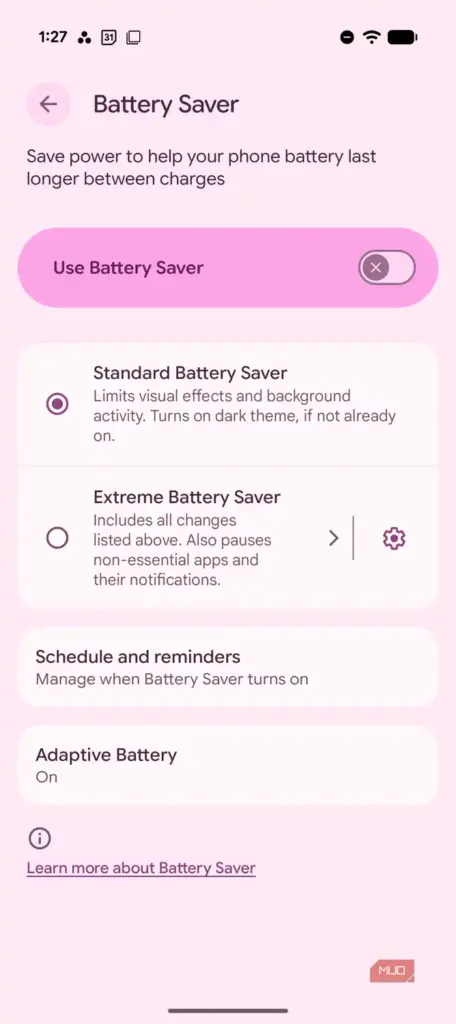
Step 3: Turn on Use Adaptive Battery
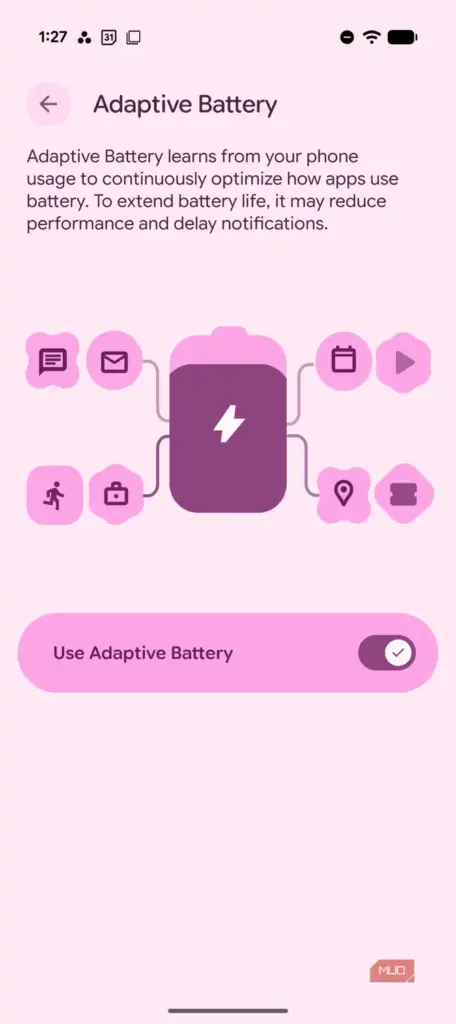
Switch Use Adaptive Battery on if it isn’t already. After a factory reset or a new setup, give it a week or two to learn your habits before judging the results.
Tip: See the Adaptive Battery on Pixel breakdown for more on what it actually changes behind the scenes.
Restrict background usage for the worst offenders
Some apps keep running jobs long after you close them, and the battery usage list shows exactly which ones to rein in.
Step 1: Open battery usage by app
Go to Settings > Battery > Battery usage, then tap View by apps to see which apps have used the most power recently.
Step 2: Adjust background usage for heavy apps
- Tap an app from the list, then tap Allow background usage.
- Keep Optimized selected for most apps, since it is Google’s recommended setting.
- Use Restricted only for apps you rarely open but that keep showing up at the top of the battery list.
Tip: Avoid restricting messaging or banking apps, since a restricted app may deliver notifications later than normal.
Turn off Wi-Fi and Bluetooth scanning
Location features keep scanning for nearby networks and devices even when Wi-Fi and Bluetooth are switched off, which adds up over a full day.
Step 1: Open Location Services
Go to Settings > Location > Location Services.
Step 2: Disable Wi-Fi scanning
Tap Wi-Fi scanning and toggle it off.
Step 3: Disable Bluetooth scanning
Still inside Location Services, tap Bluetooth scanning and turn it off as well.
Enable Adaptive Connectivity
On Pixel 4a (5G) and later, including Fold models, this feature adjusts network settings automatically instead of keeping every radio running at full power.
Step 1: Open Network & internet settings
Go to Settings > Network & internet > Adaptive connectivity.
Step 2: Turn on Use adaptive connectivity
Switch the toggle on. In the United States, some carriers limit this feature, so contact your carrier if the option appears greyed out.
Lower the display's power draw
The screen is usually the single biggest battery consumer on any phone, and a couple of display settings make a noticeable difference without much visible change.
Step 1: Switch Smooth Display down a notch
Go to Settings > Display > Smooth Display and switch from the highest refresh rate option to Standard or Adaptive, depending on your model.
Step 2: Limit the Always-on display
Go to Settings > Display > Lock screen > Always-on display and choose Tap to show instead of Always show.
Run Battery diagnostics (Pixel 6 and later)
Pixel 6 and newer phones include a built-in diagnostic tool that checks for the specific causes behind unusually fast drain.
Step 1: Open Battery diagnostics
Go to Settings > Battery > Battery diagnostics > Battery draining too quickly and let the tool run.
It checks for known issues such as stuck wake locks and will suggest a fix or confirm the battery is behaving normally.
Tip: For more context on recurring drain patterns, see Google Pixel Battery Drain 2026.
Set up charging optimization
This setting affects long-term battery health rather than daily drain, so it’s worth doing last once the day-to-day fixes are in place.
Step 1: Open Charging optimization
Go to Settings > Battery > Battery health > Charging optimization and turn on Use charging optimization.
Step 2: Pick Adaptive Charging or Limit to 80%
Choose Adaptive Charging if available, which times the final charge to finish near your usual unplug time. Choose Limit to 80% on a Pixel 6a or later if you prefer a fixed cutoff.
Pro tips
- Use Settings search for exact menu names, since wording shifts slightly between Pixel software builds.
- Check Battery usage by app weekly so a new drain gets caught early instead of weeks later.
- Leave Adaptive Battery on by default and only restrict individual apps that misbehave.
- Give Adaptive Battery a week or two after a factory reset before judging whether it's working.
Frequently asked questions
Does turning off Adaptive Battery ever help?
It can, if the feature keeps misjudging an app you need to respond to instantly, such as a banking or smart-lock app. For most people, leaving it on and only adjusting that one app’s background permissions works better than disabling it entirely.
Why don't Pixel 6 and Pixel 7 get the 2026 drain fix?
Those models have exited Google’s active support window for this specific patch, so the fix only ships for Pixel 8a, 9, 9a, and 10 series phones. Pixel 6a owners can still get a related fix through the Android 17 QPR2 beta.
What's the difference between Adaptive Battery and charging optimization?
Adaptive Battery manages how background apps use power while the phone is on. Charging optimization changes when or how far the phone charges, and it’s a separate setting aimed at long-term battery health.
Will disabling Wi-Fi scanning break Find My Device?
It can make location lookups slower or less precise, since the phone relies partly on nearby Wi-Fi networks to estimate position even when Wi-Fi itself is off. If you depend on Find My Device heavily, leave scanning on and look at other settings first.
Work through these settings in order and most Pixel battery drain clears up within a day or two of normal use. If the phone still drains fast after an update and a full pass through Adaptive Battery and background limits, it’s worth booking a Pixel support chat to rule out a hardware issue.
Sources and further reading
- AndroidPure — Adaptive Battery on Pixel: What It Does and Where to Find It – AndroidPure
- Support Google
- iTechGuides — How to Use Optimized Battery Charging on Android: Pixel, Galaxy & More
- MakeUseOf — Adaptive Battery was making decisions I didn't approve — so I took back control