Quick answer
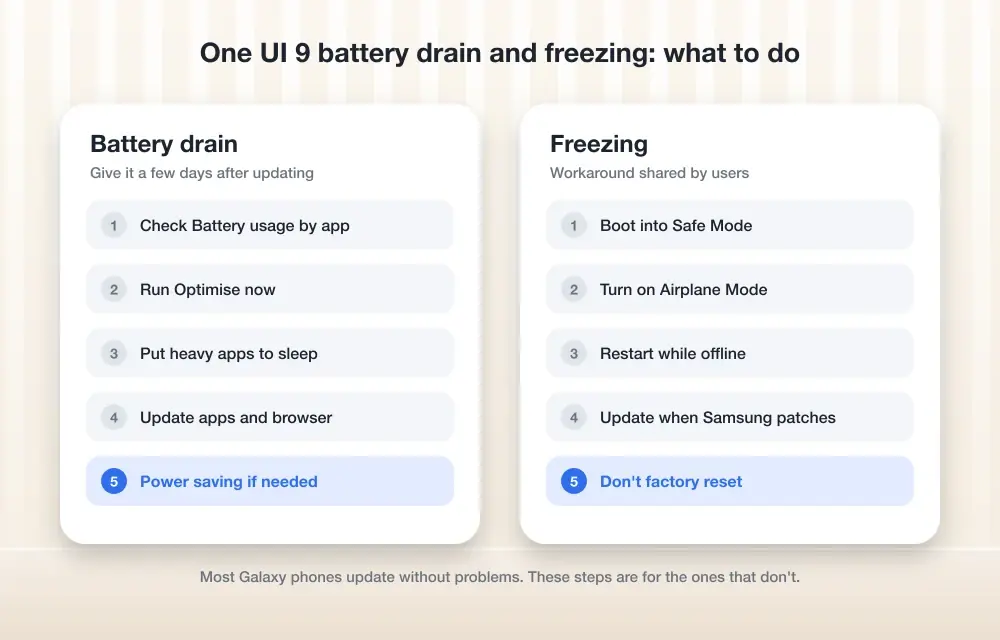
Open Settings > Device care > Battery (or Battery and device care), check which app is draining power, put heavy apps to sleep, clear cache for Android System WebView and One UI Home, and update your apps before considering a reset.
Since Samsung rolled out One UI 9 to the Galaxy S24 and S25 series, a number of owners have reported their battery draining faster than usual, and a smaller group have had their phones freeze up or get stuck on screen after the update finished installing.
You will work through a set of checks here, starting with the quickest and safest ones and moving toward the more drastic options, so you can figure out what’s actually causing the problem on your phone before you touch anything permanent.
Before you start
- Difficulty Easy
- Time needed 25 minutes
- Works on Galaxy S24 and S25 series running One UI 9 (Android 17)
What you'll need
- A Galaxy S24 or S25 device updated to One UI 9
- Samsung account signed in for Samsung Members diagnostics
- Samsung Cloud or Smart Switch set up for backups
- A few days of normal use to judge whether drain settles on its own
Important
- Back up your phone with Smart Switch or Samsung Cloud before attempting a factory reset, since it erases all data.
- Don't reset the phone to fix a freeze on the setup or error screen; try Safe Mode first, since some owners have gotten past it without losing data.
- Power saving mode can delay notifications and reduce performance, so don't leave it on permanently.
Give the update a few days before changing anything
A major update like One UI 9 reindexes files and relearns your usage habits in the background, and that extra work alone can drain the battery faster for about a week.
Step 1: Keep using your phone normally for a few days
Avoid wiping data or resetting the phone right after the update. Let it finish background indexing and app optimization on its own.
If the drain is severe, such as losing a large chunk of charge overnight while the phone sits idle, skip ahead to the battery usage check below instead of waiting it out.
Tip: Note your screen-on time and battery percentage now so you have something to compare against later.
Check which app is draining the battery
Device care shows you exactly which app has used the most power, which tells you whether the drain is system-wide or caused by one misbehaving app.
Step 1: Open Device care and tap the battery graph
Go to Settings > Device care > Battery (shown as Battery and device care on some models). Tap the battery graph to see which app has used the most power recently.
Step 2: Check storage and RAM while you're there
From the same Device care screen, tap Storage to confirm you have free space, and Memory to see how much RAM is in use. Low storage or constantly maxed-out RAM can make both battery drain and freezing worse.
Put heavy background apps to sleep
Letting an app run freely in the background is one of the most common causes of unexpected drain, and putting it to sleep stops it from waking up your phone when you’re not using it.
Step 1: Find background usage limits in Device care
Go to Settings > Device care > Battery and look for background usage limits, sometimes labeled as sleeping or deep sleeping apps. The exact wording can vary by phone, so check whatever option your device shows for putting apps to sleep.
Add any app you rarely use, or one you noticed using a lot of power in the previous step, to the sleeping apps list.
Tip: Avoid adding apps you rely on for notifications, since sleeping apps can be delayed or blocked from waking up.
Step 2: Restrict background sync for specific apps
Go to Settings > Apps, pick the app, and tap Battery. If it’s set to Unrestricted, change it so it isn’t running unchecked in the background. This applies to both Samsung apps, such as Samsung Cloud, and third-party apps.
Update your apps and clear stubborn caches
An app built for an older version of Android can get stuck in a background loop under One UI 9 and quietly burn through battery.
Step 1: Update every app in Play Store and Galaxy Store
Open the Play Store and the Galaxy Store and update all of your apps. An outdated app that isn’t yet optimized for One UI 9 is a common cause of excessive power use after an update.
Step 2: Clear cache for Android System WebView, System UI and One UI Home
Go to Settings > Apps, find each app, tap Storage, then tap Clear cache. Do this for Android System WebView, System UI, and One UI Home (this last one may appear under a different name if your phone is set to another language).
Tip: You can also run a general cleanup from Settings > Device care > Storage > Clean now.
Use Power saving mode only as a stopgap
Power saving mode buys you time while you work through the other fixes, but it isn’t a solution on its own.
Step 1: Turn on Power saving mode temporarily
Go to Settings > Battery and turn on Power saving mode. Samsung notes this reduces performance and can delay notifications, so treat it as a temporary measure rather than a fix for the underlying drain.
Troubleshoot freezing and unresponsive screens
If your phone freezes or locks up rather than just draining faster, the fix is a bit different and focuses on removing anything that could be conflicting with the new software.
Step 1: Close background apps and turn off Power saving mode
Close any apps running in the background and make sure Power saving mode is turned off, since it can make the phone feel sluggish or unresponsive.
Step 2: Remove third-party accessories and the memory card
Unplug any third-party accessories, and if you use a memory card, unmount it from Settings > Device care > Storage > More options > Storage settings > SD card > Unmount. A conflicting accessory or card is a known cause of freezing on some units.
Step 3: Remove recently installed third-party apps
If the freezing started right after you installed a new app, uninstall it and see whether the problem goes away. Owners who have hit freezing or setup screen errors on the Samsung Members community have reported that these phones still turn on and aren’t permanently broken.
Tip: Restarting in Safe Mode can help you confirm whether a third-party app is the cause, since Safe Mode only runs preinstalled apps.
Check for a software update and run a battery health test
Samsung periodically pushes fixes for known bugs, and a quick battery health check rules out a hardware problem before you go any further.
Step 1: Check for a newer software update
Go to Settings > Software update and install anything available. Samsung has addressed battery and stability bugs in follow-up patches before.
Step 2: Run a battery status check in Samsung Members
Open the Samsung Members app, go to Support or Diagnostics, and run the Battery status test. If it reports a weak battery, or the phone gets hot while sitting idle, book a service check instead of trying more software fixes.
Back up and factory reset as a last resort
If nothing above has helped, a factory reset clears out any corrupted settings left over from the update, but it erases everything on the phone.
Step 1: Back up your data first
Use Smart Switch on mobile or on a PC to back up your photos, apps and files before you do anything else. A factory reset erases all data, including downloaded apps.
Step 2: Reset the phone from Settings
Go to Settings > General management > Reset > Factory data reset and confirm. Set the phone up again afterward and watch whether the drain or freezing returns.
Tip: On some Galaxy S25 units running the February 2026 update, Samsung removed the separate Wipe cache partition option, so a full reset is the only cache-clearing option left at this level.
Pro tips
- Note your screen-on time before and after each fix so you can tell what actually worked.
- Check whether any single app, rather than the whole system, is responsible before restricting background data across the board.
- If your battery drain or freezing matches a pattern others are reporting, a future software update may fix it without any action on your part.
Frequently asked questions
Is the One UI 9 battery drain confirmed by Samsung?
No. Samsung hasn’t publicly confirmed a battery bug in One UI 9, and most reports come from Galaxy S24 and S25 owners, while many other users say their battery life hasn’t changed.
How long should I wait before troubleshooting battery drain after an update?
Give it about a week, since background reindexing and app optimization after a major update can drain the battery faster temporarily. If the drain is severe, such as losing a large percentage overnight with the phone idle, start checking battery usage right away instead of waiting.
My phone froze on the setup screen after installing One UI 9. Is it bricked?
It’s unlikely. Phones with this issue still turn on, and some owners have gotten past it by restarting in Safe Mode rather than resetting.
Should I remove my memory card if my phone keeps freezing?
It’s worth trying. Unmount it from Settings > Device care > Storage > More options > Storage settings > SD card > Unmount, since a conflicting card has been linked to freezing on some units.
Work through these checks in order before you consider a reset, and keep an eye on Samsung’s software update list in case a patch addresses the drain or freezing directly. If you’re coming from a Pixel and dealing with similar post-update battery drain, the same diagnostic approach of checking usage first and resetting last applies there too.
Sources and further reading
- Thetechhacker — How to Fix One UI 9 Battery Drain and Freezing on Galaxy
- BGR — Samsung Galaxy Users Are Reporting One Key Issue After Updating To One UI 9 – BGR
- Samsung Magazine — One UI 9 Battery is draining: Causes and fix
- Samsung Members Community — Screen Freezing Issue on Galaxy S25 Ultra After One UI 9 Update | Samsung Members Communit