Quick answer
Samsung confirms a One UI 9 bug where custom ClockFace clocks shift position on the lock screen and AOD, and recommends switching to a default clock style under Settings > Lock Screen and AOD > Clock Style while it prepares an AOD app fix for November 2026.
If you customized your Galaxy lock screen clock with Good Lock’s ClockFace module, you may have noticed it doesn’t stay where you put it. It can drift upward, shift down, or change its spacing from the date after you lock and unlock the phone, or after the screen sits idle for a while.
Samsung has acknowledged the problem and has an update planned, but until it arrives you have a few options. This guide walks through the official workaround first, then the unofficial fixes other Galaxy owners have tried, and tells you how to get the permanent patch once it lands.
Before you start
- Difficulty Easy
- Time needed 10 minutes
- Works on Galaxy S26 series, Z Fold 8, Tab S11 on One UI 9.0 with Good Lock ClockFace/LockStar
What you'll need
- A Samsung Galaxy device running One UI 9.0
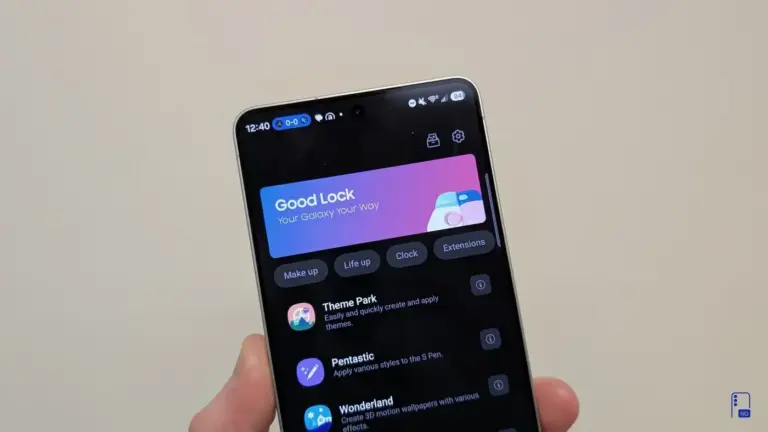
- Good Lock installed with the ClockFace module (and LockStar, if used)
- A Galaxy Store account to receive the pending AOD app update
- A Samsung account for Samsung Members, if you want to report the bug
Important
- Samsung hasn't confirmed the November AOD update will fully resolve the clock positioning bug, so treat it as likely rather than certain.
- Clearing app cache can reset some of your display customization settings, though it won't delete personal data.
- Uninstalling the LockStar module removes your current lock screen customizations, so you'll need to set them up again after reinstalling.
Confirm you're hitting the known ClockFace bug
Before changing settings, check whether what you’re seeing matches the issue Samsung has already confirmed.
Step 1: Compare the lock screen to the LockStar preview
Open Good Lock’s LockStar editor and note where you placed the clock and how close the time sits to the date.
Lock the phone, then wake it and check whether the clock has moved higher, lower, or has a different gap from the date than what you set.
Tip: Check the Always On Display too, since the same mismatch often shows up there.
Step 2: Watch for drift over time
Some users see the clock hold its position for a while before it moves, so give it a few lock/unlock cycles or let the phone sit idle before deciding it’s fixed.
Switch to a default clock style (Samsung's official workaround)
This is the fix Samsung’s Good Lock support team recommends while the real patch is in progress.
Step 1: Open Lock Screen and AOD settings
Go to Settings > Lock Screen and AOD (shown as Lock Screen on some models).
Step 2: Tap Clock Style
Select Clock Style to see the available designs for your lock screen and AOD.
Step 3: Choose one of the phone's built-in clock styles
Pick a default Samsung clock design instead of a custom style supplied through ClockFace.
This is the exact step Samsung’s support team recommends, and it reliably keeps the clock from shifting for most affected users.
Tip: If a default style still moves out of place, that's unusual and worth reporting to Samsung directly.
Clear cache for One UI Home and AOD (community workaround)
This isn’t an official Samsung fix, but some beta testers found it stopped the clock from drifting, at least temporarily.
Step 1: Open Apps settings
Go to Settings > Apps, then search for One UI Home.
Step 2: Clear the One UI Home cache
Tap One UI Home > Storage > Clear Cache.
Step 3: Repeat for the Always On Display app
Go back to Apps, find Always On Display, then tap Storage > Clear Cache.
Clearing cache doesn’t delete personal data, but it can reset some of your display customizations, so you may need to reapply a wallpaper or widget afterward.
Tip: Restart the phone after clearing both caches before you judge whether it helped.
Reinstall the LockStar module
One user reported that removing and reinstalling LockStar restored the correct clock position, at least until the next shift.
Step 1: Open Good Lock and find LockStar
Open the Good Lock app and locate the LockStar module in your installed list.
Step 2: Uninstall LockStar
Tap LockStar, then uninstall it from the module’s details screen.
Expect to lose your current lock screen customizations, so note your layout before removing it.
Step 3: Reinstall it from Good Lock
Reinstall LockStar from Good Lock, then reapply your clock position and other lock screen customizations.
Tip: This is a short-term patch, not a permanent fix, so the issue may return after further updates.
Report the bug to Samsung
If switching to a default clock style doesn’t solve it, Samsung wants to hear from you directly.
Step 1: Open Samsung Members
Open the Samsung Members app, or use the Good Lock app’s support and feedback channel, to submit an error report.
Step 2: Attach logs or a screen recording
Include an error report with logs, or a screenshot or screen recording showing the clock moving, so Samsung’s developers can reproduce it.
If you’re on the One UI Beta Program, go to Beta Feedback instead and attach the same evidence there.
Watch for the AOD app update in November 2026
Samsung says the permanent fix is coming through an Always On Display app update this month, so keep checking for it.
Step 1: Open the Galaxy Store
Open the Galaxy Store app and check for updates to your installed apps, including Always On Display.
Step 2: Install the AOD app update when it appears
Update the AOD app as soon as it’s available, since Samsung has scheduled the fix for release through this app rather than a full system update.
Tip: An AOD update landing in November isn't guaranteed to fully resolve the issue, so keep your default clock style as a fallback until you confirm it's fixed.
Pro tips
- Check for AOD app updates in the Galaxy Store every few days during November rather than waiting for a system-wide software update notification.
- If you switch to a default clock style, note your custom ClockFace design so you can reapply it once the fix ships.
- Test any workaround across several lock and unlock cycles, since the bug sometimes takes a while to reappear.
Frequently asked questions
Is the One UI 9 lock screen clock bug dangerous to my phone?
No. It’s a cosmetic display issue affecting where the clock appears on the lock screen and Always On Display, with no reported impact on security, battery, or warranty.
Does this bug affect every Galaxy phone on One UI 9?
It’s been reported on the Galaxy S26 Ultra, Galaxy Z Fold 8, and Galaxy Tab S11, but Samsung hasn’t confirmed that every device running One UI 9 is affected.
Will switching to a default clock style fix the spacing issue too?
Samsung’s recommended workaround addresses the positioning bug generally, and the altered spacing between the time and date appears tied to the same underlying issue, so it should improve as well.
What if a default clock style still moves on my phone?
Samsung asks affected users to submit an error report with logs through Samsung Members or Good Lock’s feedback channel so its developers can investigate further.
Does this bug happen on Pixel or other Android phones?
No. It’s specific to Samsung’s Good Lock ClockFace module running on One UI 9, and there’s no equivalent issue reported on stock Android, other Android brands, iPhone, or PC.
Until Samsung’s AOD app update lands, switching to a default clock style is the most reliable way to keep your lock screen looking the way you want it, and reporting the bug through Samsung Members helps speed up a permanent fix.
Sources and further reading
- Gadget Hacks — One UI 9 Keeps Moving Your Lock Screen Clock — Samsung Has a Fix Planned
- Samsung US Community — One UI 9.0 Beta 4 causes the Lock Screen Clock to move from top to bottom | Samsung US Com
- SammyGuru — Samsung to Finally Fix One UI 9 Lock Screen Clock Bug This Month
- Samsung Members Community — Samsung Confirms Good Lock Bug Misplaces Lock Screen Clocks on One UI 9 | Samsung Members