Quick answer
Start with Settings > Connections > Wi-Fi to forget and rejoin your network, then use Settings > General management > Reset to reset Wi-Fi and Bluetooth or mobile network settings — these are the current workarounds since Samsung has not shipped an official fix for One UI 9's Wi-Fi and SIM detection bugs.
Since the stable One UI 9.0 update started rolling out, Galaxy owners have reported Wi-Fi that connects fine for an hour or two and then drops with a
Before you start
- Difficulty Moderate
- Time needed 20 minutes
- Works on Samsung Galaxy phones on One UI 9.0 (Android 17), including A-series and S-series models
What you'll need
- A Samsung Galaxy phone running stable One UI 9.0
- A few minutes of downtime to test each fix
- A charged phone and, for the last resort, a full backup
Important
- A factory reset erases all data on the phone, so back up fully before starting that step.
- Wi-Fi 7 Mode is a developer option, not an official Samsung fix, and toggling it may affect other connectivity features.
- Even a full factory reset has failed to resolve mobile data problems for some owners, so do not treat it as guaranteed.
Quick Checks Before You Start
These take a minute and sometimes clear the problem outright.
Step 1: Confirm your software version
Open Settings, then About phone, then Software information, and check that you are on One UI 9.0.
Knowing the exact version helps if you need to contact Samsung support or compare notes with other owners.
Tip: Write down whether your issue is Wi-Fi only, mobile data only, Wi-Fi calling, or the SIM not showing up at all, since that changes which fix below to try first.
Step 2: Restart the phone and toggle Airplane mode
Restart your Galaxy phone, or pull down the notification shade and turn Airplane mode on for ten seconds, then off again.
Both restore Wi-Fi, mobile data, or SIM detection for some owners, though only temporarily.
Tip: If the connection comes back and then drops again later, that is a known pattern with this bug, not something you did wrong.
Forget and Reconnect to Wi-Fi
Rejoining the network from scratch clears a bad saved connection profile.
Step 1: Open your Wi-Fi network settings
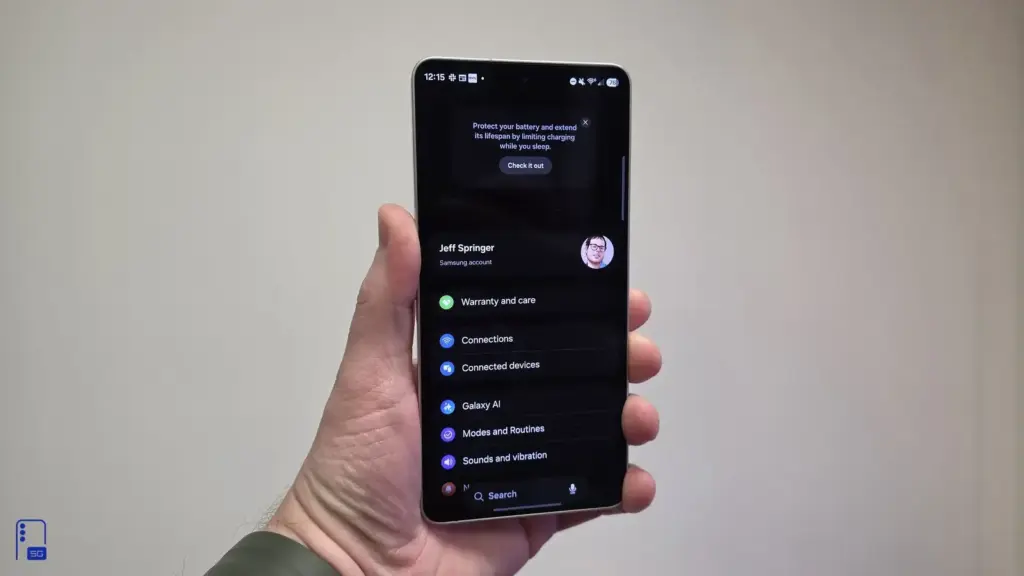
Go to Settings > Connections > Wi-Fi and tap your home network.
Step 2: Forget the network
Tap Forget, then select your network again from the list and enter your password to reconnect.
Tip: If your router supports it, try connecting to a separate 5GHz network name, since some phones only drop on 5GHz.
Reset Wi-Fi and Bluetooth Settings
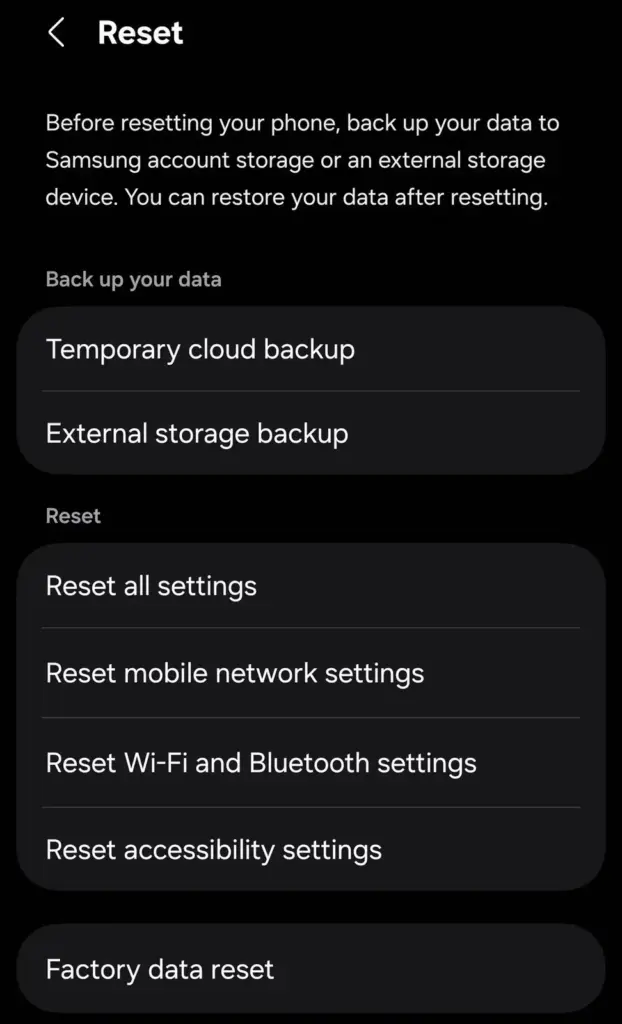
This clears saved network profiles and connection states without touching your apps or files.
Step 2: Reset Wi-Fi and Bluetooth
Tap Reset Wi-Fi and Bluetooth settings and confirm.
You will need to reconnect to Wi-Fi networks and re-pair Bluetooth accessories afterward.
Reset Mobile Network Settings for Data or SIM Problems
If mobile data will not load pages or your SIM is missing, this resets the network stack handling cellular connections.
Step 1: Open Reset and choose mobile network
Go to Settings > General management > Reset and tap Reset mobile network settings instead of the Wi-Fi and Bluetooth option.
Step 2: Check SIM Manager
Go to Settings > Connections > SIM Manager and confirm your physical SIM or eSIM is listed and toggled on.
Tip: If the SIM does not appear here at all, removing and reinserting a physical SIM card has restored detection for some owners.
Turn Off Wi-Fi 7 Mode (Flagship Chipsets Only)
Some flagship owners report this stops the data icon flickering, though it is an unofficial workaround, not a Samsung-confirmed fix.
Step 1: Enable Developer options
If you have not already, go to Settings > About phone > Software information and tap Build number seven times.
Step 2: Turn off Wi-Fi 7 Mode
Go to Settings > Developer options > Connectivity Labs and turn off Wi-Fi 7 Mode.
This option only appears on flagship chipsets. If you do not see Connectivity Labs, your phone does not have this toggle and you can skip to the next fix.
Isolate the Problem in Safe Mode
Safe Mode disables third-party apps, which helps confirm the drops are coming from the system rather than an app you installed.
Step 1: Boot into Safe Mode
Press and hold the Power and Volume Down buttons together, then follow the prompt to restart into Safe Mode.
Step 2: Test Wi-Fi and mobile data
Turn Wi-Fi and mobile data off and back on while in Safe Mode and see if the connection holds steadier than usual.
Restart the phone normally afterward to exit Safe Mode.
Tip: If the problem disappears in Safe Mode, a third-party app may be contributing, so check for recently installed apps.
Send a Diagnostic Report Through Samsung Members
This does not fix the bug on its own, but it gives Samsung data to work from and sometimes surfaces a workaround support agents know about.
Step 1: Open Samsung Members and send feedback
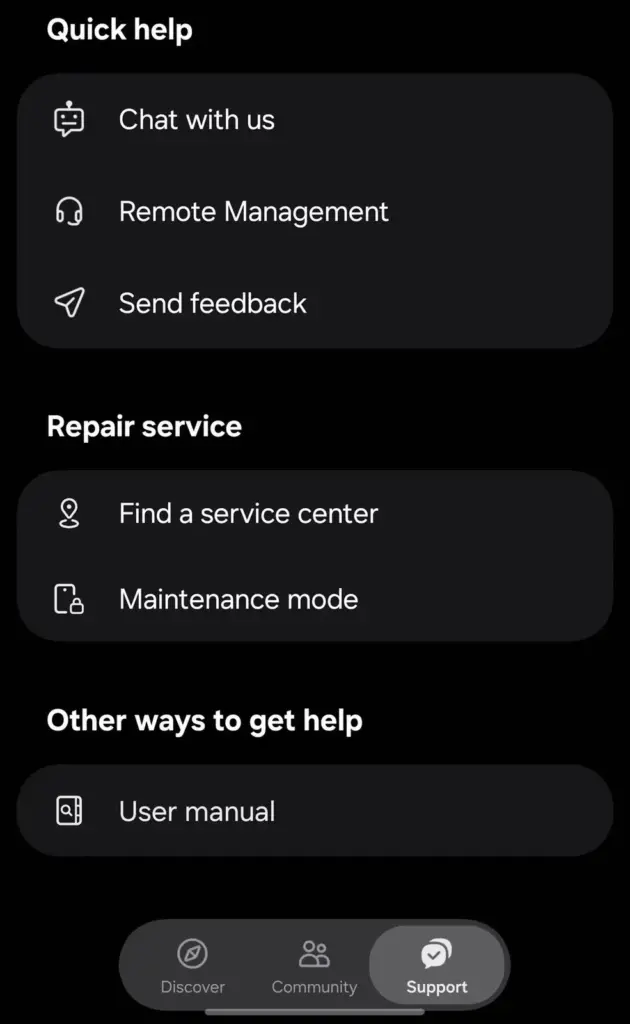
Open the Samsung Members app, go to the Support tab, and under Quick help tap Send feedback.
Describe whether the issue is Wi-Fi, mobile data, or SIM detection, and attach logs if prompted.
Tip: Our companion piece on SIM Detection walks through more carrier-side checks if this app route does not help.
Factory Reset as a Last Resort
Reports so far suggest this often fails to fix the bug, so treat it as a final option rather than a guaranteed cure.
Step 1: Back up your phone completely
Back up photos, messages, and app data through Samsung Cloud or Google’s backup tools before you continue.
Step 2: Factory reset the device
Go to Settings > General management > Reset > Factory data reset and confirm.
Some owners who tried this still saw mobile data fail without an active Wi-Fi connection afterward, so set expectations accordingly.
Pro tips
- Keep a note of exactly when the drop happens and which band or SIM slot is affected, since that detail helps if you contact Samsung support.
- Split your router's 2.4GHz and 5GHz networks into separate names if your phone only drops on one band.
- Check for a newer One UI build under Settings > Software update before trying anything drastic, since a patch may already be rolling out to your model.
Frequently asked questions
Has Samsung confirmed a fix for One UI 9 Wi-Fi and SIM problems?
No. As of early November 2026, Samsung had not issued an official statement or patch, and these are the workarounds Galaxy owners have found on their own.
Why does my Wi-Fi work for a while and then drop?
Reports describe Wi-Fi connecting normally for an hour or two before failing with a connection error, a pattern tied to the One UI 9 software rather than your router.
Does this affect both Exynos and Snapdragon Galaxy phones?
Yes. The problem shows up across both chipset types, which points to the One UI 9 software or modem firmware rather than a specific processor.
Is the SIM detection problem only on certain models?
Midrange A-series phones like the Galaxy A56, A36, and A52s are the ones most often losing SIM detection, while flagship models tend to see repeated Wi-Fi disconnects instead.
Work through these fixes in order and stop as soon as one holds steady for a day, since there is no confirmed universal patch yet and a factory reset is not guaranteed to help either.
Sources and further reading
- SammyGuru — One UI 9 Problems: What Galaxy Owners Report and What to Try
- NewsBreak — One UI 9 Update Leaves Some Galaxy Phones Unable to Connect to Wi-Fi or SIM Cards – NewsBr
- Thetechhacker — Fix One UI 9 Wi-Fi and Mobile Data Dropping on Galaxy Phones