
Quick answer
Restart the phone, toggle Airplane mode, or reset Wi-Fi and mobile network settings under Settings > General management > Reset — these are the current workarounds for One UI 9 Wi-Fi, mobile data, and SIM detection failures, since Samsung has not shipped an official fix yet.
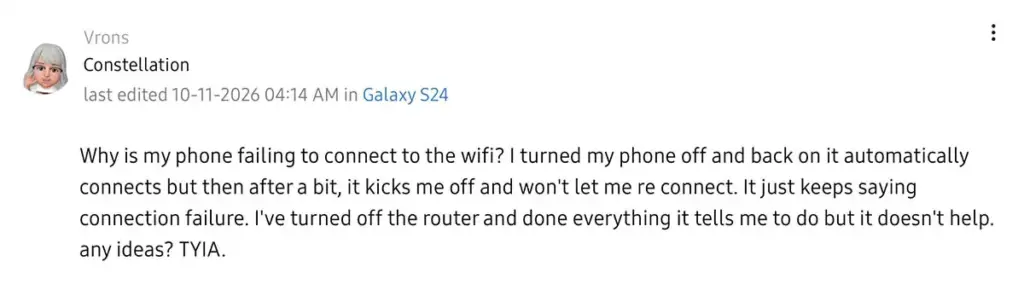
Since Samsung finished expanding the One UI 9 rollout, a growing number of Galaxy owners have reported Wi-Fi that connects and then drops with a
Before you start
- Difficulty Moderate
- Time needed 20 minutes
- Works on Galaxy A36, A52s, A56, S24, S24+, S24 Ultra, Z Fold 7, S25 on One UI 9
What you'll need
- Your Wi-Fi password, in case a reset clears saved networks
- A Samsung account for Samsung Members diagnostics (optional)
- A full backup before attempting a factory reset
- 10 to 20 minutes, depending on which fix you try
Important
- A factory reset erases everything on the device and is not guaranteed to fix mobile data problems.
- Resetting Wi-Fi and Bluetooth settings removes every saved network and paired device, so keep your Wi-Fi password handy.
- Turning off VoLTE may reduce call quality or disable HD Voice on some carriers.
Quick checks before you start
These take a minute and tell you whether you even have the One UI 9 bug.
Step 1: Confirm your software version
Open Settings, then About phone, then Software information, and check the One UI version. These reports are specific to One UI 9, so if you are on an earlier version this is probably a different issue.
Tip: Note the exact build number if you plan to contact Samsung support later.
Step 2: Note which connection is failing
Write down whether it is Wi-Fi only, mobile data only, Wi-Fi calling, or the SIM itself not showing up. Support agents and forum threads ask for this detail first.
Step 3: Rule out your router
Check whether laptops or other phones on the same network also drop. If they do, the router is the more likely cause, not the One UI 9 update.
Restart or toggle Airplane mode
This is the fastest workaround and restores Wi-Fi or mobile data for most people, though usually only for a few hours.
Step 1: Restart the phone
Swipe down from the top right to open Quick settings, tap the Power icon, then tap Restart. If the screen is frozen, hold the Side key and Volume down together for more than 7 seconds to force a restart.
Step 2: Toggle Airplane mode
Turn on Airplane mode from Quick settings, wait about 10 seconds, then turn it off. This forces the phone to re-establish its Wi-Fi, mobile data, and SIM connections from scratch.
Tip: If mobile data or SIM detection is the problem, power off the phone and reseat the SIM card before restarting.
Forget and rejoin the Wi-Fi network
Useful when one specific network keeps dropping while others work fine.
Step 1: Open Wi-Fi settings
Go to Settings > Connections > Wi-Fi.
Step 2: Forget the problem network
Tap the network that keeps failing, then tap Forget. Reconnect to it and re-enter the password.
Tip: Have the Wi-Fi password ready before you do this.
Check SIM Manager and disable VoLTE
Addresses the flickering data icon and SIM cards that stop showing up even though the carrier name still displays.
Step 1: Confirm the SIM is enabled
Go to Settings > Connections > SIM Manager and make sure your SIM or eSIM shows as enabled. If you use a physical SIM, power off the phone and reseat the card.
Step 2: Turn off VoLTE
Go to Settings > Connections > Mobile networks and turn off VoLTE. One forum user found this stopped the data icon from flickering, though it is not an official fix and may affect call quality on some carriers.
Reset Wi-Fi, Bluetooth, or mobile network settings
A deeper reset than a simple toggle, and the step several Samsung Community threads point to when restarts stop working.
Step 1: Open Reset settings
Go to Settings > General management > Reset.
Step 2: Reset Wi-Fi and Bluetooth
Tap Reset Wi-Fi and Bluetooth settings to clear saved networks and paired devices. You will need to rejoin every Wi-Fi network and re-pair Bluetooth accessories afterward.
Step 3: Reset mobile network settings
If mobile data or SIM detection is the issue, tap Reset mobile network settings instead. This does not erase personal data, only network configurations.
Try disabling Wi-Fi 7 in Developer options
A workaround reported by some users, though the toggle does not appear on every device.
Step 1: Enable Developer options
Go to Settings > About phone > Software information, then tap Build number seven times until Developer options unlocks.
Step 2: Turn off Wi-Fi 7 Mode
Go to Settings > Developer options > Connectivity Labs and turn off Wi-Fi 7 Mode. Some devices, including some Galaxy S24+ units, do not show this option at all, so skip this fix if you cannot find it.
Boot into Safe Mode to rule out a third-party app
Safe Mode disables all downloaded apps, which helps confirm whether an app is conflicting with the update rather than the update itself.
Step 1: Boot into Safe Mode
Press and hold the Power key, then press and hold Power off until you see the option to restart in Safe Mode. Confirm, and the phone restarts with only built-in apps running.
Step 2: Test your connection
Check Wi-Fi and mobile data in Safe Mode. If both work normally, a third-party app is likely the cause, and you should uninstall recently added apps one at a time after rebooting normally.
Factory reset as a last resort
Samsung Community moderators have suggested this, though several users report it does not fix the mobile data problem, so treat it as a final option.
Step 1: Back up your phone completely
Make sure photos, messages, app data, and accounts are backed up. A factory reset permanently erases everything on the device.
Step 2: Perform the reset
Go to Settings > General management > Reset > Factory data reset and confirm. Set up the phone as new and test Wi-Fi, mobile data, and SIM detection before restoring your backup.
Tip: If the problem returns after the reset, it points to a One UI 9 bug rather than a corrupted setting, and you should wait for Samsung's fix.
Pro tips
- Install any pending software update first, since Samsung may have already shipped a partial fix for your model.
- If the update itself got stuck on an error screen, force restart, boot into Safe Mode, turn on Airplane mode, then restart normally.
- Report the bug through the Samsung Members app so Samsung's engineering team sees it alongside the Community forum threads.
- If only Android Auto is affected, that is a separate, already-acknowledged issue under review by Google's Android Auto team.
Frequently asked questions
Has Samsung released an official fix for One UI 9 connectivity issues?
Not as of November 9, 2026. Samsung has not commented publicly, and no permanent fix has been confirmed, so the workarounds above are temporary.
Why does Wi-Fi keep dropping again after a restart?
Restarting or toggling Airplane mode clears the connection temporarily, but the underlying One UI 9 bug remains, so many users see the problem return after a few hours.
Does this affect every Galaxy model on One UI 9?
No. Reports center on models like the Galaxy A36, A56, A52s, S24, S24+, S24 Ultra, Z Fold 7, and S25, and not every affected user has the exact same symptom.
My SIM Manager won't open but the carrier name still shows. What does that mean?
Some users have hit this exact combination after One UI 9. It points to the same detection bug, so try reseating the SIM and resetting mobile network settings rather than assuming the SIM card itself is faulty.
None of these fixes is permanent, so keep checking Settings > Software update for a patch, and if your SIM problems look more like an eSIM profile failure than a network bug, compare them against the eSIM Problems Pixel owners have faced for similar symptoms. You can also follow the official Samsung Community thread for updates directly from affected users and moderators.
Sources and further reading
- SammyGuru — Galaxy Users Face Wi-Fi, Mobile Data and SIM Issues After One UI 9 Update
- Australia News Beep — One UI 9 is breaking Wi-Fi and mobile data for some Galaxy users – Australia News Beep | N
- SamMobile — Samsung breaks One UI 9 updates, here's the quick fix
- Chasms — How to fix Samsung Galaxy Wi-Fi disconnecting after One UI 9 – Chasms Blog