Quick answer
Several Samsung One UI apps already on your Galaxy phone — Reminder, Notes, Samsung Internet, Modes and Routines, Good Lock, Studio, and Members — can replace third-party tools once you know where to turn them on.
Most Galaxy owners open the Samsung folder once, shrug, and bury it in the app drawer. That’s a mistake, because One UI 8 and 8.5 quietly rebuilt several of these preinstalled apps into tools worth using every day.
Below are the built-in apps worth a second look, with the exact menu paths to set each one up on your Galaxy phone.
Before you start
- Difficulty Easy
- Time needed 20 minutes
- Works on Samsung Galaxy phones running One UI 7, 8, or 8.5 (Android 15/16)
What you'll need
- A Samsung Galaxy phone on One UI 7, 8, or 8.5
- A Samsung account for sync and Galaxy AI features
- A free Galaxy Store download for Good Lock modules
Important
- Resetting Secret mode erases its saved passwords and bookmarks, so only do it if you're ready to start fresh.
- The Notes Tape tool only visually covers content, so don't rely on it to redact truly sensitive documents before sharing.
Let Samsung Reminder manage your to-do list
Reminder’s One UI 8 redesign turns a basic checklist into a glanceable task manager with ready-made templates.
Step 1: Open Reminder and check your cards
Open the Reminder app. The home screen now shows categories like Today, Scheduled, and Important as cards at the top instead of a hidden menu.
Tip: Scroll past the cards to Try these out for prebuilt templates like a workout schedule or pickup reminder.
Use Samsung Notes for mixed handwriting and typing
Notes lets you combine typed text, S Pen sketches, images, and tables in a single document.
Step 1: Start a new note
Open Notes and tap New note. Import a PDF to annotate it, or mix handwriting with typed text and images in the same entry.
Tip: On One UI 9 devices, use the new Tape tool to cover sensitive numbers or names before sharing a note.
Turn on Secret mode in Samsung Internet
Secret mode keeps a separate, password-protected browsing session that closes automatically.
Step 1: Open Secret mode settings
Open the Samsung Browser app and tap the Tools icon (three dots). Go to Settings > Personal browsing data > Secret mode settings.
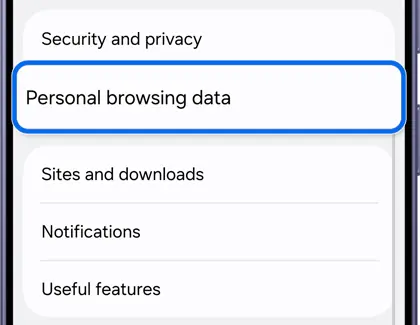
Tip: Turn on Use password so Secret mode data stays protected even if someone else picks up your phone.
Step 2: Customize your Secret mode options
In Secret mode settings, turn on Use password, decide whether to Allow screenshots in Secret mode, and choose whether tabs Stay in Secret mode after closing the browser. You can also adjust Smart anti-tracking.
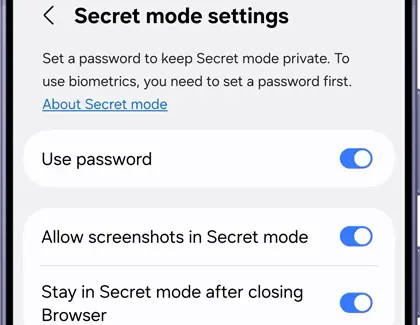
Step 3: Switch into Secret mode
Tap the All tab icon (rectangle with a number), then tap the Secret mode icon (face mask). A mask icon appears in the address bar once it’s active.
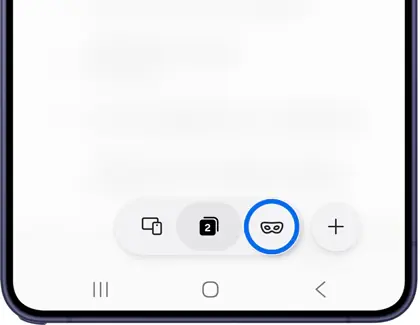
Tip: Secret mode closes automatically when you quit the Samsung Browser app.
Automate your phone with Modes and Routines
Routines let your Galaxy trigger actions on its own based on time, location, or an app you open.
Step 1: Open Modes and Routines
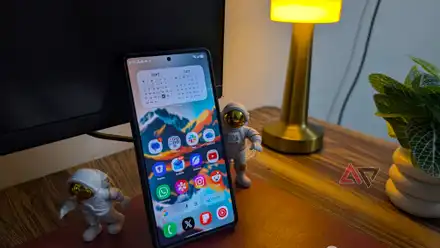
Go to Settings > Modes and Routines, or add the Routines widget to your home screen for one-tap manual triggers.
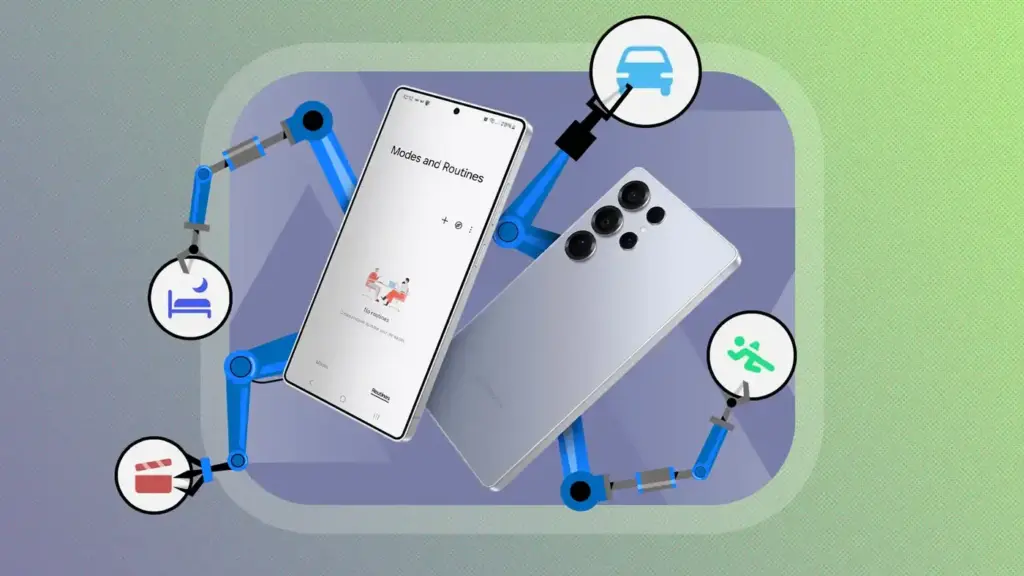
Step 2: Build a simple if/then rule
Create a rule such as If App opened: YouTube, Then Screen orientation: Auto rotate, or a location-based rule like If Place: Work, Then DND: On.
Tip: Location-based Routines run automatically; the Routines widget is for actions you want to trigger on demand.
Install Good Lock for early-access customization
Good Lock is Samsung’s official toolkit for features that haven’t made it into the main Settings app yet.
Step 1: Download Good Lock and a module
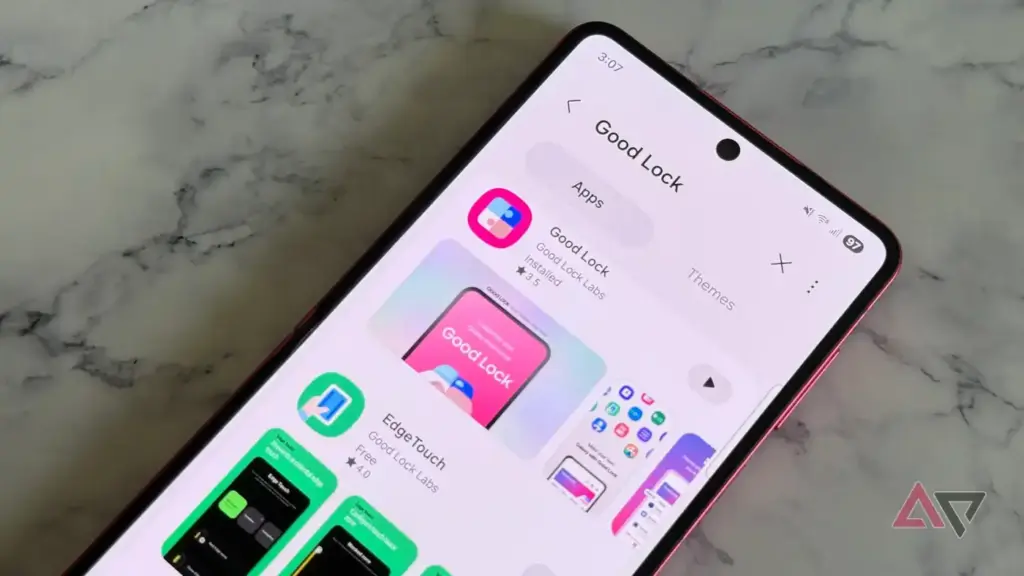
Install Good Lock from the Galaxy Store. Open the app, tap Home Up, and tap the download icon to install the module.
Tip: On One UI 8, Home Up settings also show up directly inside the One UI Home app when you're customizing your layout.
Step 2: Keep modules updated after a One UI update
Reopen Good Lock after any major One UI update and check each module, such as Home Up, MultiStar, or QuickStar, for its own separate update.
Tip: Check the Samsung Community's QuickStar update thread if a module stops working after an update: https://us.community.samsung.com/t5/Discussions/Good-Lock-QuickStar-One-UI8-5-Feature-Updates/td-p/3530026
Edit video with Samsung Studio instead of a third-party app
Studio is a built-in, multi-layer video editor with a full timeline and no watermark.
Step 1: Start a new project
Open Studio and tap New project. Choose photos or videos from your albums to begin building your timeline.
Step 2: Add text, stickers, and sound
Layer in text, stickers, and a soundtrack from the editing timeline, then preview the result before exporting.
Tip: Since Studio is built in, you avoid watermarks and the paywalls common in free third-party editors.
Run a self-check with Samsung Members
Members includes built-in diagnostics so you can test your hardware before booking a service appointment.
Step 1: Run a diagnostics check
Open Samsung Members and run the built-in Diagnostics checks to test your screen, battery, sensors, and more.
Tip: Running diagnostics first can save a trip to a service center if the issue turns out to be minor.
Pro tips
- Add the Routines widget to your home screen so you can trigger manual actions without opening Settings.
- Reset Secret mode from Secret mode settings if you ever want to erase its saved passwords and bookmarks.
- Check Good Lock's module list monthly, since Home Up, MultiStar, and QuickStar often get separate updates after a One UI release.
Troubleshooting
| Problem | What to do |
|---|---|
| The Secret mode icon is grayed out and won't tap. | Check whether your Samsung account is registered as a child account, since age restrictions vary by country and can disable Secret mode. |
| A Good Lock module stopped working after updating One UI. | Open Good Lock and update that specific module, since Home Up, MultiStar, NavStar, and QuickStar each ship separate updates for new One UI versions. |
Frequently asked questions
Do I need a Samsung account to use these apps?
Most work without one, but a Samsung account is recommended for syncing Notes and Reminder across devices and for some Galaxy AI features.
Is Good Lock safe to install?
Yes. Good Lock and its modules are official Samsung apps installed like any other app, with no root access or warranty risk reported.
Does Secret mode hide my browsing from my internet provider?
No. Secret mode only keeps local browsing data private on your phone; your internet provider, websites, and apps can still see your activity.
Is Good Lock available outside the Galaxy Store?
In most regions it’s also available on Google Play, though Galaxy Store is the primary source and gets updates first.
Spend a few minutes turning on even two or three of these built-in Samsung One UI apps, and you’ll likely stop reaching for third-party replacements for tasks, notes, browsing privacy, and video editing.
Sources and further reading
- Android Police — Your Galaxy phone comes with built-in Samsung One UI apps you shouldn't ignore
- Samsung US — How to use Secret mode in Samsung Browser
- Sammy Fans — This Good Lock module will supercharge your One UI 8 experience
- Yahoo Tech — 7 useful built-in Samsung One UI apps you're probably not using — but you should be