Quick answer
Update Android Auto and Google Play services from the Play Store, then check Settings > Connections > Bluetooth and your USB mode, since Galaxy phones on One UI 9 have been dropping Android Auto connections or stuttering during use.
If your Galaxy phone moved to One UI 9 and your car suddenly won’t talk to Android Auto the way it used to, you’re not alone. Reports of dropped connections, phones that refuse to connect at all, and choppy audio have shown up from Galaxy S26, Galaxy A55 and Galaxy S24 Ultra owners since the Android 17 based update rolled out.
This guide walks through the fixes in order, starting with the quickest checks and moving toward the more involved ones. Work through them one at a time and test Android Auto in the car after each step before moving to the next.
Before you start
- Difficulty Easy
- Time needed 20 minutes
- Works on Galaxy phones on One UI 9 (Android 17), wired or wireless Android Auto
What you'll need
- Galaxy phone running One UI 9
- Updated Android Auto app and Google Play services
- Android Auto-compatible car head unit
- Samsung Members app installed (for reporting)
Important
- Clearing Android Auto's app data (not just cache) will remove your saved preferences and may require re-pairing Bluetooth.
- Uninstalling Android Auto's updates is an unconfirmed workaround from a single user report, and it will temporarily revert the app to an older version.
Quick checks before you start
These take two minutes and clear up a surprising number of connection problems on their own.
Step 1: Update Android Auto and Google Play services
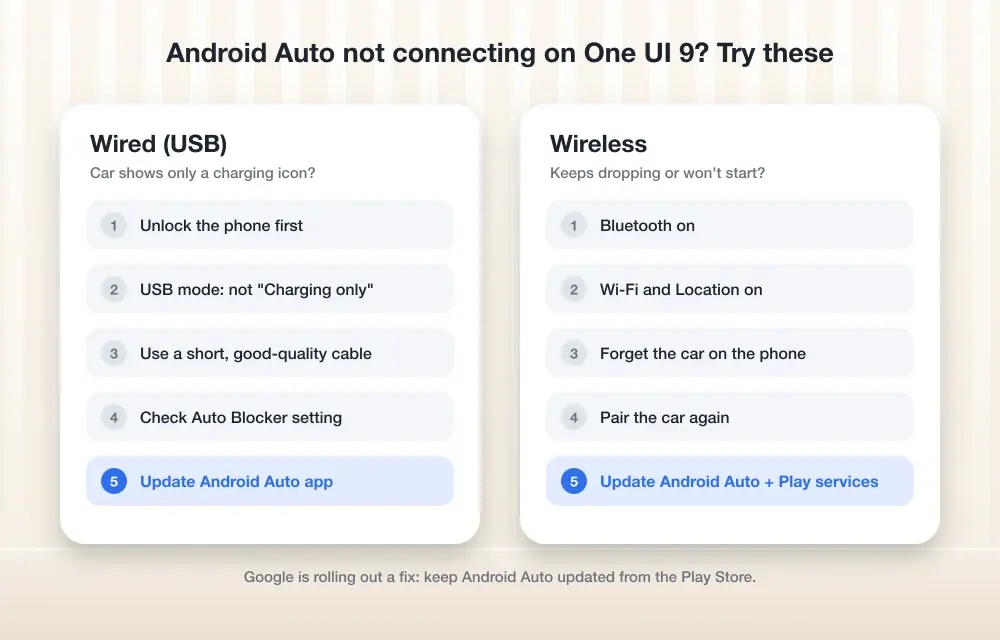
Open the Play Store and update both the Android Auto app and Google Play services. Samsung and Google have both pointed to outdated versions of these as a common cause of drops on One UI 9.
Tip: Restart your phone after updating so the new versions fully load.
Step 2: Install any pending Samsung software update
Go to Settings > Software update and check for a new build. Google says a fix for the One UI 9 Android Auto bug is rolling out, though it hasn’t confirmed whether it arrives through a system update or an app update, so it’s worth checking both.
Clear the Android Auto app cache
Temporary files left over from the update can confuse the app without affecting your saved data.
Step 1: Open Android Auto's app storage settings
Go to Settings > Apps > Android Auto > Storage.
Step 2: Tap Clear cache
Tap Clear cache, not Clear data. This removes temporary app files without resetting your Android Auto preferences.
Tip: Clearing cache is non-destructive, but clearing data will force you to set Android Auto up again.
Check Bluetooth pairing with your car
If the connection drops or audio stutters over Bluetooth, your car’s permissions may have reset during the update.
Step 1: Open Bluetooth settings
Go to Settings > Connections > Bluetooth and find your paired car in the list.
Step 2: Verify Calls and Audio are enabled
Tap the gear icon next to your car and make sure both Calls and Audio are switched on. If either is off, Android Auto can connect but behave unreliably.
Step 3: Forget and re-pair if the toggles look fine
If both switches are already on and the problem continues, tap Forget, then pair your phone to the car again from scratch.
Fix the USB connection mode (wired users)
Starting with One UI 8, Samsung changed the default USB mode to charging only, which blocks wired Android Auto before it can even start.
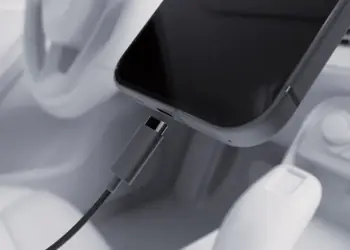
Step 1: Plug in your phone and open the USB notification
Connect your phone to the car with a USB cable, then pull down the notification shade and tap the charging notification.
Step 2: Switch to the right USB mode
Select Transferring files or Android Auto from the list instead of Charging this device. Android Auto should launch on your car’s screen within a few seconds.
Check your lock screen and swap the cable
Two small but easy-to-miss causes: a locked phone at the moment you connect, and a worn or low-quality cable.
Step 1: Unlock your phone before connecting
Since Android 15 and One UI 7, Android Auto won’t start if your phone is sitting on the lock screen when you plug in or pair. Unlock your phone first, then connect.
Step 2: Try a different USB cable
If Android Auto used to work fine and only recently started failing over USB, swap in a different cable. Google notes that a cable swap often resolves connection failures when the feature previously worked.
Tip: Use a cable rated for data transfer, not a charging-only cable.
Fix the wrong navigation app opening
If Android Auto connects but launches the wrong map app, your default navigation setting may have changed during the update.
Step 1: Check your default apps
Go to Settings > Apps > Choose default apps > Digital assistant app and voice input, or check within Android Auto’s own app settings for a default navigation option. Some Galaxy owners found the update switched their default from Google Maps to Waze.
Step 2: Set Google Maps as default again
Select Google Maps if that’s the app you expect Android Auto to open automatically.
Report the issue if nothing else works
If the problem persists after a few days of trying the fixes above, send Google and Samsung the data they need to track it.
Step 1: Send feedback from Android Auto's settings
Open the Android Auto app, go to its settings menu, and use the feedback option to report your connection problem directly to Google.
Step 2: File a report through Samsung Members
Open the Samsung Members app and go to Get help > Report an issue to send Samsung’s support team your device details and a log of the problem.
Pro tips
- Test Android Auto right after each fix instead of applying several at once, so you know which one actually worked.
- Keep a spare known-good USB cable in your car in case the one you normally use starts acting up.
- Check back for a system update periodically, since Google hasn't said whether its fix arrives through Play Store or a Samsung software update.
Frequently asked questions
Is this Android Auto problem happening to everyone on One UI 9?
No. It’s been reported by owners of several models including the Galaxy S26, Galaxy A55 and Galaxy S24 Ultra, but plenty of other One UI 9 users say Android Auto works normally for them.
Has Google fixed the One UI 9 Android Auto bug yet?
Google told reporters a fix is rolling out, but it hasn’t shared a version number or said whether it arrives through a Play Store update or a Samsung system update, so results may vary by device.
Will clearing the Android Auto cache delete my saved settings?
No. Clearing cache only removes temporary files. Clearing app data instead will reset your preferences and may require you to re-pair your car’s Bluetooth.
Does switching to a wired connection avoid the problem?
Not always. Some users reported that switching to USB didn’t fix the drops, though checking your USB connection mode is still worth doing since it’s a separate, common cause of wired failures.
Work through these fixes in order and most Galaxy owners should get a stable connection back before Google’s server-side fix even reaches their phone. If you’re still stuck after reporting the issue, keep an eye on Samsung’s software update list, and in the meantime you can read more about Android Auto features heading your way next.
Sources and further reading
- Android Police — Samsung's One UI 9 update is causing Android Auto connection problems
- Thetechhacker — Android Auto Not Connecting on One UI 9? How to Fix It
- AndroidPure — Android Auto Won’t Connect for Some Galaxy Owners After One UI 9 – AndroidPure