Quick answer
To fix a confusing Google Wallet card stack, open the app, tap the card stack, choose Manage payment methods, and give each card a unique nickname, reorder the stack, and set a clear default.
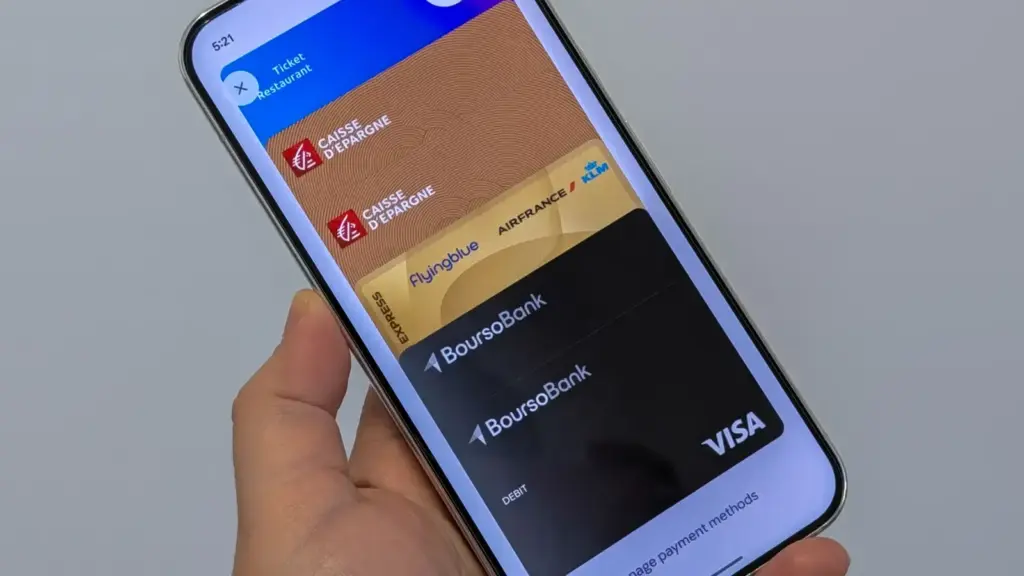
Google Wallet’s redesigned card stack replaced the old horizontal carousel with a vertical list, and it dropped the last four digits and nicknames from the main view. If you carry two similar-looking cards from the same bank, picking the right one at checkout now takes guesswork.
The fixes below start with the fastest adjustments and move toward more drastic ones, so you can stop at whichever step solves the problem for you.
Before you start
- Difficulty Easy
- Time needed 10 minutes
- Works on Google Wallet app on Android; also wallet.google.com
What you'll need
- Google Wallet app installed and signed in, or access to wallet.google.com
- At least two payment cards saved to compare
Important
- Removing a card from the Google Wallet website removes it from every device signed into that account, not just the one you're using.
- Google Wallet currently has no confirmed setting to switch back to the old carousel layout.
Quick Check: Confirm Which Card Stack Design You Have
Google is rolling out the new stacked layout gradually, so your app might still show the older carousel.
Step 1: Open Google Wallet and look at the homepage
If you see a horizontal row of cards with a sliver of the next one at the edge, you have the older carousel. If you see one full card with a small sliver of a second card stacked above it, you have the new redesign.
The steps below differ slightly depending on which layout you have, so note which one you’re looking at before continuing.
Tip: The redesign is a server-side rollout, so it can appear without an app update.
Fix 1: Give Each Card a Unique Nickname
Nicknames are the fastest way to tell similar or identical cards apart once the four-digit numbers disappear from the main view.
Step 1: Open the card stack
Tap the card stack on the Google Wallet homepage, then choose Manage payment methods.
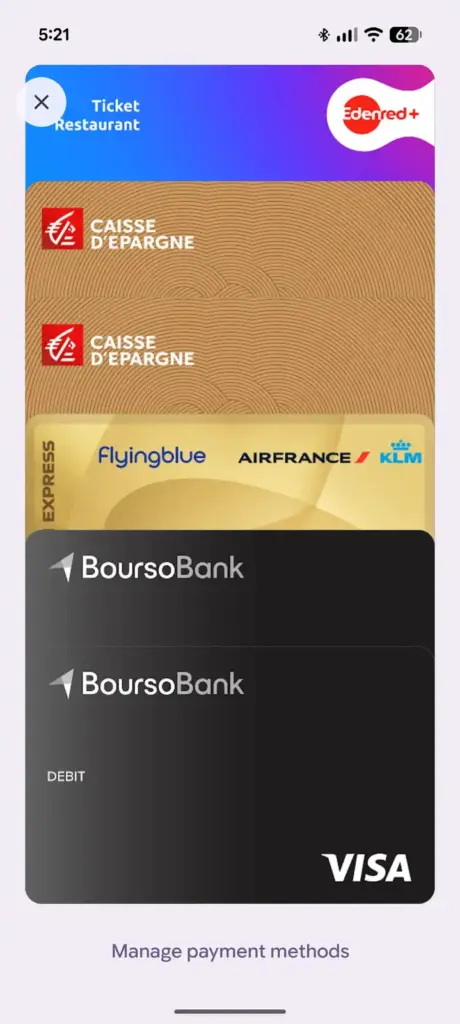
Step 2: Select the card to rename
Pick the card you want to edit, then tap the overflow ⋮ button in the top right.
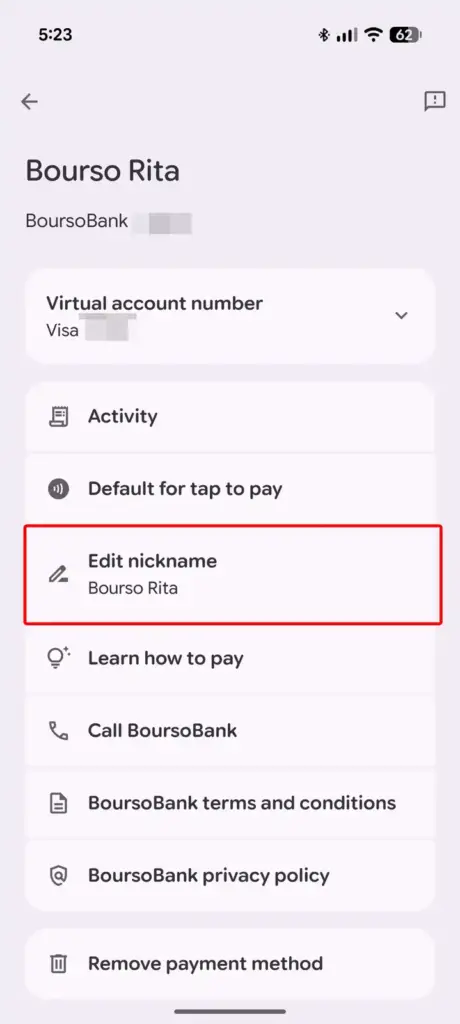
Step 3: Edit the nickname
Choose Edit nickname and type a name that clearly separates this card from any similar one, such as
Tip: On the older carousel, open the card, tap Details, then tap the nickname field to edit it.
Fix 2: Reorder the Stack So Your Main Cards Are Easy to Reach
Placing your most-used cards in a predictable spot cuts down on scrolling and guesswork during checkout.
Step 1: Open Manage payment methods
Tap the card stack, then choose Manage payment methods.
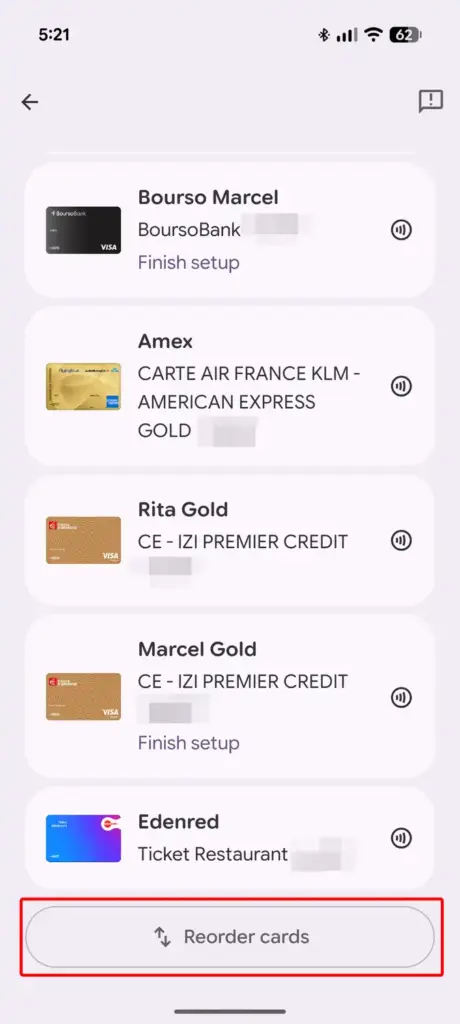
Step 2: Start the reorder tool
Scroll to the bottom and tap Reorder cards. On the older carousel, swipe to the last card and tap Edit card order instead.
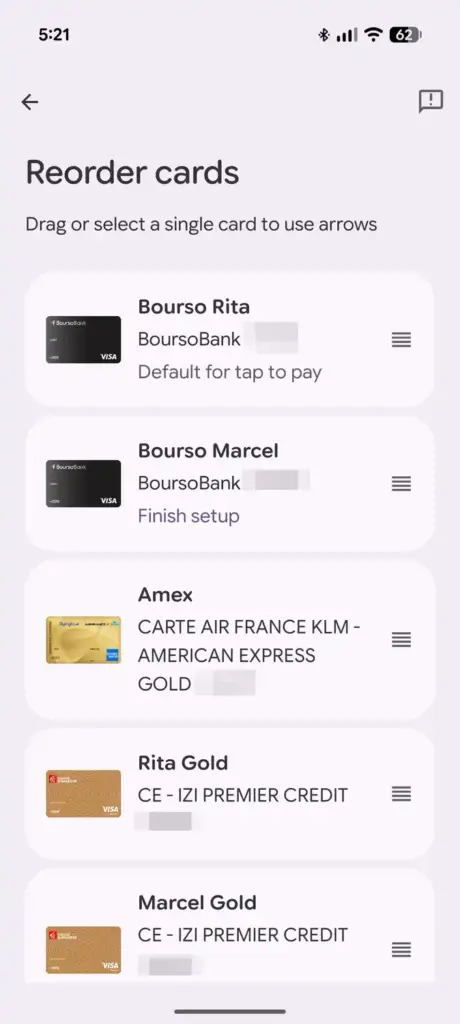
Step 3: Drag cards into place
Touch and hold a card, then drag it into position. Remember the new stack is inverted: the card you want on top at checkout should end up at the bottom of this list.
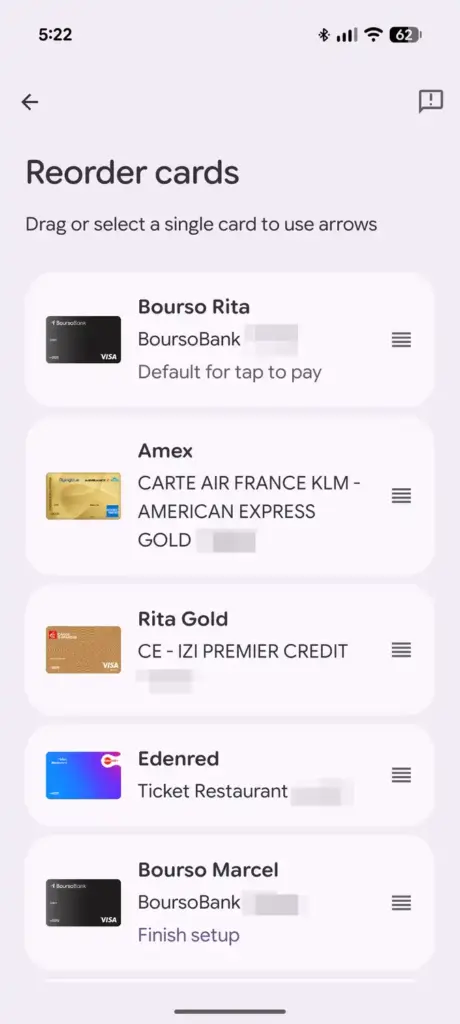
Tip: In the old carousel, cards at the top of the list appear first instead.
Fix 3: Set a Clear Default Payment Method
Reordering alone does not change which card pays by default, so set that separately to avoid tapping twice.
Step 1: Open the card you want as default
Tap the card stack, choose Manage payment methods, and pick the card.
Step 2: Make it the default
Tap the overflow ⋮ button, then choose Make default for tap to pay.
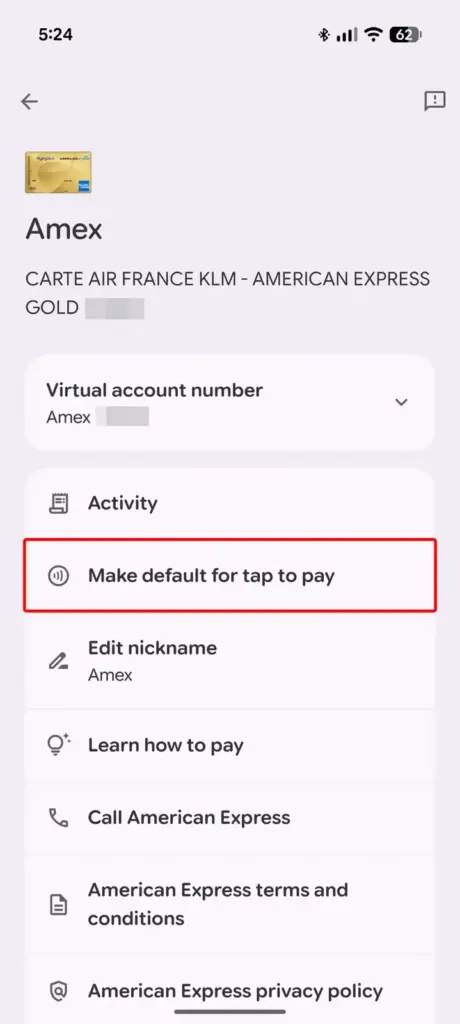
Tip: Reordering cards does not automatically change the default, so check this setting after every reorder.
Fix 4: Remove Cards You No Longer Use
Fewer cards in the stack means fewer chances to grab the wrong one.
Step 1: Find the card to remove
Tap the card stack, choose Manage payment methods, and scroll to the card.
Step 2: Remove the payment method
Choose Remove payment method. On the older carousel, open the card, tap More, then tap Remove payment method.
Fix 5: Edit or Remove Cards From the Web
Some details, like expiration dates and billing addresses, can only be changed on the Google Wallet website, and removing a card there also clears it from every device you own.
Step 1: Open the Google Wallet website
Go to wallet.google.com and sign in with the same Google Account.
Step 2: Open Payment methods
Click Payment methods in the left menu, then select the card you want to change.
Step 3: Edit or remove the card
Click Edit to update expiration date, CVC, name, or address, or click Remove to delete the card entirely. To remove it from only one phone, click the device under the card, tap More, then Remove from device.
Pro tips
- Swipe a card slightly to the side in the new stack to peek at its nickname without opening the full menu.
- Rename cards right after you add them so you never face the mixed-up stack problem.
- Check your default payment method again after any reorder, since the two settings are separate.
Frequently asked questions
Why did Google Wallet remove the card numbers from the main screen?
The new stacked layout prioritizes a larger single-card preview, which pushed the last four digits and nicknames out of the default view. You can still see them by swiping a card slightly or opening its details.
Can I go back to the old Google Wallet carousel?
There is no confirmed setting to restore the previous carousel layout once the stacked redesign reaches your device, since it rolls out through a server-side update rather than an app version.
Does reordering my cards change which one pays by tap to pay?
No. Reordering only changes the display order; you need to set a default payment method separately for tap to pay to use a specific card automatically.
Is the Google Wallet card stack the same on every Android phone?
Yes, since Google Wallet is a Google app rather than a manufacturer skin, the menu paths are the same across brands, though the stacked redesign may arrive on different phones at different times.
If your cards still feel jumbled after nicknaming, reordering, and setting a default, trimming the stack down to the cards you actually use is usually the fastest way to stop reaching for the wrong one. You can also check out our coverage of Google Wallet adding state ID support if you’re curious what else the app can store.
Sources and further reading
- Android Police — Google Wallet's new card stack is confusing; here are 4 ways to fix it
- Support Google
- 9to5Google — Google Wallet rolling out stacked card list redesign on Android
- Yahoo Tech — Google Wallet's new card stack is confusing; here are 4 ways to fix it