Quick answer
Open Google Wallet, swipe to the card you want, tap it, then tap Details and Make default for tap to pay (worded Make default for pay contactless in some regions).
Google Wallet quietly keeps charging whichever card you added first, long after you meant to switch your everyday spending to a different one. If you tap your phone at checkout and the wrong card gets hit every time, the fix takes less than a minute.
Below you will set a new default card from the Google Wallet app on your phone, and from a Pixel Watch if you pay from your wrist. Once you have reorganized which card sits where, you might also want to tidy up the rest of your Google Wallet card stack so your most-used cards are easy to find.
Before you start
- Difficulty Easy
- Time needed 3 minutes
- Works on Android phones with NFC, Google Wallet app, Pixel Watch (Wear OS)
What you'll need
- An Android phone with NFC and a screen lock enabled
- The Google Wallet app installed, with at least one verified payment card
- Optional: a Pixel Watch paired with your phone for watch payments
Important
- Google Wallet requires a screen lock on your phone or watch, so confirm one is set before you try to pay with a new default card.
Change your default card in the Google Wallet app
This is the standard way to set a default on a current Android phone.
Step 1: Open the Google Wallet app
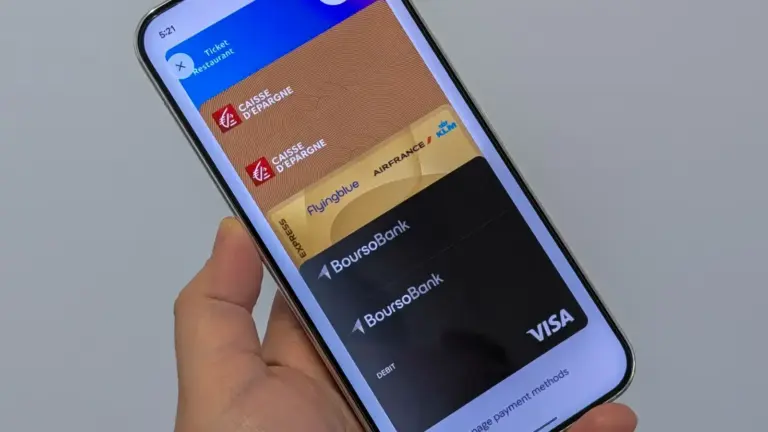
Launch Google Wallet on your phone. You will see your payment cards stacked at the top of the screen.
Step 2: Swipe to the card you want as default
On the card stack, swipe from the right edge of the screen until the card you want appears in front.
Step 3: Tap the card
Tap the card to open its details screen.
Step 4: Tap Details, then Make default for tap to pay
At the bottom of the screen, tap Details, then tap Make default for tap to pay. In some regions this button reads Make default for pay contactless instead; it does the same thing.
The card now carries the contactless symbol used for your default method, and it is what gets charged whenever you hold your phone near a payment terminal without picking a different card first.
Tip: On older versions of the app, tap the card's 3-dot menu instead of Details, then choose Make default for tap to pay.
Change the default card on a Pixel Watch
Use this if you tap to pay from your wrist instead of your phone.
Step 1: Double click the digital crown
On your Pixel Watch, double click the digital crown to open Google Wallet directly on the watch.
Step 2: Scroll to the card you want as default
Scroll through your cards until the one you want appears, then touch it on the screen.
Step 3: Select Make default
Scroll down and tap Make default. A short toast notification confirms the change, and the button switches to a blue Default card label.
Tip: You can also set this from your phone: open the Watch app, go to Google, then Google Wallet, choose the card, and tap Make default for contactless.
Pro tips
- Reordering cards in Edit card order only changes how they are displayed, not which one is your default.
- For a store or private-label card to become your default, it has to be the only card in your Google Wallet account.
- Make sure Google Wallet is also set as your phone's default contactless payment app under Settings, NFC, Contactless payments, Payment default, so the card you chose actually gets used at checkout.
Troubleshooting
| Problem | What to do |
|---|---|
| The Make default option is missing or the card can't be selected as default. | Check that the card has not expired and that its details are current; an expired or invalid card usually cannot be set as default. |
| You set Google Wallet as the system default payment app, but swiping up or using a side-key shortcut still opens a different wallet, common on some Samsung phon | This is a known quirk on certain Samsung devices; the system default setting may not control the hardware shortcut, so you may need to reconfigure that shortcut separately on your phone. |
| A store or private-label credit card won't become the default. | Remove other cards from Google Wallet; store cards can only be the default when they are the only card present. |
Frequently asked questions
Does changing the card order also change my default card?
No. Dragging cards around in Edit card order only changes how they’re displayed in the stack; you still have to open the card and tap Make default for tap to pay to actually change which one gets charged.
How can I tell which card is currently my default?
Open Edit card order in Google Wallet and look for the card with the contactless symbol; cards that can be used to tap and pay but aren’t the default show a different version of that symbol.
Can I still use a card that isn't my default?
Yes. Swipe to the card you want in the stack and hold your phone against the terminal; if the terminal asks you to choose credit or debit, choose credit regardless of your actual card type.
Does this work the same way on an iPhone?
No. iPhones use Apple Wallet and Apple Pay instead of Google Wallet; you set the default there by opening the Wallet app and dragging your preferred card to the front of the stack, as described on Apple’s own support page.
With your default card set, tap to pay should now reach for the right account automatically; if the card stack itself still looks cluttered, it’s worth going back and organizing your Google Wallet cards so the ones you use most stay up front.
Sources and further reading
- Support Google
- Verizon
- Apple Support — Change or remove the payment cards that you use with Apple Pay – Apple Support (NG)
- Natwest — How do I change my default card in Google Pay™?