Quick answer
To set up Extreme Battery Saver, go to Settings > Battery > Battery Saver > Extreme Battery Saver, choose when it activates, then pick your essential apps so they keep working while everything else pauses.
When your Pixel’s battery drops into the single digits and a charger is nowhere near, standard Battery Saver might not be enough. Extreme Battery Saver goes much further, pausing most apps and slowing your phone’s chipset to stretch the remaining charge for hours.
This guide walks through turning it on, choosing which apps stay active, and scheduling it so it kicks in automatically alongside regular Battery Saver.
Before you start
- Difficulty Easy
- Time needed 5 minutes
- Works on Pixel 3 and later, including Pixel Fold (Android 11+)
What you'll need
- A Pixel 3 or later phone, including Fold
- Standard Battery Saver enabled or scheduled first
- A few minutes to pick essential apps
Important
- Paused apps will not send notifications, so whitelist anything you rely on for calls, messages or navigation before you need extreme mode.
- Extreme Battery Saver also slows your phone's chipset, so expect noticeably reduced performance while it's active.
Configure Extreme Battery Saver and Essential Apps
Extreme Battery Saver is linked to the regular Battery Saver feature, so you’ll touch both menus during setup.
Step 1: Open Settings
Open the Settings app on your Pixel.
Step 2: Tap Battery
Tap Battery, then tap Battery Saver.
Step 3: Open Extreme Battery Saver
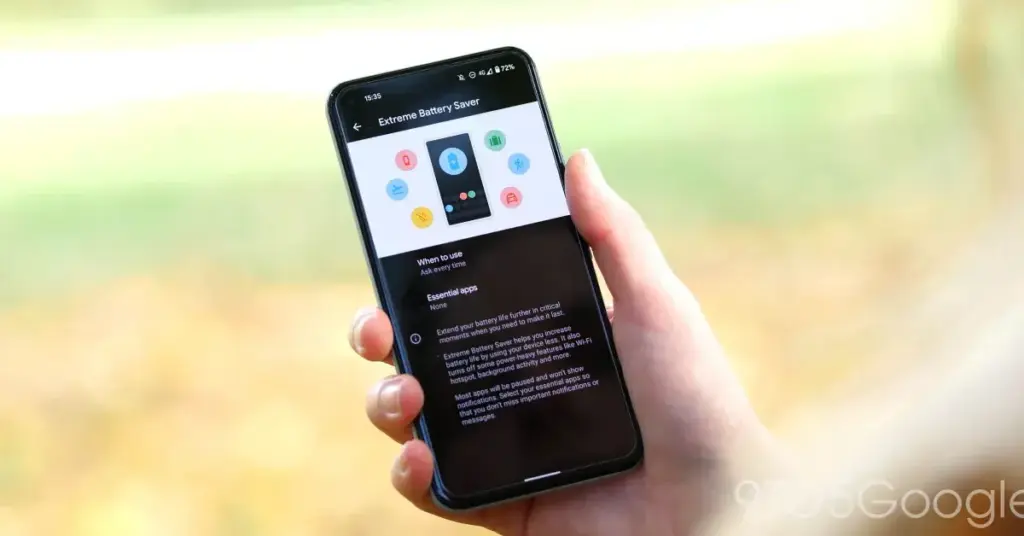
Tap Extreme Battery Saver. On older Android versions you may see a separate When to use option here; on newer versions this choice sits directly on the Extreme Battery Saver screen.
Step 4: Choose when it activates
- Ask every time — prompts you when regular Battery Saver turns on
- Always use — turns on automatically with regular Battery Saver
- Never use — keeps Extreme Battery Saver off by default
Tip: Ask every time gives you control without forgetting the feature exists.
Step 5: Open Essential apps
From the same Extreme Battery Saver screen, tap Essential apps.
Step 6: Pick which apps stay active
Select only the apps you truly need while Extreme Battery Saver is on, such as a messaging app or navigation. Every app left unchecked will pause and stop sending notifications.
Tip: The fewer apps you choose, the more battery life you keep.
Set Up the Automatic Schedule in Battery Saver
Extreme Battery Saver only turns on alongside regular Battery Saver, so schedule that first.
Step 1: Open Schedule and reminders
Go to Settings, then Battery, then Battery Saver, then tap Schedule and reminders.
Step 2: Turn on battery-level scheduling
Make sure Turn on based on battery level is switched on, then slide the bar to the percentage where you want Battery Saver to kick in. You can also choose Based on your routine instead.
Step 3: Enable turn-off at 90 percent
Turn on Turn off at 90% so Battery Saver, and Extreme Battery Saver with it, switches off automatically once your phone has charged back up.
Pro tips
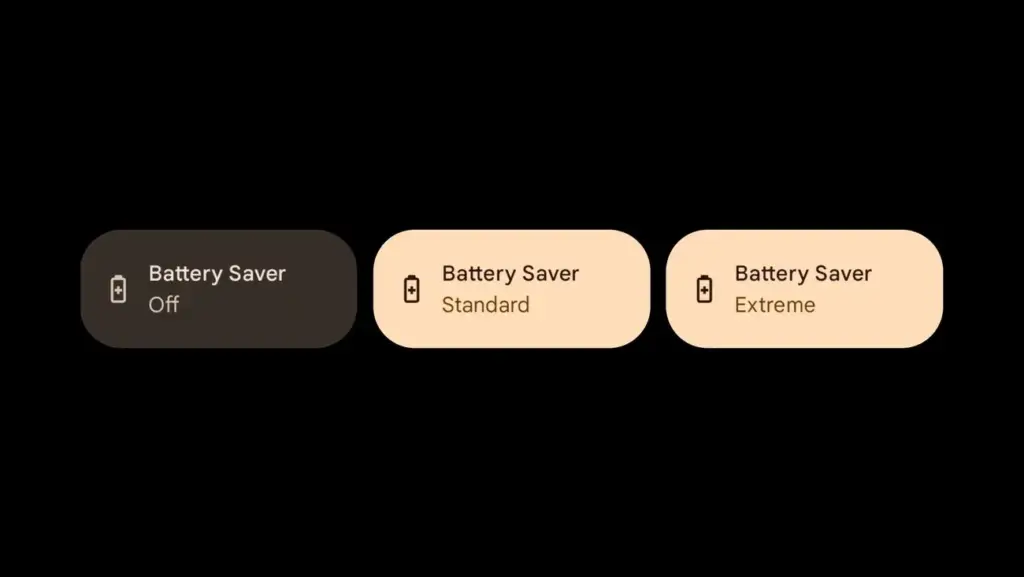
- Add the Battery Saver tile to Quick Settings for a fast manual toggle when you don't want to wait for the schedule.
- Unplug reminders aside, disable Battery Saver as soon as you plug into a charger so your paused apps work again.
- If you temporarily unpause an app, it stays usable until the next time Extreme Battery Saver turns on.
Troubleshooting
| Problem | What to do |
|---|---|
| Extreme Battery Saver option is missing from the menu | Confirm your phone is a Pixel 3 or later and that regular Battery Saver is already turned on or scheduled, since Extreme Battery Saver is a sub-feature of it. |
| An essential app still won't stay active | Reopen Settings, then Battery, then Battery Saver, then Extreme Battery Saver, then Essential apps, and confirm the app's toggle is switched on. |
| Apps I need won't open while charging | Turn off Battery Saver manually after plugging in, or enable Turn off at 90% so it switches off on its own. |
Frequently asked questions
Does Extreme Battery Saver work on every Pixel phone?
It’s available on Pixel 3 and later, including the Pixel Fold. Pixel 3, 3a and 4 received it through software updates rather than at launch.
Do I need regular Battery Saver on first?
Yes. Extreme Battery Saver is built on top of standard Battery Saver, so it only activates once regular Battery Saver is on or scheduled.
Will I miss text messages or calls in Extreme Battery Saver mode?
Core system apps like Phone, Messages and Clock keep working, but any other app you haven’t marked essential will pause and stop sending notifications.
Can I use Extreme Battery Saver on a Samsung or other Android phone?
No. It’s a Pixel-exclusive feature; Samsung’s One UI has its own separate Power saving and Ultra power saving modes instead.
With essential apps picked and a schedule in place, Extreme Battery Saver is ready to stretch your Pixel’s last few percent whenever you need it. For everyday battery health rather than emergency stretching, check the companion guide on fixing Pixel battery drain with Adaptive Battery settings.
Sources and further reading
- Support Google
- Google — How to use Battery Saver on your Pixel devices
- 9to5Google — 'Extreme Battery Saver' on the Pixel: How to turn it on when you really need it
- Android Central — How to enable Extreme Battery Saver mode on your Google Pixel phone