Quick answer
Close the game, delete everything in MarvelGame\Marvel\Content\Paks\~mods and the loader files (dsound.dll and the .asi plugins) in Binaries\Win64, then run your launcher's file check. On Steam that is Properties > Installed Files > Verify Integrity of Game Files.
NetEase’s 15 October 2026 statement on mods leaves little room for doubt. Suspensions from the two days before it were lifted as a one-time pass, and anyone who keeps playing with unfair mods in Marvel Rivals from now on will be penalized. Some mods use memory injection, the same technique cheat programs rely on, so the anti-cheat flags them quickly.
Switching a mod off is not enough. You will delete the mod paks, remove the loader that lets the game accept them, hunt down the two files NetEase named, and then have your launcher check the installation so every original file is back in place.
Before you start
- Difficulty Moderate
- Time needed 20 minutes
- Works on Windows PC copies of Marvel Rivals on Steam, Epic Games Store and Loading Bay
What you'll need
- A PC copy of Marvel Rivals installed through Steam, Epic Games or Loading Bay
- Windows administrator permission, since the game usually sits under Program Files
- An internet connection so the file check can download replacements
- A folder outside the game directory if you want to keep copies of your mods
Important
- Deleted mod files cannot be recovered, so back up anything you want to keep outside the game folder first.
- NetEase has said continued use of unfair mods after 15 October 2026 will be penalized, and its list of banned mod types is not exhaustive.
- Do not install third-party cleaner tools to remove mods; File Explorer and your launcher's file check are all you need.
Quick Checks Before You Delete Anything
Two minutes of preparation stops Windows from locking files and saves anything you might want later.
Step 1: Close Marvel Rivals completely
Quit the game and make sure it is not still running in the background. Files that the game has open cannot be deleted cleanly.
Step 2: Back up mods you want to keep
Deleting is permanent. Copy any mod files you want to hold on to into a folder outside the game directory, such as your Documents folder.
Leave nothing in the game folder itself, including subfolders, because the game loads mods from there too.
Tip: Do not download a third-party "cleaner" tool for this job; you only need File Explorer and your launcher.
Delete Mods in the RIVALSFPS.GG Mod Manager
If you installed mods through RIVALSFPS.GG, its on/off switch only renames files, so they never actually leave your game folder.
Step 1: Open RIVALSFPS.GG and find your mod list
A mod that is switched off still has a row in the list. Behind the scenes the manager just adds a marker, so a file like Hela_P.pak becomes Hela_P.pak.off and stays exactly where it was.
Step 2: Press the red delete button on each row
Use the red delete button on every mod you want gone for good. Start with anything carrying a Flagged badge, which marks mods known to get accounts banned.
Step 3: Clear any flagged files in the Paks banner
If a red banner appears for flagged files placed straight into the Paks folder, press its Remove button. The RIVALSFPS.GG FAQ also covers Revert All Changes in the app’s settings, which undoes everything it changed.
Tip: Even after using the manager, check the real folder in the next fix to confirm nothing is left.
Delete Mod Paks From the ~mods Folder
This is where most mods live, and anything left here can still load the next time you start the game.
Step 1: Open the game's install folder
The route depends on your launcher:
- Steam: right-click Marvel Rivals and choose Manage > Browse local files.
- Epic Games: click the three dots on the game, choose Manage, then click the folder icon.
- Loading Bay: click the three lines next to Start Game, then Check Files.
Tip: Only the parent directory differs between launchers; everything from MarvelGame onward is the same.
Step 2: Go to the ~mods folder
Browse to MarvelGame\Marvel\Content\Paks\~mods. Open every subfolder inside it as well, because mods tucked into subfolders load just like the rest.
Step 3: Delete all .pak, .ucas and .utoc files
Remove every .pak, .ucas and .utoc file in ~mods and its subfolders. The simplest approach is to delete the whole ~mods folder.
If Windows asks for administrator permission, approve it. In the main Paks folder, remove only files you added yourself and leave the game’s own files alone.
Remove the Signature Bypass and Named .asi Files
Mod paks only load because a bypass plugin tells the game to accept them, and NetEase specifically named two more plugins to delete.
Step 1: Open the Binaries\Win64 folder
From the install folder, go to MarvelGame\Marvel\Binaries\Win64. This is where mod setup guides tell you to drop the loader files.
Step 2: Delete dsound.dll and the plugins folder contents
The usual bypass adds dsound.dll (ThirteenAG’s Ultimate ASI Loader), plugins\MarvelRivalsUTOCSignatureBypass.asi and the loader’s license text file. Delete all of them.
Step 3: Find and delete pystubber.asi and the unmount blocker
NetEase’s statement singles out pystubber.asi and MarvelRivalsUnmountBlocker.asi. They most likely sit in Binaries\Win64\plugins, but no source confirms the location.
To be sure, type .asi into the File Explorer search box while you are in the top level of the install folder, then delete every result.
Tip: Coverage from Shane the Gamer lists the same two files if you want to double-check the names.
Verify Your Game Files in the Launcher
The file check replaces anything damaged or missing, so your install matches the official version after the cleanup.
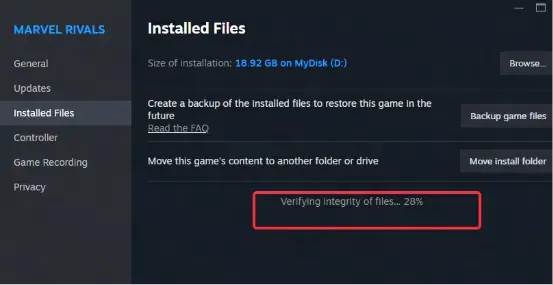
Step 1: Open Properties on Steam
Right-click Marvel Rivals in your Steam library, select Properties, then open the Installed Files tab. Some guides call this tab Local Files or Manage Files.
Step 2: Click Verify Integrity of Game Files
Click Verify Integrity of Game Files and wait. If Steam finds missing or corrupted files, let it download them before you launch the game.
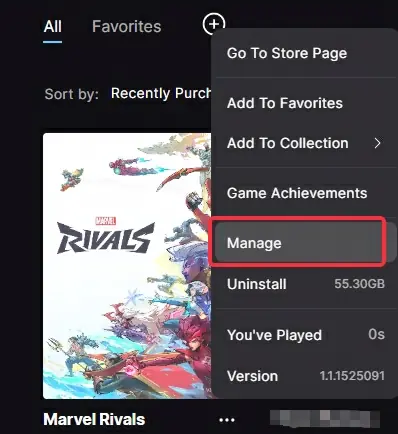
Step 3: Choose Manage on Epic Games
On Epic, right-click MarvelRivals in your library and select Manage.
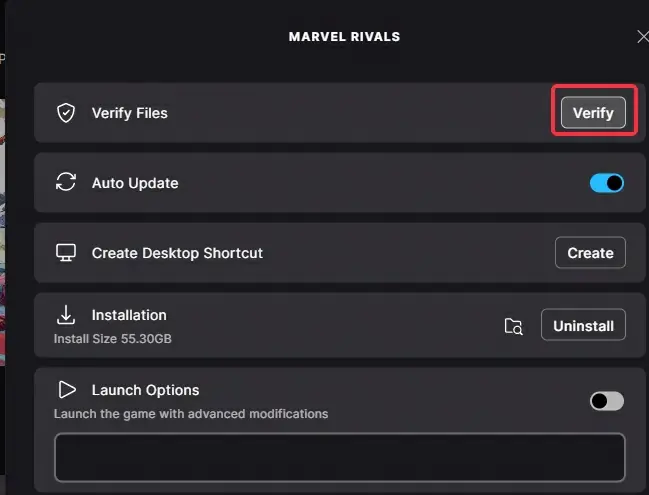
Step 4: Click Verify on Epic Games
Click Verify and wait for the process to finish. You can play normally once it completes.
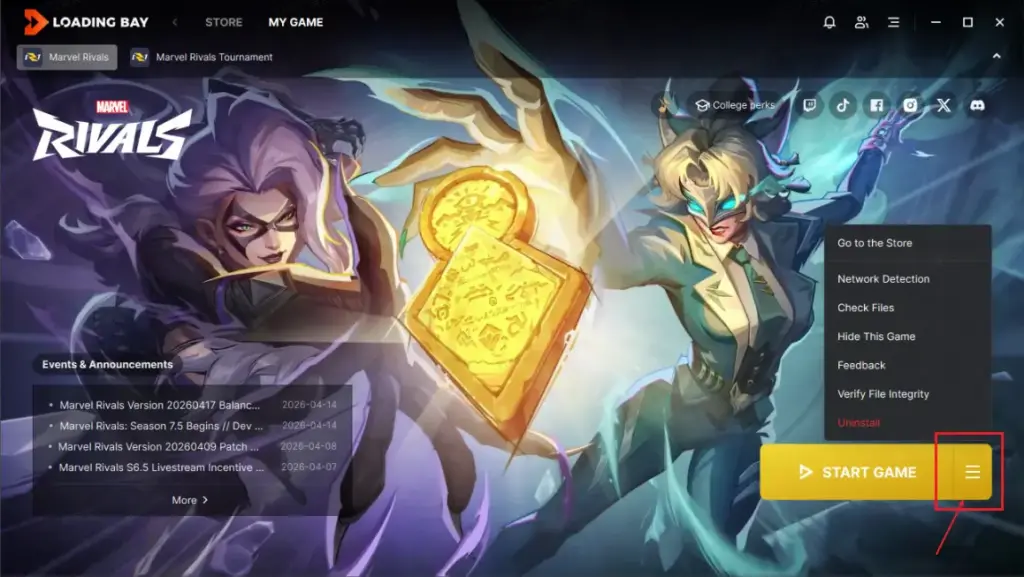
Step 5: Run the check in Loading Bay
Click the option button next to the game, then choose Verify File Intergrity (the misspelling is in NetEase’s own launcher). The official Integrity Check and Repair Guide shows all three launchers.
Tip: It is unconfirmed whether the check removes extra files such as ~mods or .asi plugins, so always delete them by hand first.
Stop a Repair Prompt That Returns After Every Crash
This is an unofficial user fix for a launcher that demands a file repair after each restart, so try it only if the earlier fixes did not settle things.
Step 1: Open the launcher's local data folder
Close the game and the launcher, then go to AppData\Local\MarvelRivals_Launcher in your user folder. Typing %LOCALAPPDATA% into the File Explorer address bar gets you to AppData\Local quickly.
Step 2: Delete the cache and meta_info
Delete the cache and meta_info entries in that folder, then relaunch the game.
Step 3: Set gpu_crash_occurred to false
After relaunching, find the gpu_crash_occurred setting and change its value to false. The user report does not say which file holds it, so search the launcher folder’s files for that name and leave everything else untouched.
Pro tips
- Check every subfolder inside ~mods, because the game loads mods placed there just like files in the main folder.
- A mod that shows as off in a manager is not gone; always confirm in the real folder.
- If a corrupted file warning appears on every launch, removing the whole ~mods folder fixed it for at least one Steam player, though others still see it without mods.
Frequently asked questions
Are cosmetic mods still allowed in Marvel Rivals?
RivalsInfo summarizes the statement as allowing cosmetic mods that do not affect fairness. However, NetEase said its list of banned types is not exhaustive, and the terms of service ban mods in general under clause 3.3.3, so any mod carries some risk.
Which mod types does NetEase treat as unfair?
Changed models or textures that let you see more than others, removed recoil, screen shake or bullet and impact effects, altered footsteps or sounds that help locate enemies, and enlarged enemy character models.
Does verifying game files delete my mods?
Not reliably. The check replaces damaged or missing files, and it is unconfirmed whether it removes extras like ~mods or .asi files, so delete those by hand first.
I was already banned. What can I do?
You can appeal through official Marvel Rivals Customer Support. NetEase reviews each case individually but does not promise any outcome.
Do I need to do this on Android, iPhone or console?
No. Mods for Marvel Rivals are a PC thing, so these steps only apply to Windows copies from Steam, Epic Games or Loading Bay.
Once the file check finishes cleanly, launch the game and play a match to confirm everything loads normally, then catch up on what changed in the October 15 Marvel Rivals patch while your account stays in good standing.
Sources and further reading
- TechnoSports Media Group — How to Install Marvel Rivals Mods in 2026: A Beginner’s Guide
- GitHub — GitHub – impxcts/How-To-Get-Rivals-Mods: How to get mods for marvel rivals
- RIVALSFPS.GG — RIVALSFPS.GG FAQ: Safety, Bans and Setup for Marvel Rivals
- Marvelrivals — Marvel Rivals – The Super Hero Team-based PVP Shooter