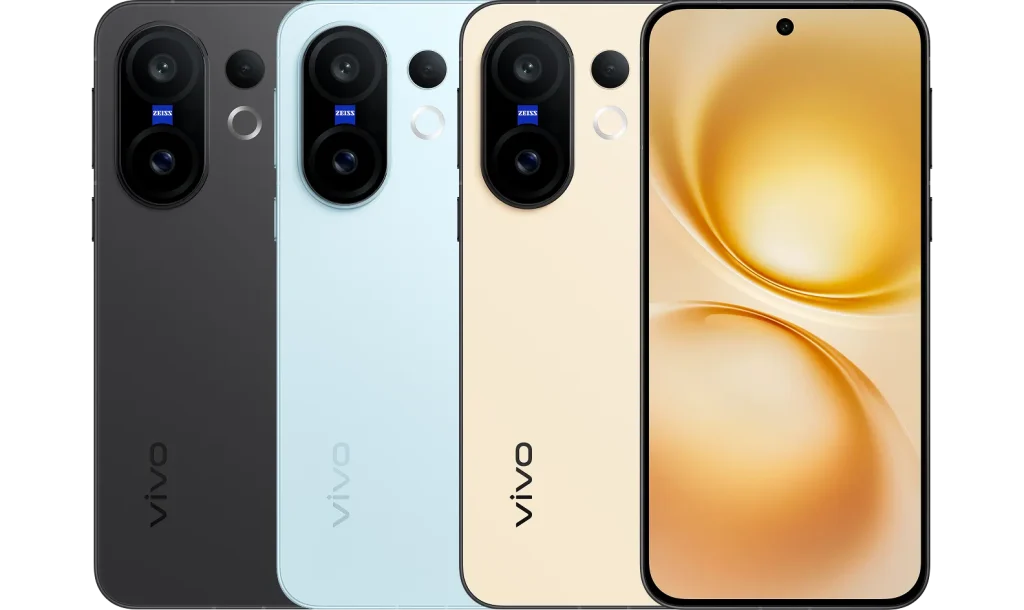
The Vivo X200 FE GCam Port represents a significant upgrade for photography enthusiasts seeking to unlock the full potential of their device’s camera capabilities. This compact flagship smartphone, powered by the MediaTek Dimensity 9300+ processor and featuring a triple-camera setup co-engineered with ZEISS, becomes even more powerful when paired with the right Google Camera port.
What is the Vivo X200 FE GCam Port?
The Vivo X200 FE GCam Port is a modified version of Google Camera specifically adapted to work with the Vivo X200 FE’s camera hardware. Originally developed for Google Pixel devices, this application leverages advanced computational photography techniques to enhance image quality significantly. The port utilizes the Camera2 API to access detailed camera functions, enabling better control over exposure, focus, and other critical settings.
Most Compatible GCam Version for Vivo X200 FE
Based on extensive research and community feedback, the most stable and compatible Vivo X200 FE GCam Port options include:
BSG GCam Port v9.6
- Developer: BSG
- Version: 9.6
- Android Requirements: Android 11 and above
- Compatibility: Excellent with MediaTek Dimensity 9300+
- Stability: Very High
Arnova8G2 GCam Port v8.1
- Developer: Arnova8G2
- Version: 8.1.101
- Features: Frequent updates and community support
- Compatibility: Good with Vivo devices
Benefits of Using Vivo X200 FE GCam Port
1. Enhanced Low-Light Performance
The Vivo X200 FE GCam Port significantly improves night photography through Google’s Night Sight technology. While the stock camera offers Zeiss Night Mode with Aura Light, the GCam port provides superior noise reduction and detail retention in challenging lighting conditions.
2. Advanced HDR+ Processing
Unlike the basic HDR processing in the stock camera, the Vivo X200 FE GCam Port utilizes Google’s HDR+ algorithm, which captures multiple frames and combines them for balanced exposure across highlights and shadows.
3. Superior Computational Photography
The GCam port brings Google’s advanced AI processing to the Vivo X200 FE, resulting in more natural color reproduction and improved detail preservation compared to the heavily processed stock camera output.
4. Astrophotography Mode
One exclusive feature of the Vivo X200 FE GCam Port is astrophotography mode, which allows users to capture stunning images of the night sky using long exposure techniques – something not available in the stock camera application.
Camera2 API Requirement for Vivo X200 FE
Camera2 API is REQUIRED for the Vivo X200 FE to run GCam ports effectively. The Vivo X200 FE, running on MediaTek Dimensity 9300+ with Android 15, requires Camera2 API to be enabled for optimal GCam functionality.
How to Enable Camera2 API via ADB Commands
If Camera2 API is not enabled by default, follow these steps:
Prerequisites:
- Enable Developer Options (tap Build Number 7 times)
- Enable USB Debugging
- Install ADB tools on PC
ADB Commands:
adb shell
su
setprop persist.camera.HAL3.enabled 1
setprop vendor.persist.camera.HAL3.enabled 1
exit
adb reboot
After rebooting, verify Camera2 API status using apps like “Camera2 API Probe” from the Play Store.
Step-by-Step Installation Guide
Step 1: Download the GCam APK
Download the recommended BSG GCam Port v9.6 for Vivo X200 FE GCam Port from trusted sources like celsoazevedo.com.
Step 2: Enable Unknown Sources
- Go to Settings > Security
- Enable “Install unknown apps” for your file manager
- Allow installation from unknown sources
Step 3: Install the APK
- Open File Manager
- Navigate to Downloads folder
- Tap the GCam APK file
- Follow installation prompts
- Grant necessary permissions
Step 4: Initial Configuration
- Open the installed GCam app
- Allow camera and storage permissions
- Test basic functionality before proceeding
XML Configuration Files
XML configuration files are available for the Vivo X200 FE through community forums. These files optimize GCam settings specifically for the device’s camera hardware.
Loading XML Files:
- Create folder:
/GCam/Configs8/(for GCam 8.x) or/GCam/Configs9/(for GCam 9.x) - Download compatible XML files for Vivo X200 FE
- Place XML files in the configs folder
- Open GCam app
- Double-tap the dark area around shutter button
- Select and restore the XML configuration
Note: For Android 11+, you may need to grant “Manage all files” permission to GCam.
Detailed Comparison: GCam Port vs Stock Camera
| Feature | Vivo X200 FE Stock Camera | GCam Port | Winner |
|---|---|---|---|
| HDR+ Processing | Basic HDR | Advanced HDR+ | GCam Port |
| Night Mode | Zeiss Night Mode | Night Sight | Both Excel |
| Portrait Mode | Zeiss Portrait with Bokeh | Computational Portrait | Both Excel |
| Astrophotography | Not Available | Available | GCam Port |
| RAW Capture | Limited RAW Support | Full RAW Support | GCam Port |
| Manual Controls | Full Manual Controls | Limited Manual Controls | Stock Camera |
| Processing Speed | Very Fast | Slower Processing | Stock Camera |
| Video Recording | 4K@60fps with OIS | Limited Video Features | Stock Camera |
| Color Accuracy | Vivid/Saturated | Natural/Realistic | GCam Port (Natural) |
| Low Light Performance | Good with Aura Light | Excellent | GCam Port |
| Stability | Very Stable | May Have Issues | Stock Camera |
Troubleshooting Common Issues
App Crashes on Launch
- Clear GCam cache and data
- Ensure Camera2 API is enabled
- Try different GCam versions
Photos Not Saving
- Check storage permissions
- Verify storage space availability
- Reset app preferences
Multiple Cameras Not Working
- Install appropriate XML configuration
- Check auxiliary camera settings
- Verify sensor compatibility
Performance Optimization Tips
- Use Recommended Settings: Start with community-tested XML configurations
- Monitor Battery Usage: GCam typically consumes more battery than stock camera
- Regular Updates: Keep GCam updated for better compatibility
- Backup Configurations: Save working XML settings for future use
The Vivo X200 FE GCam Port transforms this already capable camera phone into a computational photography powerhouse, bringing Google’s advanced image processing algorithms to Vivo’s excellent hardware foundation. While the stock camera excels in convenience and video recording, the GCam port offers superior still photography, especially in challenging conditions.
Ready to revolutionize your photography game? Download the Vivo X200 FE GCam Port today and share your stunning results on social media – your followers won’t believe these photos came from a smartphone!