![Download Vivo X300 Ultra GCam Port [Most Compatible Version]](https://cdn.droidfeats.com/wp-content/uploads/2026/04/Vivo-X300-Ultra-1024x697.avif "Download Vivo X300 Ultra GCam Port [Most Compatible Version]")
If you own a Vivo X300 Ultra and want to push your camera quality even further, installing a Google Camera (GCam) port is one of the easiest ways to do it. The Vivo X300 Ultra already has one of the most powerful camera setups on the market in 2026, but GCam brings a different kind of image processing that many users prefer for everyday shots. In this guide, we will show you the most stable GCam port for the Vivo X300 Ultra, where to download it, and exactly how to install it step by step.
Vivo X300 Ultra — A Quick Look at the Camera Hardware
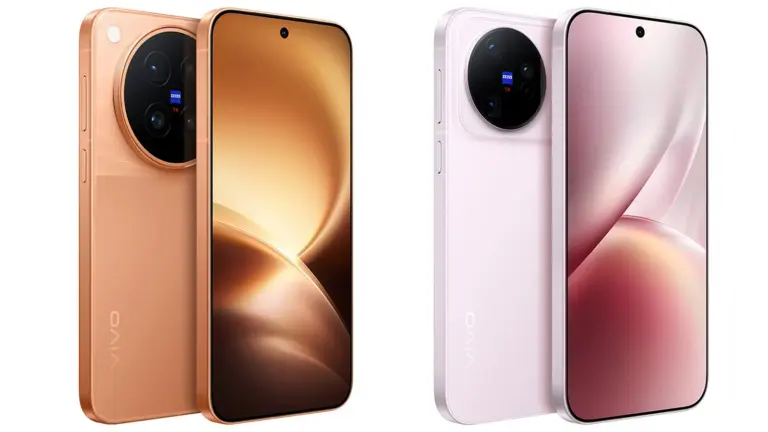
Before we get into the GCam port, it helps to understand what the Vivo X300 Ultra is working with. This flagship phone was announced on March 30, 2026, and it comes with a Zeiss triple-prime camera system that is seriously impressive on paper.
- Chip: Snapdragon 8 Elite Gen 5
- Display: 6.82″ 2K OLED, 144Hz
- Main Cam: 200MP Sony Lytia 901 (35mm)
- Telephoto: 200MP Samsung, 85mm Gimbal
- Ultrawide: 50MP, 14mm
- Battery: 6600mAh, 100W
- OS: Android 16
The Vivo X300 Ultra’s stock camera app is excellent and tuned specifically for its Zeiss optics. So why would anyone install GCam? Because Google’s image processing algorithms, especially HDR+, Night Sight, and portrait mode, often produce results that look more natural and balanced. Some users also just prefer GCam’s color science for social media and portrait shots. The Vivo X300 Ultra is powerful enough to run GCam smoothly without any performance issues.
What is a GCam Port?
GCam stands for Google Camera. It is the default camera app that comes pre-installed on Google Pixel phones. Google has built this app with advanced computational photography features that most stock camera apps from other brands simply do not have. Features like Night Sight for low-light photography, Astrophotography mode, and Real Tone skin rendering are all part of what makes GCam special.
Since GCam is officially only available on Pixel devices, third-party developers have created modified versions called GCam ports that can be installed on other Android phones, including Vivo devices. These ports bring most of GCam’s features to phones like the Vivo X300 Ultra without requiring root access.
Best GCam Port for the Vivo X300 Ultra
After checking XDA Forums, Reddit, and the GCam community, the most recommended and stable GCam port for the Vivo X300 Ultra is the BSG GCam Port (MGC 9.7), developed by the modder BSG. Here is why this version is the top choice for the Vivo X300 Ultra:
The BSG GCam port is widely regarded as the most universally compatible version for Android 15 and 16 devices. It supports deep HDR+ controls, fine-tuned developer settings, and excellent compatibility with Snapdragon chipsets. Since the Vivo X300 Ultra runs on the Snapdragon 8 Elite Gen 5, this port works very well with its hardware architecture. The latest build as of April 2026 is MGC_9.7.047_V4 and it includes features like focus tracking, automatic Night Mode, and RAW format support.
A secondary option that also works well on the Vivo X300 Ultra is the Arnova8G2 GCam port, which is popular in the community for frequent updates and stable performance on flagship devices.
Most Recommended for Vivo X300 Ultra
BSG GCam Port — MGC_9.7.047_V4
Hosted on celsoazevedo.com — the most trusted GCam download source. APKs are verified and antivirus-tested.
Note: Before installing GCam on your Vivo X300 Ultra, make sure Camera2 API is enabled on your device. You can verify this by downloading the free app “Manual Camera Compatibility” from the Google Play Store and checking that all options show a green tick.
GCam vs Stock Camera on Vivo X300 Ultra — Feature Comparison
Here is a side-by-side comparison of what you get with the GCam port versus the built-in Vivo camera app on the Vivo X300 Ultra.
| Feature | GCam Port (BSG 9.7) | Vivo Stock Camera |
|---|---|---|
| Night Sight (Low-light) | Excellent — Google HDR+ | Good — Vivo Night Mode |
| Portrait Mode | Natural edge detection | Good with Zeiss tuning |
| Astrophotography Mode | Yes | No |
| HDR+ Processing | Advanced (Google algorithm) | Standard HDR |
| RAW Photo Capture | Yes (with settings) | Yes |
| Pro Video Mode | Limited | Full 4K 120fps, log, LUT |
| Full-Resolution Sensor Access | Partial (up to 12MP default) | Full 200MP access |
| Color Processing | Natural, balanced | Vivid, Zeiss-tuned |
| Astrophotography | Yes | No |
| Google Photos Integration | Seamless | Manual sync |
| Zeiss Optics Mode | No | Yes |
| Requires Root | No | No (built-in) |
As you can see, both options have their strengths. The stock camera on the Vivo X300 Ultra wins for video, full-resolution captures, and Zeiss-specific color modes. The GCam port wins for overall photo quality in challenging conditions, especially low light, and for Google ecosystem integration.
How to Install GCam Port on Vivo X300 Ultra
Installing GCam on the Vivo X300 Ultra is straightforward. You do not need to root your phone. Just follow these steps carefully.
- Step 1 — Check Camera2 API Support Download “Manual Camera Compatibility” from the Google Play Store. Open the app and verify that all options show a green checkmark. If they do, your Vivo X300 Ultra supports GCam installation without any extra steps.
- Step 2 — Download the GCam APK Visit celsoazevedo.com/files/android/google-camera/dev-bsg/ on your Vivo X300 Ultra. Download the latest MGC_9.7 build. The file size is around 80–100 MB.
- Step 3 — Enable Install from Unknown Sources Go to Settings on your Vivo X300 Ultra. Tap on “Security” or “Privacy,” then look for “Install Unknown Apps.” Find your file manager or browser app from the list and toggle it on. This allows APK files to be installed outside of the Play Store.
- Step 4 — Locate and Open the APK File Open your file manager app on the Vivo X300 Ultra. Navigate to your Downloads folder and find the GCam APK file you downloaded in Step 2. Tap on it to start the installation.
- Step 5 — Install the App A prompt will appear on your Vivo X300 Ultra screen. Tap “Install” and wait for the installation to finish. It should only take a few seconds.
- Step 6 — Open GCam and Configure Settings Find the new Google Camera app in your app drawer and open it. The app may show a welcome screen or go straight to the camera viewfinder. At this point, your basic GCam is ready to use on the Vivo X300 Ultra.
- Step 7 — Load an XML Config File (Optional but Recommended) For the best performance, load a configuration file made for your phone. In GCam, go to the three-dot menu, tap “Settings,” then “Configs,” and load any XML config tuned for Vivo Snapdragon devices. This improves Night Sight, HDR+, and white balance significantly on the Vivo X300 Ultra.
Pro Tip: If GCam crashes on your Vivo X300 Ultra, go into the stock camera app first, disable Motion Photos, then reopen GCam. This solves most crash issues on Vivo devices.
Common Problems and Quick Fixes
Sometimes things do not go perfectly when you install GCam on the Vivo X300 Ultra. Here are the most common issues and how to fix them quickly. If the app force-closes, clear the app’s cache from Settings and try relaunching it. If the camera preview is blank or stuck, go to GCam settings and switch the camera API from Camera2 to Camerax, or the other way around. If photos look blurry or have wrong colors, try loading a different XML config file that is tuned specifically for Snapdragon 8 series devices. If the ultrawide or telephoto cameras do not work, this is a known limitation on some GCam builds for the Vivo X300 Ultra. Try a different BSG version or use the Arnova8G2 port instead.
Final Thoughts
The Vivo X300 Ultra is already a top-tier camera phone, and adding a GCam port gives you an entirely different photography experience alongside the stock app. You do not have to choose one or the other. You can keep both installed on your Vivo X300 Ultra and use each one for different situations. Use GCam for portrait shots, night photography, and Astrophotography. Use the stock Vivo camera for 4K video, full 200MP resolution, and Zeiss cinematic modes.
The BSG GCam port (MGC 9.7) is currently the best and most stable option available for the Vivo X300 Ultra. Download it from celsoazevedo.com, follow the installation steps above, and start experimenting. You might be surprised how different, and in many ways how much better, your everyday shots can look with GCam running on the Vivo X300 Ultra.
Did this guide help you install GCam on your Vivo X300 Ultra? Share it with your friends on WhatsApp, Twitter, or Facebook — you might just save a fellow Vivo user hours of searching! 📲

![MX Player Custom Codec [AC3, DTS, EAC3, MLP, TrueHD, and more]](https://cdn.droidfeats.com/wp-content/uploads/2026/05/mx-player-custom-codec-2026-768x432.webp "MX Player Custom Codec [AC3, DTS, EAC3, MLP, TrueHD, and more]")