
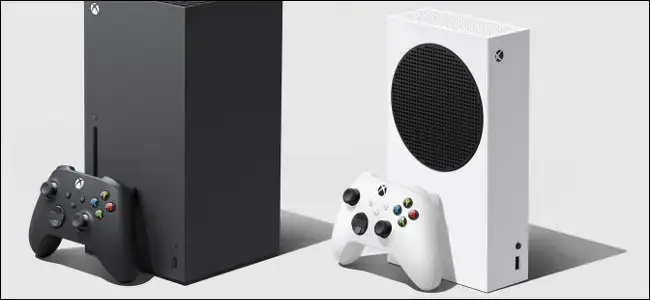
Quick answer
To enable Xbox Series X Developer Mode, register an individual developer account at Microsoft Partner Center, install the Xbox Dev Mode app on your console, and enter the activation code it generates at partner.microsoft.com/xboxconfig/devices.
Developer Mode turns a retail Xbox Series X into a platform for testing and sideloading Universal Windows Platform apps, including homebrew tools and emulators that never reach the Microsoft Store.
This walkthrough covers registering with Microsoft Partner Center, installing the right app on your console, and switching between Developer Mode and your normal retail dashboard without losing any games or saves. If you are also curious about running PS5 games on your Xbox Series, this is the step that unlocks it.
Before you start
- Difficulty Moderate
- Time needed 30 minutes
- Works on Xbox Series X and Series S, current dashboard
What you'll need
- A Microsoft (Xbox) account signed in on the console
- A valid payment method for the Partner Center registration fee
- A fully updated console with an internet connection
- A PC or phone browser to complete registration
Important
- Do not run the Xbox Dev Mode app on dev kits acquired through a managed program such as ID@Xbox, since it can cause activation errors on that hardware.
- You cannot play retail games or use Store apps while the console is in Developer Mode, though switching back is free and does not affect your installed games.
Register and Activate Developer Mode with the Xbox Dev Mode App
This is the official path Microsoft provides for consumer Xbox Series X and S consoles.
Step 1: Register a developer account at Partner Center
On a PC or phone, go to Microsoft’s Partner Center and sign up for an app developer account. Choose Individual for the account type, which currently costs a one-time $19 USD fee in the US (pricing varies by region).
You do not need to use the same email as your Xbox account; any valid developer account works. You will not need to renew this fee later.
Tip: Finish this registration before opening the Dev Mode app, since activation codes expire.
Step 2: Open the Microsoft Store search on your Xbox
Turn on your Xbox Series X and press Y on the controller to open the search box from any screen.
Type Xbox Dev Mode and select it from the results. Do not install Dev Mode Activation, which only works on Xbox One consoles.
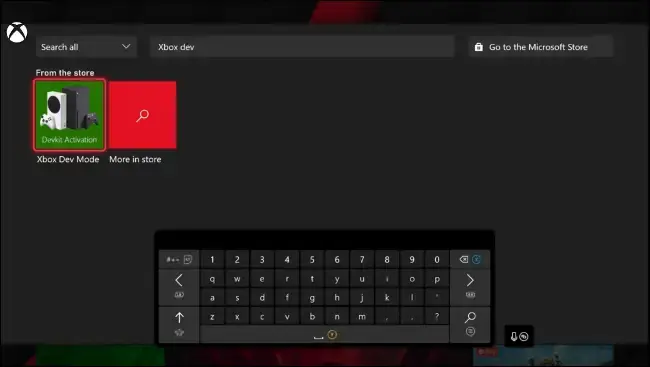
Step 3: Install and launch the Xbox Dev Mode app
Select the app and wait for the download to finish, then launch it.
Choose Next through the introductory screens until the app displays a six-digit activation code.
Step 4: Note the activation code
Write down the code shown on screen. You will need it on the Partner Center website in the next step.
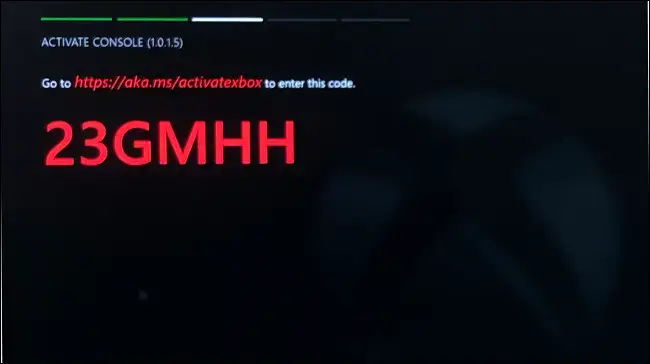
Step 5: Register the console in Partner Center
On your PC or phone, go to partner.microsoft.com/xboxconfig/devices and sign in with your developer account.
Click the plus sign to add a new console, then type the activation code exactly as shown on your Xbox.
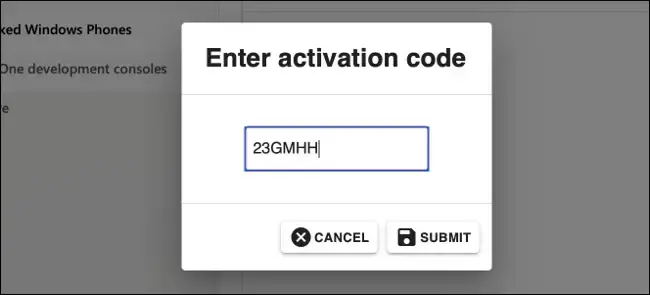
Step 6: Agree and activate the console
Select Agree and activate. The page reloads and your console appears in the device table, confirming it is registered.
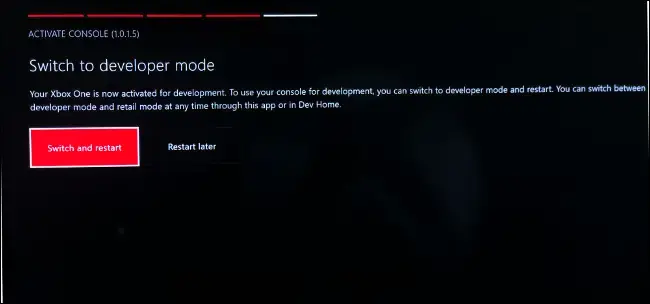
Step 7: Switch and restart into Developer Mode
Back on the Xbox, return to the Xbox Dev Mode app and select Switch and Restart.
The console reboots into Developer Mode, where you can sideload and test UWP apps. Retail games and Store apps stay unavailable until you switch back.
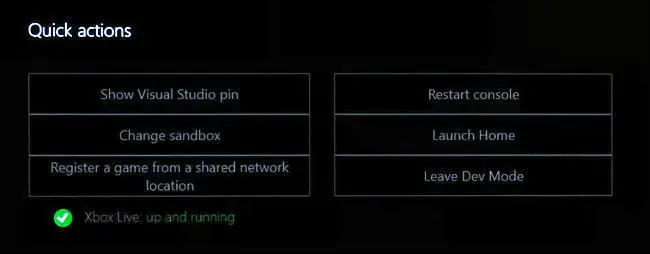
Tip: Switching modes does not touch your installed games or saved data.
Use the Hidden Controller Shortcut If Activation Stalls
If the Dev Mode app gets stuck on an update check, this controller combination opens Developer Settings directly.
Step 1: Open Settings and go to Console Info
From the Xbox dashboard, open Settings, then select System > Console Info.
Step 2: Trigger Developer Settings with a button combo
If Developer Settings is not listed, quickly press LB, RB, LT, and RT together on the controller.
This reveals the hidden Developer Settings entry so you can continue activation without waiting on the stuck update screen.
Tip: This shortcut matches Microsoft's own documented workaround for the activation flow.
Pro tips
- Finish Partner Center registration before launching the Xbox Dev Mode app so your activation code does not expire.
- Confirm the correct profile is signed in on the console before you start, since the wrong profile is a common cause of activation errors.
- Keep track of your activation slots in Partner Center, since each console you activate uses one up.
- Wait to register if you want to see whether Microsoft removes the individual account fee, though this is unconfirmed as of now.
Troubleshooting
| Problem | What to do |
|---|---|
| Partner Center shows a 'no access' or activation blocked error. | Confirm your developer account is fully registered, verified, has a payment method on file, and is linked to the Microsoft Store Developer Program. |
| The Xbox Dev Mode app gets stuck on an unavailable update at the final step. | On the console, go to Settings > System > Console Info and press LB, RB, LT, and RT together to open Developer Settings directly. |
| The activation code does not work in Partner Center. | Codes expire quickly, so register your developer account first, then generate a fresh code and enter it right away. |
| The console will not activate even though the account looks correct. | Check that the Xbox profile you are using matches the account you intended, since installing the app under the wrong profile is a common cause of failed activation. |
Frequently asked questions
Does Developer Mode cost anything on Xbox Series X?
Yes, you need a Microsoft Partner Center individual developer account, which currently costs a one-time $19 USD fee in the US and varies by region.
Can I still play my games after enabling Developer Mode?
Yes. Developer Mode and Retail Mode coexist on the same console, and switching between them does not affect your installed games or saves.
What is the difference between Xbox Dev Mode and Dev Mode Activation?
Xbox Dev Mode is the current app for Xbox Series X and S consoles, while Dev Mode Activation only works on Xbox One and will not activate a Series console.
How many times can I activate Developer Mode?
Your developer account has a limited number of activation slots, and Partner Center marks one as used each time you register a console.
Once your Xbox Series X reboots into Developer Mode, you can start sideloading UWP apps and testing homebrew software, with the option to switch back to Retail Mode at any time.
Sources and further reading
- How-To Geek — How to Put Your Xbox Series X or S into Developer Mode
- PcHardwarePro — Enable Developer Mode on Xbox Series X|S: Complete Guide
- Docs Microsoft — Xbox Developer Mode activation – UWP applications
- Learn Microsoft — Xbox Dev Mode Activation – Microsoft Q&A



![MX Player Custom Codec [AC3, DTS, EAC3, MLP, TrueHD, and more]](https://cdn.droidfeats.com/wp-content/uploads/2026/05/mx-player-custom-codec-2026-768x432.webp "MX Player Custom Codec [AC3, DTS, EAC3, MLP, TrueHD, and more]")