Quick answer
Most Cyberpunk 2077 mod sync errors on PS5 and Xbox Series X clear up by relinking your CD PROJEKT RED account at mod.io, then reopening Mods from the game's main menu and checking the Installed list.
Update 2.5 brought mod.io mods to console, but the sync between your CD PROJEKT RED account and the in-game Mods menu can get stuck. A mod might show as subscribed but never actually load, a download can stall, or the game can crash right after you enable something new.
This walks through the fixes in order, starting with quick checks that take seconds and ending with the more drastic options for a mod that refuses to behave. If you have not set up cross-platform mods yet, read our guide on how to enable cross-platform mods in Cyberpunk 2077 first.
Before you start
- Difficulty Easy
- Time needed 15 minutes
- Works on Cyberpunk 2077 Update 2.5+, PS5, Xbox Series X|S
What you'll need
- Cyberpunk 2077 updated to version 2.5 or later
- A CD PROJEKT RED account linked to mod.io
- Active internet connection
- A clean, unmodded save kept as backup
Important
- Loading a modded save on console disables trophies and achievements for that save, and there's no confirmation that disabling mods later restores that status.
- Back up a clean save before subscribing to any mod, in case a mod's changes persist after you remove it.
Quick checks before you troubleshoot
Rule out the obvious causes first; this is where most mod sync errors actually get fixed.
Step 1: Confirm the game is on Update 2.5 or later
Check the version number on the game’s main menu. If Mods is missing from the menu entirely, Update 2.5 has not finished downloading yet.
Wait for the update to complete, then restart the game before trying anything else.
Tip: If you're on PS4 or Xbox One, mods will never appear; the feature is PS5 and Xbox Series X|S only.
Step 2: Check the Installed list and its checkbox
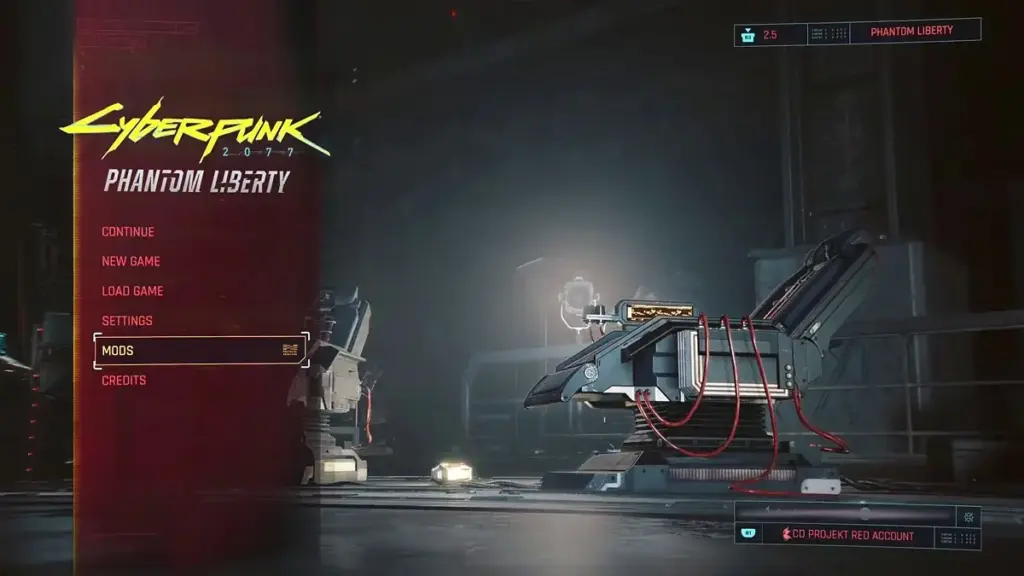
Open Mods from the main menu and go to the Installed section. Confirm the mod you want appears on the list and that its checkbox is selected.
A mod that shows as subscribed but has an unchecked box will not load in-game.
Step 3: Verify the mod is supported on your console
On the mod’s page, look for the Available on consoles tag. Mods from Nexus Mods and PC-only tools like Cyber Engine Tweaks or RED4ext never appear in the console library.
If a mod you expect is missing entirely, it most likely has not been approved for your console yet.
Fix a broken mod.io account link
When subscriptions don’t sync or the Mods menu refuses to connect, the link between your CD PROJEKT RED account and mod.io is the usual culprit.
Step 1: Sign in on the mod.io website
Go to mod.io in a browser and sign in using your CD PROJEKT RED account, not a separate mod.io login.
From here you can view and manage your linked accounts directly on the site.
Step 2: Relink your CD PROJEKT RED account
If the account shows as unlinked or linked incorrectly, unlink it and sign in again to re-establish the connection.
Step 3: Reopen Mods in the game
Launch Cyberpunk 2077 and open Mods from the main menu again. Log in with your CD PROJEKT RED account and connect it to mod.io when prompted.
Browsing and subscribing should now work normally. Full steps for setting this up are in CD PROJEKT RED’s own walkthrough.
Tip: Players on the official Steam forums report this exact relink fixing stuck mod.io connections on console.
Clear a stuck mod download or install
A mod that subscribes but never installs usually just needs a restart with a live connection.
Step 1: Restart the game
Close Cyberpunk 2077 completely and relaunch it. Updates to subscribed mods install automatically when the game starts, so make sure you’re connected to the internet before doing this.
Step 2: Re-check the Installed section
Open Mods again and go to Installed. The mod should now appear with its checkbox selected.
If it still isn’t listed, unsubscribe and subscribe again from the mod’s page.
Step 3: Restart the console if the game restart doesn't help
Fully power off the PS5 or Xbox Series X|S rather than just closing the app, then relaunch Cyberpunk 2077.
Fix crashes or a broken UI after installing a mod
If the game crashes or the interface breaks right after you enable a mod, disable it and test again before doing anything more drastic.
Step 1: Disable the problem mod
Open Mods, go to Installed, and uncheck the mod you suspect caused the crash. Unsubscribing removes it entirely if disabling isn’t enough.
Step 2: Restart and test without the mod
Relaunch the game and confirm it loads normally with the mod disabled.
If the crash persists, the issue may already be baked into your save rather than caused by the mod itself.
Step 3: Load an earlier save if the problem remains
Changes a mod makes can stick in a save even after you disable the mod. If the crash continues, load a save made before you enabled it.
Tip: This is why keeping a clean, unmodded save before you start modding matters.
Fix a modded save that won't load on another platform
Cross-platform saves need the exact same mods enabled on both sides, or the transfer can fail outright.
Step 1: Check which mods the save needs
Open Mods on the original platform and note every mod listed as Installed and checked for that save.
Step 2: Subscribe to the same mods on the target platform
Log in with the same CD PROJEKT RED account on the other platform, open Mods, and subscribe to each one. Subscriptions sync automatically once you’re logged into the same account, but only for mods available on that platform.
Step 3: Restart and verify under Installed
Restart the game and check Installed again to confirm every required mod shows a selected checkbox before loading the save.
If even one mod has no release on the target console, the transferred save may not load correctly, and the safest fallback is an earlier clean save.
Pro tips
- Keep an unmodded save separate from your modded one if trophies or achievements matter to you.
- A mod.io cog icon next to a save in the load menu means that save is marked as modded.
- Stay online before launching the game so subscribed mod updates install automatically.
- Check a mod's page for the "Available on consoles" tag before assuming it will appear in your library.
Frequently asked questions
Why is Mods missing from the main menu entirely?
Update 2.5 has not finished downloading on your console, or your version is older than 2.5. Wait for the download to complete and restart the game.
Why can't I link my CD PROJEKT RED account to mod.io?
Sign in directly at mod.io using your CD PROJEKT RED account and manage the link from the website, then reopen Mods in the game.
Will my mods carry over if I switch from PC to PS5?
Subscriptions sync through your CD PROJEKT RED account automatically, but only mods available on the console library will actually appear and load.
Can I still earn trophies after a mod sync error forces me to use a modded save?
No. Any save created while a mod is enabled is marked with a mod.io icon and cannot earn console trophies or achievements, even after you disable the mod.
Most sync errors trace back to an unlinked mod.io account or a mod that isn’t actually supported on your console, so work through the quick checks before assuming anything is broken. For the full setup process from scratch, see our walkthrough on how to install cross-platform mods in Cyberpunk 2077 2.5.
Sources and further reading
- MOREREAD JOURNAL — Cyberpunk 2077 mod.io mods: install steps and cross-save checks | MOREREAD JOURNAL
- VGTimes — How to Install Cyberpunk 2077 Mods on PS5, Xbox, and PC With mod.io
- Technical Support — CD PROJEKT RED — Cross-Platform Mod Support – how to — Cyberpunk 2077 | Technical Support — CD PROJEKT RED
- How To Video Game — Cyberpunk 2077: How to Install Mods on PS5 and Xbox