Quick answer
Open the Mods option on the main menu of Cyberpunk 2077 version 2.5 or newer, sign in with your CD PROJEKT RED account, link it to mod.io, then subscribe to any mod tagged Available on consoles.
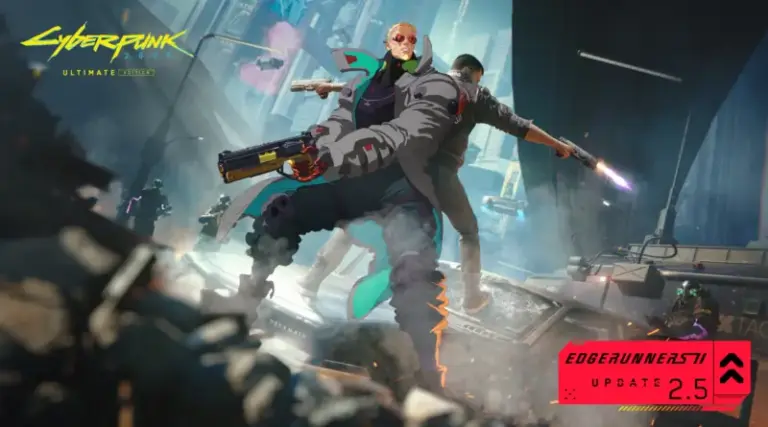
Cyberpunk 2077’s Update 2.5 brings community mods to consoles for the first time, through a built-in browser instead of manual file transfers. If you’ve only modded the game on PC before, the process on PS5 and Xbox Series X|S looks different but takes about the same amount of time.
Below is how to turn on the feature, link the right accounts, and get a mod installed and running. If you want a broader walkthrough of picking and managing individual mods, see our companion piece on Cyberpunk 2077 cross-platform mod installs.
Before you start
- Difficulty Easy
- Time needed 10 minutes
- Works on Cyberpunk 2077 v2.5+ on PC, Mac, PS5, PS5 Pro, Xbox Series X|S
What you'll need
- Cyberpunk 2077 updated to version 2.5 or newer
- A CD PROJEKT RED account
- An internet connection
- Willingness to accept mod.io and CDPR's Fan Content Guidelines
Important
- Linking your CDPR account to mod.io carries the usual account-credential risk of connecting two services, so use a strong password on both.
- Achievements and trophies cannot be earned on console while playing from a save flagged as modded.
Enable Mods on PS5 and Xbox Series X|S
The steps are identical on both consoles since CDPR built one shared menu flow for Update 2.5.
Step 1: Check your game version
Launch Cyberpunk 2077 and look at the version number shown on the main menu. You need 2.5 or newer before the Mods option shows up at all.
If you don’t see it, check your platform’s update listing first, since Switch 2 and the Mac App Store build arrived later than PC, PS5, Xbox Series X|S, and Mac through Steam, GOG, and Epic Games Store.
Tip: PS4 and Xbox One are not supported, so this feature won't appear there regardless of version.
Step 2: Open the Mods menu
Select Mods from the game’s main menu. This opens the in-game mod.io browser that replaces manual file installs entirely.
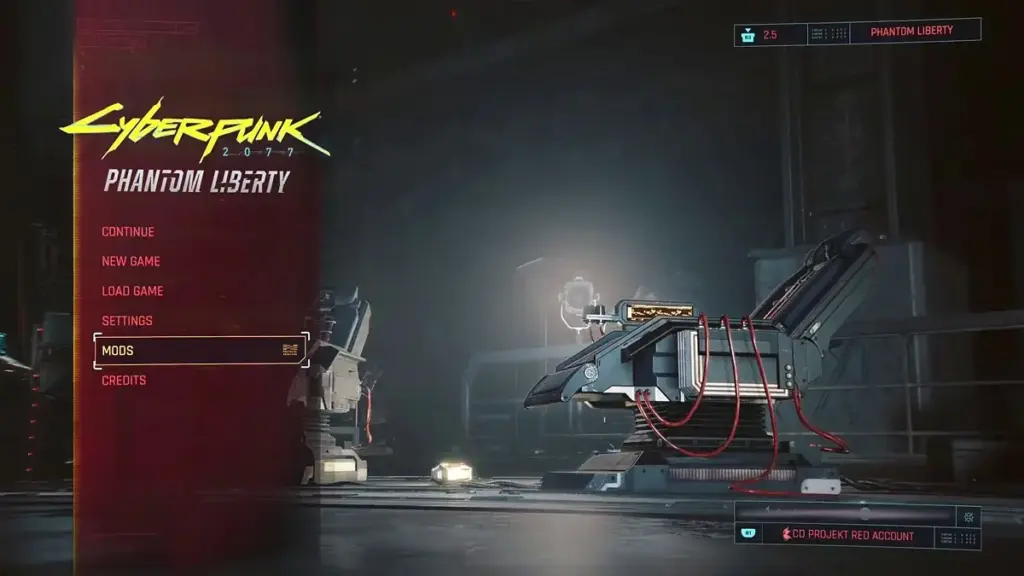
Step 3: Sign in and link mod.io
Log in with your CD PROJEKT RED account, then link it to mod.io when prompted. Accept the terms of use, including the Fan Content Guidelines.
If you’ve never used mod.io before, the game can create an account for you automatically using your CDPR login.
Step 4: Browse mods and check console support
Scroll the catalog and open a mod’s details page to review its requirements. Look for the Available on consoles tag — not every PC mod has a console build, since mod creation itself is still PC-only.
Tip: Mods built with Cyber Engine Tweaks or RED4ext won't appear on consoles at all.
Step 5: Subscribe to a mod
Select Subscribe on any mod you want and wait for the download to finish.
Step 6: Restart the game
Close and relaunch Cyberpunk 2077 so the mod loads correctly. Subscribing alone sometimes isn’t enough for the change to take effect.
Step 7: Confirm it's installed and enabled
Return to the Mods menu and select Installed. Make sure the mod appears there and its checkbox is ticked.
Turn On Cross-Progression for Modded Saves
This is a separate setting from the Mods menu, but it matters if you want a modded save to follow you between platforms.
Step 1: Open Load Game
From the main menu, go to Load Game.
Step 2: Link your account for Cross Progression
Select Cross Progression in the bottom-left corner and link your CD PROJEKT RED account. The feature turns on by default once linked.
Tip: You can turn it off later under Settings > Gameplay > Cross-Platform Saves.
Step 3: Match mods across platforms
Make sure the same mod is enabled on both platforms before loading a save there. A save made with a mod that’s missing or unsupported on the destination platform may fail to load.
Pro tips
- Keep a separate unmodded save if you still want to earn achievements or trophies, since modded saves get a dedicated icon in Load Game and can't earn them on console.
- Subscriptions sync automatically across platforms signed into the same CDPR account, but any mod without console support is simply ignored there.
- Check the official patch notes if a mod you expect isn't showing up, since the curated console list is still small at launch.
Troubleshooting
| Problem | What to do |
|---|---|
| The Mods option doesn't appear on the main menu | Your game is likely on an older version. Update to 2.5 or newer and confirm the version number shown on the main menu before assuming the feature is missing. |
| A mod shows as subscribed but doesn't seem to do anything | Go back to the Mods menu, open Installed, and confirm the mod is listed with its checkbox enabled. If you subscribed but nothing changed, restart the game. |
| A save won't load after moving to another platform | Check whether every mod used in that save is also installed and enabled on the platform you're loading it on; a missing or incompatible mod can block the load. |
| A mod you saw on PC isn't in the console library | Open the mod's details page on PC and look for the Available on consoles tag. Without it, the creator hasn't supplied a console-compatible build. |
Frequently asked questions
Do I need Phantom Liberty to use cross-platform mods?
No. The base game with Update 2.5 installed is enough; Phantom Liberty and the Ultimate Edition are not required.
Can I install mods on PS4 or Xbox One?
No. Cross-platform mod support only covers PC, Mac, PS5, PS5 Pro, and Xbox Series X|S, with Nintendo Switch 2 arriving later.
Will using mods disable my trophies permanently?
CDPR’s guidance only says saves created while mods are active display a mod.io icon and can’t earn trophies or achievements on console; it doesn’t say turning mods off later restores that ability for the same save. Starting a separate save without mods is the safer route if trophies matter.
Can I use Nexus Mods files through this system?
No. The in-game Mods menu only pulls from mod.io’s curated console library; Nexus Mods files aren’t included there.
Once you’ve linked your CD PROJEKT RED account to mod.io and confirmed a mod shows up under Installed, you’re set to keep browsing new additions as CDPR expands the console library. For a deeper look at what else shipped in the same patch, see our Cyberpunk 2077 Update 2.5 roundup, and check the full patch notes for anything specific to your platform.
Sources and further reading
- Power Up Gaming — Cyberpunk 2077: Console Mods Setup Guide (Update 2.5) – Power Up Gaming
- VGTimes — How to Install Cyberpunk 2077 Mods on PS5, Xbox, and PC With mod.io
- MOREREAD JOURNAL — Cyberpunk 2077 mod.io mods: install steps and cross-save checks | MOREREAD JOURNAL
- The Click — Cyberpunk 2077 Update 2.5: Quests, Mods and Rewards