Quick answer
Go to launcher.epicgames.com, download the Early Preview installer for Windows, macOS (Apple Silicon) or Linux, run it and sign in with your Epic Games account. If you already have the current launcher, the Preview offers to move your games over and then removes the old launcher.
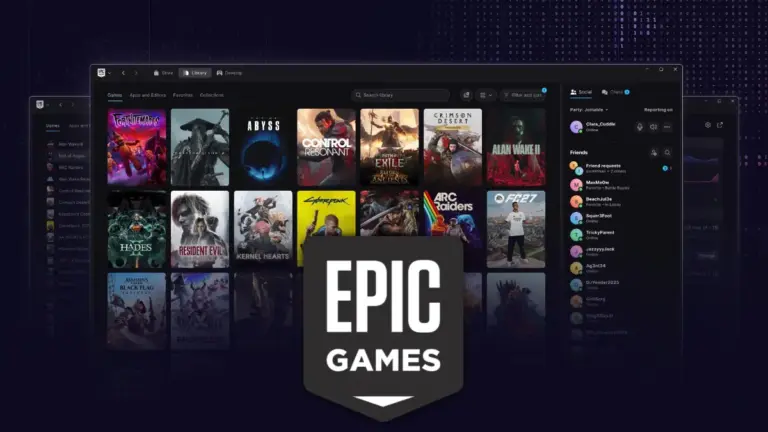
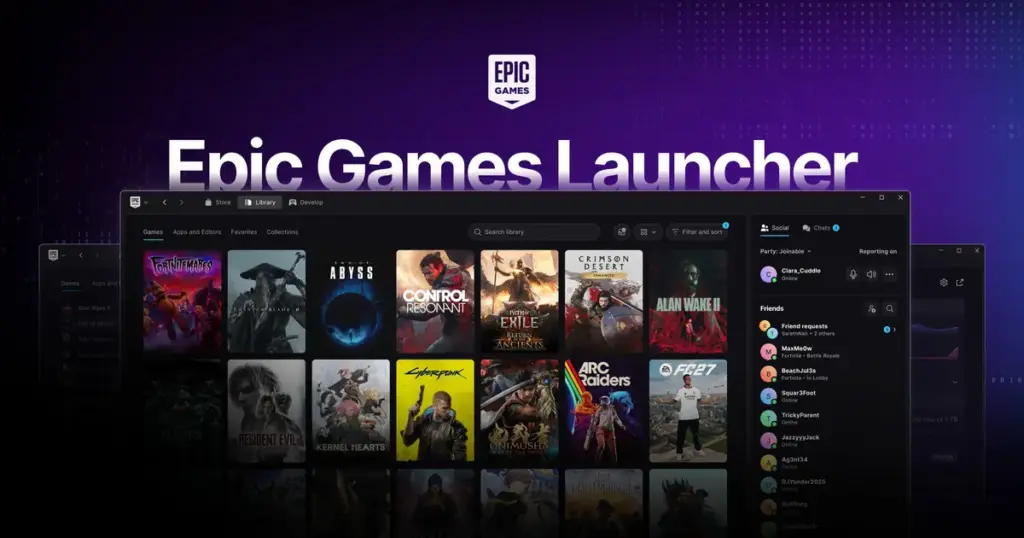
Epic has rebuilt its PC launcher, and the new version opens faster and switches between Store, Library and Develop almost instantly. It shipped on October 14, 2026 as the Epic Games Launcher Early Preview, an opt-in beta you install separately. You can read more about what changed in our coverage of the Epic Games Launcher Preview.
Below you’ll download and install the Preview, carry your existing games across without downloading them again, and report bugs to Epic. A second method covers going back to the regular launcher, which has one big catch you should know about before you start.
Before you start
- Difficulty Easy
- Time needed 15 minutes
- Works on Windows 10/11 (64-bit), macOS 12+ on Apple Silicon, Ubuntu 22.04+, Fedora 43+, Debian 12+
What you'll need
- An Epic Games account and an internet connection for setup and updates
- Windows 10 (64-bit) or Windows 11, macOS 12 Monterey or newer on an Apple Silicon Mac, or Ubuntu 22.04 LTS, Fedora 43 or Debian 12 or newer
- At least 4 GB of RAM (Intel Core i3/AMD Ryzen 3 on Windows, M1 or newer on Mac, 2 GHz dual-core x86-64 on Linux)
- Free storage for the launcher itself: about 700 MB on Windows, 200 MB on Mac and 2 GB on Linux, plus room for your games
Important
- Uninstalling the Early Preview also uninstalls all of your installed games, which can mean hundreds of gigabytes to download again.
- Fortnite isn't supported through the launcher on Linux yet.
- Some social features and account-management options are missing from the Preview, so keep the Epic website handy for those.
Install the Epic Games Launcher Early Preview
The steps are the same on Windows, macOS and Linux; only the installer file differs.
Step 1: Open the Early Preview website
On the computer you want to use, go to the Epic Games Launcher Early Preview site. This is the only official download source for the Preview.
Browsing on a phone or a different computer? The site can send the download link to the machine you plan to install on.
Tip: Intel Macs aren't supported, so check that your Mac has an M-series chip before you download.
Step 2: Download the installer for your system
Pick the build that matches your computer:
- Windows: the x64 installer.
- macOS: the Apple Silicon installer.
- Linux: x64, as an
AppImageor a.debpackage.
Tip: On Fedora, the AppImage is the simpler choice, since the .deb package is meant for Debian and Ubuntu.
Step 3: Run the installer
Open the file you downloaded and follow the prompts. On Linux, you may need to mark the AppImage as executable first, or install the .deb with your package manager.
Step 4: Sign in with your Epic Games account
When the launcher opens, sign in with the same Epic Games account you normally use. Your purchases, cloud saves and progress are tied to that account, so they appear in the Preview automatically.
Step 5: Accept the offer to move your games
If the current Epic Games Launcher is already on your computer, the Preview offers to move your installed games, apps and Unreal Engine projects. Accept it and you won’t need to download anything again.
Once the move finishes, the Preview uninstalls the old launcher. You can’t keep both running side by side.
Tip: Make sure no game or Unreal project is open in the old launcher before the migration starts.
Step 6: Check your library and install folder
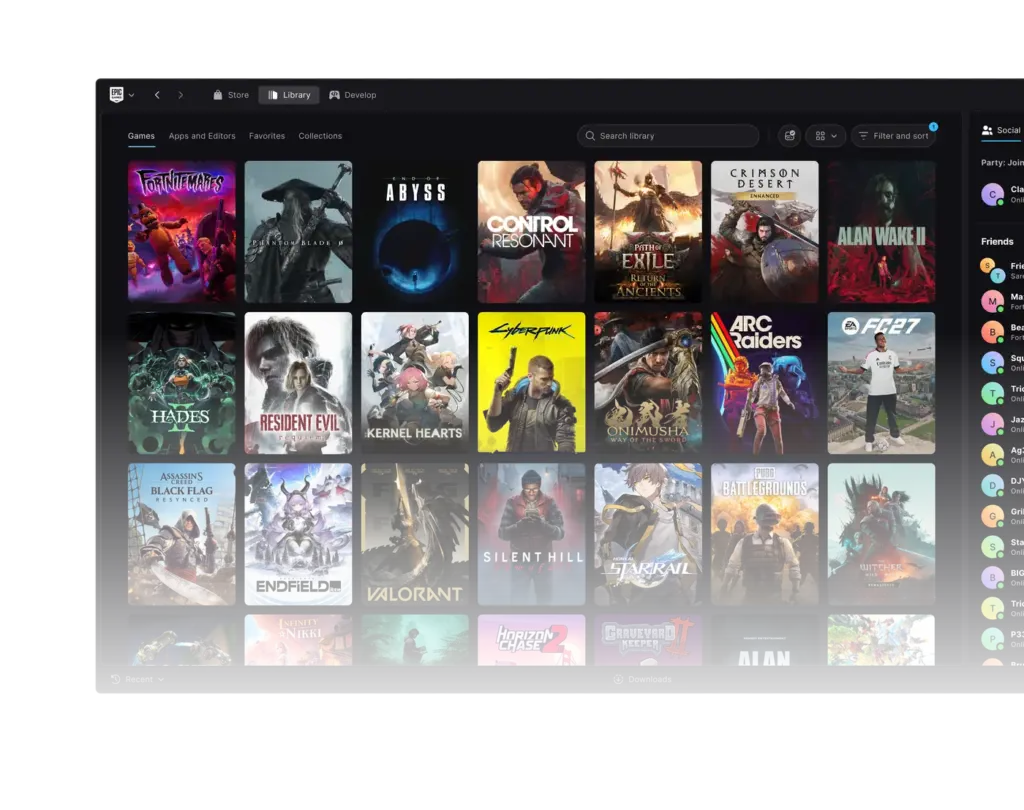
Select Library from the top bar. It no longer sits in a left-hand column. Confirm every game you expected is listed.
Some users report the Preview picks an install folder on its own instead of asking, so check where new downloads go and that the drive has enough free space before you install anything large.
Step 7: Report bugs with Send Feedback
When something breaks, click the Send Feedback button inside the launcher and describe what happened. Epic updates the Preview often, and these reports shape the fixes.
To close the launcher completely, click the Epic Games logo in the top-left corner and choose Exit.
Go Back to the Regular Epic Games Launcher
Rolling back works, but removing the Preview also removes the games it manages.
Step 1: Exit the Early Preview
Click the Epic Games logo in the top-left corner, then click Exit. Make sure your games have finished syncing cloud saves before you quit.
Step 2: Uninstall the Early Preview
Remove Epic Games Launcher Early Preview the usual way for your system, such as Add or Remove Programs on Windows.
Uninstalling it also uninstalls every game you had installed. Your purchases and cloud saves stay safe, but the game files will need to be downloaded again.
Tip: If you're on a metered or capped connection, plan the rollback around your data allowance.
Step 3: Install the regular launcher
Download the standard Epic Games Launcher from the Epic Games Store website, install it and sign in with the same account.
If the reinstall fails on Windows, Epic’s help page suggests running System File Checker (sfc /scannow in an administrator Command Prompt), restarting, then trying again through Add or Remove Programs.
Step 4: Reinstall your games
Open Library and reinstall the games you want. Start with the smaller ones if you need to play something soon.
Pro tips
- Offline mode still works in the Preview for supported games you've already installed.
- On Linux, Windows-only games may still need a compatibility layer to run.
- If you develop with Unreal Engine, finish or save any active project work before migrating, just to be safe.
- Check the launcher for updates regularly, since Epic is pushing fixes to the Preview frequently.
Troubleshooting
| Problem | What to do |
|---|---|
| The launcher freezes, crashes or shows broken buttons | Exit through the Epic Games logo and reopen it, then report the problem with Send Feedback. Epic hasn't published specific fixes, so rolling back is the reliable option if crashes continue. |
| A game installed to the wrong drive | The Preview may choose a folder without asking. Check the install path in the game's settings, free up space on that drive, or uninstall and reinstall the game where you want it. |
| You can't sign in | Confirm your internet connection and that you can sign in on the Epic Games website. If the website works but the Preview doesn't, send a report through Send Feedback or switch back to the regular launcher. |
| Fortnite fails to update | Restart the launcher and try the update again. If it keeps failing and you need to play, the regular Epic Games Launcher is the safer choice for now. |
| The launcher uses a lot of memory or scrolls slowly | Close the launcher with Exit when you start a game, and keep it updated, since performance fixes arrive often during the Preview. |
Frequently asked questions
Is the Epic Games Launcher Preview available on Android or iPhone?
No. The Early Preview is desktop-only, for Windows, macOS on Apple Silicon and Linux.
Will I lose my games or saves by switching?
Your purchases, cloud saves and progress carry over, and installed games move across during setup. The risk comes later: uninstalling the Preview removes your installed games, so you’d need to download them again.
Can I run the old and new launchers at the same time?
No. After migration, the Preview uninstalls the current launcher, and the two aren’t designed to run side by side.
Does it work on Steam Deck?
SteamOS and Steam Deck aren’t officially tested or supported, so expect problems if you try it there.
Is it safe for competitive Fortnite or Rocket League?
Epic says nothing in the Preview should stop casual or competitive play once a game is running. Some coverage still advises competitive players to stay on the regular launcher until the Preview matures, so wait if you can’t afford launcher hiccups.
Once the Preview is running, spend a few days with it before you rely on it for anything important, and use Send Feedback whenever something breaks. If it gets in your way, plan the rollback for a time when re-downloading your games won’t hurt.
Sources and further reading
- Epic Games Launcher
- TwistedVoxel — Epic Games Launcher Preview Launches on Windows, Mac and Linux [Update]
- How To Video Game — Epic's New Games Launcher Is in Preview on PC, Mac and Linux, and Epic Says It Was Vibe Co