Quick answer
To join Xbox Insider PC app testing, install Xbox Insider Hub from the Microsoft Store, open Previews, and select Join under PC Gaming, then wait for the status to change to Manage before updating the Xbox app.
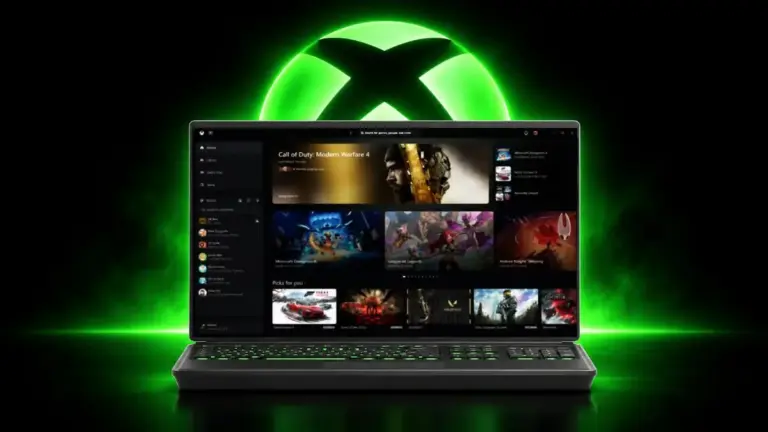
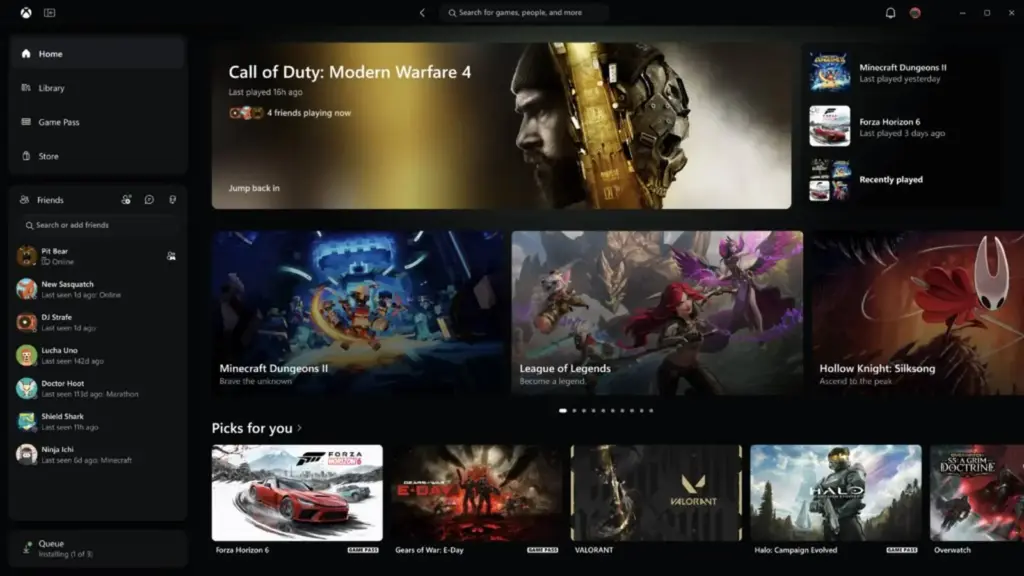
Microsoft’s redesigned Xbox app opens up to 60% faster and reorganizes friends, search and your library, but it is only reaching Windows PCs through the Xbox Insider Program right now. Microsoft hasn’t said when the update will roll out to everyone, so enrolling in the preview is the only way to try it today.
Below is the exact path through Xbox Insider Hub to join the PC Gaming preview, what to expect while your enrollment is pending, and what to do once the new app actually downloads. If you want the full rundown on what changed in the redesign, see our PC App update coverage.
Before you start
- Difficulty Easy
- Time needed 10 minutes
- Works on Windows 10 and Windows 11 PCs with Microsoft Store access
What you'll need
- A supported Windows 10 or Windows 11 PC
- A Microsoft account signed in to the Microsoft Store
- You must be 18 or older to enroll
- An internet connection for downloads and updates
Important
- Preview builds are beta software, so expect occasional bugs or instability compared to the stable Xbox app.
- Microsoft's 60% faster load claim is a best-case figure that depends on your own PC and internet connection.
Join the PC Gaming Preview Through Xbox Insider Hub
This is the route Microsoft documents for Windows devices, and it is the one that unlocks the redesigned app.
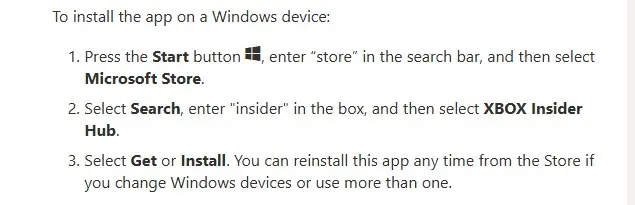
Step 1: Open Microsoft Store and search for Xbox Insider Hub
Press Start, type store, and select Microsoft Store. Select the search box, type insider, and pick Xbox Insider Hub from the results.
Tip: Make sure you're signed in to the Store with the Microsoft account you use for Xbox before you search.
Step 2: Install and open Xbox Insider Hub
Select Get or Install and wait for the download. Once it finishes, select Open, or find Xbox Insider Hub in the Start menu app list.
Step 3: Accept the Terms and Conditions
The first time Xbox Insider Hub launches, it asks you to accept its Terms and Conditions. You must be 18 or older to continue, so read through and accept to move on.
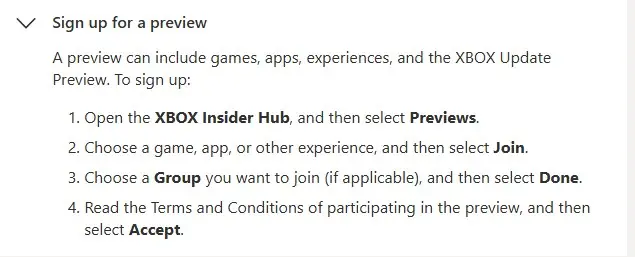
Step 4: Go to Previews
Select Previews from the left panel of the Hub. This is where every preview you’re currently eligible for gets listed.
Tip: Seeing no previews at all is normal for a brand-new account; eligibility grows as you use the Hub.
Step 5: Join the PC Gaming preview
Scroll down in the Previews list until you find PC gaming, then select Join. The status will show as Pending while Microsoft processes your enrollment, and you can close the app and come back later.
Step 6: Wait for the status to change to Manage
Enrollment usually takes 10 to 15 minutes but isn’t instant. Reopen Xbox Insider Hub and check Previews again; once PC gaming shows Manage instead of Pending, you’re enrolled.
Step 7: Restart your PC and update the Xbox app
Reboot your computer, then open Microsoft Store and check the Xbox app for an available update. Install it and launch Xbox to see the redesigned interface and faster load times.
Tip: If no update appears right away, give the Store a few minutes and check again rather than repeating the restart.
If PC Gaming Doesn't Appear: Try the Windows Gaming Path
Microsoft’s own older instructions describe a slightly different menu label that may still surface on some accounts.
Step 1: Open Previews in Xbox Insider Hub
With Xbox Insider Hub open and Terms of Use accepted, select Previews from the left panel, same as before.
Step 2: Select Windows Gaming instead of PC Gaming
If you see Windows Gaming listed rather than PC gaming, select it, then select Join to enroll automatically. Windows Gaming previews cover the Xbox app, Game Bar and Gaming Services on PC.
Step 3: Check back regularly for PC Gaming to appear
Access to specific previews varies by region, account interests, tenure and Xbox Insider XP score. If PC gaming still isn’t listed after joining Windows Gaming, keep checking the Previews page over the following days.
Pro tips
- Joining Xbox Insider is free and reversible, and you can leave a preview and rejoin later without losing eligibility.
- Participating in PC previews can improve your odds of being invited to console preview rings like Alpha or Alpha Skip-Ahead.
- Check Windows Update and update Microsoft Store itself before installing Xbox Insider Hub if anything fails to download.
Troubleshooting
| Problem | What to do |
|---|---|
| The PC gaming preview isn't listed in Previews | This usually means your account isn't yet eligible for that specific preview based on region, tenure or Insider XP; try the Windows Gaming preview instead and check back later. |
| Status stays on Pending for a long time | Enrollment isn't instant; wait at least 10 to 15 minutes and reopen Xbox Insider Hub to recheck the status. |
| The Xbox app doesn't update after status changes to Manage | Restart your PC, then open Microsoft Store and manually check the Xbox app listing for an update. |
| Microsoft Store won't open or shows a blank page | Press Windows key + R, type wsreset.exe, and select OK; the Store cache clears without removing any installed apps. |
| Xbox Insider Hub shows it isn't available for your account | This message replaces the Get button when the program isn't offered for your region or device, so there's no local fix for that message. |
Frequently asked questions
Is joining the Xbox Insider Program free?
Yes, joining the program and installing Xbox Insider Hub costs nothing.
Do I need Windows Insider builds to try the new Xbox app?
No, the Xbox Insider Program is separate from the Windows Insider Program and works on a standard supported Windows 10 or 11 install.
When will everyone get the redesigned Xbox app?
Microsoft hasn’t announced a general release date, so joining the PC Gaming preview is currently the only way to get it early.
Can I leave the preview later?
Yes, you can opt out of the PC Gaming preview at any time through Xbox Insider Hub and rejoin later if you want back in.
Once you’re enrolled and the new Xbox app lands, spend a few minutes exploring the reorganized library and friends panel before judging the speed gains, since your own PC and connection affect how fast it actually feels; for the full list of changes, check the Xbox Insider Program FAQ.
Sources and further reading
- Techdows — How to install Xbox Insider Hub in Windows 10/11 [tutorial] – Techdows
- Windows Central — The new Xbox PC app is live for Insiders — here's how to get it early.
- ShiftDelete.Net — Xbox PC App Redesign: New App Launches Up to 60% Faster
- XBOX Wire — Join the PC Gaming Preview today and try out features early!