Quick answer
To set up Samsung's built-in One UI apps, open Settings and configure each one individually: Settings > Modes and Routines for automation, Settings > Security and privacy > More security settings > Secure Folder for app isolation, and Settings > Security and privacy > More security settings > Passwords, passkeys, and autofill > Samsung Pass for biometric password management.
Most Galaxy phones ship with several useful apps that people never open. Modes and Routines, Secure Folder, and Samsung Pass all sit quietly in Settings, doing nothing until you turn them on.
This walkthrough covers how to configure each one on a current One UI build, including the Samsung account sign-in, biometric setup, and the menu paths that trip people up. If you want a broader overview of what each app is good for first, check out our guide to Samsung’s essential built-in apps.
Before you start
- Difficulty Moderate
- Time needed 20 minutes
- Works on Samsung Galaxy phones, One UI 5 or later, Android 13+
What you'll need
- A Samsung account signed in on the device
- A fingerprint, face, or iris sensor for Samsung Pass
- A screen lock already set up (PIN, pattern, or password)
- Latest software update installed
Important
- Back up anything important before enabling Secure Folder, since its contents can't be transferred to another device.
- If you skip Reset with Samsung account, a forgotten Secure Folder passcode means permanent loss of that folder's contents.
- Fingerprint and face data for Samsung Pass must be registered separately on every device; nothing biometric syncs.
Set Up Modes and Routines
Modes switch a bundle of settings on manually or by a trigger, while Routines run automated actions when a condition is met.
Step 1: Open Modes and Routines in Settings
Open the Settings app and tap Modes and Routines. You’ll land on two tabs at the top: Modes and Routines.
Tip: If you don't see this entry, update your phone's software first.
Step 2: Create a custom Mode
Tap Modes, then tap Add mode > Custom. Name the mode, pick a color and icon, and tap Done.
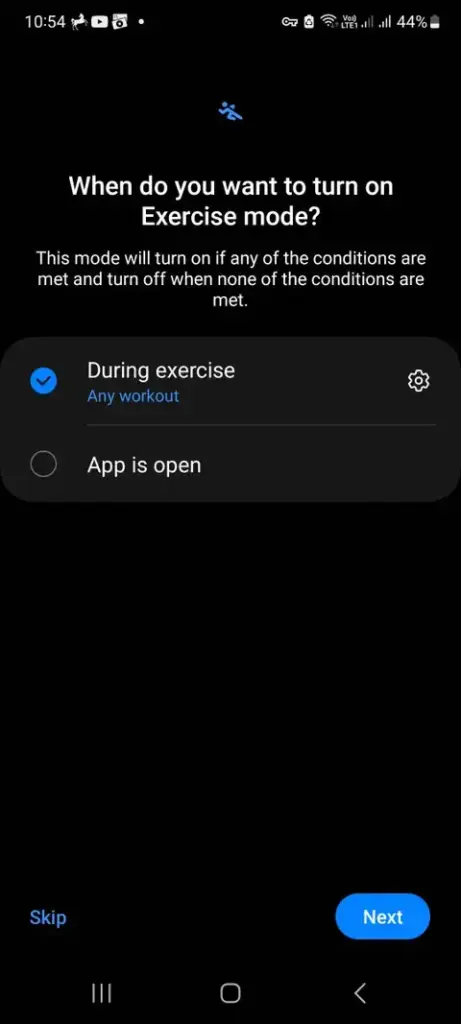
From the summary screen, tap Turn on automatically to set a trigger, or leave it manual. Configure extras like Do not disturb, Restrict app usage, or Change settings as needed.
Step 3: Turn a Mode on or off
Open the mode from the Modes tab and tap Turn on to activate it manually, or tap it again and choose Turn off to stop it.
Step 4: Create a Routine
Switch to the Routines tab and tap + to start a new one. Under If, choose the trigger that starts the Routine, such as a time, a Wi-Fi network, or an app opening.
Under Then, choose the action your phone should take, give the Routine a name, and tap Done.
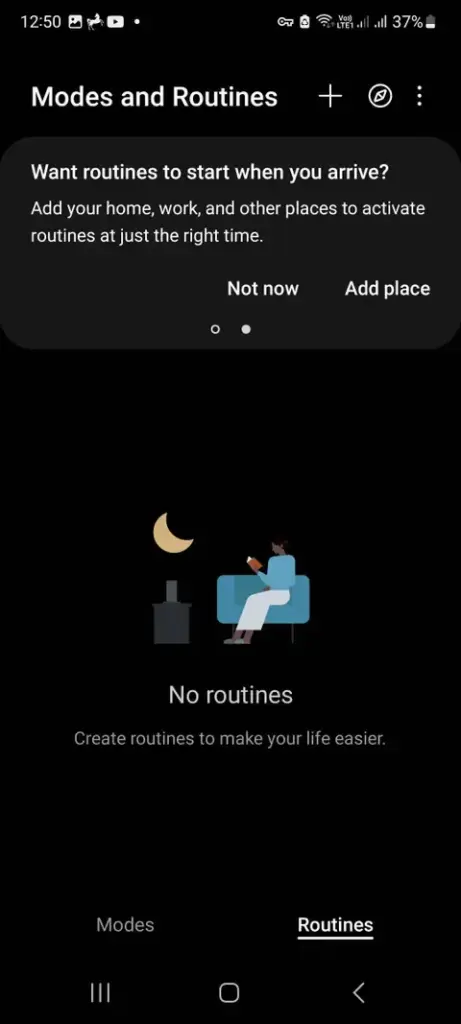
Tip: Exact wording can shift slightly between One UI point releases, so match the closest option on your screen.
Step 5: Run or stop a Routine manually
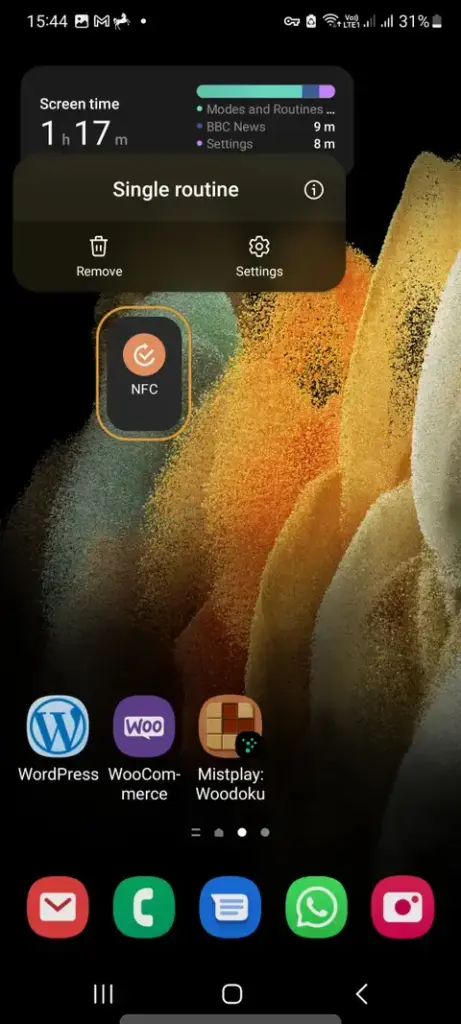
Tap the play icon next to a Routine to run it on demand, or add it as a Home screen widget for one-tap access. To stop one that’s running, open the Running section and tap Stop.
Set Up Secure Folder
Secure Folder creates a locked, isolated space for apps and files that stays separate from the rest of your phone.
Step 1: Open Secure Folder in Settings
Go to Settings > Security and privacy > More security settings > Secure Folder. On some regions or older versions, this sits under Settings > Biometrics and security > Secure Folder instead.
Step 2: Sign in and grant permissions
Tap Continue, then tap Continue again to allow the required permissions. Sign in to your Samsung account if prompted, then tap OK.
Step 3: Set a passcode for the folder
Choose a security method — PIN, password, or pattern — and follow the prompts to confirm it. This passcode is separate from your phone’s main lock screen.
Step 4: Turn on Reset with Samsung account
When asked, turn on Reset with Samsung account and tap Allow. This lets you recover access later if you forget your Secure Folder passcode.
Step 5: Open and add content to Secure Folder
From the Apps screen, tap Secure Folder and enter your credentials when prompted. Inside, you can move apps, files, and photos in, and adjust notification and Apps screen visibility from its own settings menu.
Set Up Samsung Pass as Your Password Manager
Samsung Pass stores logins in Knox-backed secure storage and fills them in using your fingerprint, face, or iris.
Step 1: Open Samsung Pass in Settings
Go to Settings > Security and privacy > More security settings > Passwords, passkeys, and autofill, then tap Samsung Pass.
Step 2: Sign in with your Samsung account
Tap Sign in, or create a Samsung account if you don’t have one yet. This account is what syncs your saved passwords across your own Samsung devices.
Step 3: Register your biometric and continue
Verify your screen lock pattern, then register your fingerprint, face, or iris when prompted and tap Continue. Biometric data stays on the device and isn’t shared between phones, so you’ll repeat this step on each one.
Step 4: Set Samsung Pass as the preferred autofill service
Go to Settings > General management > Passwords, passkeys, and autofill, tap Preferred service, and confirm Samsung Pass is selected.
Tip: Samsung Internet tends to work most reliably with Samsung Pass autofill.
Pro tips
- Add frequently used Modes or Routines as Home screen widgets for one-tap access.
- Enable Show Modes and Routines on the Apps screen for faster access without opening Settings.
- Review what's stored in Samsung Pass periodically and remove old entries you no longer use.
Troubleshooting
| Problem | What to do |
|---|---|
| Modes and Routines doesn't appear in Settings | Update your phone to the latest software version; the feature requires One UI 5 or later. |
| Samsung Pass autofill isn't showing up in apps or browsers | Check that Autofill forms is enabled under Samsung Pass settings, confirm the app or site is supported, and make sure Samsung Pass is set as the preferred autofill service in General management. |
| Forgot the Secure Folder passcode | If Reset with Samsung account was turned on, you'll be prompted to set a new PIN, pattern, password, or fingerprint and regain access; otherwise the folder's contents are unrecoverable. |
Frequently asked questions
Do I need a Samsung account for these apps to work?
Yes, Modes and Routines sync and backup, Secure Folder recovery, and Samsung Pass all rely on being signed into a Samsung account.
Can I use Secure Folder on a non-Samsung phone?
No, Secure Folder is exclusive to Galaxy phones and tablets and can’t be accessed from the web or another device.
Is Samsung Pass safer than Google Password Manager?
Samsung Pass stores data in Knox-backed hardware security and Samsung recommends it over other password managers for Galaxy devices, though both use encryption and biometric protection.
Will my Secure Folder data transfer if I switch phones?
No, Secure Folder apps and files stay tied to the device they were created on and can’t be moved to a new phone.
Once Modes, Routines, Secure Folder, and Samsung Pass are configured, they mostly run themselves, quietly automating settings and handling logins in the background. For official reference on Modes and Routines options, Samsung’s own setup walkthrough covers additional preset options worth exploring.
Sources and further reading
- Samsung ae — How to Create and Manage Modes and Routines
- Asurion — How to set up Routines on your Samsung Galaxy phone | Asurion
- MakeUseOf — How to Use Modes and Routines in One UI 5 on a Samsung Phone
- Esevel — Samsung Password Manager: Top Features Explained – Esevel