Quick answer
Turn on speech translation by hovering over the captions & translation button in a Meet call, clicking Translate speech, and picking the language you want to hear.
Multilingual meetings usually mean someone is quietly lost, waiting for a recap or a colleague to translate on the fly. Google Meet now handles that itself, using Gemini to listen to a speaker and translate their voice into your language within seconds.
This walks through turning on speech translation for your next call, first on a computer and then on an Android phone, plus what to do if the option is not showing up yet.
Before you start
- Difficulty Easy
- Time needed 5 minutes
- Works on Google Meet web and Android app, eligible AI Pro/Ultra or Workspace plans
What you'll need
- A Google AI Pro, AI Ultra, or eligible Google Workspace plan on your account or the host's account
- An active Google Meet call (not a recording or livestream)
- Updated Google Meet app if using Android
Important
- Speech translation is not available in recordings or livestreams, so do not rely on it for a session you plan to record.
- Translated audio is not saved, so do not expect a translated transcript after the call ends.
Turn On Speech Translation on a Computer
This is the main path in the Meet web app, and it reflects the Gemini 3.5 Live Translate rollout.
Step 1: Open the captions & translation button
During a Google Meet call, hover your cursor over the captions & translation button at the bottom of the screen.
Tip: The button sits alongside the other call controls at the bottom of the window.
Step 2: Click Translate speech
A menu appears over the captions & translation button. Click Translate speech to start the setup.
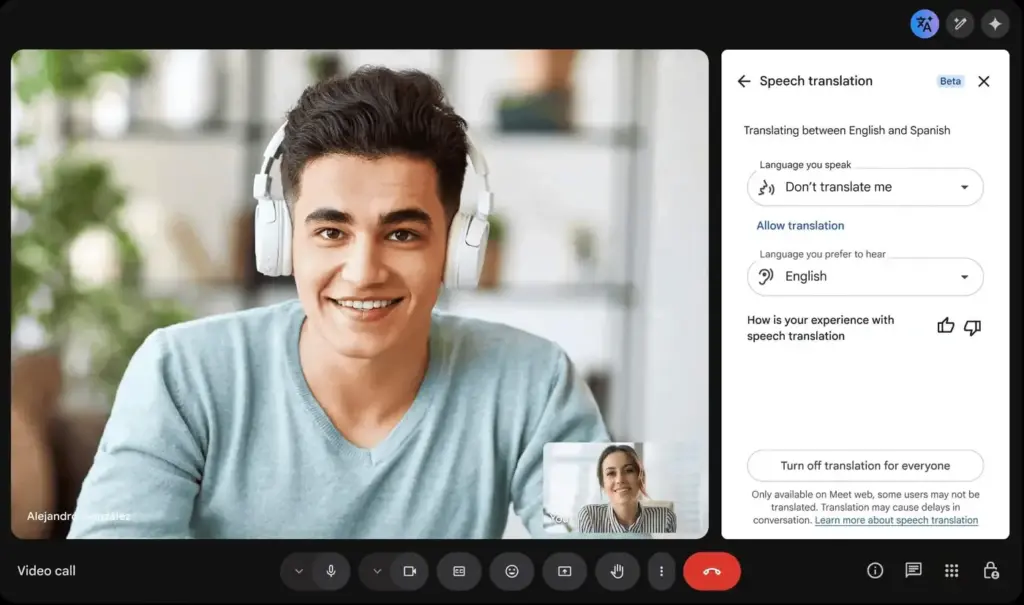
Step 3: Pick your listening language
The first time you use the feature, select the language you want to hear translations in, then click Next.
Step 4: Let Meet translate what you say
If you want others to hear your speech translated into their language, click Translate me.
Captions in the translated language appear automatically once speech translation and captions are both on.
Tip: Translated audio lands a few seconds behind the live speaker, so leave a short pause before responding.
Turn On Speech Translation on Android
The mobile flow uses the same Gemini translation engine, reached through a slightly different menu.
Step 1: Open More options during a call
In a Google Meet call on your phone or tablet, tap More options in the bottom-right corner.
Step 2: Tap captions and translation
Select captions and translation from the menu that appears.
Step 3: Complete the first-time setup
Choose the language you want to listen in, then enable Translate me if you want your own speech translated for others.
Tip: If you do not see this menu on Android, update the Google Meet app and try again, since the rollout to phones is still expanding.
Pro tips
- Add any extra languages you already understand in the translation settings so Meet skips translating those for you.
- Speech translation works independently for each participant, so you do not need to agree on one language pair for the whole call.
- Google Meet hardware rooms can hear translated speech from remote participants, but speech from the room itself will not be translated for others.
Troubleshooting
| Problem | What to do |
|---|---|
| Translate speech option does not appear in the toolbar | Check that you or the meeting host has an eligible AI Pro, AI Ultra, or Workspace plan, and confirm your organization has not disabled Gemini for Meet in the Admin console. |
| Translation stops partway through a long meeting | Each plan has a per-meeting time cap, 90 minutes on most plans and 8 hours on AI Ultra and AI Expanded Access, so the feature turns off once you hit that limit. |
| Option is missing on a work or school account | Speech translation does not work for standard school or work accounts unless your organization is part of the Enterprise Alpha program, which uses a different combined captions and translation icon. |
| Feature is not showing on an Android phone | Update the Google Meet app to the latest version, since mobile support is still rolling out in stages and may arrive later for some regions. |
Frequently asked questions
Which plans can use Google Meet AI translation?
Google AI Pro, Google AI Ultra, AI Pro for Education, AI Expanded Access, and several Google Workspace Business and Enterprise plans support speech translation, each with its own per-meeting time limit.
How many languages does Google Meet translate?
The feature now covers 63 languages with automatic language detection, up from the original handful of language pairs, as detailed in our Google Meet coverage.
Does speech translation work in recordings?
No, it only works during a live call and is not available for livestreams or recorded sessions.
Can I use speech translation on iPhone?
Google has not published a distinct iOS help page for this feature yet, so support on iPhone is unconfirmed and may lag behind Android.
Once speech translation is on, it keeps working quietly in the background for the rest of the call, so set it up once and check back only if Google changes the toolbar layout. For the full list of supported languages and what changed in this rollout, see the official Google Workspace Updates post.
Sources and further reading
- Support Google
- Workspace Updates Blog — Google Workspace Updates: Real-time speech translation in Google Meet expands to 63 langua
- Maestra AI — Google Meet Real-Time Speech Translation Guide + Alternative
- MindStudio — Gemini 3.5 Live Translate: How to Use Real-Time AI Translation in Meetings and Video