Quick answer
To update a Google Home speaker, open the Google Home app, touch and hold the device tile, then tap Settings > More > Reboot — this forces the speaker to check in with Google's servers for any pending firmware.
Google Nest and Home speakers install firmware automatically in the background, but there’s no
Before you start
- Difficulty Easy
- Time needed 10 minutes
- Works on Google Home app (Android and iOS), all Google Nest and Home speakers
What you'll need
- Google Home app installed on your phone or tablet
- Speaker and phone signed into the same Google account
- Speaker connected to Wi-Fi
Important
- Don't unplug the speaker while the light ring is actively spinning white, since that means an update is mid-install.
- A reboot is not the same as a factory reset — resetting erases all data and requires full setup again.
- Factory reset on Nest speakers can only be done with the physical buttons, not through the app or voice.
Reboot Through the Google Home App
This is the official way to prompt a speaker to check for new firmware.
Step 1: Open the Google Home app
Launch the Google Home app on your phone or tablet, signed in with the account linked to your speaker.
Step 2: Select your speaker
Tap Home, then All devices (sometimes just labeled All), and touch and hold the tile for the speaker you want to update.
Step 3: Open device settings
Tap the Settings (gear) icon that appears, then tap More (or More menu on some app versions).
Step 4: Tap Reboot
Select Reboot. The speaker restarts, which forces it to check in with Google’s servers and download any firmware that’s waiting for it.
A reboot does not erase settings or data, unlike a factory reset.
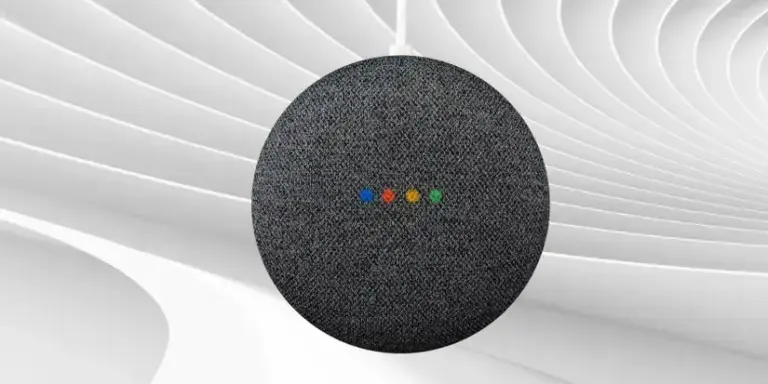
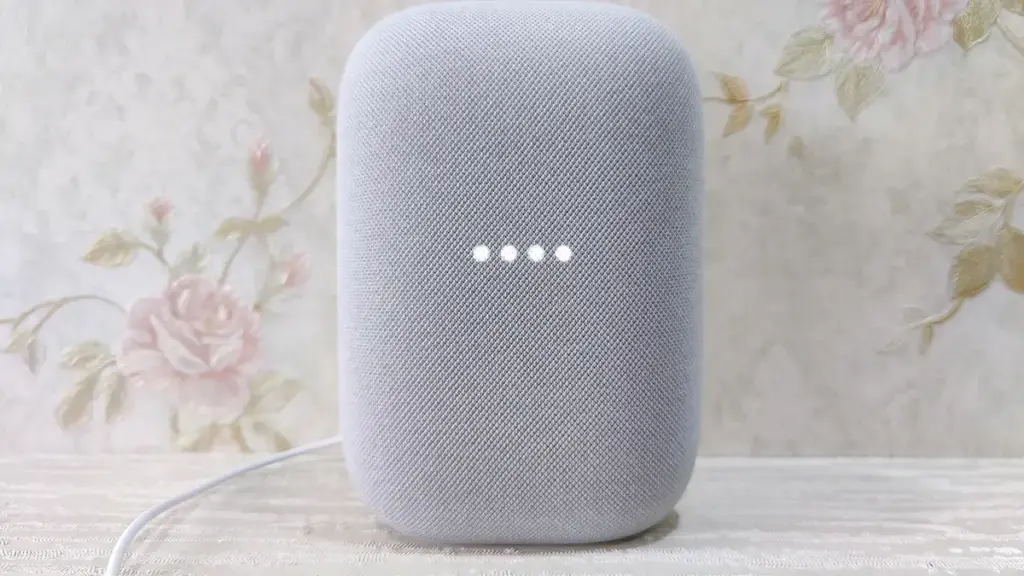
Tip: Watch the light ring on top — it turns white and slowly spins while an update installs.
Step 5: Wait for the update to finish
Give the speaker up to 10 minutes. If the light is still spinning white after that, leave it alone and check again shortly, since interrupting power mid-update can cause problems.
Tip: You can confirm the new version afterward in the same Settings screen under Cast firmware version.
Unplug and Replug the Speaker
Use this when the app’s reboot option is greyed out, unresponsive, or you’d rather not touch the app at all.
Step 1: Unplug the power cord
Pull the power cable out of the speaker or the wall outlet.
Step 2: Wait one minute
Leave the speaker unpowered for about a minute so it fully resets.
Step 3: Plug it back in
Reconnect the power cord. The speaker reboots on its own and checks for any pending firmware, the same as rebooting from the app.
Pro tips
- Keep your phone and speaker on the same main Wi-Fi network with no VPN active before rebooting.
- Move the speaker closer to your router temporarily if an update seems to stall.
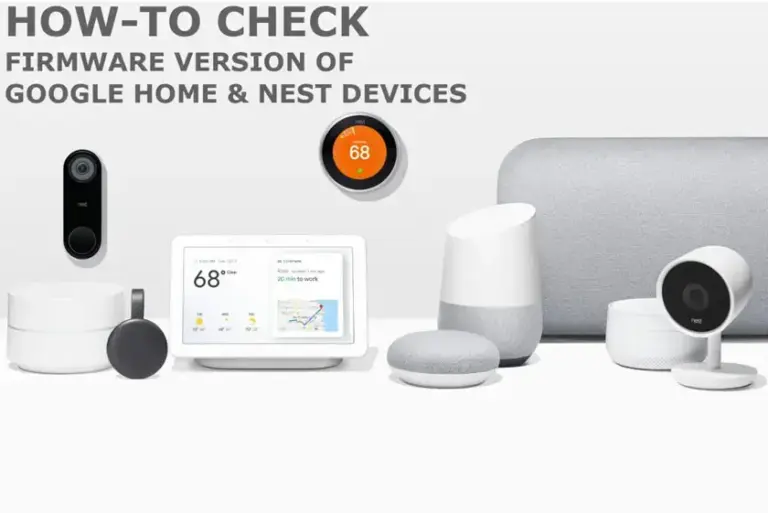
- Check the current firmware version first using the steps in our guide to checking firmware on Google Home Speakers.
- Reboot your router too if an update keeps failing repeatedly.
Troubleshooting
| Problem | What to do |
|---|---|
| The Reboot option is greyed out in the Home app | Unplug the speaker's power cable, wait about a minute, then plug it back in to force a manual reboot. |
| The update keeps failing after several reboots | Confirm your phone and speaker share the same Wi-Fi network with no VPN, reboot your router, then retry from the Google Home app. |
| Nothing changes after multiple reboots | As a last resort, factory reset the speaker using its physical buttons and set it up again as new — it checks for updates during setup. |
Frequently asked questions
Is there a manual update button for Google Home speakers?
No. There’s no direct update button; rebooting the speaker is the closest thing, since it forces a check-in with Google’s servers for pending firmware.
Will rebooting erase my speaker's settings?
No. A reboot restarts the device without touching your data or settings, unlike a factory reset which wipes everything.
How long does a firmware update take after rebooting?
Usually up to 10 minutes. You’ll see the light ring turn white and spin slowly while the update installs.
What if rebooting doesn't trigger an update?
Try moving the speaker closer to your router, rebooting your router, and retrying. If that fails, a factory reset followed by setting the speaker up again usually forces an update check.
If rebooting repeatedly doesn’t bring in a pending firmware, see our guide on how to update your Google Home speaker right now for more troubleshooting steps.
Sources and further reading
- Support Google
- Trend Micro Help Center — Google Smart Speakers: Easy Setup and Troubleshooting Guide
- Digital Trends — How to reset a Google Nest Mini smart speaker
- XDA — How to update Google Nest Mini and Nest Audio smart speakers