Quick answer
To get speaker firmware early, open the Google Home app, tap the device, then the settings gear, then Device information, then Preview Program, and tap Join Program.
Google tests new speaker firmware and app features on a small group of users before rolling them out to everyone. If you want the newest fixes and improvements for your Nest or Home speaker as soon as they exist, you can opt in rather than wait.
There are actually two separate programs people mix up: one delivers early speaker firmware, the other delivers early Google Home app features. Below you will join whichever one matches what you actually want.
Before you start
- Difficulty Easy
- Time needed 5 minutes
- Works on Google Home app on Android and iPhone, 2026
What you'll need
- Google Home app installed and signed into the account that owns the device
- A compatible Nest or Home speaker, display, or Chromecast device
- A stable Wi-Fi connection for the device
Important
- Preview firmware is tested but still earlier-stage software, so expect occasional small bugs before features reach everyone.
- Factory resetting a speaker removes it from the Preview Program, so you'll need to rejoin afterward.
Join the Preview Program for speaker firmware
This is the program that actually gets you faster firmware updates on your Nest or Home speaker.
Step 1: Open the Google Home app
Launch the Google Home app on your phone and make sure you’re signed into the Google account linked to the speaker you want to update.
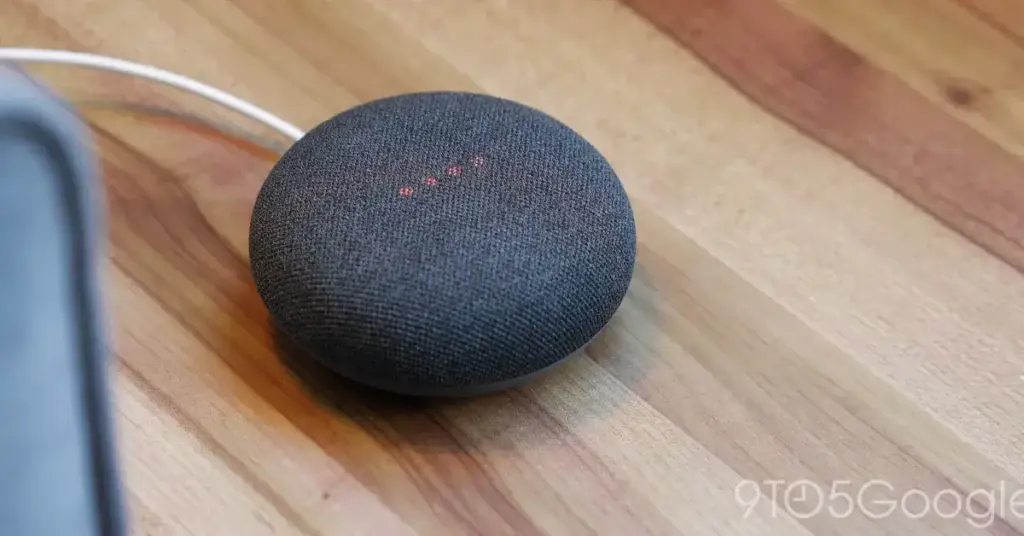
Step 2: Select your speaker's device page
Tap Home and then All to see your devices, and tap the tile for the Nest or Home speaker you want to enroll.
Tip: Use the device page, not your profile settings menu, since that one won't show this option.
Step 3: Open the device settings gear
On the device page, tap the settings gear icon in the top-right corner.
Step 4: Tap Device information
Scroll down and tap Device information to open the device’s technical details.
Step 5: Tap Preview Program
Tap Preview Program and then Join Program. If you don’t see this option, Google isn’t accepting new members for this device right now, and you’ll need to check back later.
Step 6: Wait for the update to install overnight
Once you’ve joined, your speaker checks in automatically and installs new preview firmware overnight, usually while it’s idle. No further action is needed on your part.
You can confirm membership at any time from the same Preview Program screen, which will show On or On (Preview firmware: #) once you’re enrolled.
Join Public Preview for the Google Home app itself
This separate program gives you early access to new app features, not speaker firmware, so skip it if firmware is all you wanted.
Step 1: Open the Google Home app
Open the Google Home app on your phone or go to home.google.com in a browser and sign in.
Step 2: Find the Public Preview option
In the app, tap Public Preview. On the web, select Public Preview from the menu after signing in.
Step 3: Join the program
Tap Join Public Preview. Enrollment can involve a short wait before new features show up, sometimes a couple of weeks, since access can be staged.
Pro tips
- Email notifications for new preview firmware are a separate opt-in under the app's Email Notifications settings.
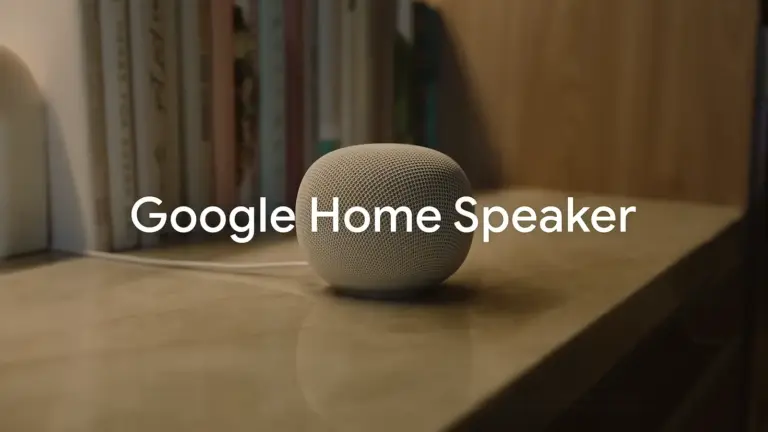
- Only the Google Home (2016), Home Mini, Nest Mini, and Nest Audio were part of the firmware preview wave as of October 2026.
- If the Preview Program toggle is missing on a device, it usually means Google has paused new sign-ups rather than that your device is ineligible.
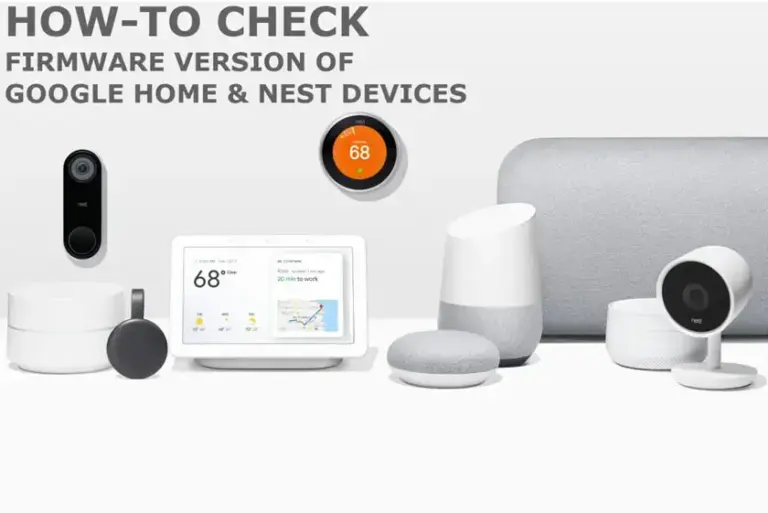
- Check your current firmware version first using our companion guide on checking firmware on Google Home speakers, so you can confirm the preview update actually installed.
Troubleshooting
| Problem | What to do |
|---|---|
| No Preview Program option appears in Device information | Close the Google Home app, then clear its cache from your phone's app settings under Storage & Cache, and reopen the app to check again. |
| You're looking in the wrong settings menu | The Preview Program option lives under the device's own settings gear, not under the profile icon settings in the main app screen. |
| You joined but haven't received an update | New preview firmware rolls out in waves and installs automatically overnight once it's your device's turn, so give it a few days and make sure the speaker stays connected to Wi-Fi and power overnight. |
Frequently asked questions
What's the difference between the Preview Program and Public Preview?
The Preview Program delivers early firmware updates to Nest, Home, and Chromecast hardware, while Public Preview delivers early feature updates to the Google Home app on phones, Wear OS, and the web.
Which devices can join the Preview Program?
Chromecast (including 2nd and 3rd gen, Ultra, and Audio) along with Google Nest and Home speakers and displays are eligible, though specific firmware waves may only target certain models at a time.
Is Preview Program firmware a beta?
Google doesn’t label it beta software since features only reach the Preview Program once the team considers them ready, but it is earlier and less tested than the general release.
Will I lose my Preview Program enrollment if I reset my speaker?
Yes, a factory reset removes the device from the program, so you’ll need to go back into Device information and rejoin after setting it up again.
Once you’re enrolled, there’s nothing more to do beyond keeping your speaker powered and connected, since updates install on their own overnight. If you want to confirm the new firmware actually landed, check our companion guide on checking the firmware version on Google Home speakers.
Sources and further reading
- 9to5Google — Old Google Home and Nest speakers getting big firmware update
- Support Google
- Googlenestcommunity
- Droid Life — New Google Home App's Preview Program Opens Up