Quick answer
Open the Google Home app, select your speaker or display, tap Settings then Device Information, and look under "Technical information" for Cast firmware (speakers) or System firmware version (displays).
If you want to know whether your Google Home speakers are running the latest software, the firmware version number is the quickest way to confirm it. It also comes in handy when you’re troubleshooting a device that’s acting up or missing a feature you expected.
Below you’ll find the exact menu path in the Google Home app for speakers and displays, plus a separate path for Nest Wifi devices, which store the version number in a different spot.
Before you start
- Difficulty Easy
- Time needed 3 minutes
- Works on Google Home app on Android and iOS; Nest speakers, displays, Nest Wifi
What you'll need
- Google Home app installed on your phone or tablet
- Phone or tablet signed into the same account as your speaker or display
- A Google Nest or Home speaker or display already set up
Check Firmware on a Google Home Speaker or Nest Display
This is the main path for Nest Mini, Nest Audio, Google Home, Nest Hub and similar devices.
Step 1: Open the Google Home app
Make sure your phone or tablet is signed into the same Google account as your speaker or display, then launch the Google Home app.
Step 2: Go to All devices
Tap Home and then All devices. Touch and hold the tile for the speaker or display you want to check.
Step 3: Open Settings
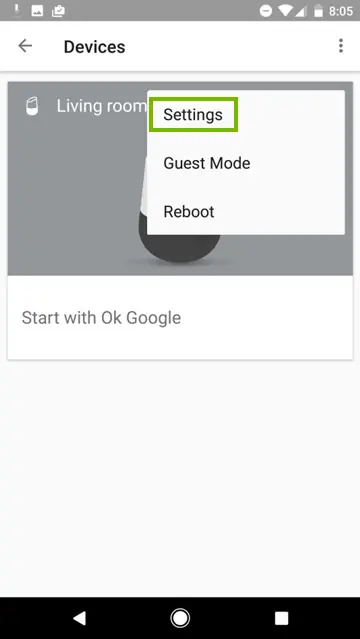
At the top right of the device screen, tap the Settings icon (it looks like a gear).
Step 4: Tap Device information
Select Device information from the settings list.
Step 5: Find the firmware version
Scroll to the Technical information section. On speakers, look for Cast firmware: X.XXX.XXXXX. On a Nest display, look for System firmware version instead.
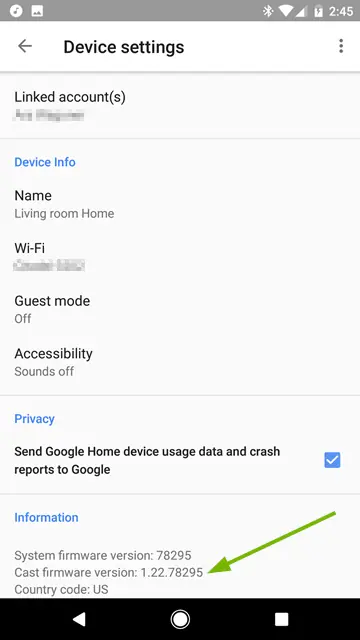
Tip: Compare the number against Google's official firmware release notes page to see if it matches the current build for your device type.
Check Firmware Directly on a Nest Display's Screen
Nest Hub and other screen-equipped devices also let you check the version without opening the app.
Step 1: Swipe down from the top of the display
On the Nest display itself, swipe down from the top of the screen to open quick settings, then tap the Settings gear.
Step 2: Open About device
Tap About device. You’ll see Software version and Cast firmware version listed.
Step 3: Scroll for the operating system version
Scroll to the bottom of the screen. If you see an Operating system version entry, your device is running Google’s Fuchsia operating system rather than the older Cast platform.
Check Software Version on Nest Wifi or Google Wifi
If the device in question is part of a Nest Wifi or Google Wifi mesh system rather than a speaker, the version lives under a different menu.
Step 1: Open the device settings
In the Google Home app, tap Home and then All devices, touch and hold your Wifi device’s tile, then tap Settings.
Step 2: Check Wi-Fi information
Scroll to the Wi-Fi information section and look for the listed software version.
Pro tips
- Check the version from a second phone or tablet if the app seems to be showing stale data, since app cache can sometimes lag behind the server.
- Google rolls firmware out in stages, so your speaker may show a version number that hasn't appeared on the official release notes page yet.
- There's no setting to pick or roll back to a specific firmware build; the app only shows whatever version is currently installed.
Troubleshooting
| Problem | What to do |
|---|---|
| The device tile shows outdated or missing firmware information | Unplug the speaker or display for about 60 seconds, then plug it back in. Rebooting prompts the device to check in with Google's servers for the latest build. |
| You're not sure if the version shown is current | Cross-check the number against Google's official firmware and release notes page for your exact device model. |
| The device isn't receiving updates at all | Confirm the speaker or display is connected to the internet, since OTA updates download automatically only while online; see our guide on how to update your Google Home speaker for more detail. |
Frequently asked questions
Where exactly do I find the Cast firmware number?
Open the Google Home app, select your device, tap Settings, then Device information, and look under Technical information for the Cast firmware entry.
Why does my speaker show a different version than my friend's?
Google rolls out firmware in stages across regions and accounts, so two identical speakers can briefly run different builds until the rollout finishes.
Can I manually update or roll back the firmware?
No, Google Nest devices only let you view the current version. Updates install automatically over Wi-Fi and there’s no manual update or rollback option.
Does checking the firmware version put my data at risk?
No, checking the version is a read-only action with no effect on your data, settings, or warranty.
Once you know your current firmware number, you can keep an eye on it over time or compare it against Google’s release notes if something on your speaker starts behaving oddly; if you suspect a stalled update, our companion piece on updating your Google Home speaker walks through forcing a fresh check.
Sources and further reading
- Support Google
- GChromecast Hub — How to check the firmware version of Google Nest and Home devices
- Omnicontech — Manually Force a Google Home Update & Fix Failures
- Techsolutions Support — Google Home: How to Update It – Support.com