Quick answer
To leave the Preview Program for a Google Nest or Home speaker or display's firmware, open the Google Home app, tap your device, go to Settings > Device information > Preview Program, and tap Leave program.
If a recent Preview Program firmware update left your Google Nest speaker or display acting up — dropped connections, a sluggish voice assistant, a feature that just stopped working — opting out is the quickest fix. Google pushes preview firmware to a smaller group of devices before it goes out to everyone, and like any early build, it can carry bugs the public release has already ironed out.
Below you’ll find the exact menu path to leave the firmware Preview Program for a speaker, display or streaming device, plus how to tell that apart from the separate Public Preview that controls the Google Home app’s look and features.
Before you start
- Difficulty Easy
- Time needed 3 minutes
- Works on Google Home app on Android and iPhone; Nest/Home speakers, displays, Chromecast
What you'll need
- Google Home app installed and signed in with your Google Account
- The device already set up in the Google Home app
- A few minutes to wait for stable firmware to roll back (can take one to two weeks)
Important
- Don't factory reset a device just to force it off preview firmware; leaving the program and waiting is enough and avoids losing your device setup.
Leave the Preview Program for a speaker or display's firmware
This is the path to use if you want to revert the actual device firmware on a Nest or Home speaker, display, or streaming device.
Step 1: Open the Google Home app
Launch the Google Home app on your Android phone or iPhone. Make sure you’re signed in with the same Google Account you used to set up the device.
Step 2: Select the device you want to revert
From the device list, tap the speaker, display or streaming device that’s giving you trouble. This opens its individual device page.
Step 3: Tap the device's Settings icon
On the device page, tap the Settings gear icon, usually in the top-right corner.
Step 4: Open Device information
Scroll down and tap Device information. This is where firmware and hardware details live.
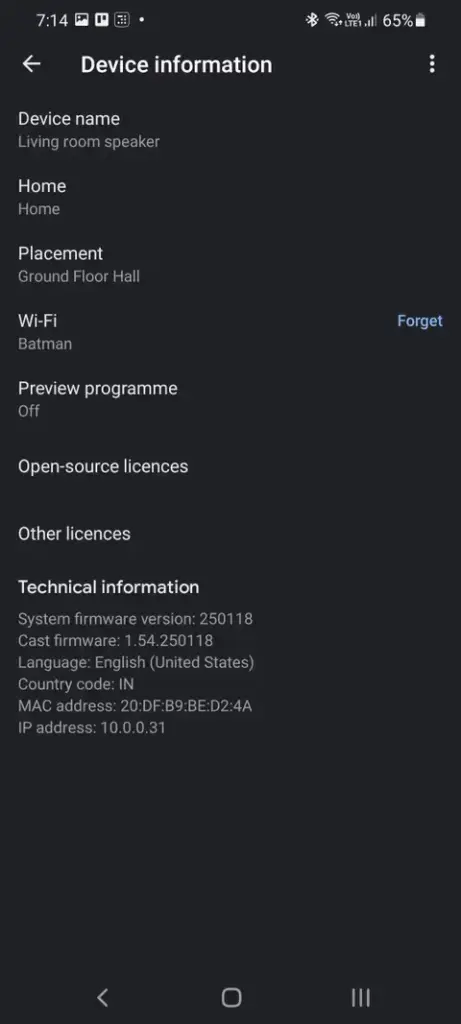
Step 5: Tap Preview Program
Tap Preview Program. You’ll see your current status along with a button to manage it.
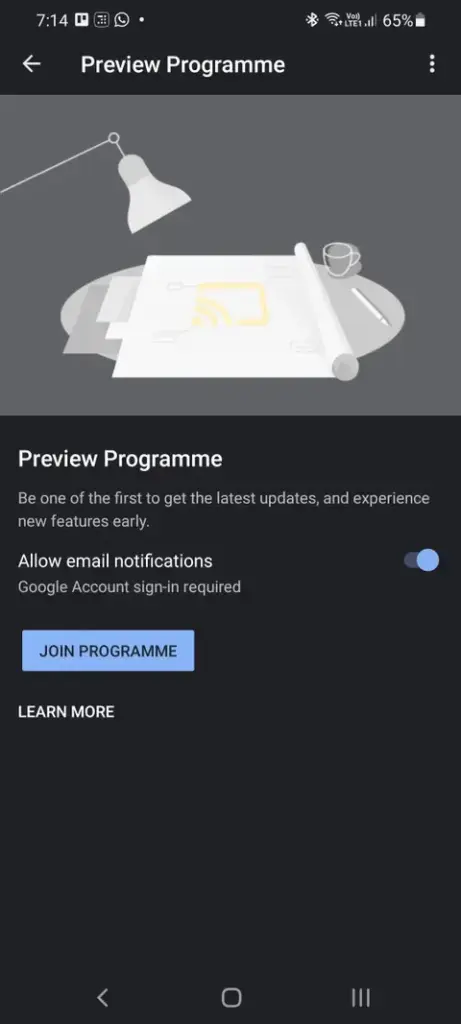
Step 6: Tap Leave program
Tap Leave program. The device’s status will change to Leaving, shown under Preview Program in Device Settings, meaning it’s waiting for the next production firmware push.
Tip: On the UK/English (en-GB) version of the app, the wording reads "Preview Programme" and "Leave programme" instead, but the steps are identical.
Leave the Public Preview for the Google Home app itself
Use this instead if you joined the app-level Public Preview (for UI and feature testing) rather than the device firmware program — the two are managed in separate places.
Step 1: Open the Google Home app
Open the Google Home app and make sure you’re signed into the account that joined the Public Preview.
Step 2: Tap your profile picture
Tap your profile picture or initial in the top-right corner of the home screen.
Step 3: Tap Public Preview
Tap Public Preview from the menu that appears. On some app versions this option sits directly under Settings instead of the profile menu.
Step 4: Tap Leave Public Preview
Tap Leave Public Preview to confirm. You can also manage this from a browser by signing in at home.google.com, selecting Public Preview, and choosing Leave Public Preview.
Tip: If you don't see Public Preview anywhere, Google isn't currently accepting new members, which can also hide the option for people trying to leave.
Pro tips
- Firmware doesn't roll back instantly — expect a status of "Waiting for next public firmware update" for a week or two.
- If you factory reset a device after leaving, you'll need to rejoin the Preview Program to get preview firmware again.
- Clearing the Google Home app's cache (Settings > Apps > Google Home > Storage > Clear Cache on Android) can help if a device seems stuck between firmware versions.
- Check your current firmware build any time from the same Device information screen you used to leave the program.
Troubleshooting
| Problem | What to do |
|---|---|
| The device still shows preview features after tapping Leave program | This is expected. Status shows as "Leaving" until Google pushes the next stable production firmware build, which can take one to two weeks. |
| Preview Program option is missing from Device information | Some devices or accounts aren't eligible, or Google has temporarily paused new sign-ups and exits for that model; try again after an app update. |
| The device behaves erratically even after you've left the program | Clear the Google Home app's cache on Android, or reinstall the app on iPhone, then reopen it and check the device's status again. |
Frequently asked questions
Does leaving the Preview Program remove the firmware I already installed?
No. Your device keeps its current preview firmware until Google releases the next stable production update, then it switches over automatically.
Is the Preview Program the same as the Public Preview?
No. The Preview Program controls firmware on your speakers, displays and streaming devices, while Public Preview controls the Google Home app’s own features and interface.
Will I lose my device settings if I leave the program?
No, leaving the program doesn’t affect your device setup, rooms, or routines. A factory reset would, but that’s a separate action.
Can I rejoin the Preview Program later?
Yes, you can opt back in from the same Device information > Preview Program menu at any time, though a new preview firmware build may take a while to reach you.
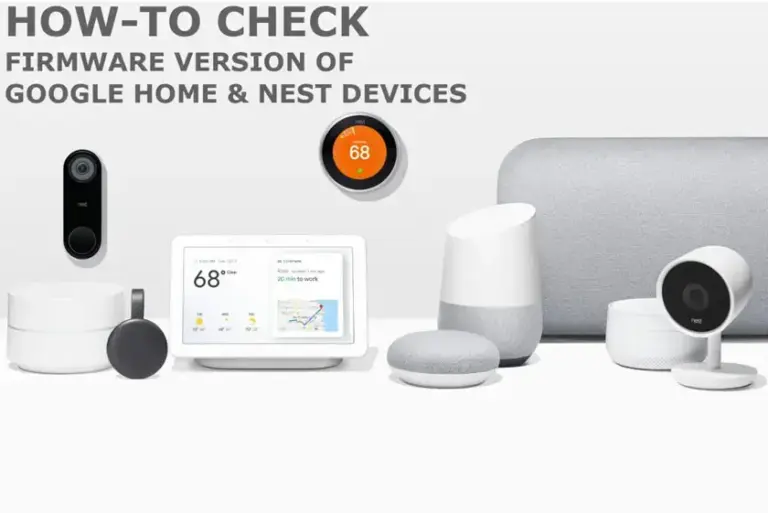
Once your device shows a stable firmware version again, keep an eye on it for a few days to confirm the bug is gone before you consider rejoining Google Home Public Preview; if you want to track exactly which build your speaker is running, see how to check firmware version on Google Home speakers.
Sources and further reading
- Support Google
- MakeUseOf — How to Join the Google Home Preview Program for Chromecast and Google Nest
- 9to5Google — How to sign up for the Google Home Public Preview and test new features
- Googlenestcommunity