Quick answer
To update a Google Home speaker, check its firmware under Settings > Device information in the Google Home app, then force a check by rebooting the speaker with the in-app Reboot option or by unplugging it for a minute.
Google Home speakers and Nest displays install firmware automatically, but there’s no button to check for updates like you’d find on a phone. If your speaker seems stuck on an old version or you want to confirm it has the latest fixes, you have to trigger the check yourself.
Below you’ll find out how to see which firmware version your speaker is running and two ways to force it to reach out to Google’s servers for anything newer.
Before you start
- Difficulty Easy
- Time needed 5 minutes
- Works on Google Home, Nest Mini, Nest Audio, Home Max, Nest Hub (Android and iOS app)
What you'll need
- Google Home app installed on a phone or tablet
- Phone and speaker signed into the same Google account
- Speaker powered on and connected to Wi-Fi
Important
- Don't unplug the speaker while the LED is spinning white, since that means it's mid-download.
- A reboot is safe and won't erase data, but it isn't the same thing as a factory reset.
Check Your Speaker's Current Firmware Version
Start here so you know what version you’re on before forcing an update check.
Step 1: Open the Google Home app
Make sure your phone or tablet is signed into the same Google account linked to your speaker.
Step 2: Go to All devices
Tap Home, then All devices to see every speaker and display on your account.
Step 3: Touch and hold your speaker's tile
A menu will pop up for that specific device.
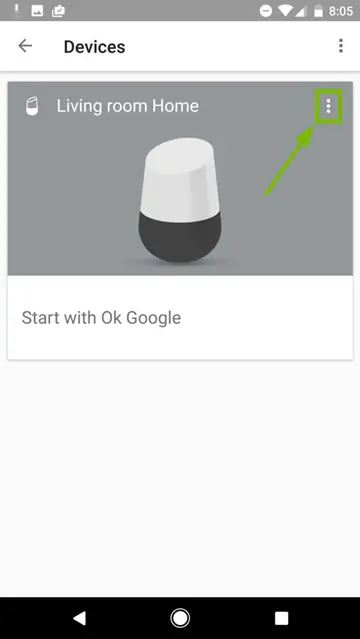
Step 4: Tap Settings, then Device information
Select Settings and then Device information from the menu that appears.
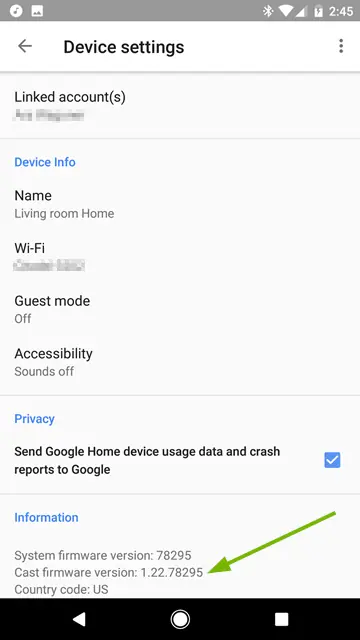
Step 5: Find the Cast firmware version
Scroll to Technical information and look for Cast firmware version, shown as something like 3.78.540761. Nest displays show this as System firmware version instead.
You can compare this against the latest listed firmware on Google’s official firmware version page.
Force a Reboot to Trigger the Update Check
There’s no manual check-for-update button, so rebooting is the only way to make the speaker ask Google’s servers for the newest firmware.
Step 1: Open device settings again
From the All devices screen, touch and hold your speaker’s tile and tap Settings.
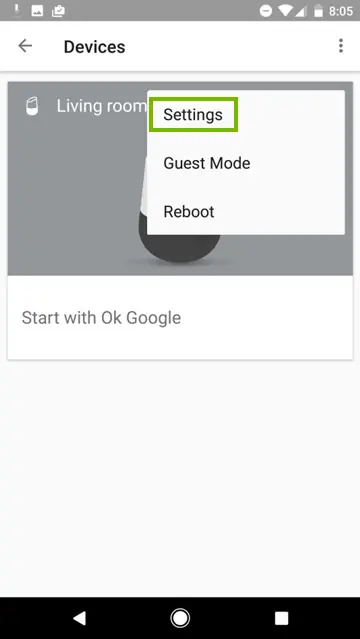
Step 2: Tap More, then Reboot
Select More and then Reboot. The speaker will restart and check in with Google’s servers, which is what pulls down a pending update if one is available.
Tip: Rebooting does not erase any settings or data, unlike a factory reset.
Step 3: Watch for the spinning white light
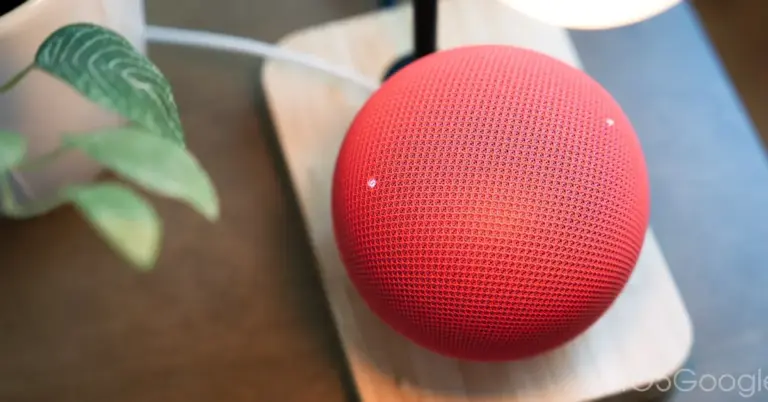
If an update is available, the LED on top of the speaker turns white and slowly spins while it downloads. This usually takes up to 10 minutes.
Don’t unplug the speaker or change Wi-Fi networks while that light is spinning.
Step 4: Unplug it instead if the app reboot fails
If the in-app reboot option isn’t available or doesn’t do the trick, unplug the speaker’s power cable, wait about a minute, then plug it back in. This forces the same check-in.
Pro tips
- Firmware rolls out in stages, so two identical speakers in the same house can briefly show different versions.
- Enroll in the Preview Program from Device information if you want early access to upcoming firmware.
- Check the firmware table on Google's support page to confirm what the current production version should be.
Troubleshooting
| Problem | What to do |
|---|---|
| The update seems stuck for more than 20 minutes | Unplug the speaker, wait about 10 seconds, then plug it back in to restart the download. |
| An original Google Home or Home Max won't finish updating | Unplug it for about a minute, plug it back in, and if that fails, reboot your router as well before trying a factory reset as a last resort. |
| The speaker keeps rebooting in a loop | This can follow a failed update or unstable power; try unplugging it for a full minute on a different outlet, and factory reset only if the loop continues. |
Frequently asked questions
How do I know if my Google Home speaker needs an update?
Compare the Cast firmware version shown in Device information against the current production version listed on Google’s firmware support page.
Is there a way to manually download a firmware file for Google Home speakers?
No, Google Home devices only receive firmware through automatic updates triggered by a reboot; there’s no sideloading option like on Android phones.
Will rebooting my speaker delete my settings?
No, a reboot is not the same as a factory reset and won’t erase your saved devices, routines or Wi-Fi settings.
How long does a firmware update usually take?
Most updates finish within about 10 minutes, visible as a slowly spinning white LED on the speaker.
Once you’ve confirmed the firmware version and forced a reboot, give the speaker a few minutes with its light spinning before you check again. If you’re also seeing unusual network activity on your Google Home Speakers, it’s worth reading up on known data usage issues as well.
Sources and further reading
- Support Google
- iTech Post — Google Gives Home Mini, Nest Mini, and Nest Audio a Much-Needed Firmware Update
- Chromeunboxed — First firmware update for the new Google Home Speaker improves network traffic
- Techsolutions Support — Google Home: How to Update It – Support.com