Quick answer
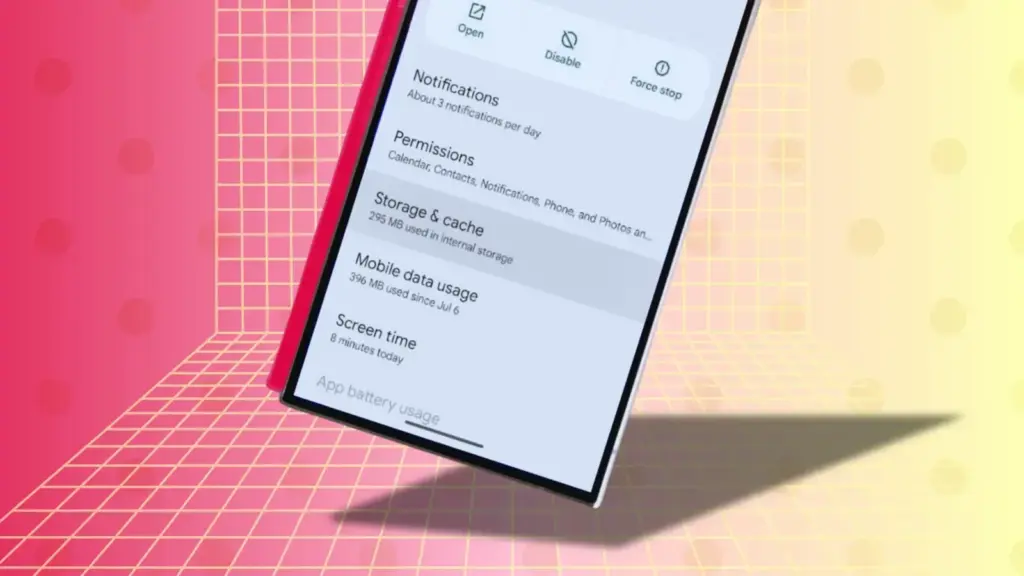
To bring back a missing Pixel keyboard, go to Settings > Apps > Gboard > Storage & cache and tap Clear cache; if that fails, force stop Gboard first or clear storage as a last resort.
If you tap into a search field on your Pixel and no keyboard pops up, you are not alone. Google traced part of this to a bug in the October 2026 security patch that specifically broke the keyboard in search fields, and a fix went out shortly after.
Below are the fixes in order, starting with the update that solves the known bug, then the safe cache-clearing steps, and finally the more drastic options if nothing else works.
Before you start
- Difficulty Easy
- Time needed 10 minutes
- Works on Pixel 8, 9, 10, 11 series on Android 14–16; similar steps on Samsung, OnePlus
What you'll need
- Gboard installed from Google Play
- Access to your phone's Settings app
- A few minutes to test after each step
Important
- Clearing storage or data resets Gboard to default and erases your learned words, personal dictionary, and custom themes.
- Uninstalling recent Gboard updates can bring back bugs that were already patched, along with removing the one you're trying to fix.
Quick Check: Install the October 2026 Security Patch
If your Pixel hasn’t installed the October 5, 2026 patch yet, this alone fixes the search-field bug for most people.
Step 1: Check for a system update
Go to Settings > System > System update and check whether an update is waiting. Pixel 8 through 10 devices should land on build CP3A.261005.005, and Pixel 11 series devices should land on CD1A.261005.003.
Tip: If no update shows yet, the rollout may not have reached your carrier or region.
Step 2: Download and install the update
Tap Download and install and let your Pixel restart once it finishes.
Step 3: Test a search field
After the reboot, open any app with a search field and tap into it to confirm the keyboard now appears.
Force Stop and Reopen Gboard
Restarting Gboard’s process clears a stuck state without touching any of your saved data.
Step 1: Open Gboard's app info page
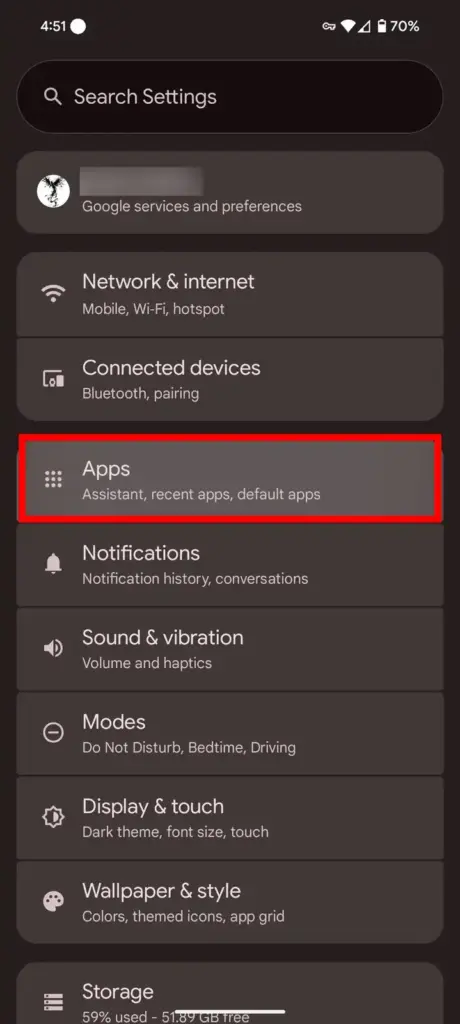
Go to Settings, tap Apps (or Apps & notifications), then select Gboard from the list.
Step 2: Force stop Gboard
Tap Force stop and confirm when prompted.
Step 3: Reopen a text field
Open any app with a text field and tap into it so Gboard restarts fresh.
Clear Gboard's Cache (Safe First Try)
Clearing the cache removes temporary files without erasing your saved words, snippets, or settings.
Step 1: Open Storage & cache
From Gboard’s app info screen, tap Storage & cache.
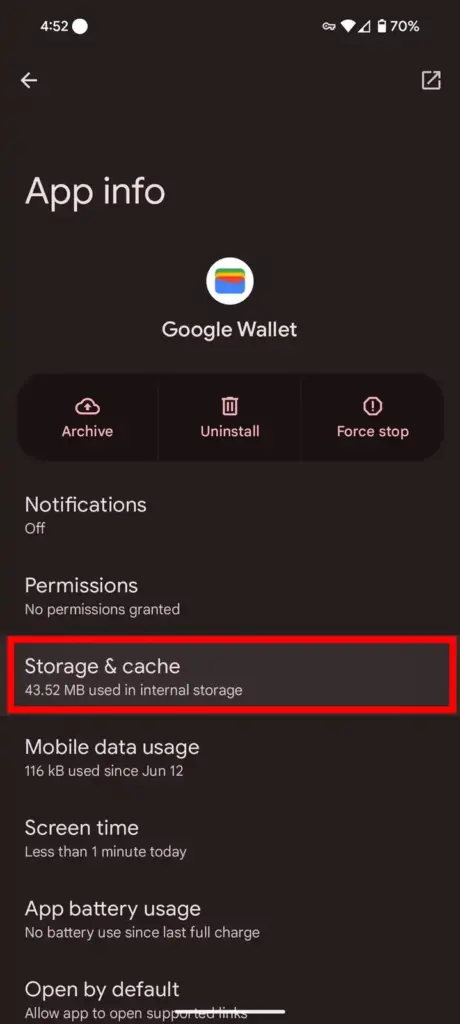
Step 2: Tap Clear cache
Tap Clear cache, then reopen a search field to see if the keyboard shows up.
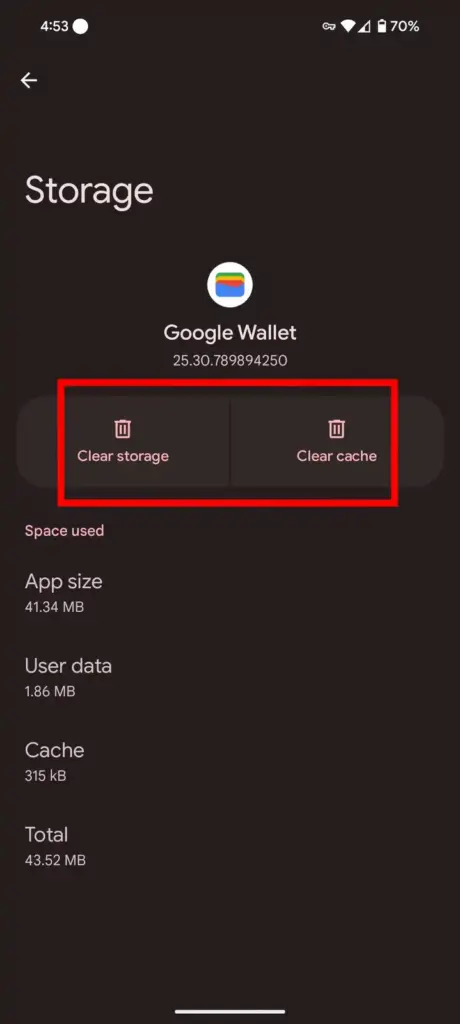
Tip: This step is safe to try first since it does not remove your personal dictionary.
Clear the System Dictionary's Cache
A corrupted system dictionary can sometimes block Gboard from loading at all, even after you clear its own cache.
Step 1: Show system apps
On the main Apps screen, tap the three-dot menu and select Show system.
Step 2: Find the dictionary app
Search for User Dictionary or Android Dictionary in the list.
Step 3: Clear its cache and data
Open the app’s storage settings and clear both its cache and data, then test your keyboard again.
Clear Storage or Data as a Last Resort
This resets Gboard completely, so use it only after the earlier fixes fail.
Step 1: Return to Storage & cache
Go back to Settings > Apps > Gboard > Storage & cache.
Step 2: Tap Clear storage
Tap Clear storage (sometimes labeled Manage space > Clear all data).
Tip: This wipes your learned words, personal dictionary, and any custom themes, so only use it if cache clearing alone did not help.
Clearing Gboard's Cache on Samsung and OnePlus
The same fix works on other brands, with slightly different menu names.
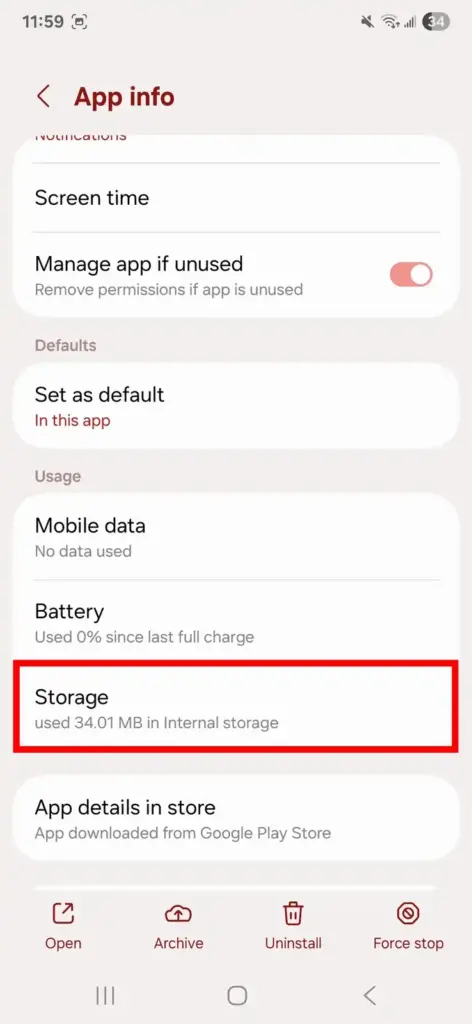
Step 1: Clear cache on Samsung One UI
Open Settings, tap Apps, select Gboard, tap Storage, then tap Clear cache in the lower-right corner.
Step 2: Clear cache on OnePlus
Open Settings, go to Apps > App management, tap Gboard, select Storage usage, then tap Clear cache.
Rule Out a Conflicting Keyboard App
If the problem persists after every cache fix, a third-party keyboard or Pixel Launcher conflict might be the real cause.
Step 1: Boot into Safe Mode
Restart your Pixel into Safe Mode, which disables third-party apps, and check whether the keyboard appears normally.
Step 2: Force stop Pixel Launcher
If the problem is limited to the home screen search bar, go to Settings > Apps > Pixel Launcher and tap Force stop.
Tip: For search-bar freezes specifically, see our guide on Pixel Keyboard search bar crashes.
Pro tips
- Test the keyboard after every single step instead of running through all the fixes at once, so you know which one actually worked.
- Android has no single button to clear every app's cache at once, so you'll need to repeat the process individually if other apps misbehave too.
- Keep Gboard updated through Google Play, since many keyboard bugs get patched silently between major Android releases.
Still not working?
| Problem | What to do |
|---|---|
| Keyboard works everywhere except search fields | Install the October 5, 2026 Pixel security patch first, since this was a known bug specific to search fields. |
| Keyboard flashes or crashes right after tapping a field | Force stop Gboard from Settings > Apps > Gboard before clearing its cache. |
| Cache clearing didn't help at all | Clear Gboard's storage/data, and also check the system dictionary app's cache as a secondary cause. |
Frequently asked questions
Does clearing Gboard's cache delete my saved words?
No, clearing the cache only removes temporary files. Your personal dictionary and saved snippets stay intact.
Why is my Pixel keyboard missing only in search bars?
Google identified a bug in the October 2026 security patch that affected the keyboard specifically in search fields, fixed in the October 5, 2026 update.
Is there a way to clear all app caches at once on Pixel?
No, Android removed that option years ago, so you need to clear each app’s cache individually through Settings.
What's the difference between clearing cache and clearing storage?
Clearing cache removes temporary files only, while clearing storage wipes all app data, including settings and learned words, resetting the app to its default state.
Most missing-keyboard cases clear up with the October 2026 patch or a simple cache clear, so try those before anything more drastic. If search fields keep crashing instead of staying blank, the Pixel Keyboard troubleshooting guide covers that scenario in more depth.
Sources and further reading
- Android Police — How to clear app cache on Android and why you should
- Best Chinese Products Review — Best Chinese Products Home | Best Chinese Products Review
- Guiding Tech — 5 Ways to Fix Gboard Not Working on Android