Quick answer
The fastest fix for a Gboard search bar crash is to go to Settings > Apps > Gboard > tap the three-dot menu > Uninstall updates, which reverts Gboard to its factory version.
When Gboard starts crashing every time you tap the search bar, it usually means a recent update introduced a bug that your phone hasn’t caught up with yet. This is common right after Google pushes a new Gboard version through Google Play, and it tends to clear up once that update is rolled back or reinstalled correctly.
This guide walks through the fixes in order, starting with the quickest checks and ending with the most drastic option. Work through them one at a time and test the search bar after each step before moving to the next.
Before you start
- Difficulty Easy
- Time needed 15 minutes
- Works on Pixel 5a and earlier, Pixel 6 and later, Android 14-17
What you'll need
- Gboard installed from Google Play
- Access to your phone's Settings app
- A few minutes to test after each fix
Important
- Clearing Gboard's data erases your personal dictionary, typing history and saved preferences.
- Uninstalling updates reverts Gboard to the factory version and can remove recent bug fixes along with the crash.
- Avoid downloading Gboard APKs from unofficial sites to downgrade it, since this carries a real security risk.
Quick Checks Before You Start
These two checks solve a surprising number of Gboard crashes without touching any settings.
Step 1: Restart your phone
Turn your phone off and back on. This clears out background processes that may be interfering with Gboard and can resolve minor glitches on its own.
Tip: Give the phone a minute after it reboots before testing the keyboard again.
Step 2: Check for a Gboard update
Open the Google Play Store, search for Gboard, and install any pending update. Google often ships a fix within days of a bad release, so you may already have the patch waiting.
Clear Gboard's Cache and App Data
Clearing cache and data resets Gboard to its default state, which fixes crashes caused by corrupted settings or a bloated personal dictionary.
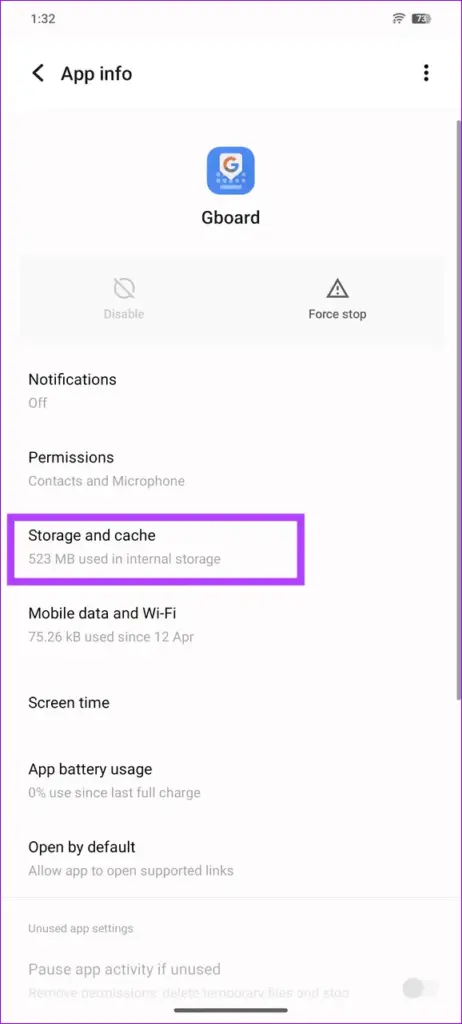
Step 1: Open Gboard's app info page
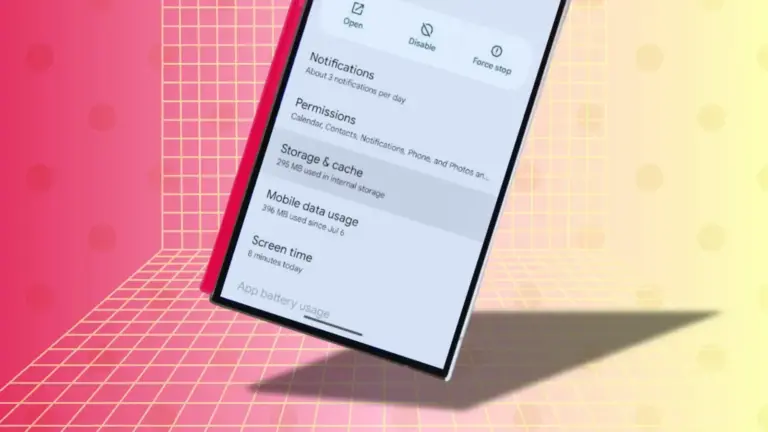
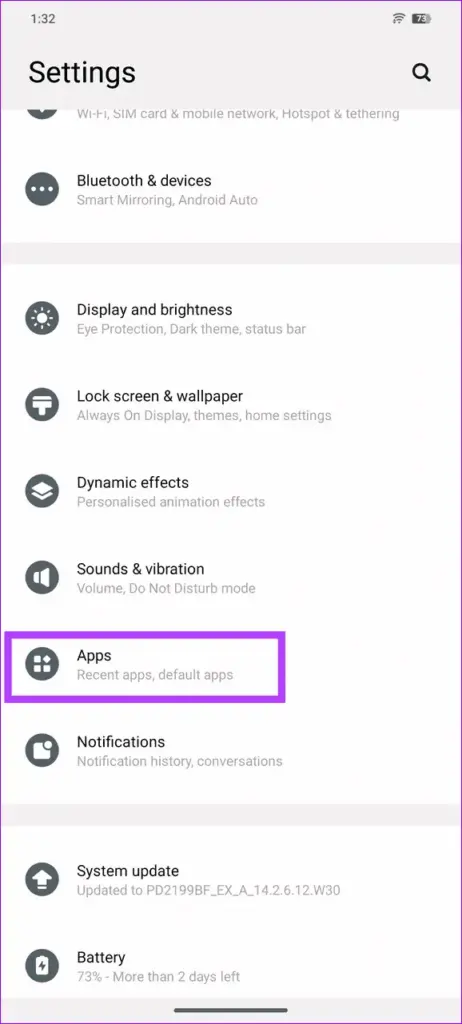
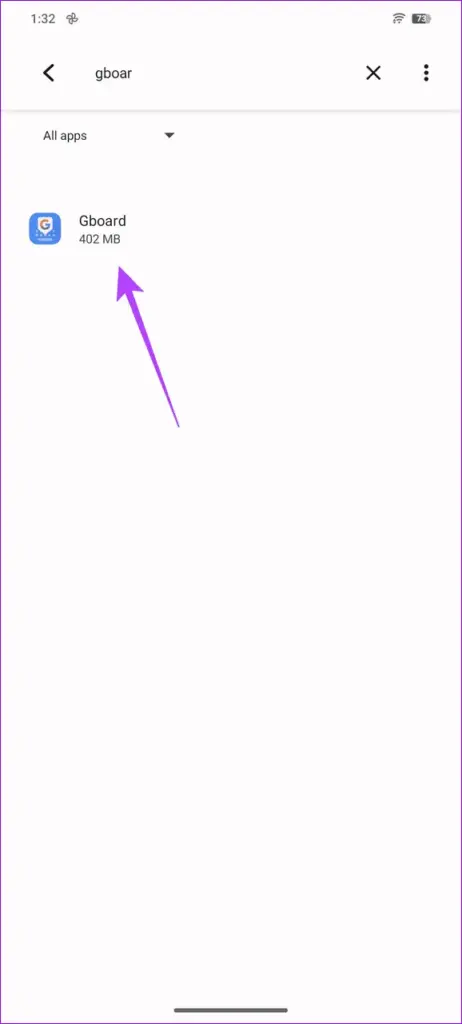
Go to your Settings app, tap Apps (or Apps and notifications on older versions), then find and tap Gboard in the list.
Step 3: Clear the cache first
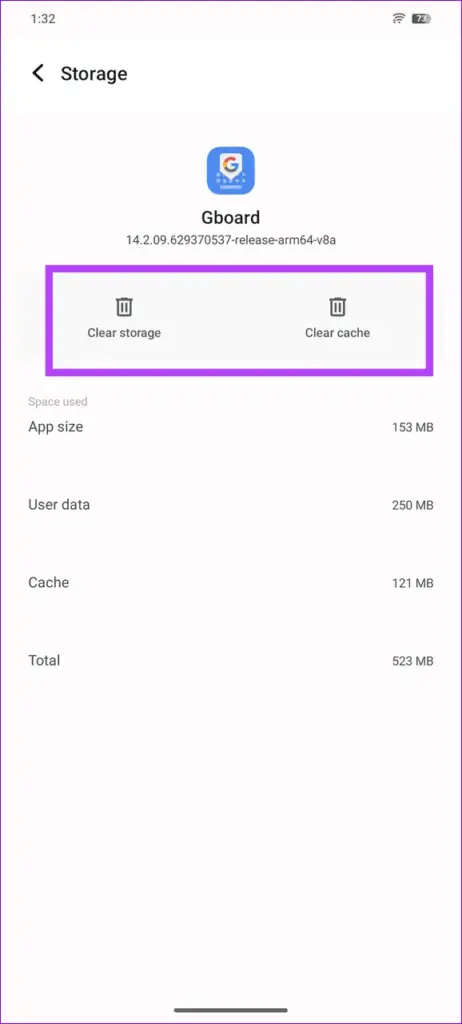
Tap Clear cache. Reopen the search bar to see if the crash is gone before doing anything more drastic.
Step 4: Clear data if the crash continues
If clearing cache alone did not help, go back and tap Clear data (sometimes labeled Clear storage). This wipes Gboard’s personal dictionary, typing history and custom settings, then restores it to a fresh install state.
Tip: You will need to reconfigure Gboard's themes and typing preferences after this step.
Force Stop and Relaunch Gboard
Force stopping Gboard kills any stuck process that clearing cache alone did not resolve.
Step 1: Force stop Gboard
From Gboard’s app info page in Settings > Apps, tap Force stop and confirm.
Step 2: Reopen the keyboard
Tap into any text field, such as the search bar or a messaging app, so Gboard relaunches from scratch. Test whether the search bar still crashes.
Tip: If Gboard is your only keyboard, keep a secondary keyboard app installed so you are never locked out of typing entirely.
Uninstall Gboard Updates
If the crashes started right after a Gboard update, rolling back to the factory version is usually the fix that actually works.
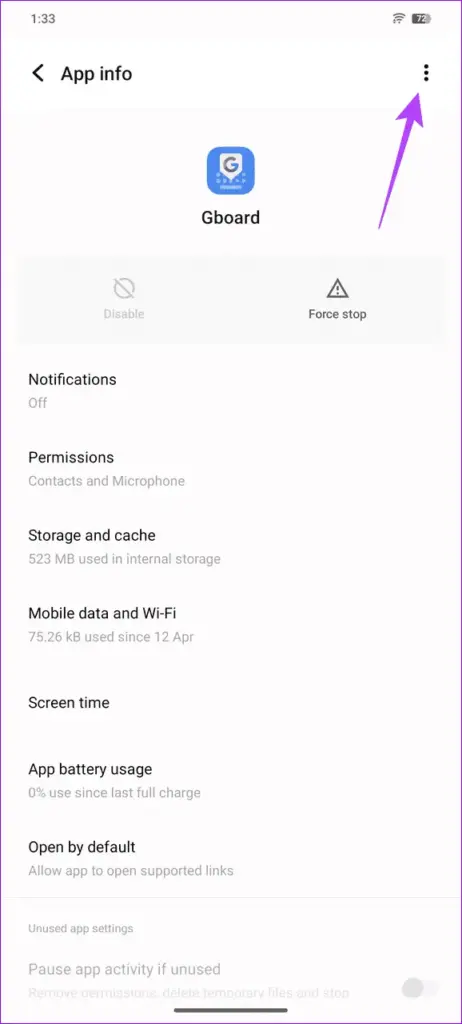
Step 1: Open Gboard's three-dot menu
Go to Settings > Apps > Gboard. On newer Play Store versions you may need to tap See all apps first to find Gboard in the full list. At the top right of Gboard’s info page, tap the three-dot More menu.
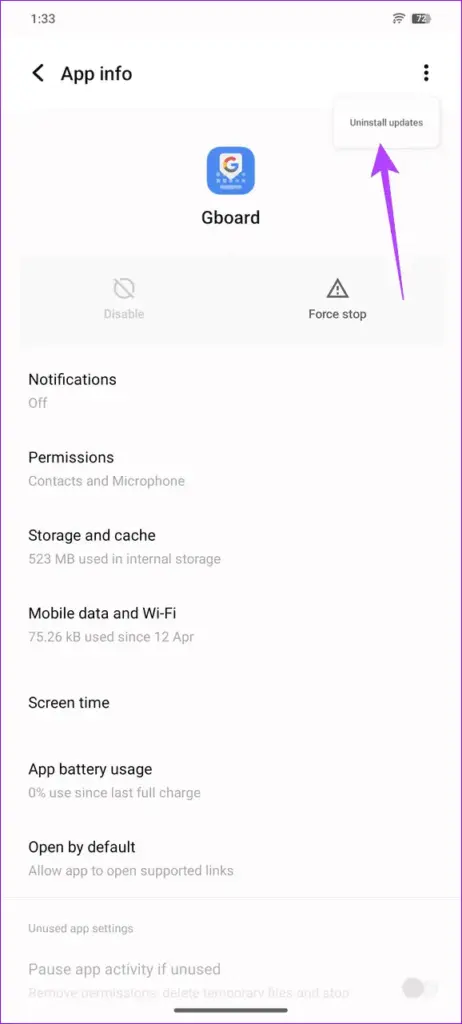
Step 2: Tap Uninstall updates
Select Uninstall updates from the menu, review the confirmation notice, and tap OK. This replaces the current version of Gboard with the one that shipped on your phone, removing the buggy update along with its data.
Tip: This can also remove recent bug fixes bundled with the update, so reinstall the latest version later once Google patches the crash.
Temporarily Remove Extra Keyboard Languages
Gboard commonly crashes when several language packs are installed at once, so trimming them down can stop the crash without touching cache or updates.
Step 1: Open the on-screen keyboard settings
Go to your Settings app, tap the search icon in the top right, and type On-screen keyboard to jump straight to the Gboard language settings.
Step 2: Remove all languages except one
Open Languages under Gboard and delete every language except the one you use most. Test the search bar, then add languages back one at a time to find which one triggers the crash.
Reset App Preferences
If cache clearing and the update rollback did not help, a suppressed app preference somewhere on your phone may be blocking Gboard from running properly.
Step 1: Open the app list menu
Go to Settings > Apps > See all apps, then tap the three-dot menu at the top right of the full app list (not Gboard’s own page).
Step 2: Reset app preferences
Tap Reset app preferences and confirm. This re-enables any disabled apps and clears default app choices, but does not delete app data, so it is safe to try before reinstalling anything.
Reinstall Gboard from Google Play
If none of the above worked, a clean reinstall clears out anything the previous fixes missed.
Step 1: Install a backup keyboard first
If Gboard is your only keyboard app, open Google Play and install another keyboard, such as SwiftKey, so you can keep typing while Gboard is removed.
Step 2: Uninstall Gboard
Go to Settings > Apps > Gboard and tap Uninstall.
Step 3: Reinstall from Google Play
Open the Play Store, search for Gboard, and tap Install. Set Gboard back as your default keyboard once it finishes installing.
Pro tips
- Test the search bar after every single fix rather than applying several at once, so you know which step actually solved it.
- Keep a second keyboard app installed as a safety net in case Gboard crashes again.
- Reinstall the latest Gboard update once Google releases a patch, since uninstalling updates only gives you a temporary workaround.
Frequently asked questions
Why does Gboard only crash in the search bar and not other apps?
Search fields often trigger Gboard’s suggestion and personalization features more aggressively than a basic text box, so a bug affecting those features shows up there first.
Will uninstalling Gboard updates delete my saved words?
Yes, it resets Gboard to its factory state, which clears your personal dictionary and any custom settings along with the problematic update.
What if Uninstall updates is grayed out or missing?
Some phones and Android versions do not support rolling back this particular app. In that case, clear the cache and data instead, or wait for Google to push a fixed update.
I can't type at all because the keyboard won't open. What do I do?
Clear Gboard’s cache and data from Settings, or temporarily switch to a secondary keyboard app like SwiftKey until Google releases a fix.
Most Gboard search bar crashes clear up once you uninstall the problem update or clear its cache, so there is rarely a need to go further than that. If the crash returns after a future update, check our Gboard cache guide or the related Search fields troubleshooting article for more Pixel-specific fixes.
Sources and further reading
- Support Google
- Verizon
- Iobit — How to Uninstall Updates on Android & Roll Back Safely
- Guiding Tech — 5 Ways to Fix Gboard Not Working on Android